We'll cover how to work with reservations in innRoad and basic actions you'll perform on a daily basis.
- Creating Reservations
- Check-in Reservations
- Check-out Reservations
- Searching for Reservations
- Modifying Reservations
- Moving Reservations
- Cancelling Reservations
- Processing Payments and Refunds
- Next Steps
If you are new to innRoad, start here. Each section includes links to more detailed articles in the Reservations section of the knowledge base.
Creating Reservations
You can create reservations in innRoad in several ways, depending on how the booking is received.
- Manual reservationsfor phone calls, walk-ins, or direct emails
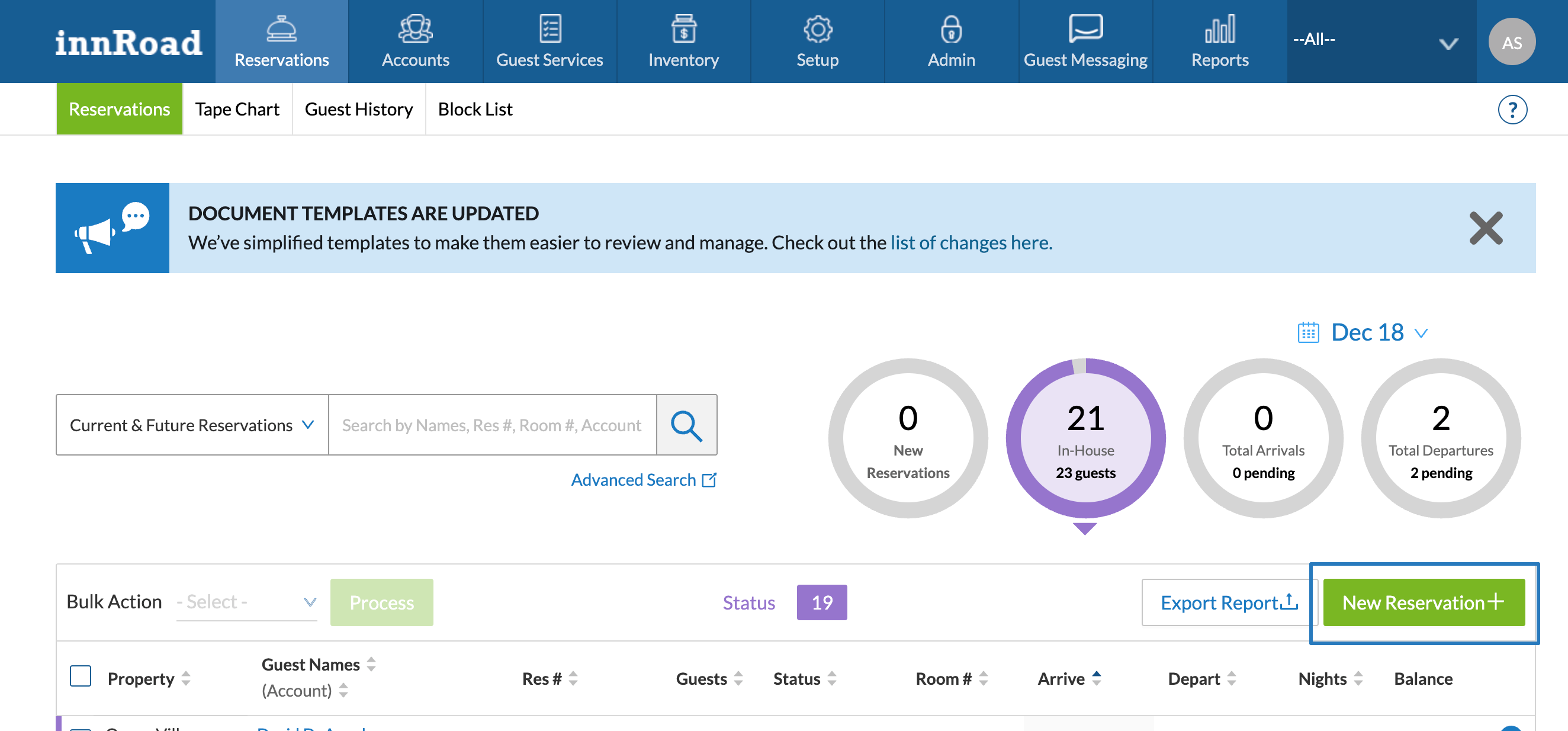
- Reservaiion Dashboard:
- ClickNew Reservation
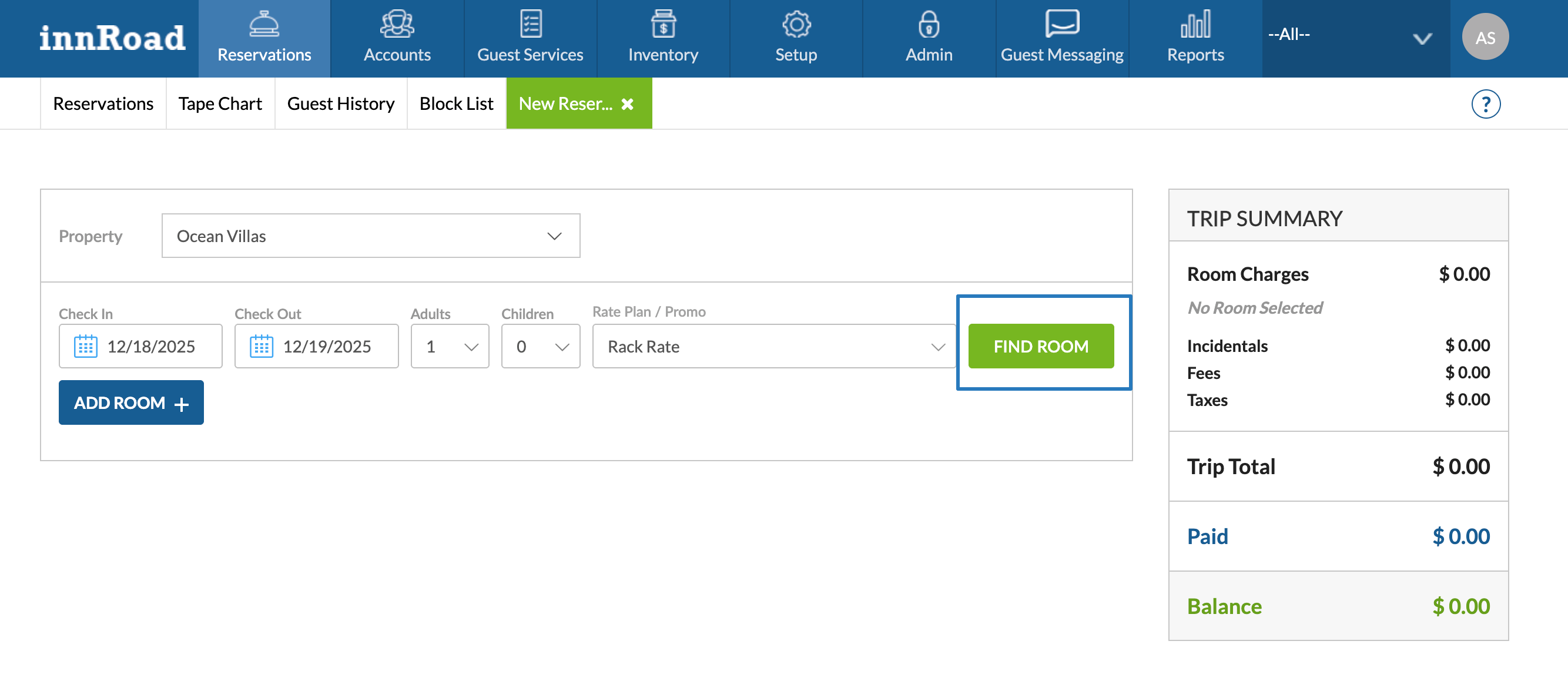
- Search for Dates
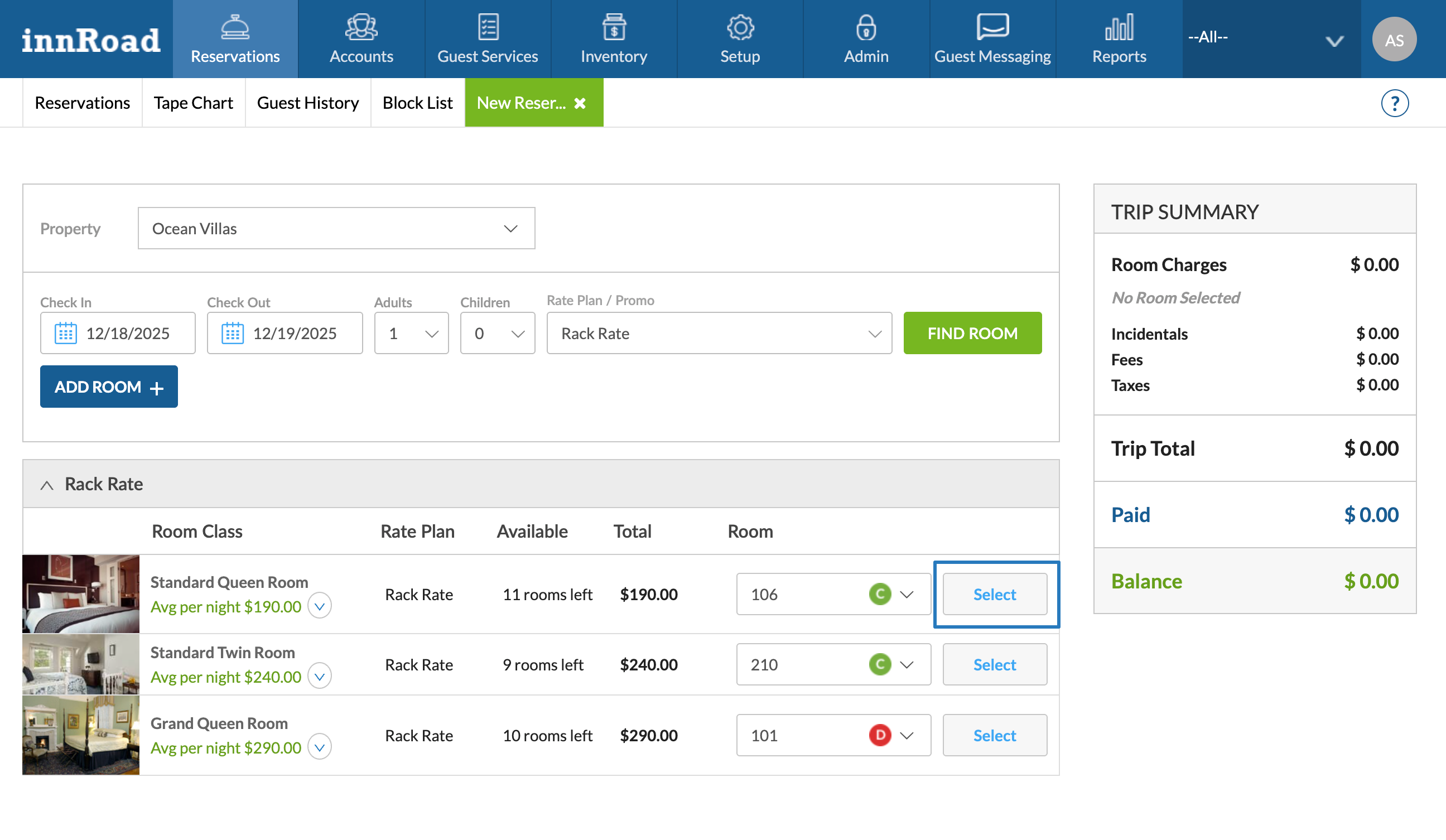
- Select Rooms
- Fill out Guest Details
- Click Book Now
- ClickNew Reservation
- Tape Chart: Select available rooms and dates
- Select a range of dates, and clickCreate Reservation
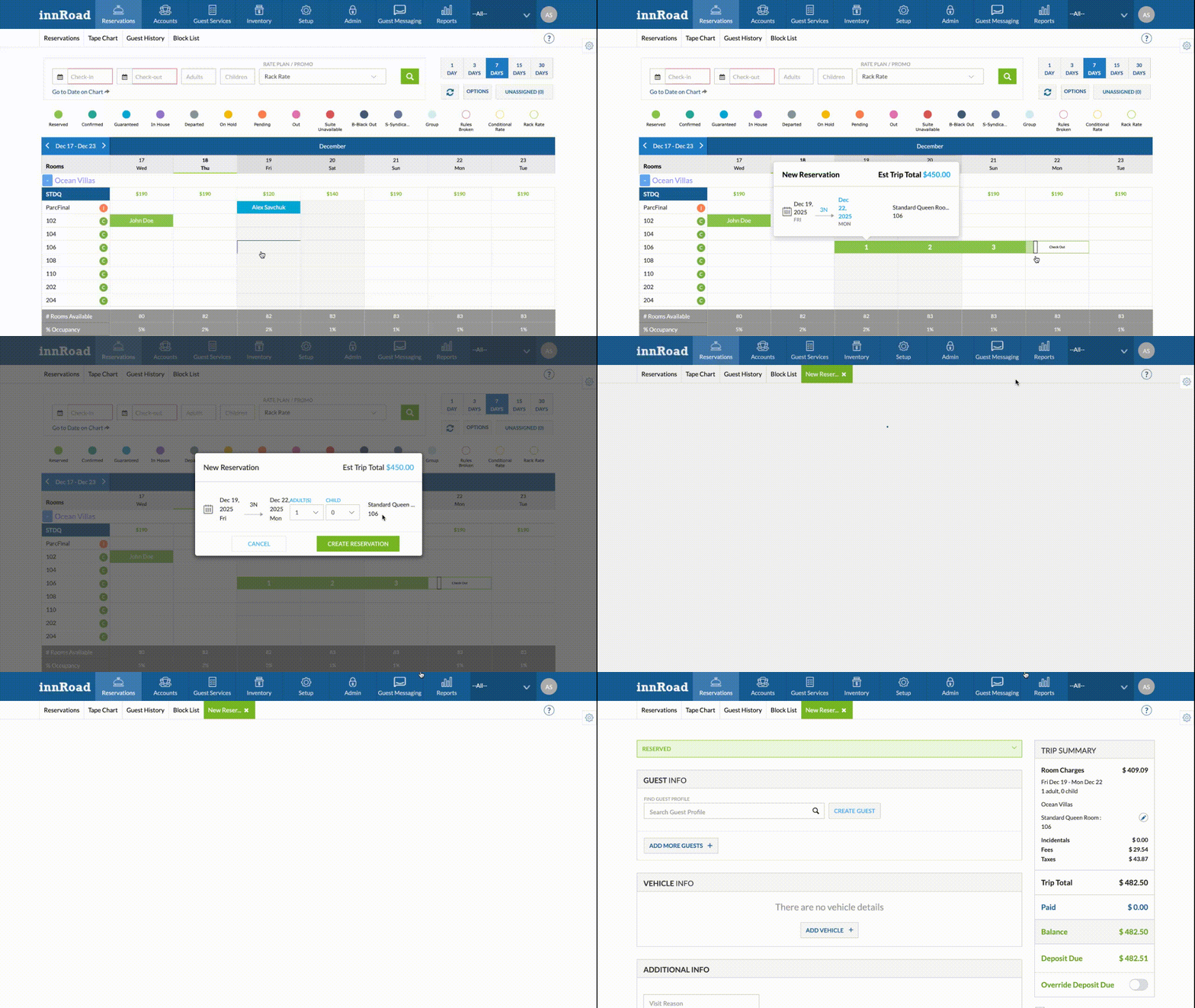
- Select a range of dates, and clickCreate Reservation
- Reservaiion Dashboard:
- Automatically from connected booking channels (Booking Engine, OTAs)
Learn more:
Check-in Reservations
When guests arrive at your property, you need to check-in their reservation.
Doing this process will:
- Set the Reservation Status to In-House
- Process any payment due as part of your Check-in Policy
- Create Tasks related to Check-in
- Update the room status to Occupied
How to process a check-in:
- Log in to innRoad
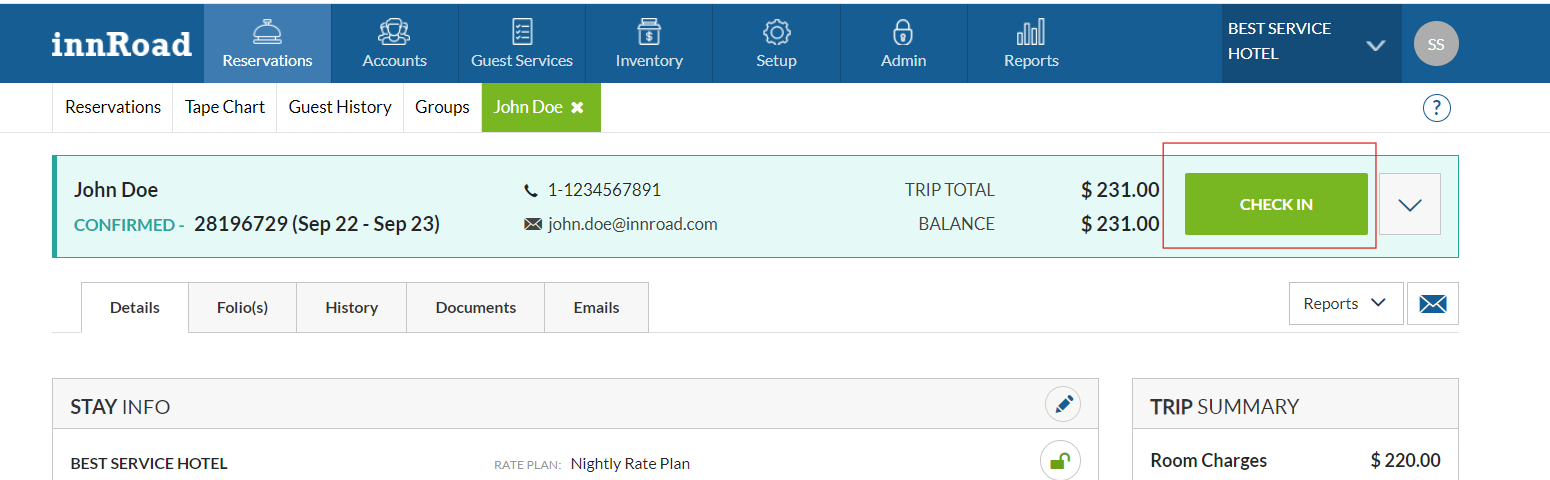
- Open the Reservation you want to check in
- Click Check In button in the top right corner
- Click "Confirm Check In"
If the rate plan for this reservation has a Check In policy, the system will prompt you to authorize or collect a deposit.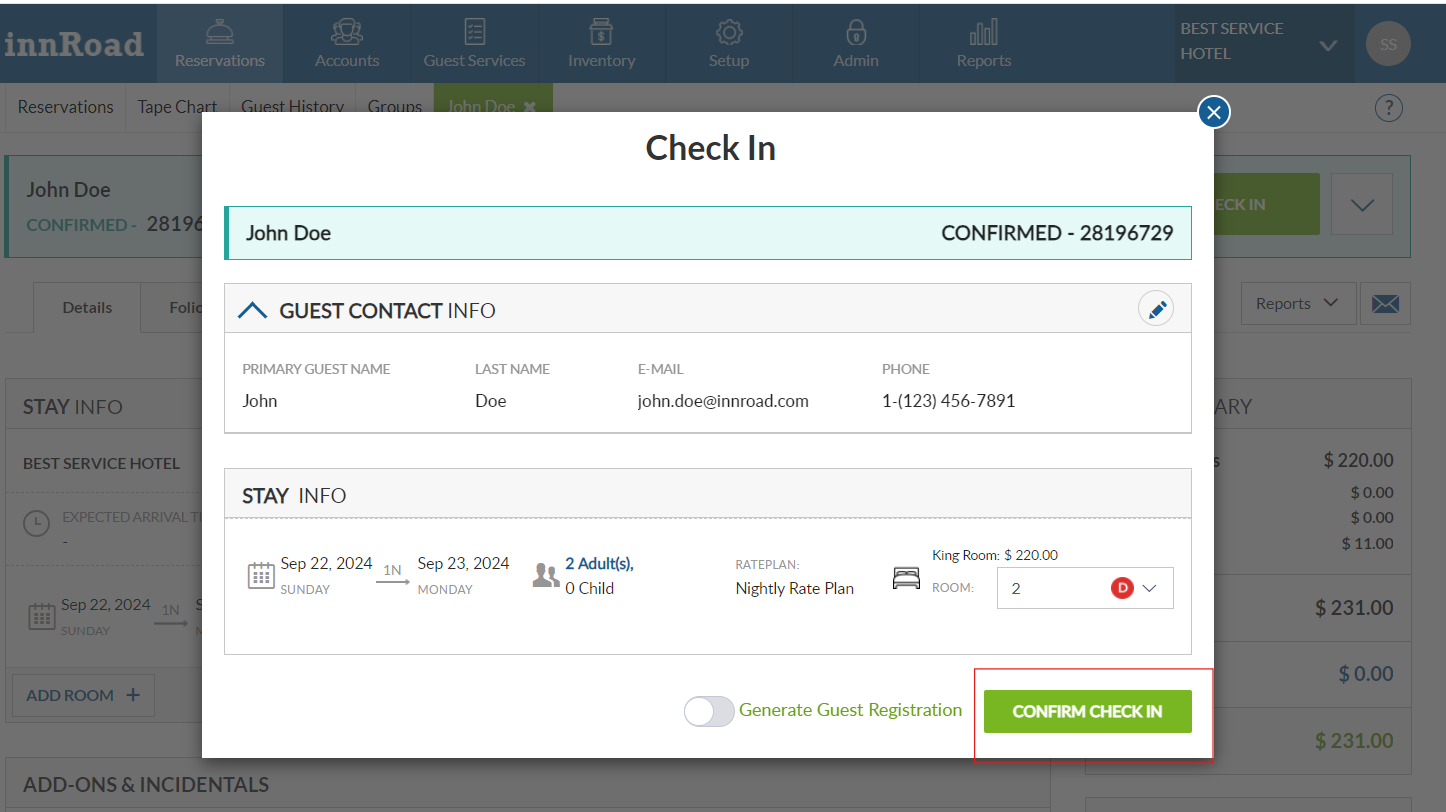
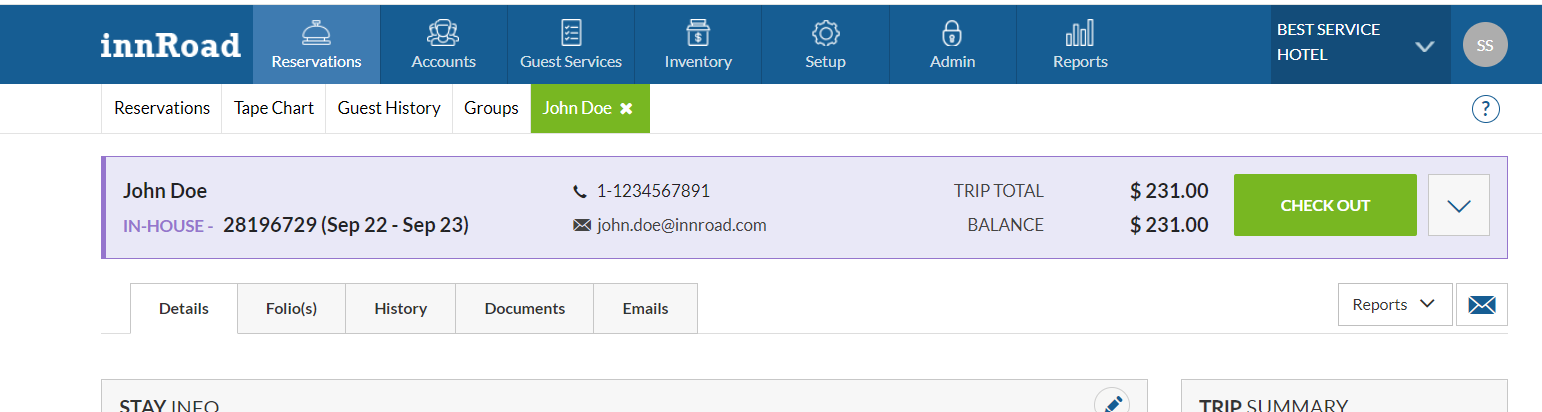
- Reservation becomes in-house, and the guest is checked in.
Learn More: How to Check In
Check-out Reservations
When guests end their stay at your property, you need to check-out their reservation.
Doing this process will:
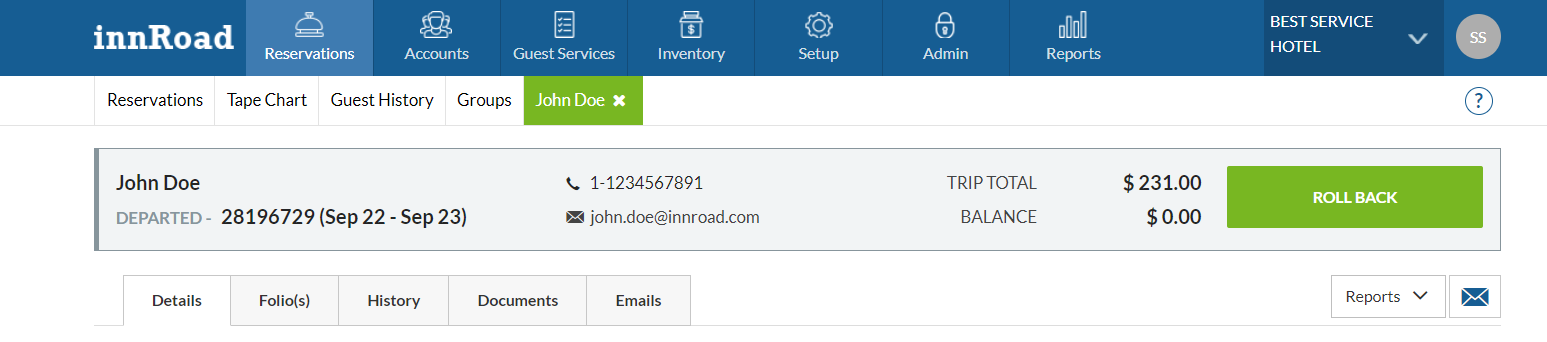
- Set the Reservation Status to Departed
- Prompt to process payment or refund for any remaining balance.
- Create Tasks related to Check-out
- Update the room status to Vacant
How to process a check-out:
- Log in to innRoad
- Open the Reservation
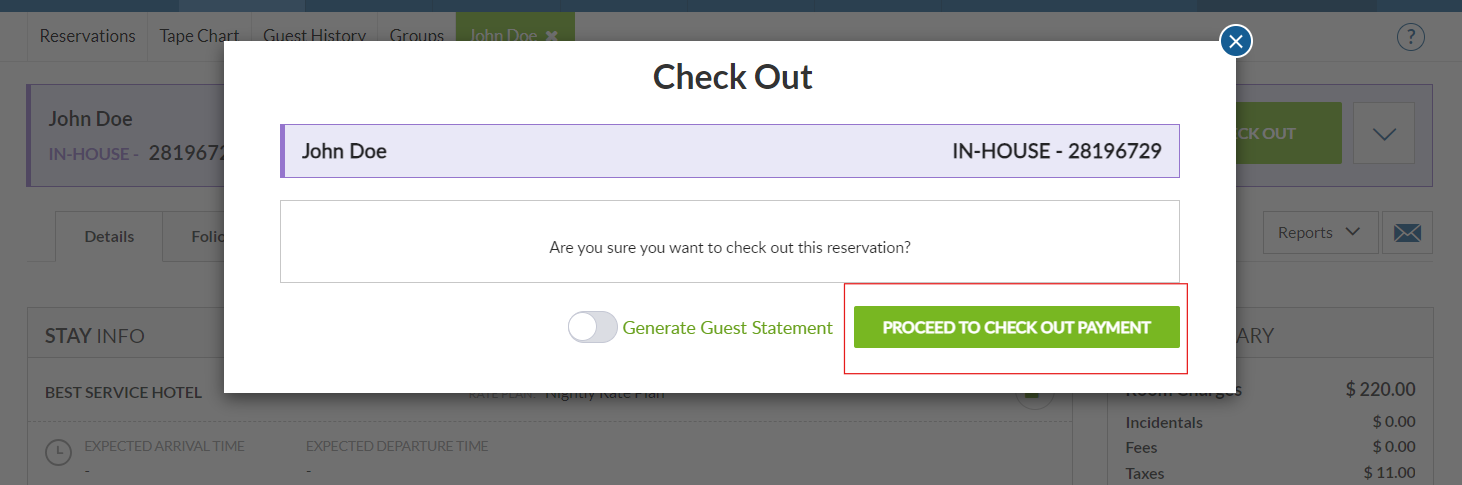
- Click the Check Out button
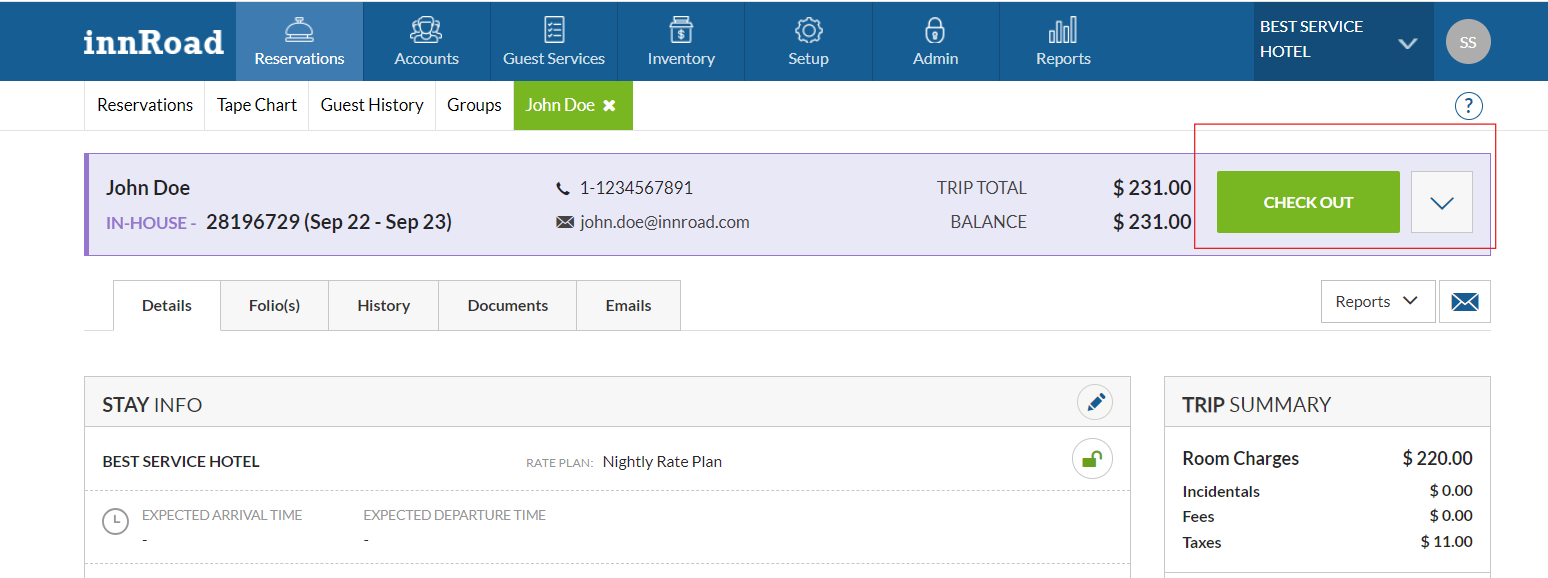
- If the reservation has pending balance, Click Proceed to Check Out Payment:
- Process payment and click Check Out
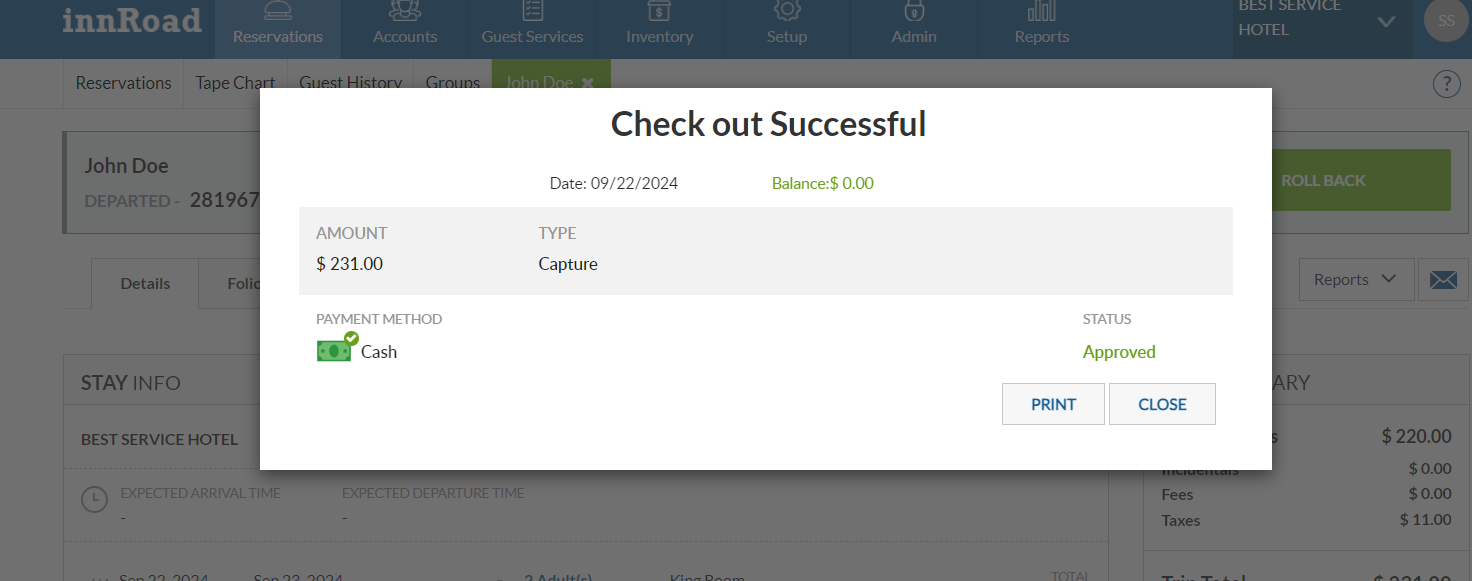
- Reservation is Departed, so check-out is complete.
Learn More: How to Check Out
Searching for Reservations
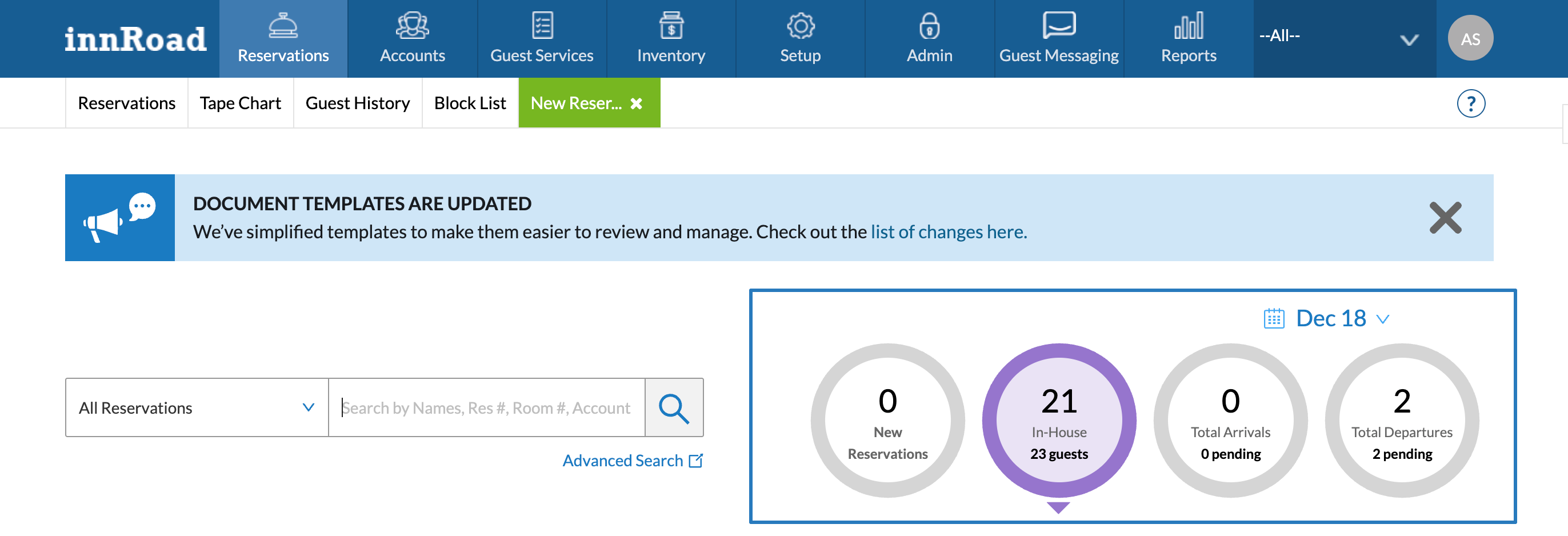
Use search to quickly find existing reservations.
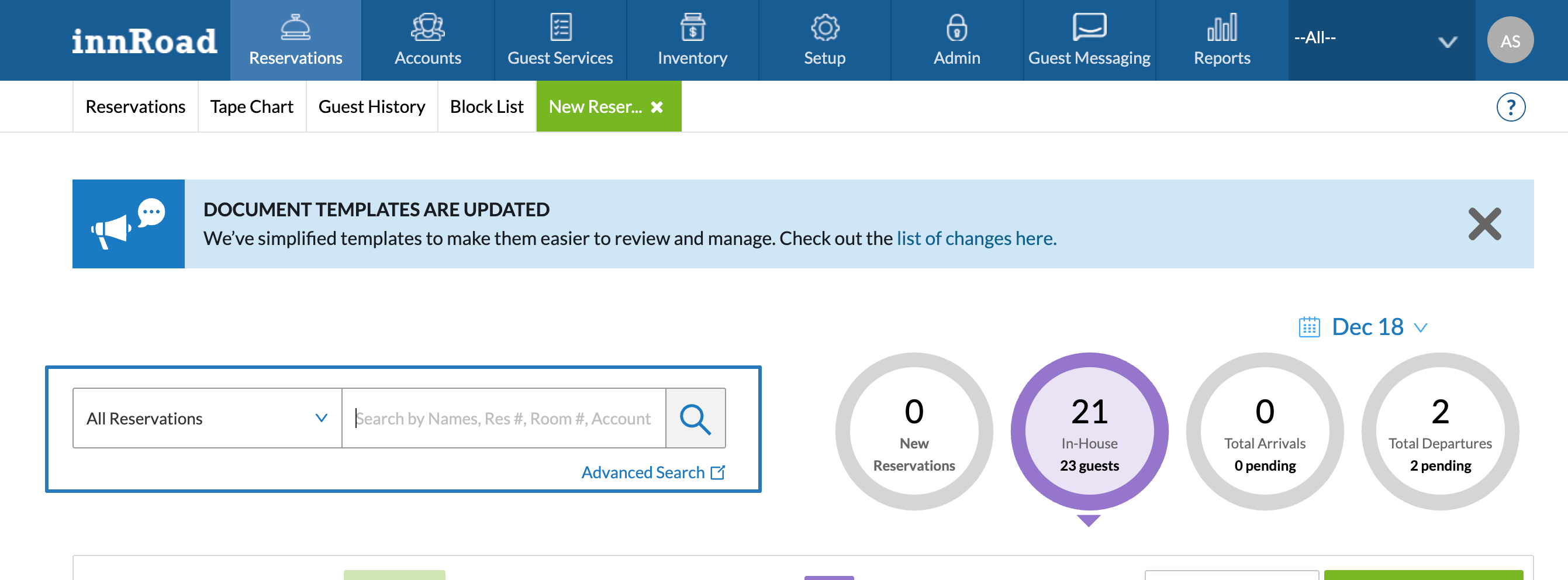
You can search by:
- Guest name
- Confirmation number
- Account name
- Room number or room type
Search is available from the Reservations Dashboard.
You can also use Quick Filters on the Reservation Dashboard to only see reservations with a specific status.
Modifying Reservations
You can update reservations to change stay details or update reservation info.
Common changes include:
- Arrival and departure dates
- Room or room type
- Rate plan or nightly rate
- Guest name and contact details
- Notes and add-ons
Some changes may affect availability and pricing.
Learn more:
Moving Reservations
Reservations can be moved to different rooms or dates when needed.
This is commonly done when:
- A guest requests a different room
- A room becomes unavailable
- You need to resolve an overbooking
There are 2 ways to move a reservation between rooms or room classes:
- Reservation Details
- Click a reservation number on the Dashboard to open it.
- Click the pencil icon to edit the reservation
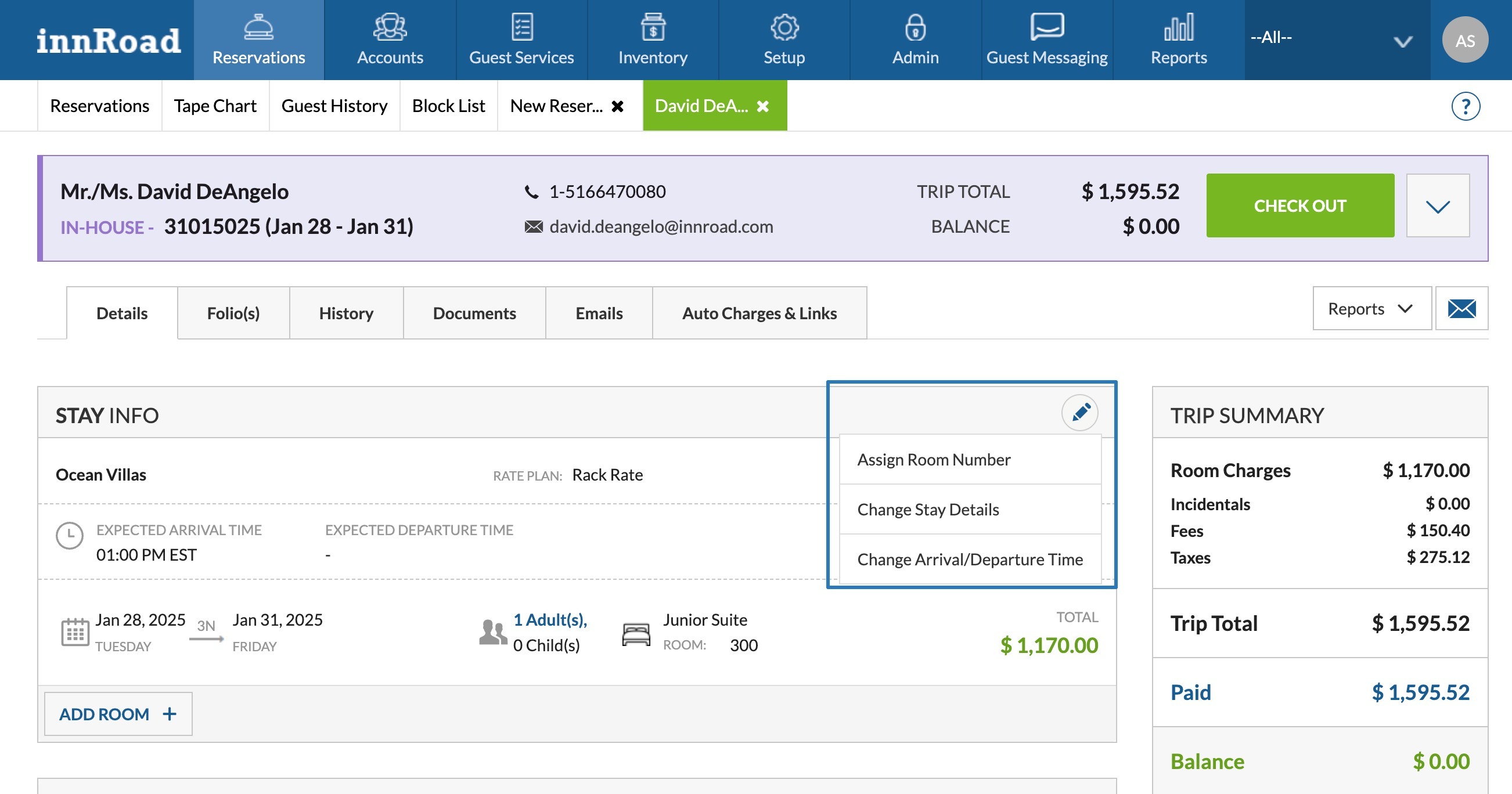
- Select Assign Room Number if you only need to change the Room Number, without changing the room class
- Select Change Stay Details if you need to change the room class as well
- Tape Chart
- Drag a reservation and drop it to the relevant room number or room class
Learn more:
Cancelling Reservations
If a guest cancels their stay, the reservation should be cancelled in innRoad.
When cancelling, you can:
- Select a cancellation reason
- This can be set as a required field as well.
- Apply cancellation fees based on the reservation's Cancellation policy
Cancelled reservations remain available for reporting and history.
Learn more:
Processing Payments and Refunds
You can process card payments through innRoad Payments, or log payments manually through other payment methods, like cash, check, or gift certificate.
If you don't have the guest's card on file, you can use the Terminal or send out a Payment Link to process payment.
Steps to Process a Payment
- Log in to innRoad
- Open the reservation needing payment.
- Choose where to take payment from:
- On the Reservation Details page by clicking Take Payment.
- Or in the reservation’s folio by selecting Folio > Pay > Take Payment.
- Check that the amount and card details are correct.
- You can adjust the amount for partial payments.
- If you want to only place a hold on the card, change the payment Type to Authorization Only.
- Click Pay (or Authorize) to process. :contentReference.
After Submission
- If approved, the system will show a success message.
- If declined, you remain on the payment screen. Try a different method or create a secure payment link for the guest.
If you do not have the guest’s card on file, it’s recommended to use a Payment Link to securely collect their payment information.
Learn More:
Next Steps
Once you are comfortable with the basics, explore more advanced reservation features such as group bookings, split reservations, payments, and reports.
Check out other articles in the innRoad Knowledge Base.
Was this article helpful?
That’s Great!
Thank you for your feedback
Sorry! We couldn't be helpful
Thank you for your feedback
Feedback sent
We appreciate your effort and will try to fix the article