Rate Plans and Rates are a core part of managing pricing, availability, and booking rules in innRoad. They allow properties to define how rooms are priced throughout the year, where those rates are distributed, and what conditions guests must meet to book them.
- Create rate plans for different booking scenarios
- Apply rules, restrictions, and policies consistently
- Adjust rates seasonally and manage availability
- Offer packages and additional products alongside room rates
If you are new to innRoad, start here. Each section includes links to more detailed articles in the Rates section of the knowledge base.
- Rate Plans and Rates
- Advanced Season actions
- Edit a rate plan
- Delete Rate Plan
- Products & Bundles
- Policies
Rate Plans and Rates
Rate Plans define how a room is priced, sold, and restricted within innRoad. It determines the room rate by ranges of dates called seasons, the channels where the rate is available, the conditions a guest must meet to book (such as length of stay or booking window), and the policies that apply.
Rate plans can also include packages, derived pricing, and special offers to support different sales strategies.
You can apply the following settings in Rate Plans:
- Rates for each room class at various points of the year.
- Channels where the rate plan should be available.
- Restrictions that the guest needs to meet to qualify for the rate.
- For example:
- Guests must stay for a minimum of 2 nights
- Guests must book 30 days in advance
- Guest must use a promo code to qualify for the rate
- For example:
- Policies for money due upon Deposit, Check-in, Cancellation and No Show.
How to Create a Rate Plan
We'll walk you through creating a new Rate Plan in your innRoad account.
Create Policies
To save time, we recommend creating Policies before setting up your Rate Plans, so you can assign Policies to the Rate Plans you create.

Skip this step if you already created the Policies you'd like to use previously.
Policies explain the terms for a booking, including:
- When payments are required as a deposit
- What happens if a guest cancels
- How much will be charged or held on check-in
- What amount is due if the guest doesn’t show up
innRoad allows you to create Deposit, Check-in, Cancellation and No-show policies.
Learn More: Creating Policies - Rates
Create a Rate plan
Rate Plans are sets of prices for room classes for specific channels with their restrictions and policies.
The types of rate plans are:
Nightly Rate | Rate applied on a per-night basis. |
Interval Rate | Rate applied to a set of days sold together. Weekly Rate for 7 nights would have interval of 7. |
Package Rate | Rate applied to a room including other products or services. Products and bundles are needed to create package rates. To create Products & bundles please click here. |
Derived Rate | Rate applied by increasing or decreasing a fixed amount or a percentage from an already available rate plan. |
To create a new Nightly Rate Plan
- Go to Inventory> Rates Grid
- Click Add Rate Plan
- Select the Rate Plan Type you'd like to create:

- Fill in the Rate Plan name, DisplayName and Description:
- Rate Plan names are what you see in innRoad.
- Rate Plan Display Names are what the guest sees in the innRoad Booking Engine and in communication templates, and folio item names.
- Descriptions display on the innRoad Booking Engine.
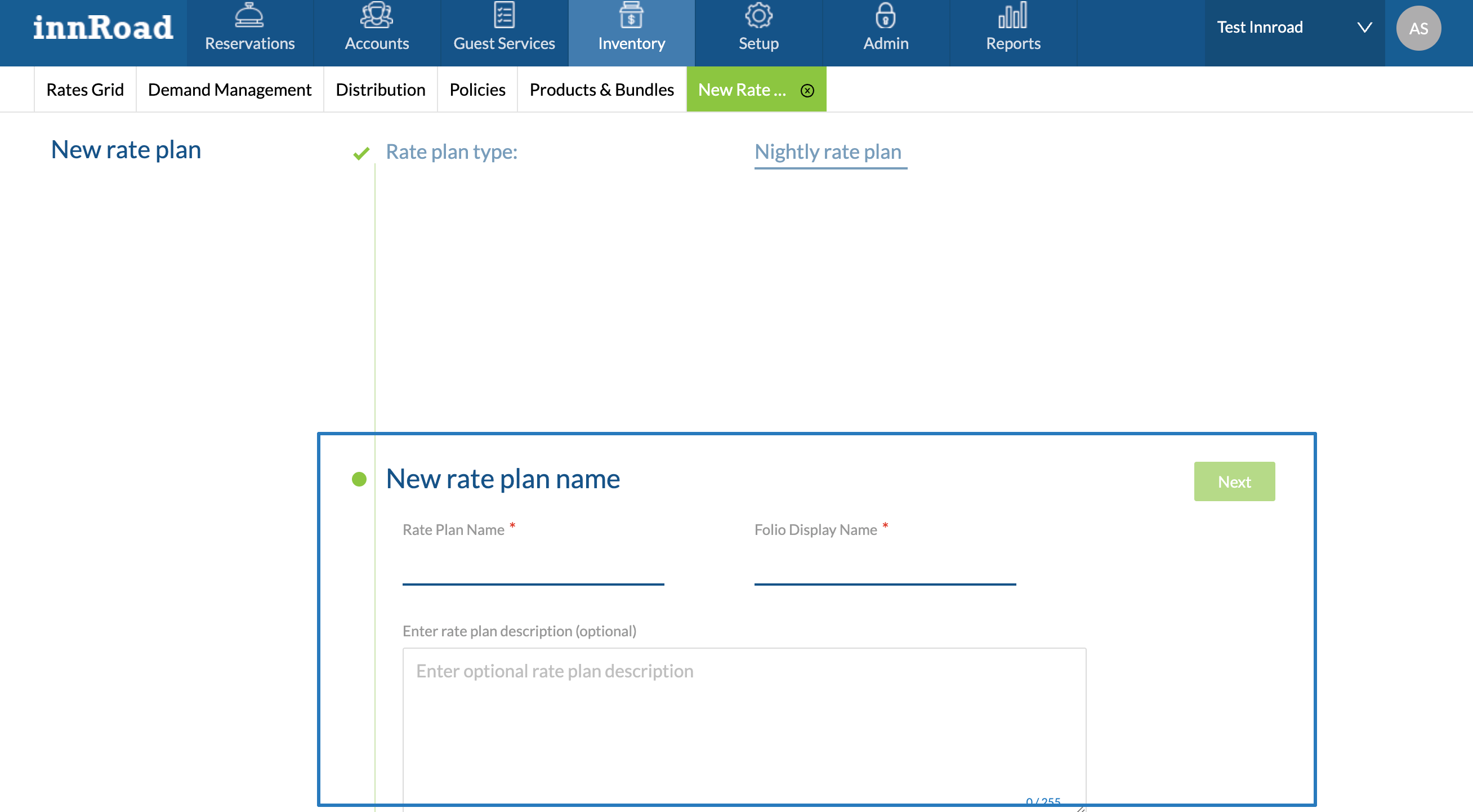
- Click Next.
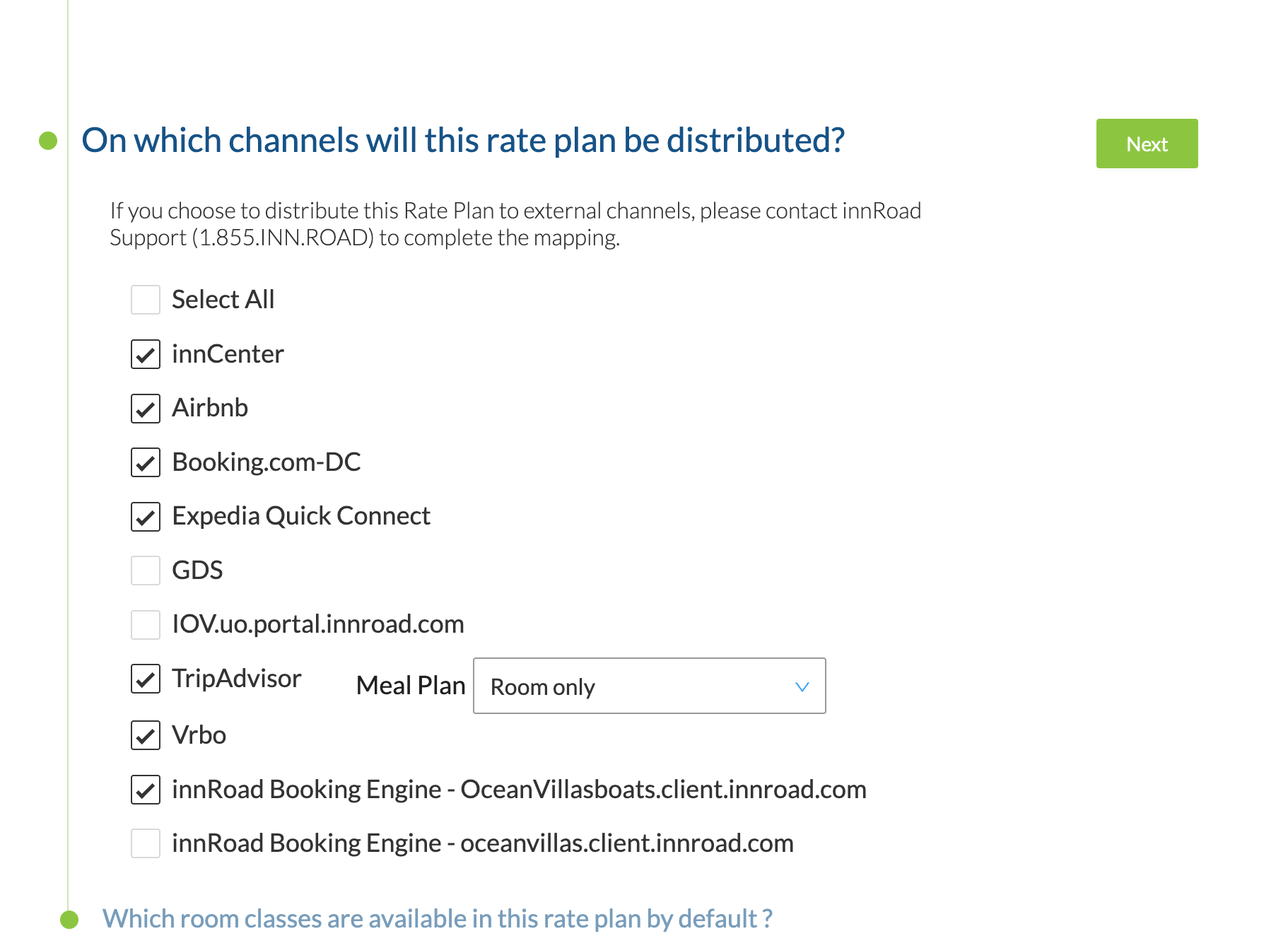
- Select Channels where this Rate Plan will be offered and click Next:
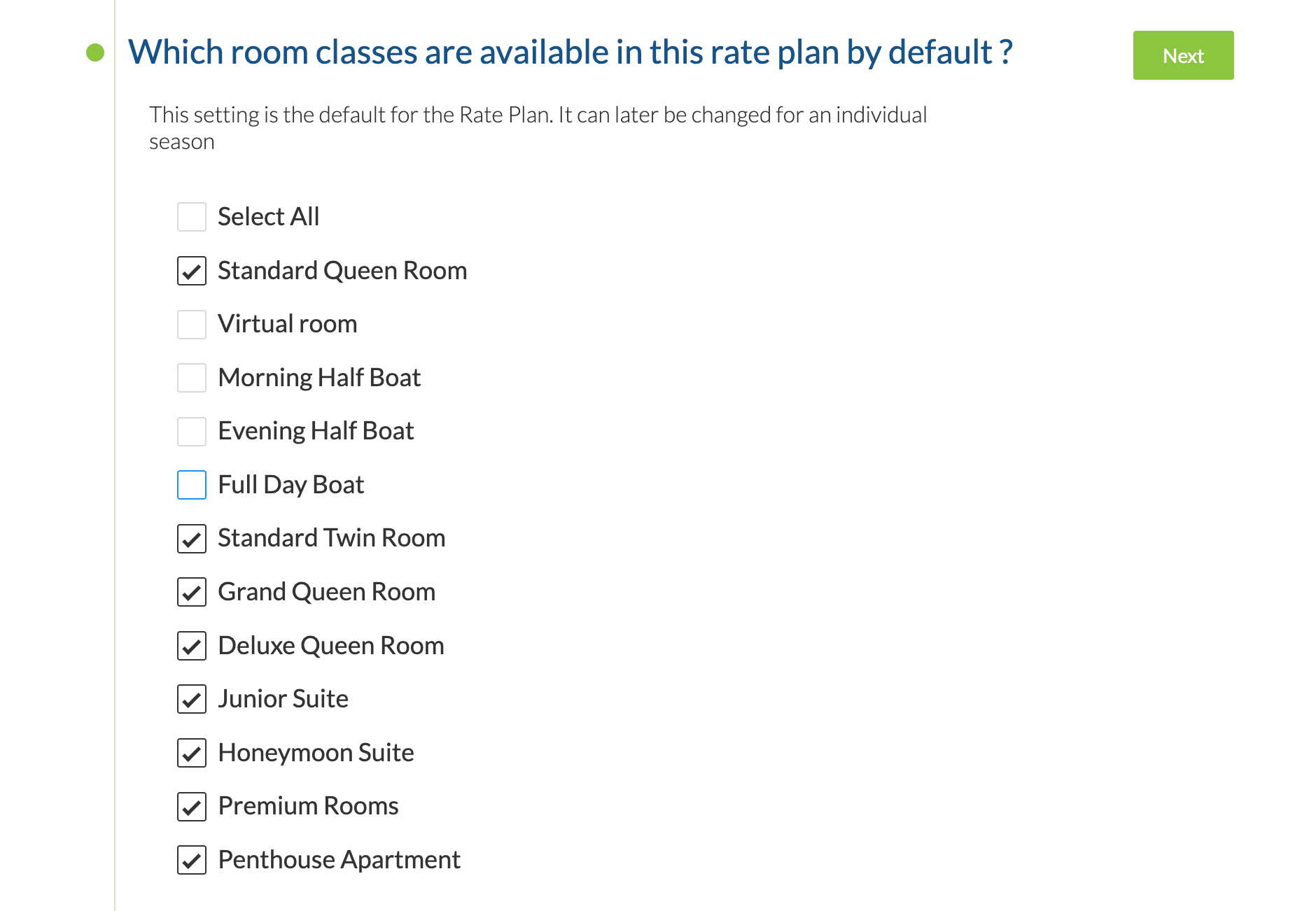
- Select Room Classes that will be sold, and click Next:
- Select applicable restrictions. If you don't want to apply restrictions to this Rate Plan, click Next.
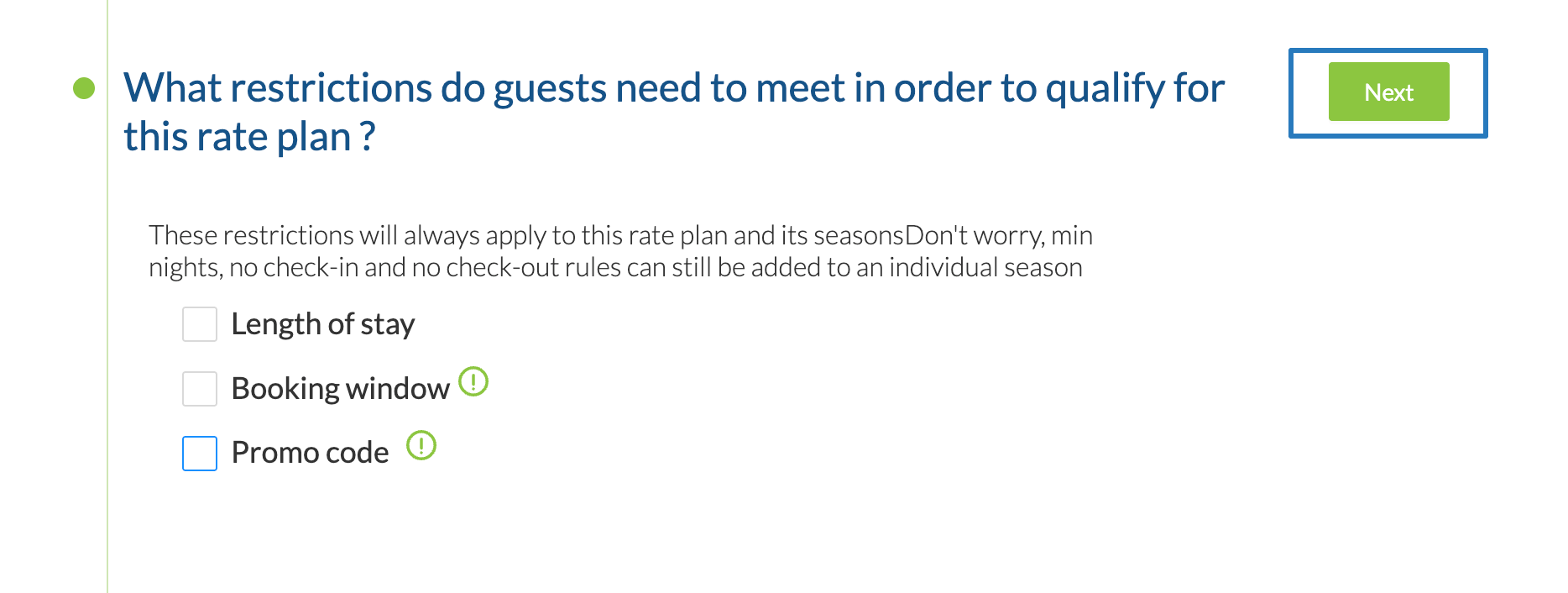
Rate Plans with Restrictions are not synced to OTAS. If you want to apply restrictions to Booking.com or Expedia rates, set up the restriction on the OTA.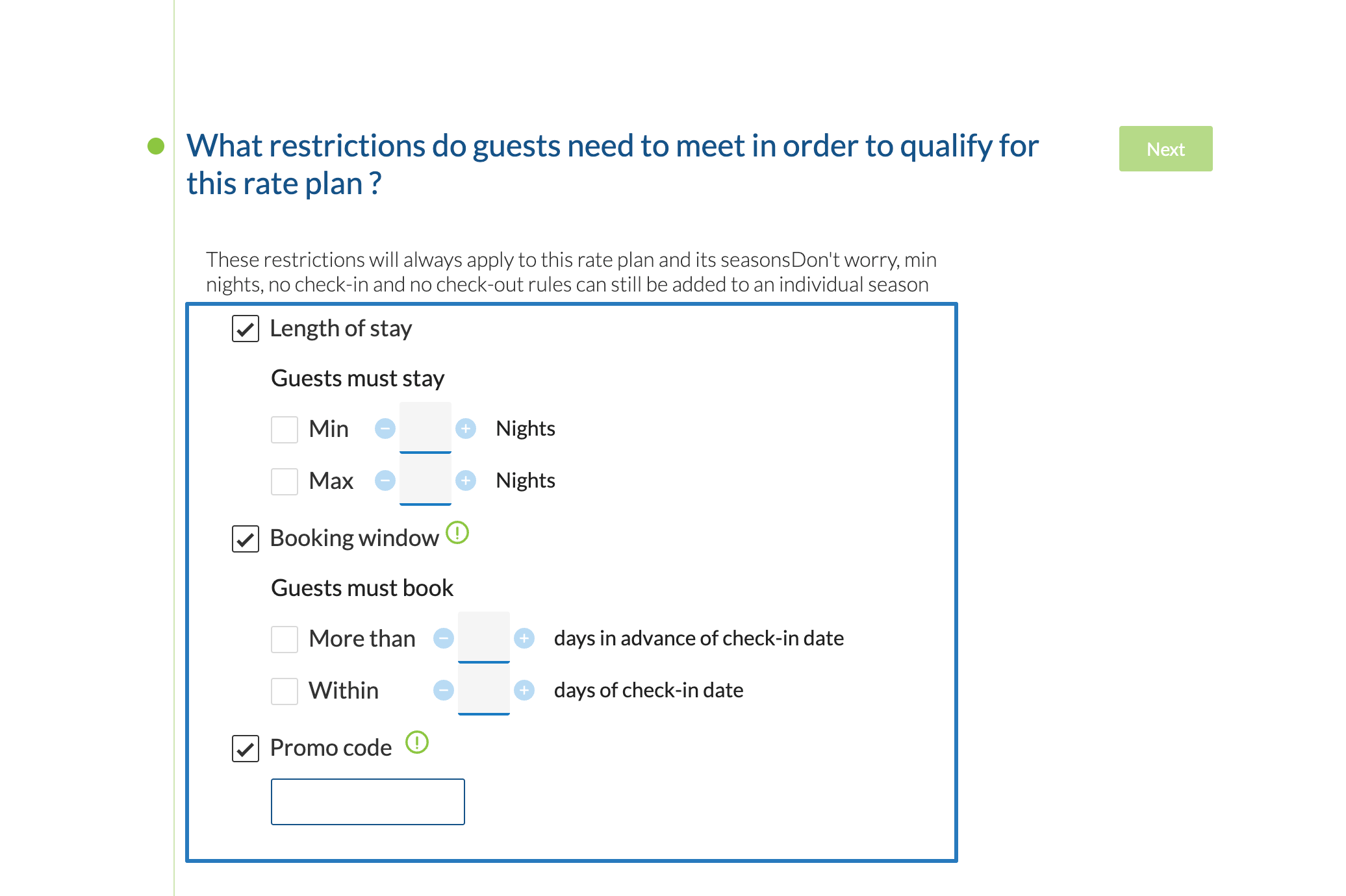
- Length of Stay
- Select minimum and Maximum stay restrictions. If guest selects stay dates that don't match this condition, they won't see this Rate Plan as an available option.
- Booking Window
- Select minimum and maximum days in advance that a guest must book to get the rate.Useful for setting up Advance Purchase or Last Minute savings rates.
- Promo Code
- Guests must enter a Promo Code to see this rate option. Only applicable for the innRoad Booking Engine.
- Length of Stay
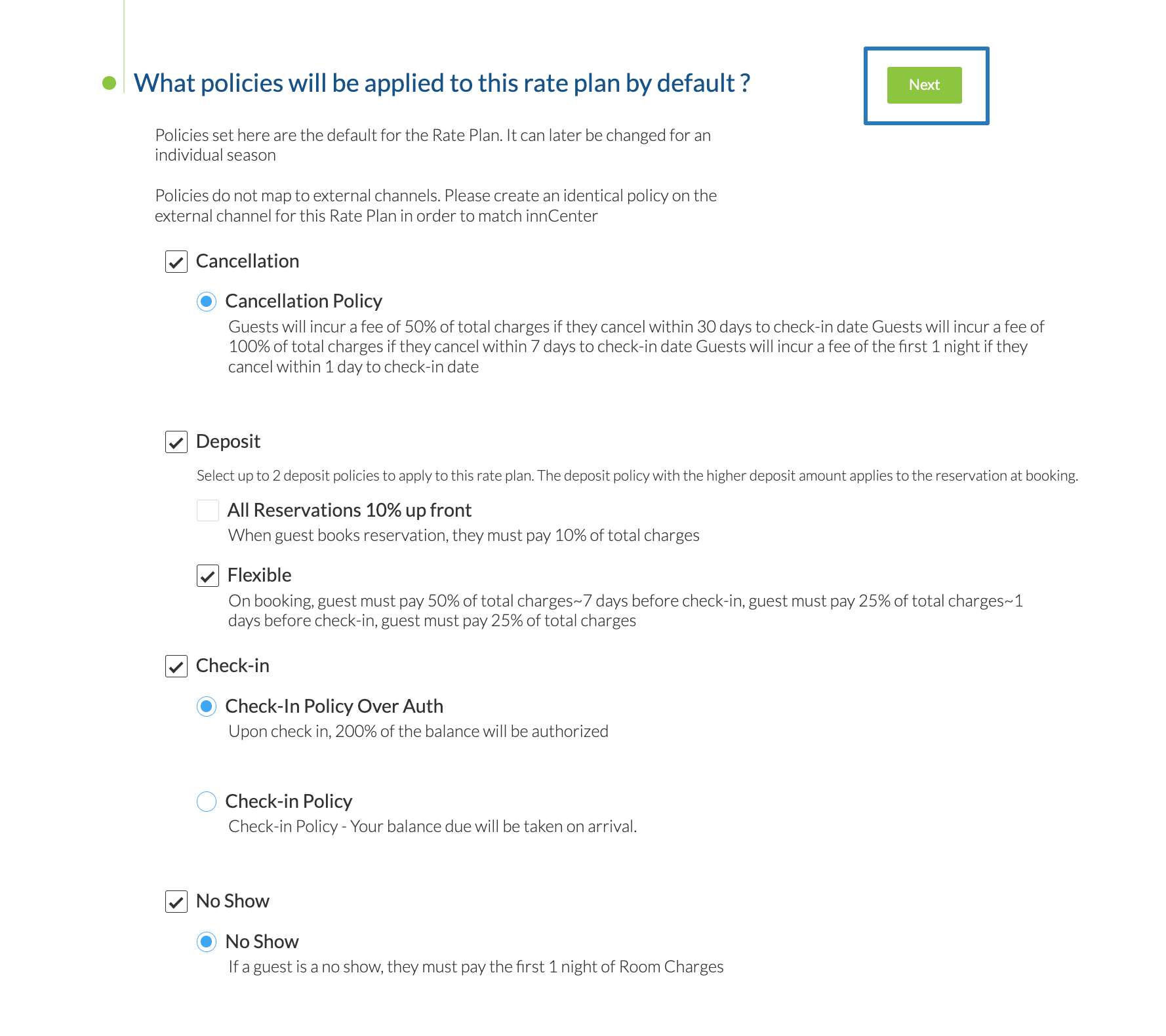
- SelectDefault Policies for this Rate Plan. Those policies apply to any new season you create for the Rate Plan.
- Review the Rate Plan you've created. If you want to change any of the configurations, click the underlined text to open that section again.
Click Save & Create season to proceed.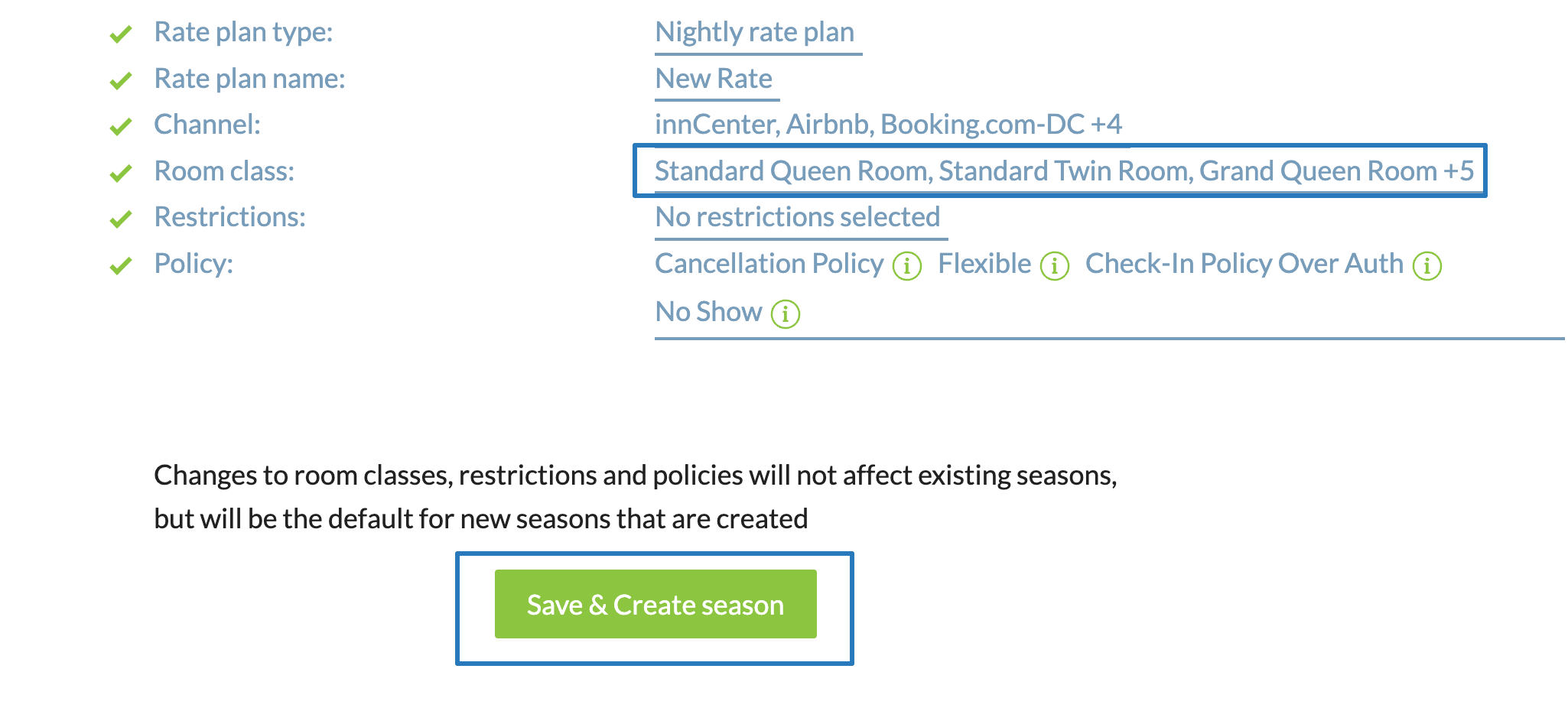
Now, you've created a Nightly Rate Plan for your property! The next step is to set up prices for dates by creating Seasons.
Learn More:
- Creating a Promo Rate Plan
- Creating a Weekly (Interval) Rate
- Creating a Package Rate
- Creating a Derived Rate
Create Seasons
Generally, room prices, booking rules and policies are different throughout the year. For example:
- Set higher prices for busy months, to maximie revenue from higher demand.
- Set higher deposit and cancellation amounts for holidays, weekends, or event dates
- Set minimum length of stay for low seasons
Use the season to set the rates, rules, and policies for a range of dates in a rate plan.
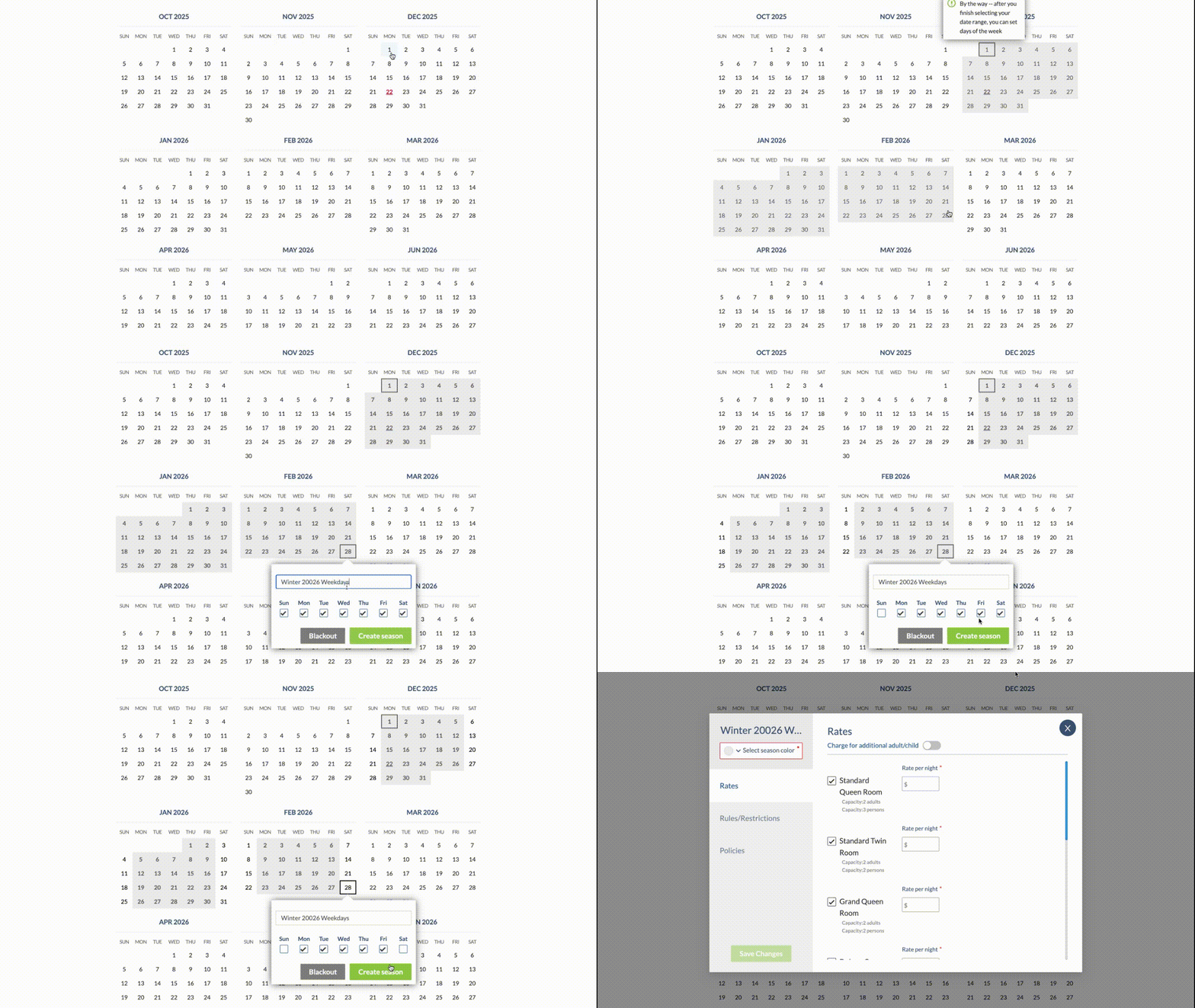
- Select the Season's Start Date
- Select the End Date
- Enter the Season's name, only visible inside innRoad
- Select the days of the week included in the dates:
Set Prices
First, select the season's color for the season on the calendar.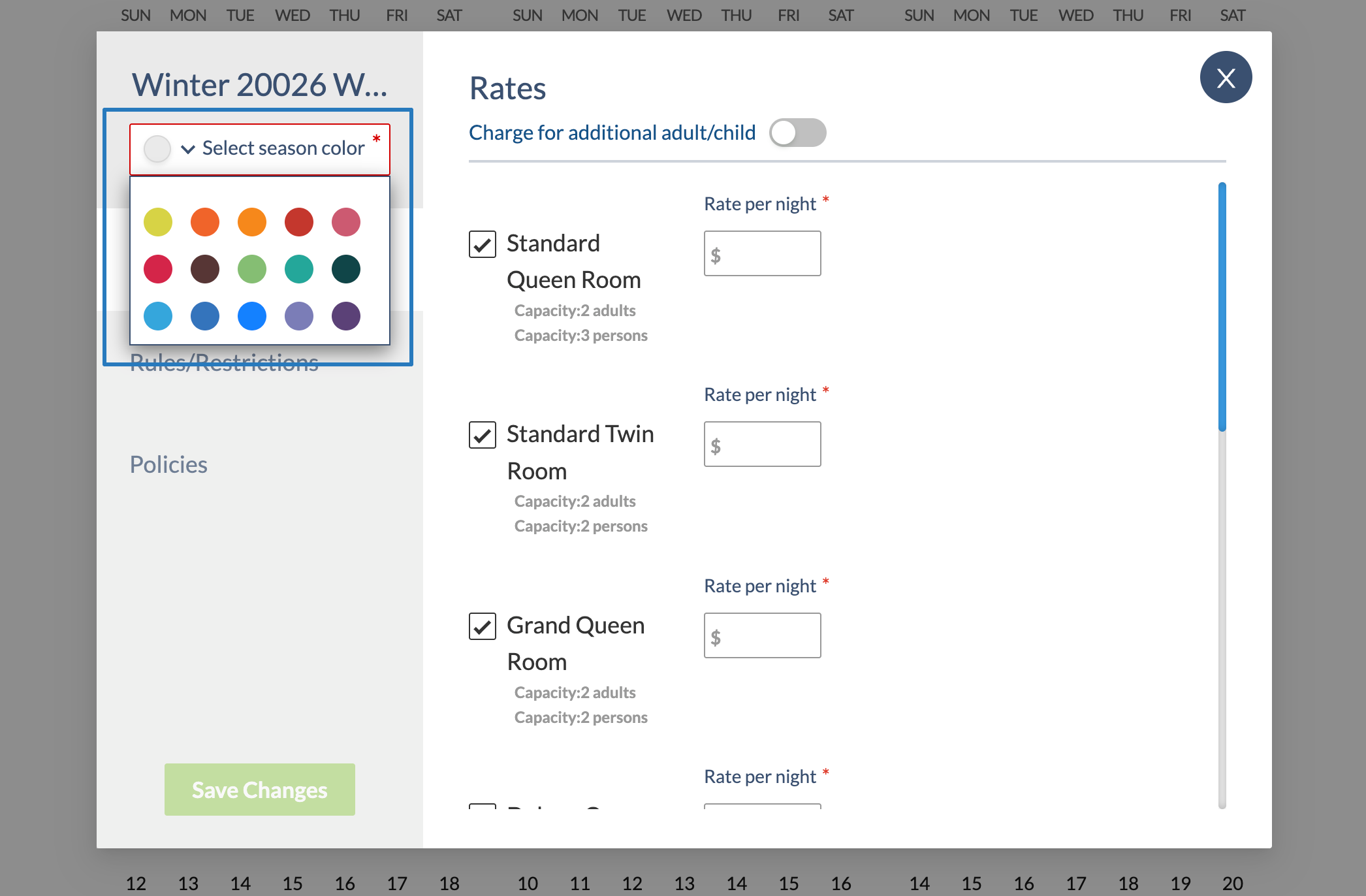
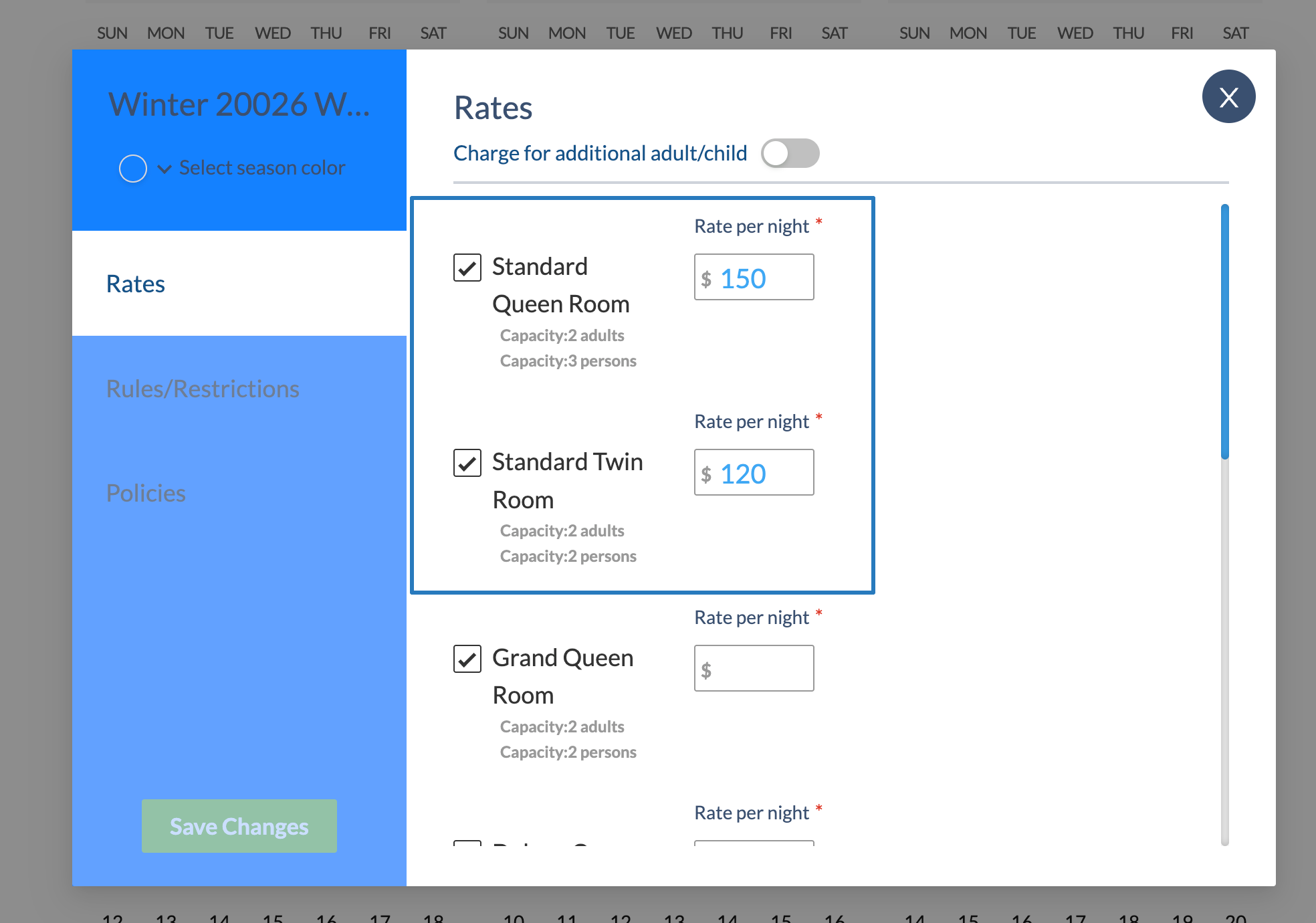
Then, define the rates for the room classes to be sold in that season.
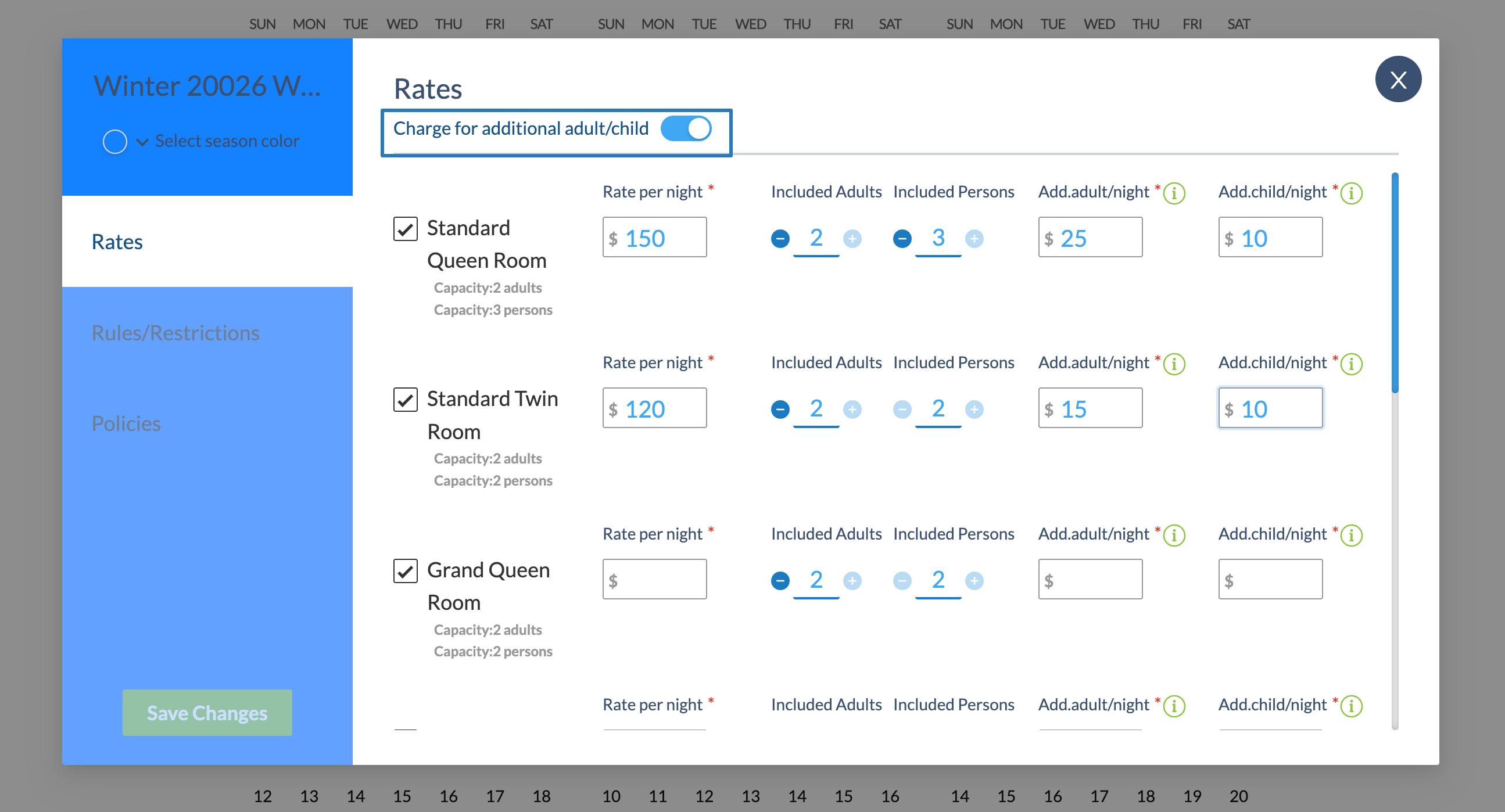
You can also set a standard occupancy included in the price, and charge an additional amount for each person above the standard occupancy.
- Enable the Charge for additional adult/child setting
- Set the number of Included Adults and Persons
- Apply the extra amount for adults beyond the included adults and persons for this rate:
Congratulations, you've set a price for your season. Next, apply Season Rules (No Check-in, No Check-out, Minimum length of stay) and review Rate Plan Restrictions.
Apply Season Rules and Rate Plan Restrictions
Rate Plan Restrictions are applied to all dates within the season. If the guest's search criteria doesn't match Rate Plan restrictions, they don't qualify for the Rate Plan.
Rate Plans with Restrictions (Min/Max Length of Stay, Booking Window, Promo Code Rate plans) are not synced to OTAs.
Season-level rules are applied on top of Rate Plan restrictions to specific dates. Rules define the availability of the room class for dates included in a season.
To create rules in a season:
- Click Rules/Restrictions in the sidebar.
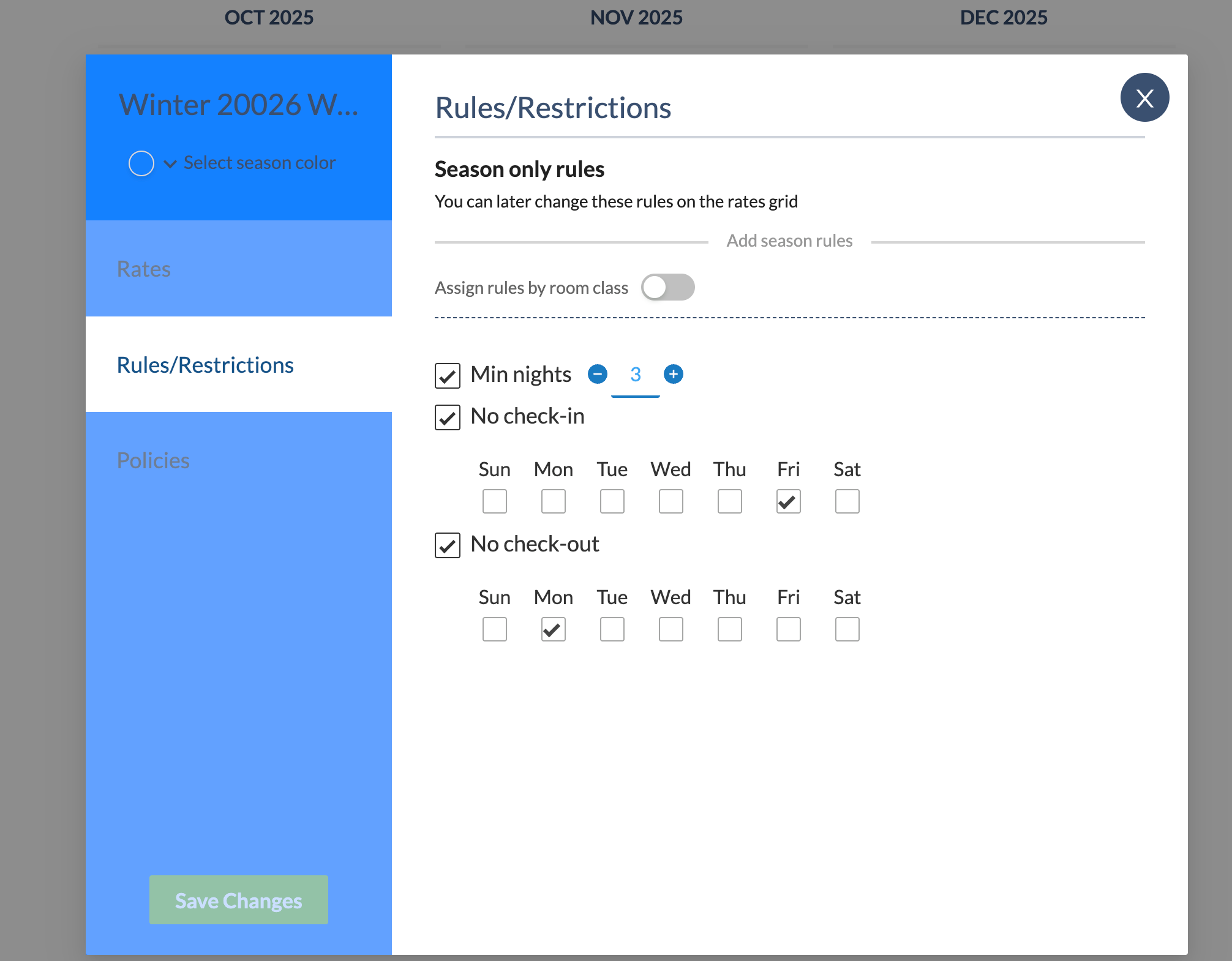
- Select applicable rules
- No Check-in will prevent reservations that start on the select day of the week.
- No Check-out will prevent reservations that end on the selected days of the week.
- Min nights will prevent reservations shorter than the Min nights rule.
You can also apply different season-level rules to different room classes.
- Click Assign Rules by room class
- Select Room Classes for this set of rules.
- Apply a set of rules to the selected Room Classes
- Optionally, click Add 2nd set of Rules to apply different rules to other roo mclasses:
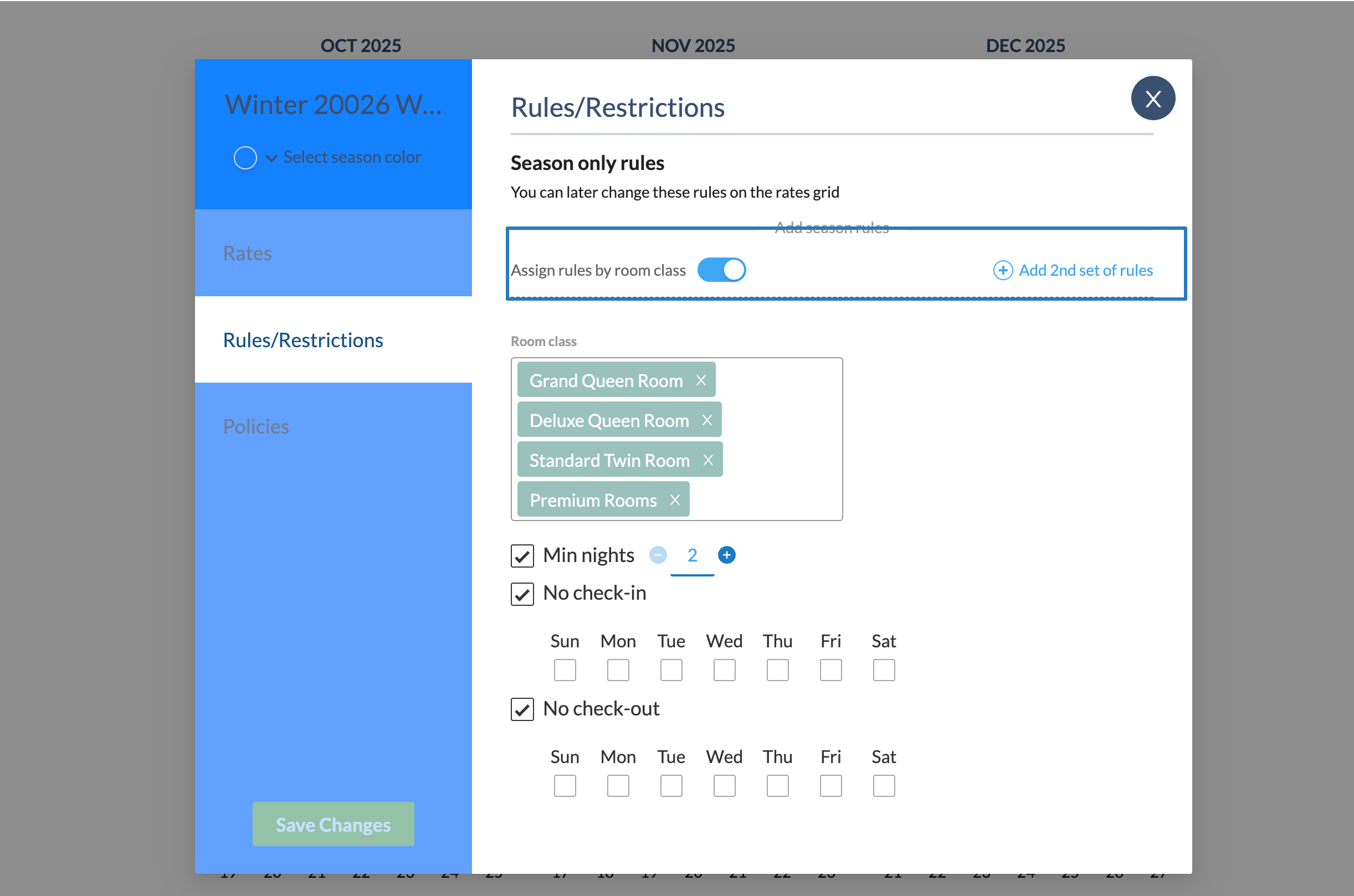
Now, you've set up Rules for the selected dates of the season. You can change the Default Policies of the season, or click Save Changes.
Policies
Policies set payment terms for different outcomes of the reservation. In other words, they define:
- Deposit to book the reservation, or deposit collected before check-in date.
- Cancellation fee if cancelling within a specified number of days before check-in.
- Amount collected at Check-in.
- No-show fee if the guest doesn't show up to their stay.
By default, the Rate Plan's Default Policy applies to any new season you create. You can change the season's policy as well.
- Click Policies in the sidebar.
- Select the applicable Policies for the season's dates:
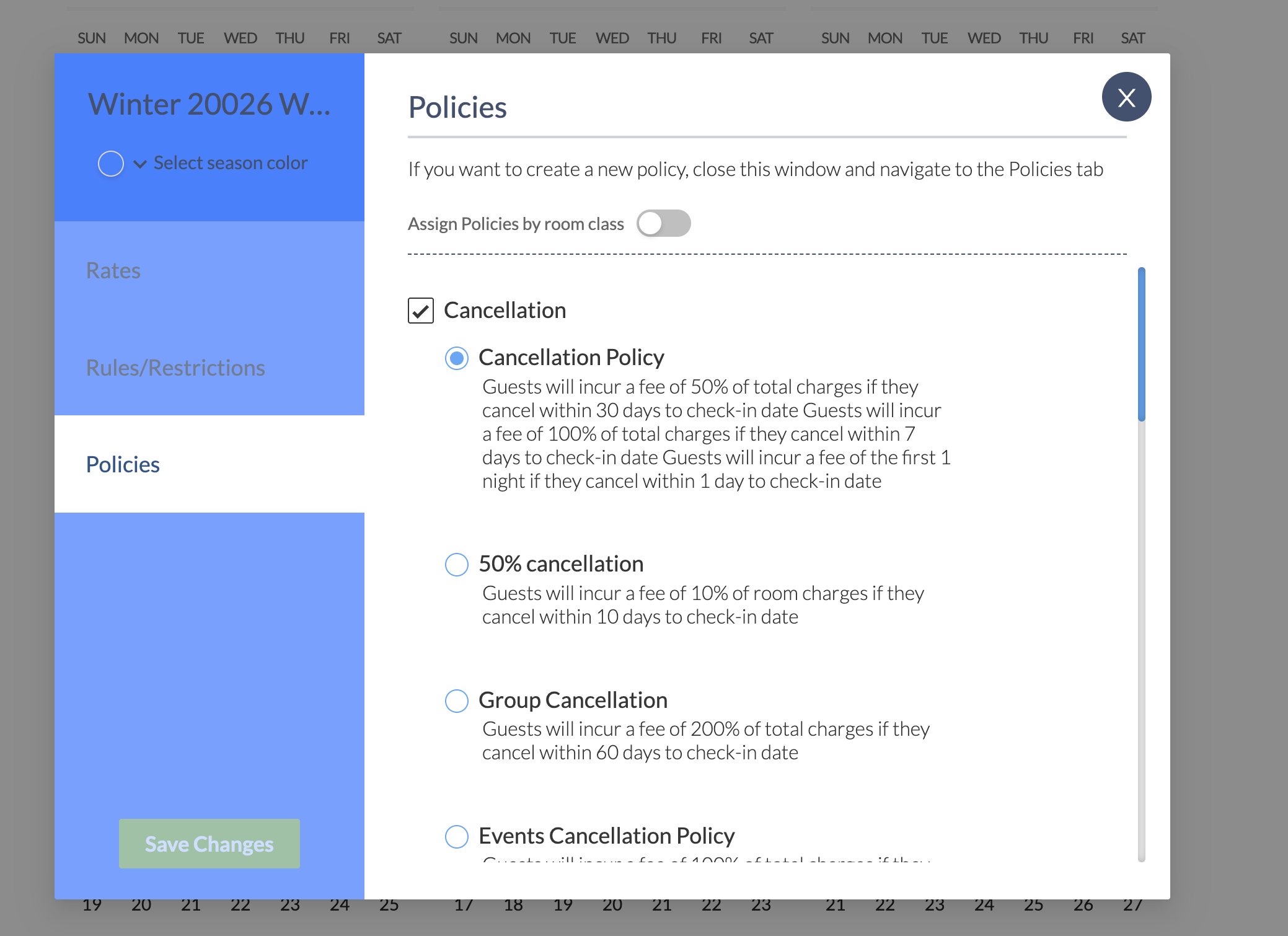
You can also apply different policies to different room classes, similar to applying Rules per room class.
- Click Assign Policies by room class
- Select Room Classes for this set of policies.
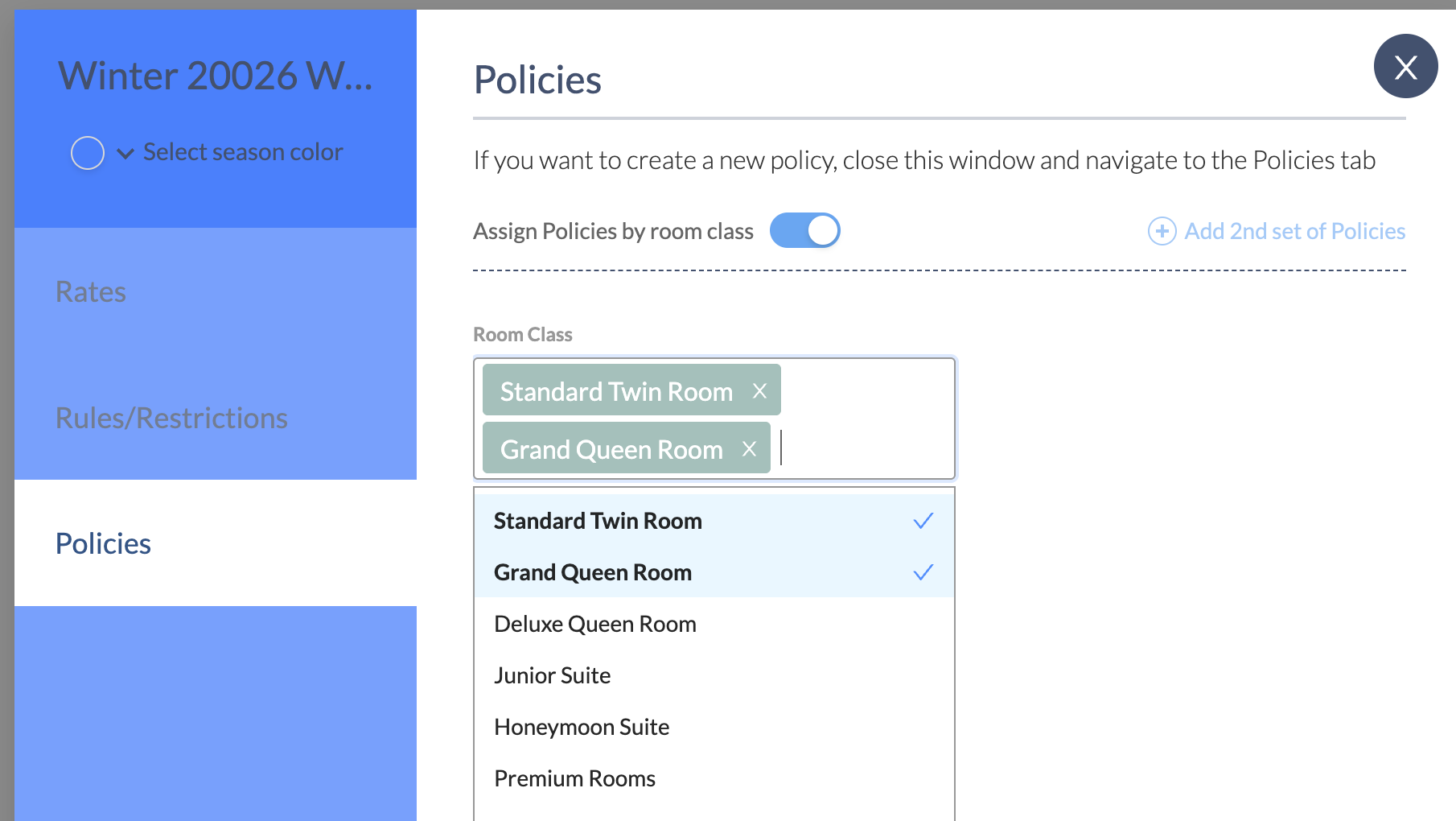
- Apply a set of policies to the selected Room Classes
- Optionally, click Add 2nd set of Policies to apply different rules to other room classes.
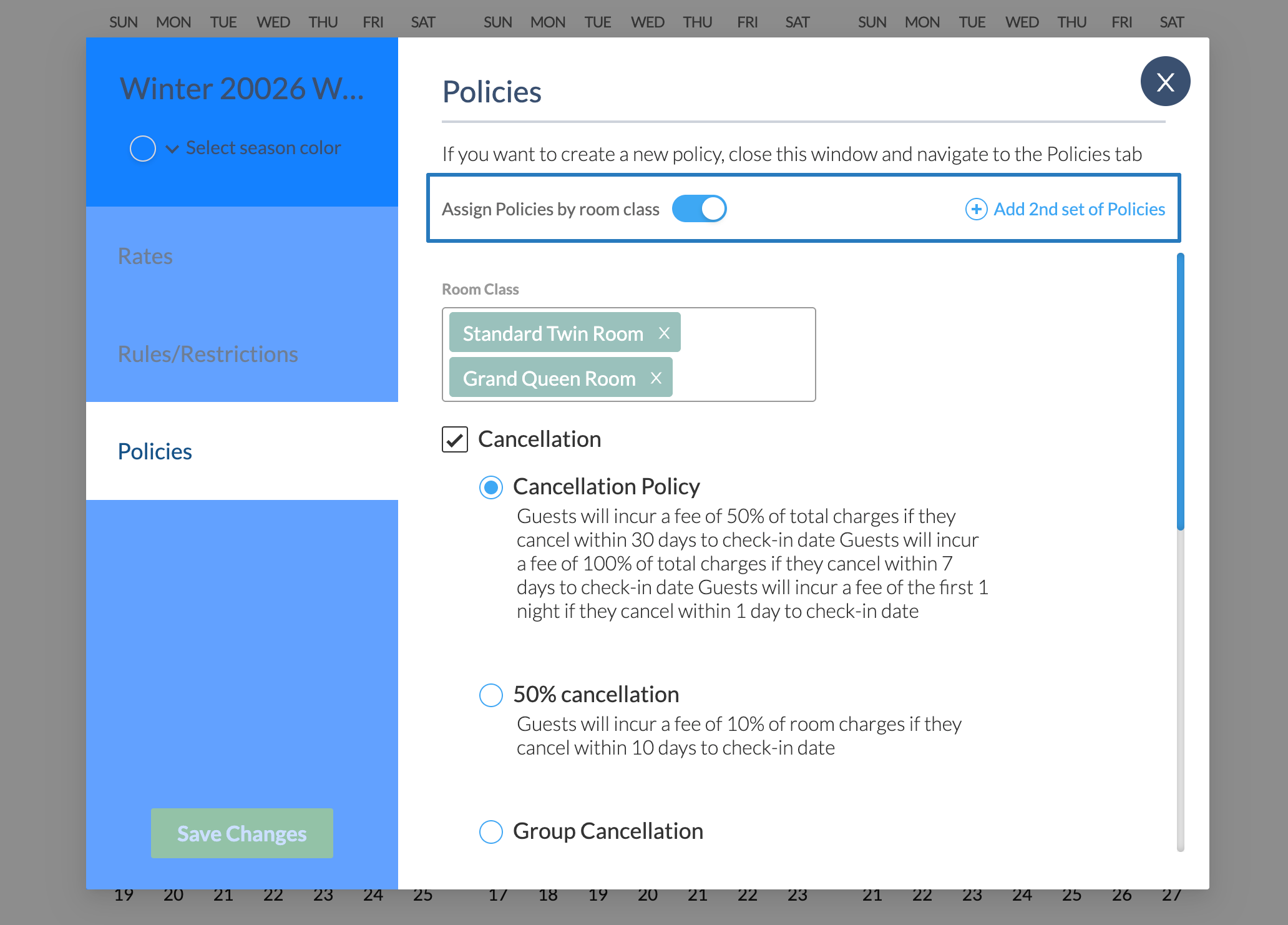
Learn More:
Advanced Season actions
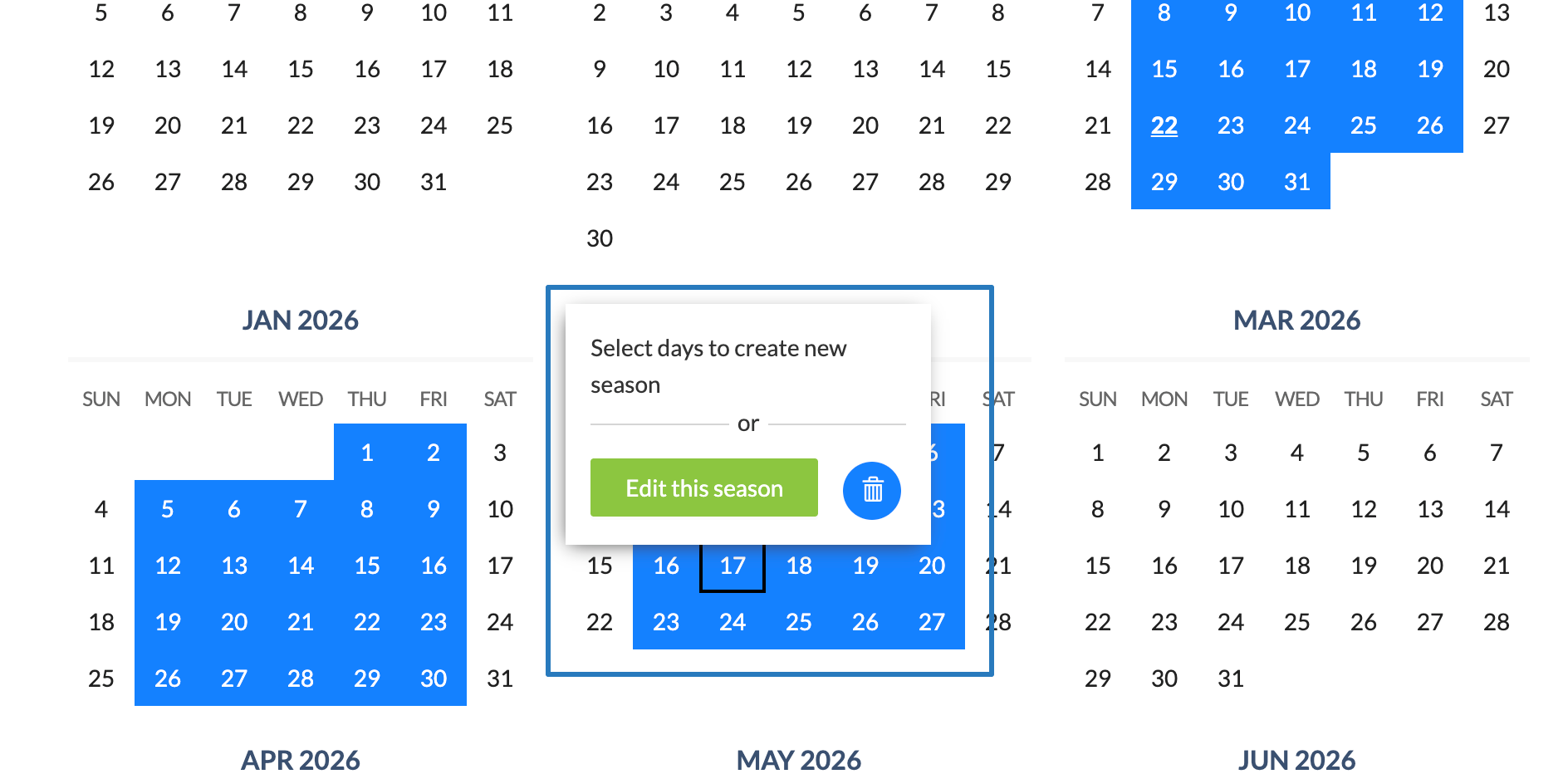
The Season Calendar makes it very easy to create seasons, modify them, or carve out blocks with special prices in existing ranges of dates.
You can easily:
- Fill in blank dates of a season
- Replace dates of an existing season
- Add new dates to an existing season,
- Remove dates from a season (blackout)
- Edit/Delete season.
Fill in the blanks or Replace a Season
While creating a season, if the newly selected dates overlap with an existing season, you can create a season by using “Fill blanks”. Then, only dates without a season will be selected.
The other option when an overlap of a preexisting season is detected is to “replace” the overlapped dates with the new season.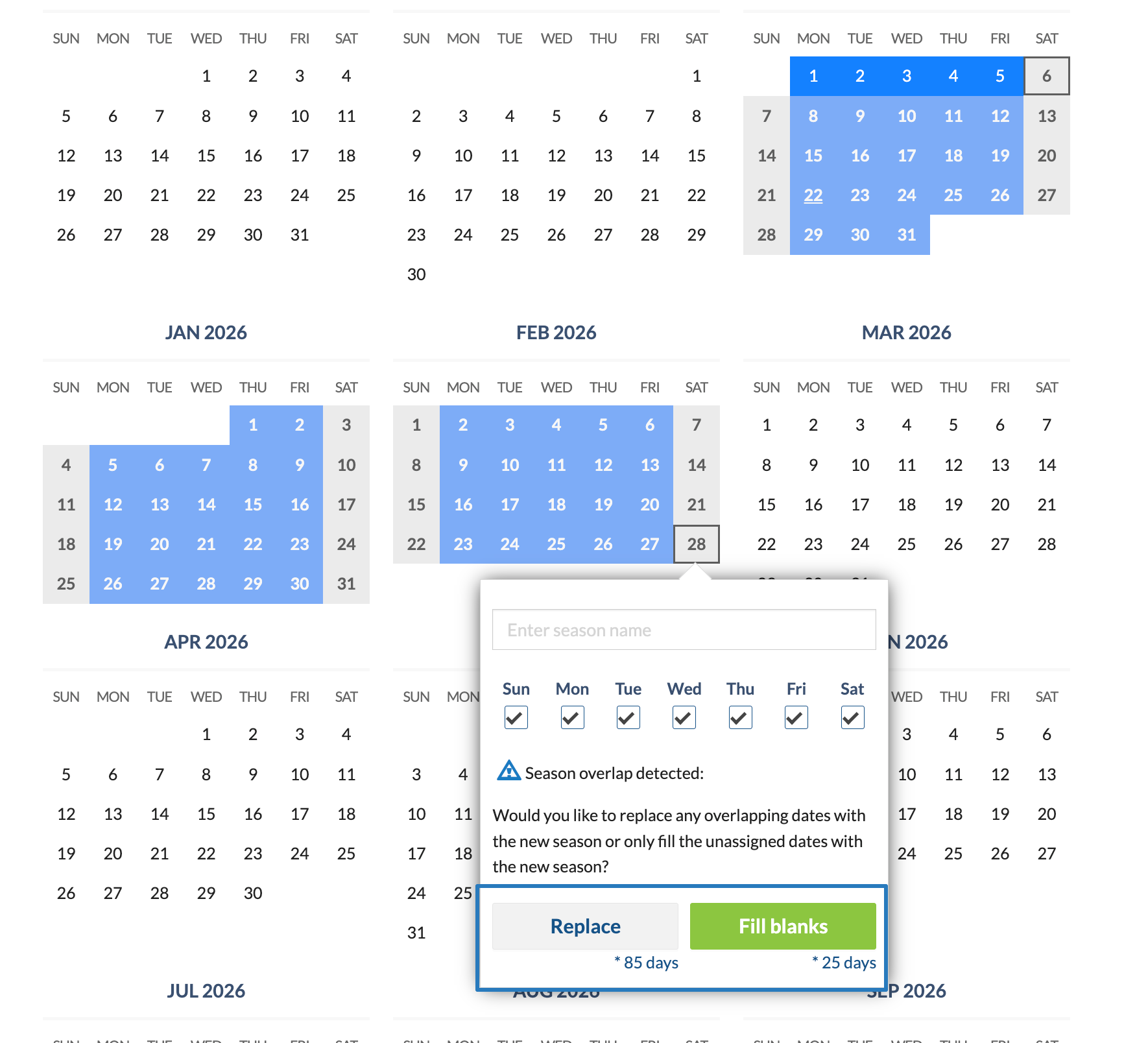
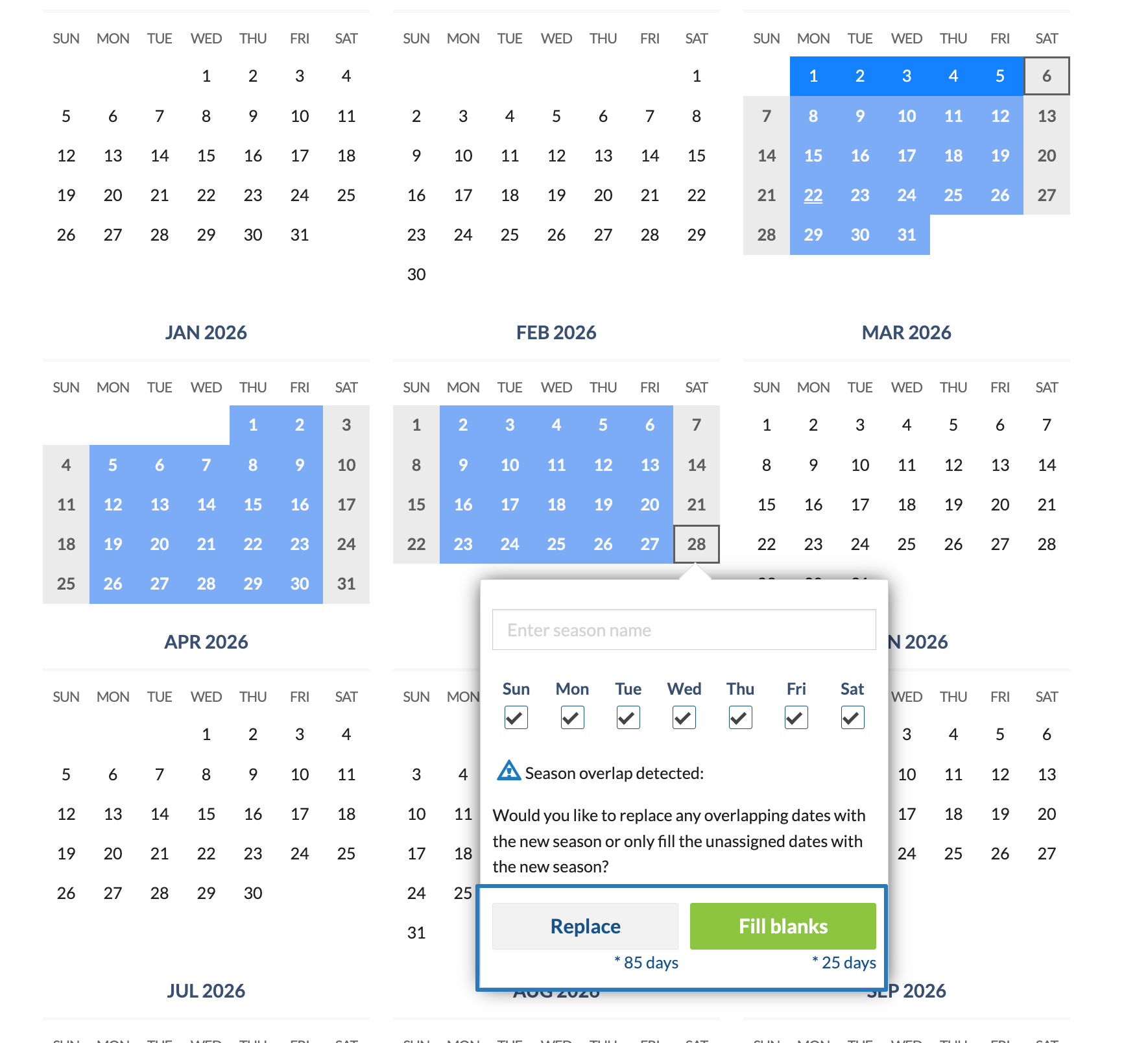
Add dates to existing season
Select the new dates and choose an existing season to add more dates to it.
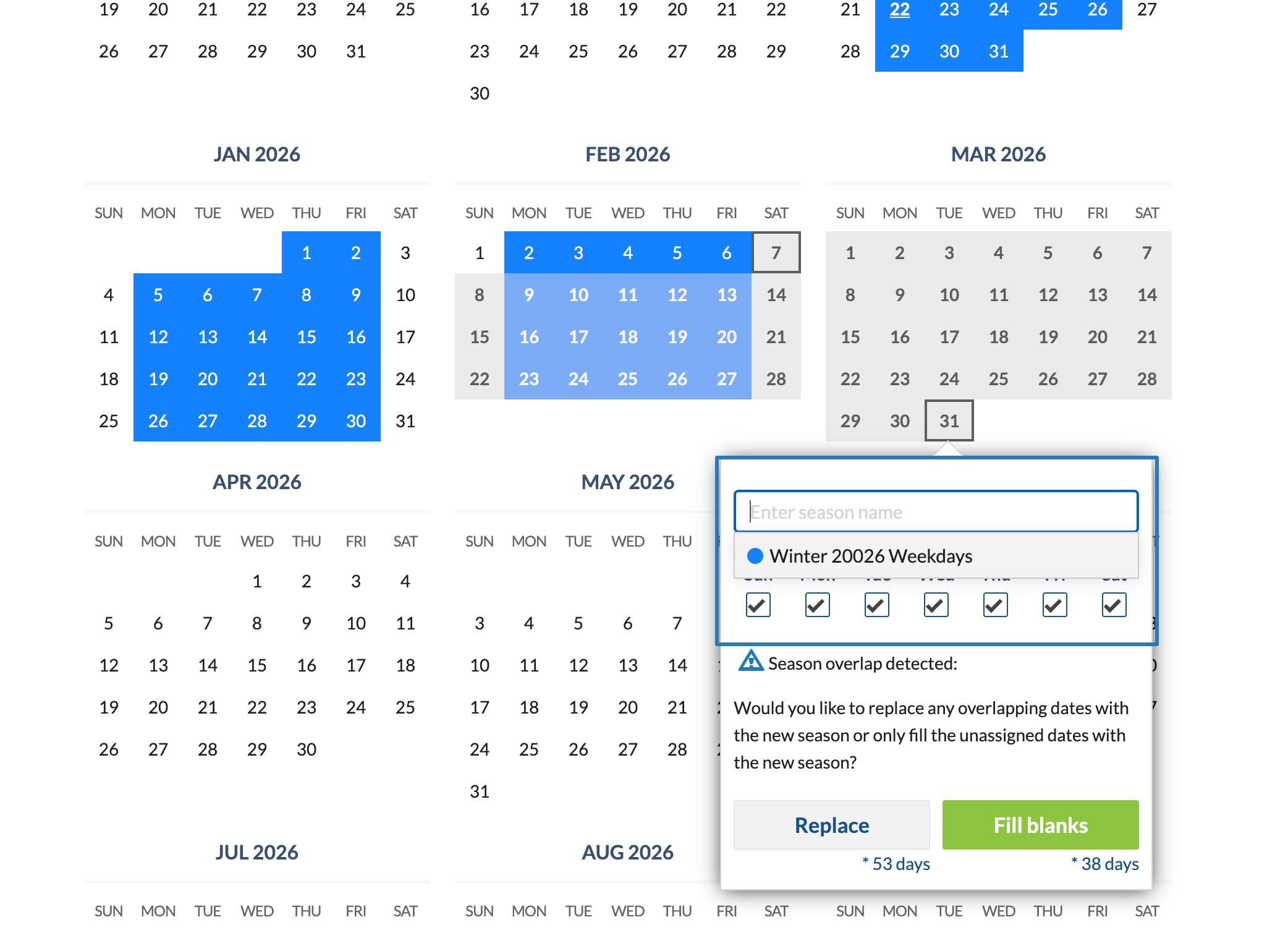
Remove dates from a season (Blackout)
Blackout removes the dates for that season. Applying a Blackout to season's dates makes the rate plan unavailable for those dates.
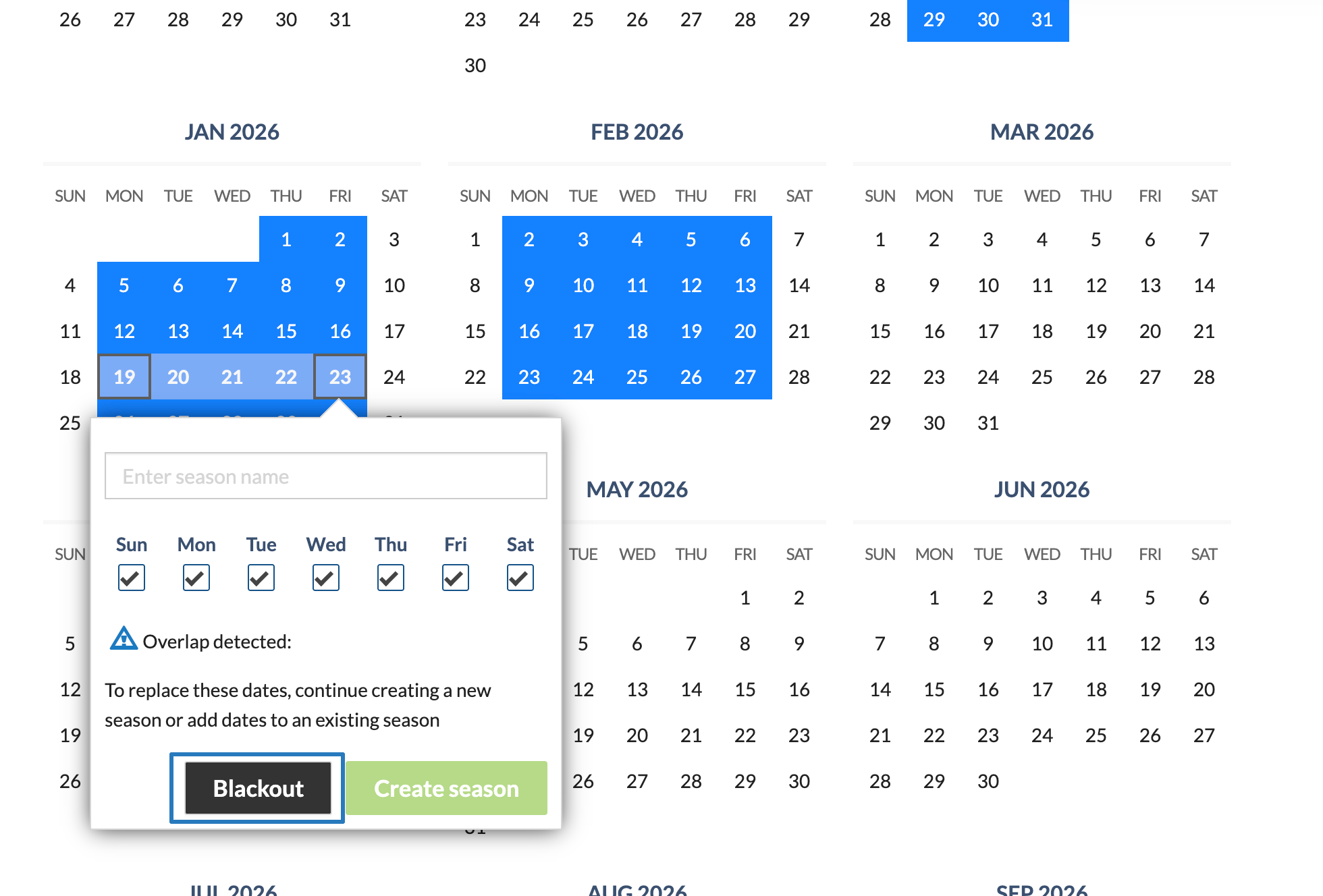
Edit season/Delete season
Click the season in the calendar to edit/delete an existing season.
Once a season is deleted, the information for all rates in it will be deleted and lost permanently.
Edit a rate plan
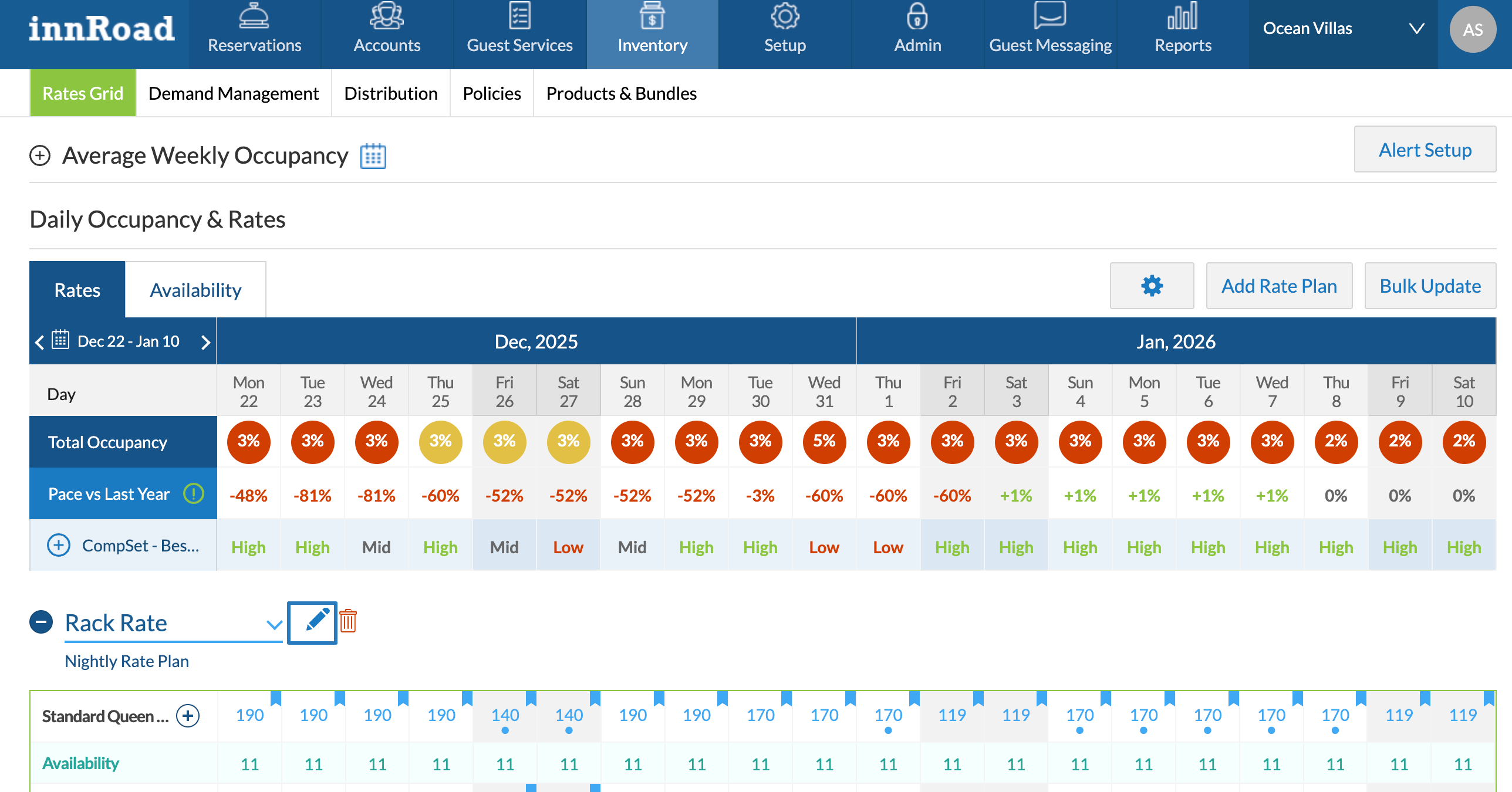
To edit a rate plan:
- Go to Inventory > Rates Grid.
- Click the Edit button for that Rate Plan.
Set Rules and Policies for Manual Override rate plan
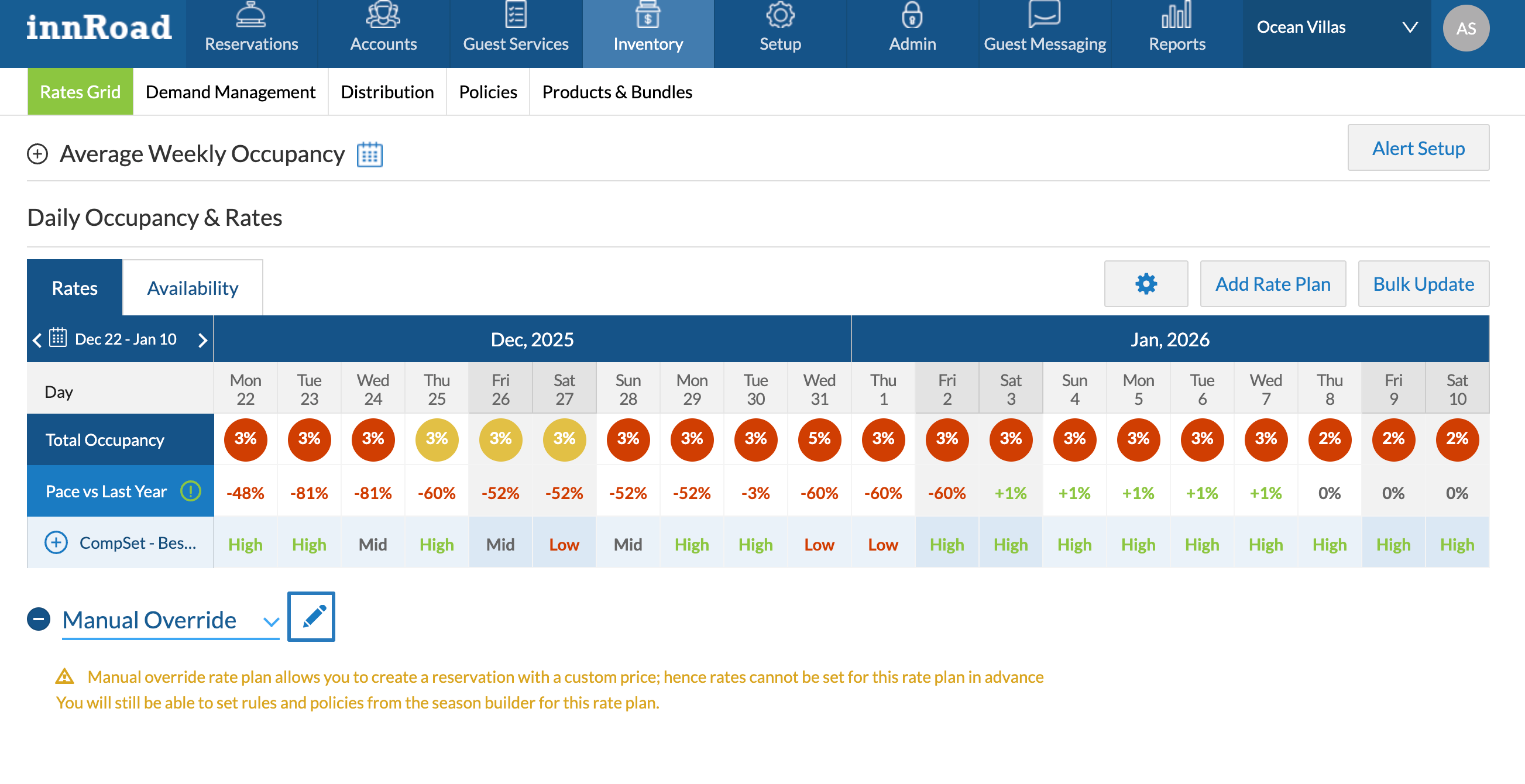
Use the Manual Override Rate Plan to Create Reservations with a Custom Rate. You can also define default policies and rules for Manual Override reservations.
By nature, the Manual Override Rate Plan can't have pre-defined prices, so it won't show any rates in the Rates Grid.
To set the rules and policies for manual override rate plan:
- Select Manual Override rate plan from the drop down.
- Click the Edit Icon
- In the season builder, set the rules and policies as desired.
Delete Rate Plan
If a Rate Plan is no longer relevant and you no longer need the price and rules setup, you can delete it.
Once a Rate Plan is deleted, it can't be restored.

If you want to keep the Rate Plan, you can set the status to Inactive instead.
- Go to Inventory > Rates Grid.
- Click the Delete icon for the Rate Plan you want to delete.
Products & Bundles
Products are goods or services that are sold to guests in addition to the room charges. Bundles are multiple products sold together.
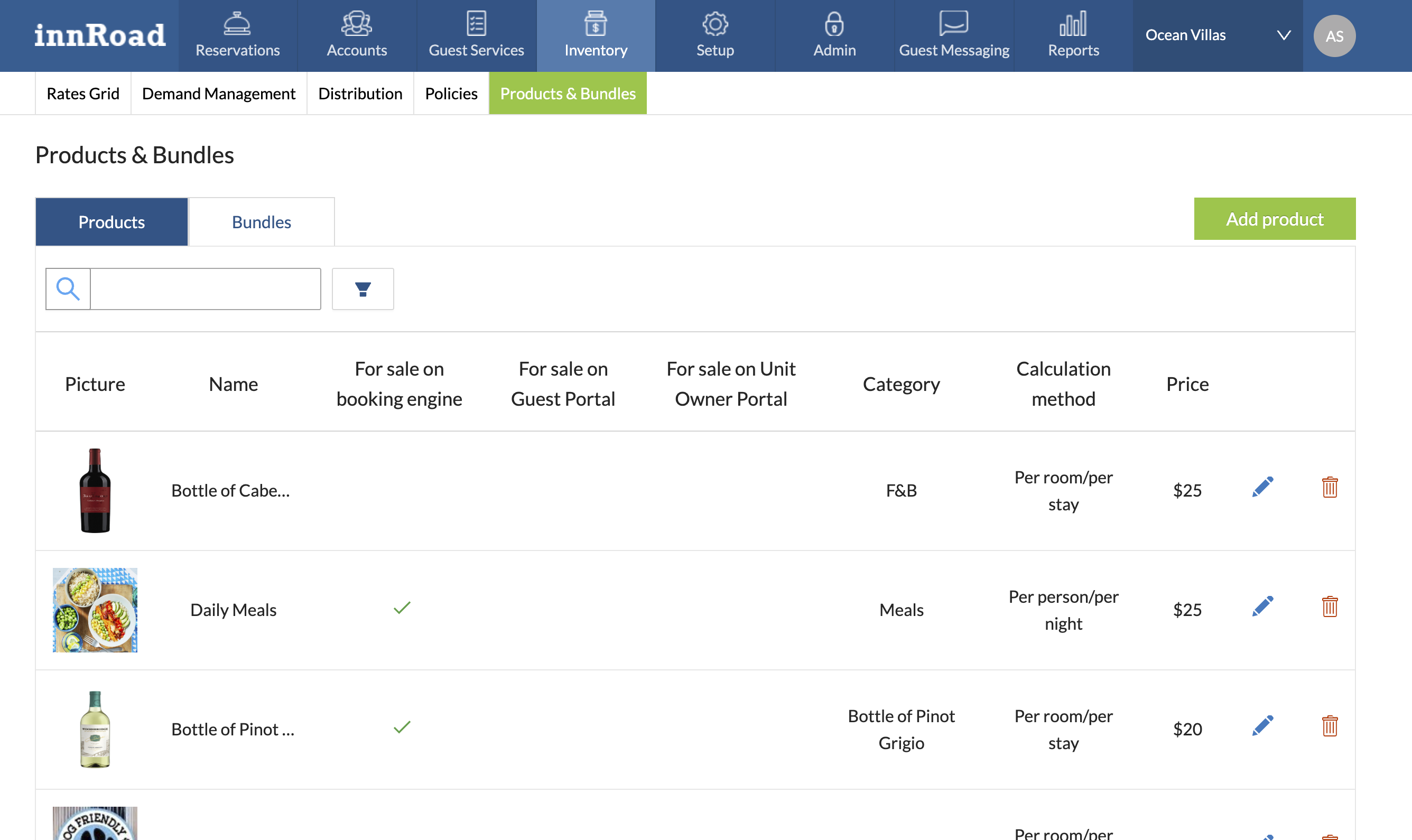
Users can create multiple products, each with its own name, linked to a single ledger account. For each product, the user can define the calculation method and value.
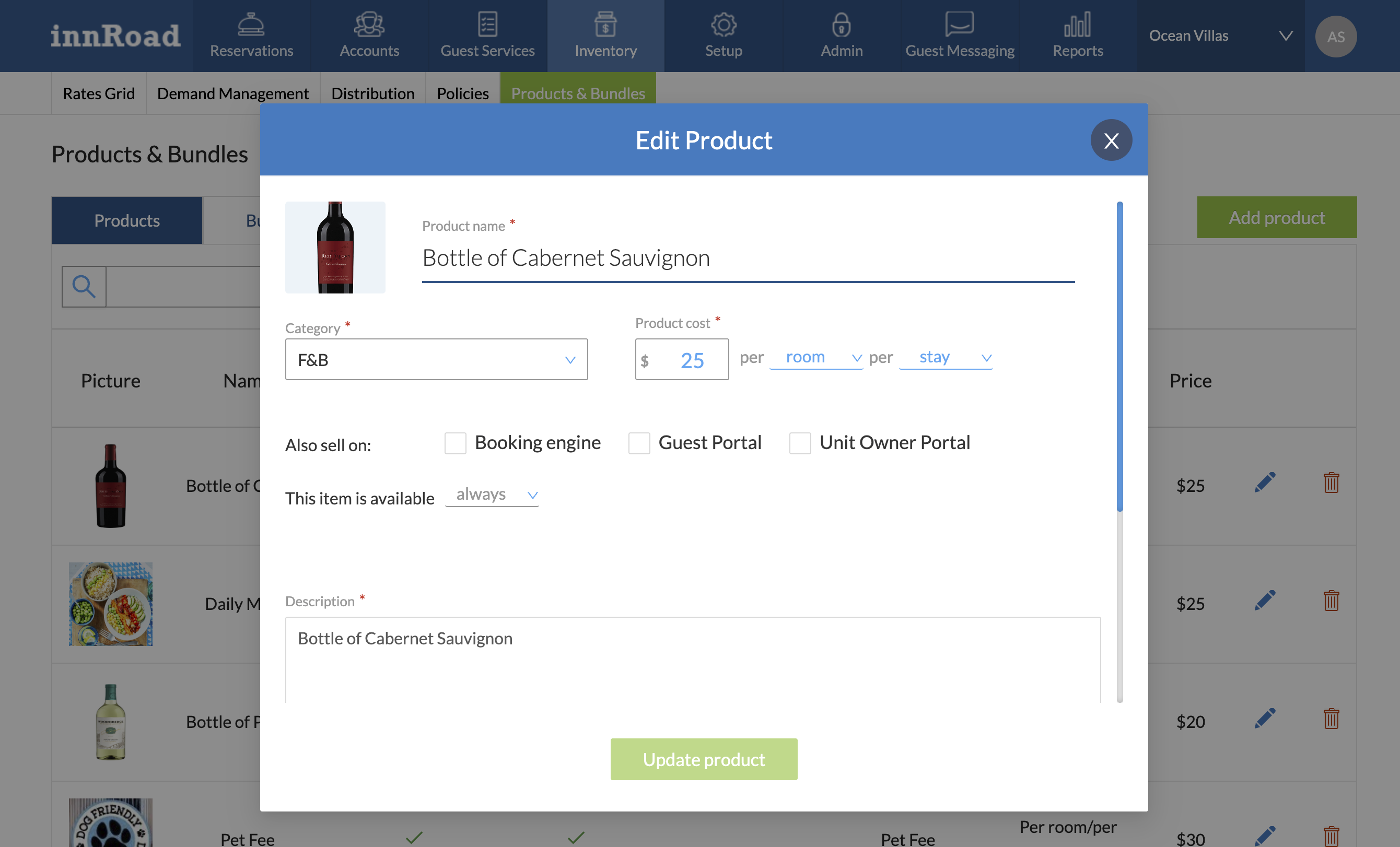
A collection of products is a bundle. For example, a Fishing Bundle may include two products: a Boat Slip and a Fishing License. When products are added to a bundle, they use the default pricing of each product, which can be adjusted if needed. The ledger account associated with each individual product is applied to that product within the bundle.
Learn more: Products & Bundles
Policies
Policies set payment terms for different outcomes of the reservation. In other words, they define:
- Deposit to book the reservation, or deposit collected before check-in date.
- Cancellation fee if cancelling within a specified number of days before check-in.
- Amount collected at Check-in.
- No-show fee if the guest doesn't show up to their stay.
Learn more: Rate Policies Overview
Cancellation Policy
Cancellation Fees are charged to the guest based on the date the reservation is cancelled.
The cancellation fee is calculated based on the clause(s) set for cancellation. Charges are displayed in the folio as a Cancellation Fee. You can create up to 4 clauses for a single cancellation policy.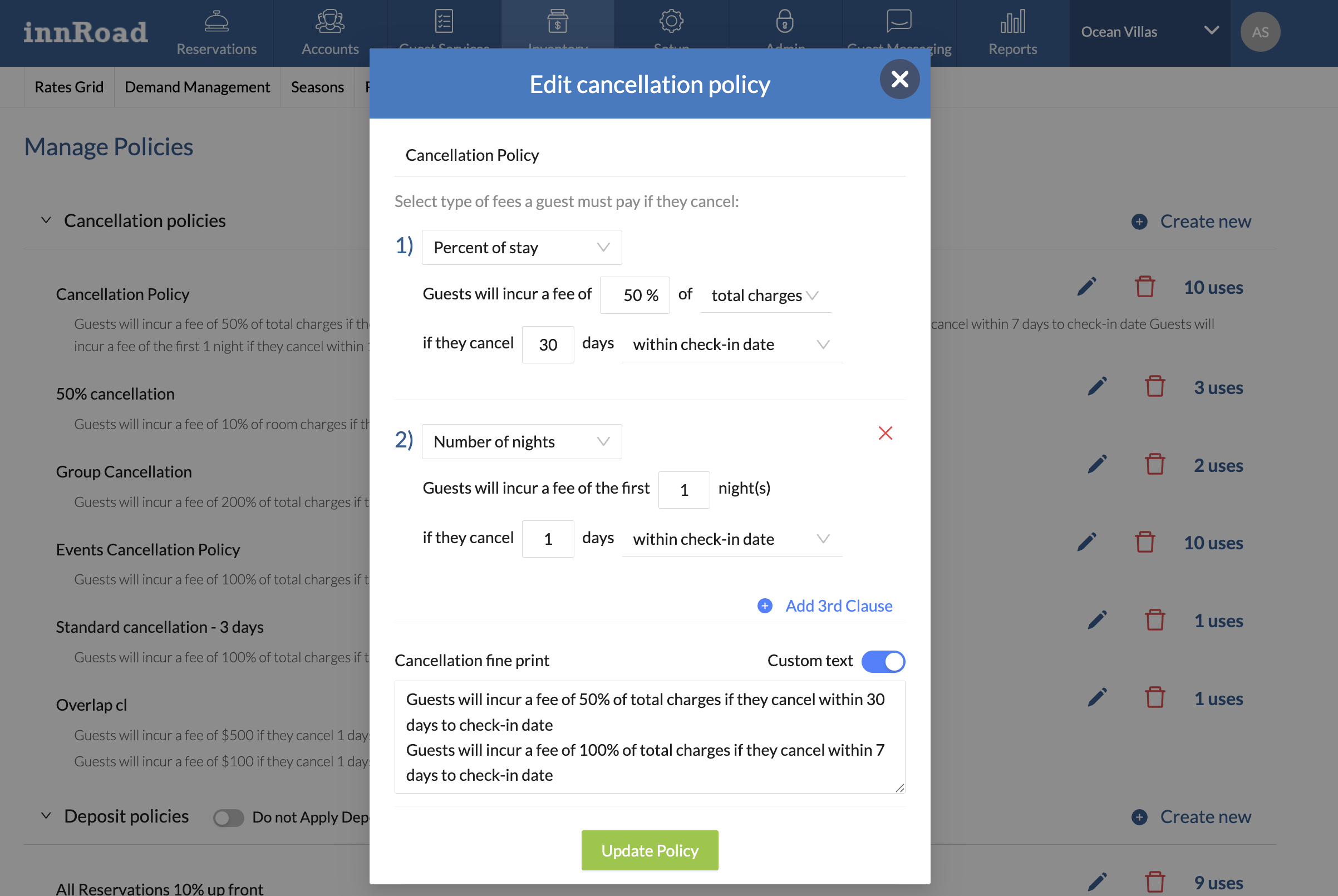
The criteria of each clause could be any of the below:
Clause Type | Details | Example |
Percentage of Room charges if cancelled within (X) days of the check-in date
| The guest is charged a penalty that is calculated as a percentage of the Room charges. Cancellation fee is applicable if the cancellation date is within the number of days specified from the check-in date. | Policy set: Guest will incur a fee of 10% of Room charges, if they cancel 7 days within check-in date. Arrival date: 20th Feb 2020 Room charge: $200 If Cancellation date is 15TH Feb 2020, the cancellation fee is $20 If Cancellation Date is 10th Feb 2020, no cancellation fee. |
Percentage of Total Charges if cancelled within (X) days of the check-in date | The cancellation fee is a percentage of the Total charges. This happens when the cancelation date is within the specified days from the check-in date. | Policy set: Guest will incur a fee of 10% of Total Charges, if they cancel 7 days within check-in date. Check-in date: 20th Feb 2020 Room charge: $200 + $10(incidental) If Cancellation date is 15TH Feb 2020, the cancellation fee is $21 If Cancellation Date is 10th Feb 2020, no cancellation fee. |
Percentage of Room Charges if cancelled (X) days after the reservation was made | The cancellation fee is a percentage of the Room Charges. The fee is applicable only if the guest Cancels the reservation after a specified number of days from the booked-on date. | Policy set: Guest will incur a fee of 10% of Room Charges, if they cancel 2 days after the reservation was made. Booked on date: 20th Feb 2020 Room charge: $200 If Cancellation date is 24th Feb 2020, the cancellation fee is $20 If Cancellation Date is 21st Feb 2020, no cancellation fee. |
Percentage of Total Charges if cancelled (X) days after the reservation was made | Cancellation fee is a percentage of Total Charges. The fee is applicable only if the guest Cancels the reservation after a specified number of days from the booked-on date. | Policy set: Guest will incur a fee of 10% of Total Charges, if they cancel 2 days after the reservation was made. Booked on date: 20th Feb 2020 Room charge: $200 + $100(incidental) +$10(incidental) = $310 If Cancellation date is 24th Feb 2020, the cancellation fee is $31 If Cancellation Date is 21st Feb 2020, no cancellation fee. |
Flat fee if cancelled within (X) days of the check-in date
| The cancellation fee is a fixed value. The fee is applicable if the cancellation date is within the specified days of check-in. | Policy set: Guest will incur a fee of $25 if they cancel 7 days within check-in date. Check-in date: 20th Feb 2020 If Cancellation date is 15th Feb 2020, the cancellation fee is $25 If Cancellation Date is 10th Feb 2020, no cancellation fee. |
Flat fee if cancelled within (X) days after the reservations was made
| The cancellation fee is a fixed value and is applicable only if the date of cancellation is after the number days specified. | Policy set: Guest will incur a fee of $25 if they cancel 10 days after the reservation was made. Booked on date: 10th Feb 2020 If Cancellation date is 22nd Feb 2020, the cancellation fee is $25 If Cancellation Date is 11th Feb 2020, no cancellation fee. |
First (X) nights of charges if cancelled within (X) days of check-in date | The cancellation fee is sum of the first X nights of the reservation. This fee is applicable only if the guest cancels within a specified period of the check-in date.
| Policy set: Guest will incur a fee of the first 1 nights if they cancel 10 days within the check-in date. Check-in date: 25th Feb 2020 Day 1 Room charge = $100 Day 2 Room charge= $150 If Cancellation date is 22nd Feb 2020, the cancellation fee is $100 If Cancellation Date is 11th Feb 2020, no cancellation fee. |
First (X) nights of charges if cancelled within (X) days after the reservation was made | The cancellation fee is sum of the first X nights of the reservation. This fee is applicable only if the guest cancels the reservation after the specified number of days from the booked-on date. | Policy set: Guest will incur a fee of the first 1 nights if they cancel 10 days after the reservation was made. Booked on date: 10th Feb 2020 Day 1 Room charge = $100 Day 2 Room charge= $150 If Cancellation date is 22nd Feb 2020, the cancellation fee is $100 If Cancellation Date is 11th Feb 2020, no cancellation fee. |
Deposit Policy
Deposit Policies control the amount collected when the guest books the reservation.
If you're using innRoad Payments as your payment processor, you can use Deposit Policies to create flexible payment schedules.
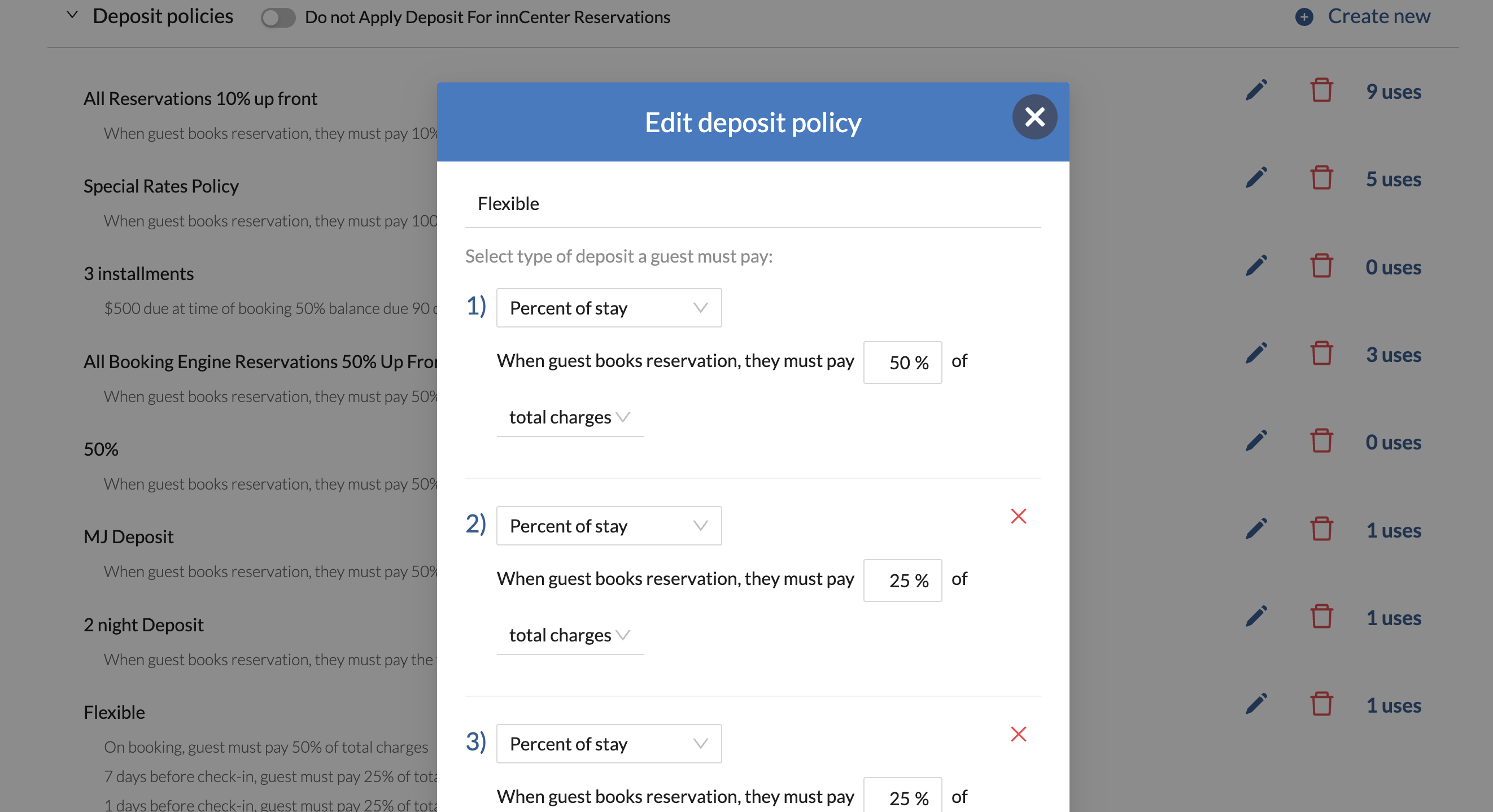
4 different options are available for deposits setting:
Type | Details | Example |
A flat fee
| This is a flat amount that is payable on booking the reservation. | Policy set: When guest books a reservation, they must pay $100 Room charge: $200 Deposit amount: $100 |
A specified percentage of Room charges
| The deposit amount is a percentage of the room charges. | Policy set: When the guest books the reservation, they must pay 50% of the Room charges Charges: $200 + $10(taxes) Deposit amount: $105 |
A specified percentage of Total charges
| The deposit amount is a percentage of the total charges on the reservation. These would also include the incidentals. | Policy set: When the guest books the reservation, they must pay 50% of the Total charges. Room charge: $200 + $100(incidentals) $10(taxes) Deposit amount: $155 |
No of nights of Room Charges
| The Deposit amount payable is the sum of the Room Charges of the first nights | Policy set: When guest books reservations, they must pay the first 2 night of Room charges. Room charge: Day 1 room charge $200 Day 2 room charge $200 Day 3 room charge $100 Deposit Amount: $400 |
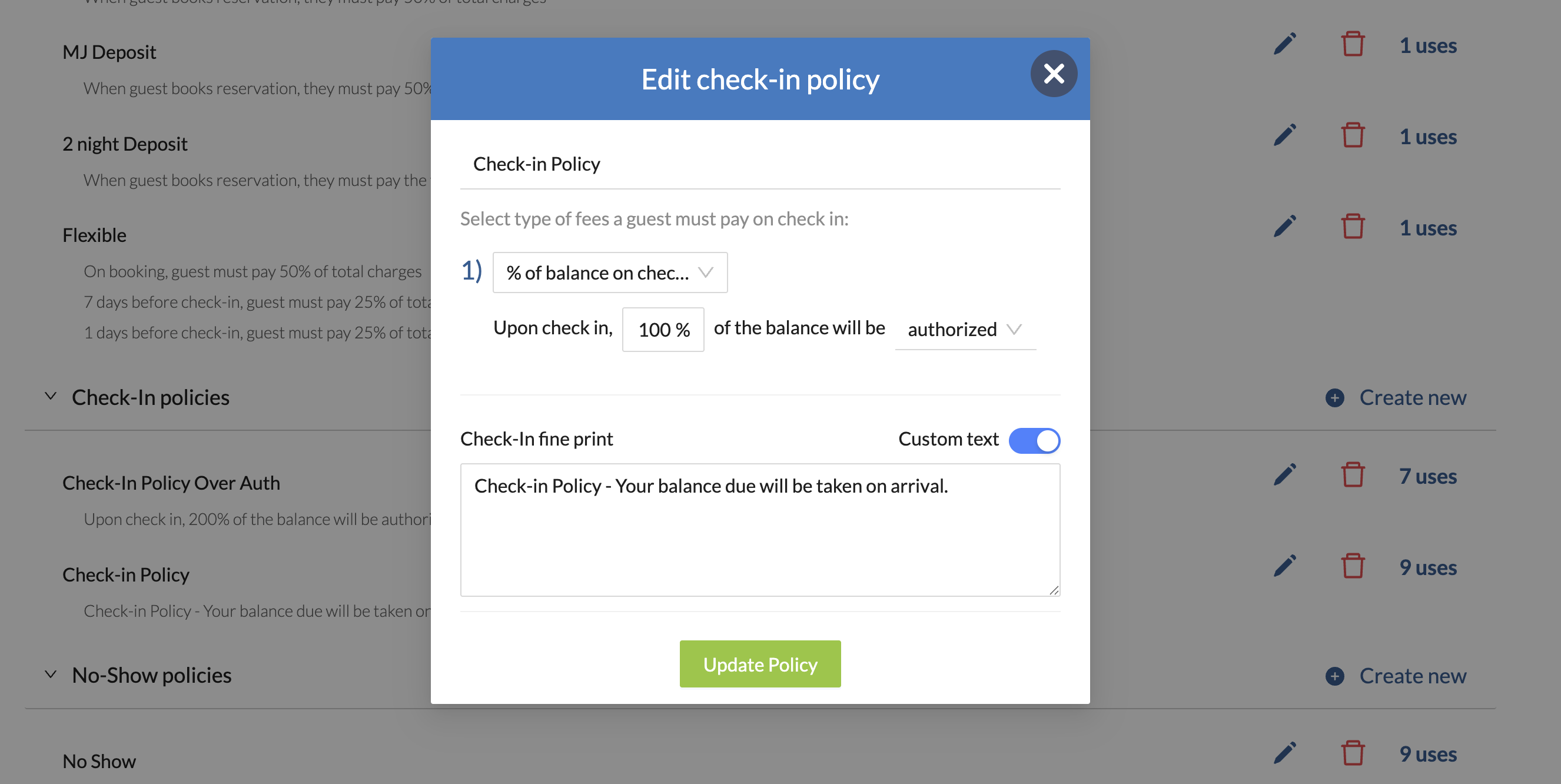
Check-in Policy
Check-in Policies control the amount to Capture or Authorize when a guest checks in.
No Show Policy
No Show Policies set the fee collected if a guest doesn't arrive at the property on the check-in date.
The no show fee displays in the folio as a No Show Fee when the reservation status changes to No Show.
The calculation type of the no show fee is like the deposit calculation:
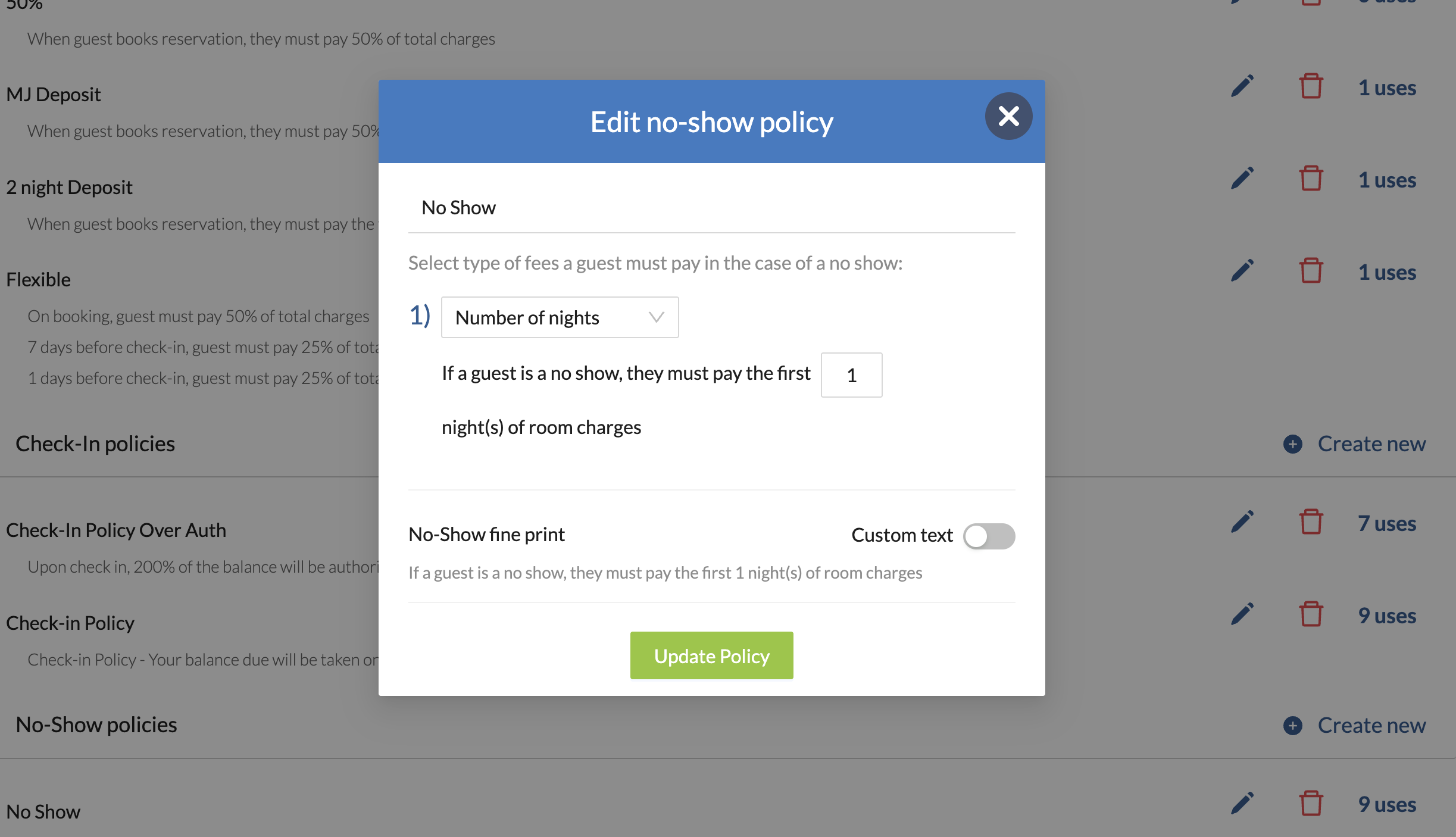
- A flat fee
- A specified percentage of Room charges
- A specified percentage of Total charges
- No of nights of Room Charges
Was this article helpful?
That’s Great!
Thank you for your feedback
Sorry! We couldn't be helpful
Thank you for your feedback
Feedback sent
We appreciate your effort and will try to fix the article