Guests might contact you to cancel their reservation. This guide will walk you through the process and explain the outcomes.
How to Cancel a Reservation
- Open the Reservation
- Go to the Reservations or Tape Chart screen.
- Search for the reservation using the guest name, confirmation number, or dates.
- Click the reservation to open its details.
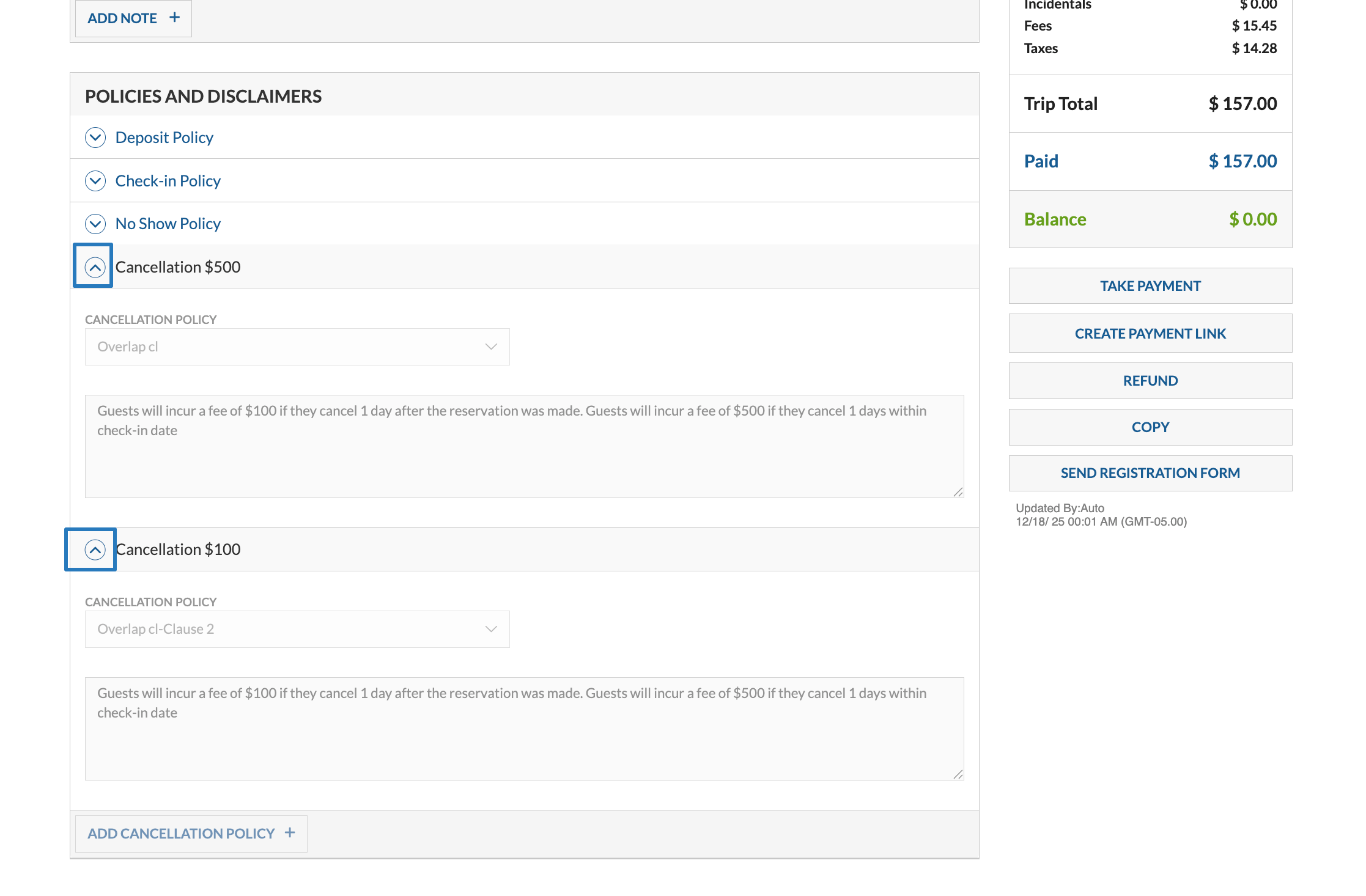
- Review the Cancellation Policy
- Scroll down until you see the Policies section.
- Click the Cancellation Policies of this reservation to see the policy details:
- Cancel the Reservation
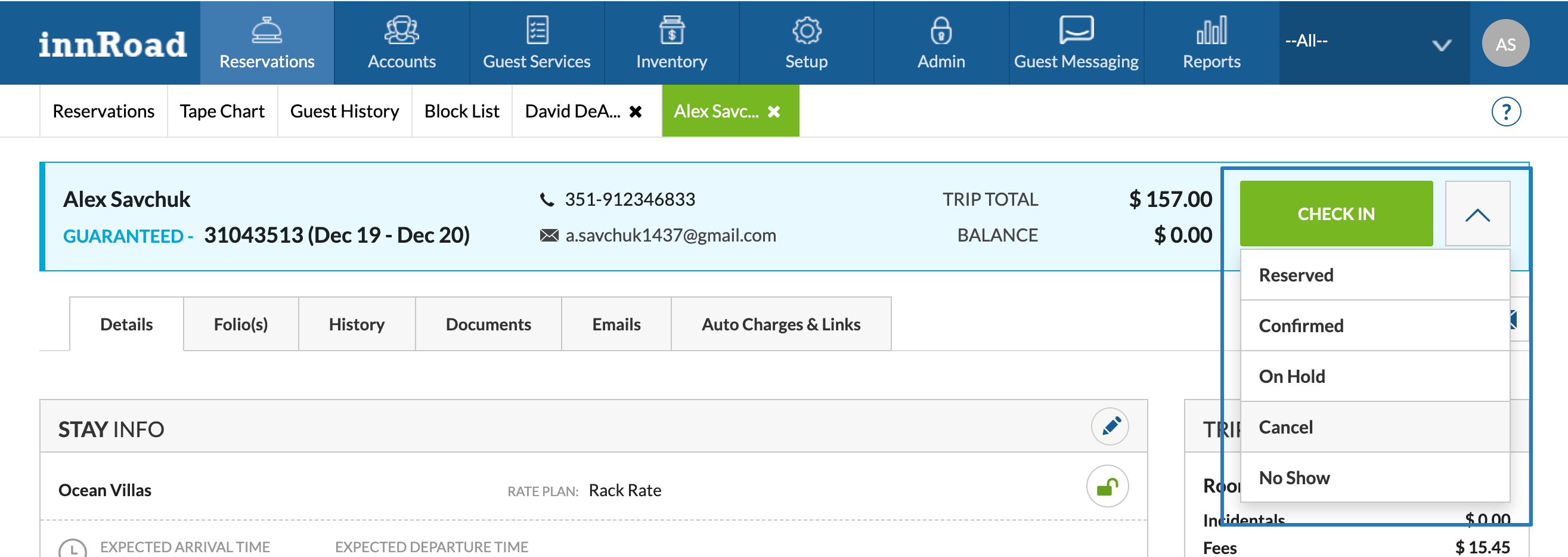
- Click the Status dropdown in the top-right corner.
- Select Cancel.
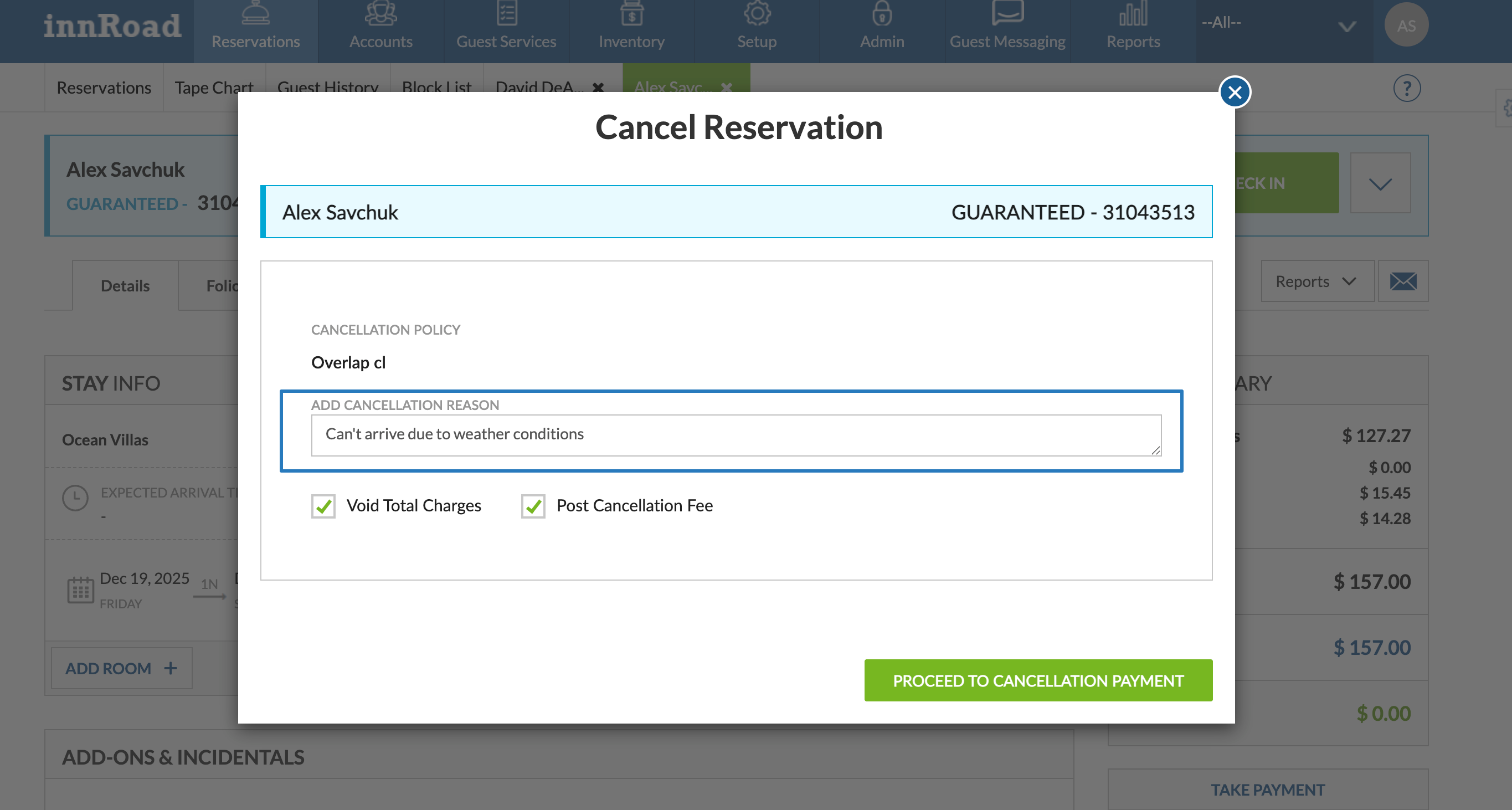
- Enter a Cancellation Reason, if prompted.
- Confirm the Cancellation
- Review any cancellation fees or penalties, based on the Cancellation Policy.
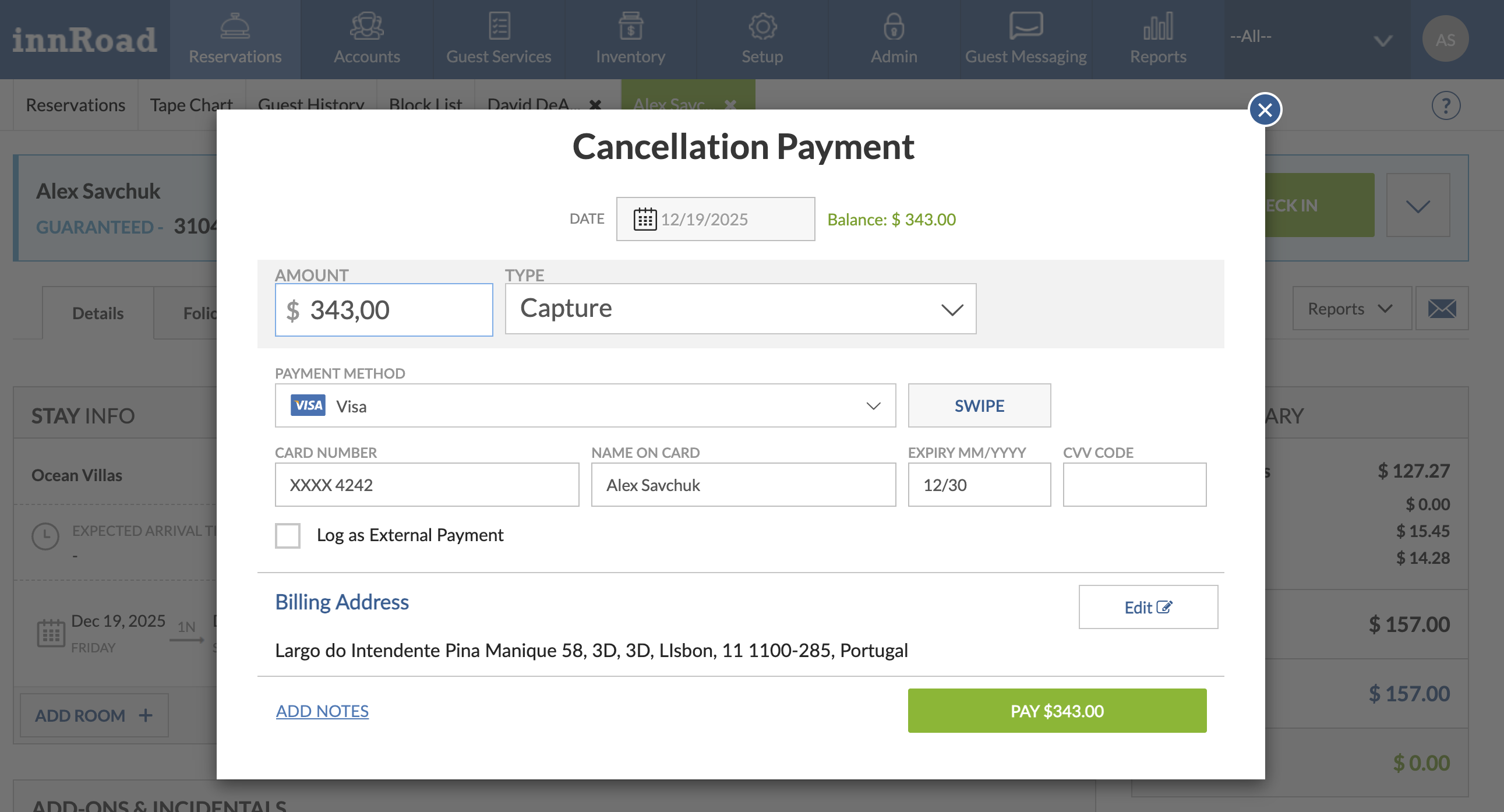
- Click Pay if required to collect payment.
- Click Confirm to complete the cancellation.
- Review any cancellation fees or penalties, based on the Cancellation Policy.
After Cancellation
- The reservation status will update to Canceled.
- If enabled, a cancellation email will be sent to the guest.
Cancellation Fees and whether the Cancellation Reason is required is based on your property setup.
- Cancellation fees are based on the rate plan and cancellation policy.
- Some reservations (for example, OTA bookings) may have restrictions.
- OTA Bookings generally should be cancelled by the guest on the OTA.
- Once canceled, a reservation can be rolled-back to the state before Cancellation.
Was this article helpful?
That’s Great!
Thank you for your feedback
Sorry! We couldn't be helpful
Thank you for your feedback
Feedback sent
We appreciate your effort and will try to fix the article