Policies define the terms that apply when a guest books, cancels, checks in, or fails to show for a reservation. In other words, policies protect the property from revenue loss while clearly setting expectations for guests.
You can set up the following policies in innRoad:
- Cancellation Policy – Fee collected when a booking is cancelled.
- Deposit Policy– Payment requirements collected at the time of booking to secure the reservation.
- For innRoad Payments clients, you can create Deposit policies that schedule multiple payments.
- Check-In Policy – Charge or hold applied to the guest's card on arrival or when completing Pre Check-in on the Guest Portal.
- No-Show Policy – Charge applied when a guest does not arrive and does not cancel.
These policies can be configured per rate plan and are displayed to guests on the Booking Engine and Registration Card.
Policies only apply to reservations created through the innRoad Booking Engine or manually in innCenter.

OTA reservations follow the policies set up on the OTA.
You can set up policies forAirbnb and VRBO in Room Classes.
Why Add Policies to your Rate Plans
The main reason to add Policies to your Rate Plans is to secure revenue for your property. Configuring Policies helps your business get paid reliably, avoid losing money, and prevent misunderstandings later. In other words, this step helps you protect your income and make your booking process clear, predictable, and more professional.
By defining reservation terms clearly, Policies help create a fair system that protects the property from financial loss while giving guests clarity, structure, and flexible options when supported.
Accessing Policies in innRoad
- Navigate to Inventory in the main menu.
- Select the Policies tab.
- Click the appropriate Create New button for the policy type you want to configure.
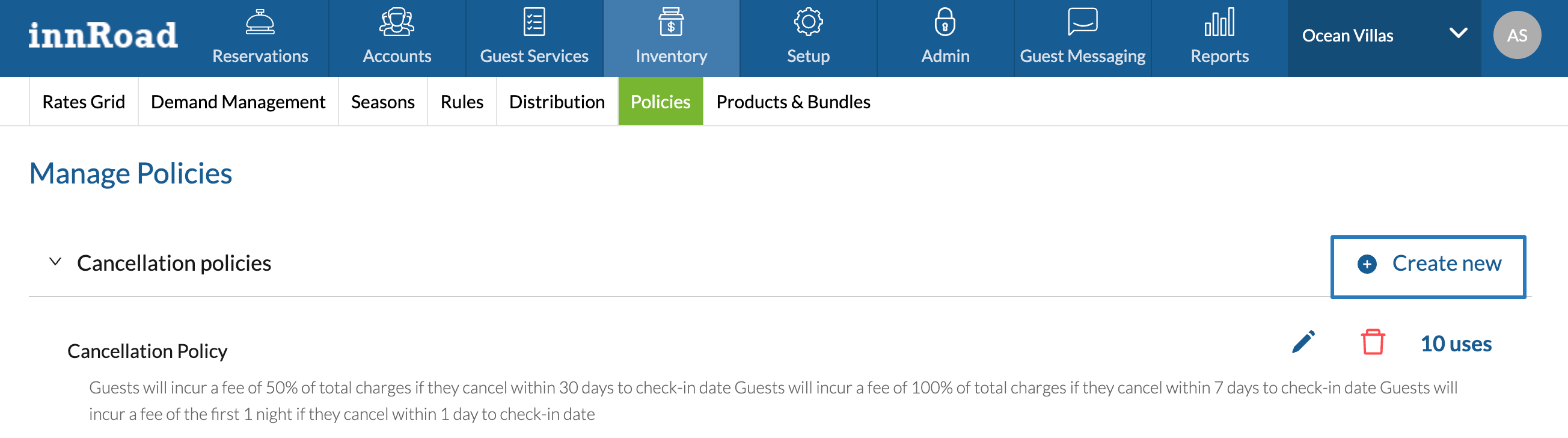
Add or Edit a Cancellation Policy
Cancellation policies define the charges collected if a guest cancels after the specified time.
For OTA Reservations, the Cancellation Fee is defined by policies on the OTA.
How to create a Cancellation policy:
- Go to Inventory > Policies.
- Click Create New in the CancellationPolicy section.
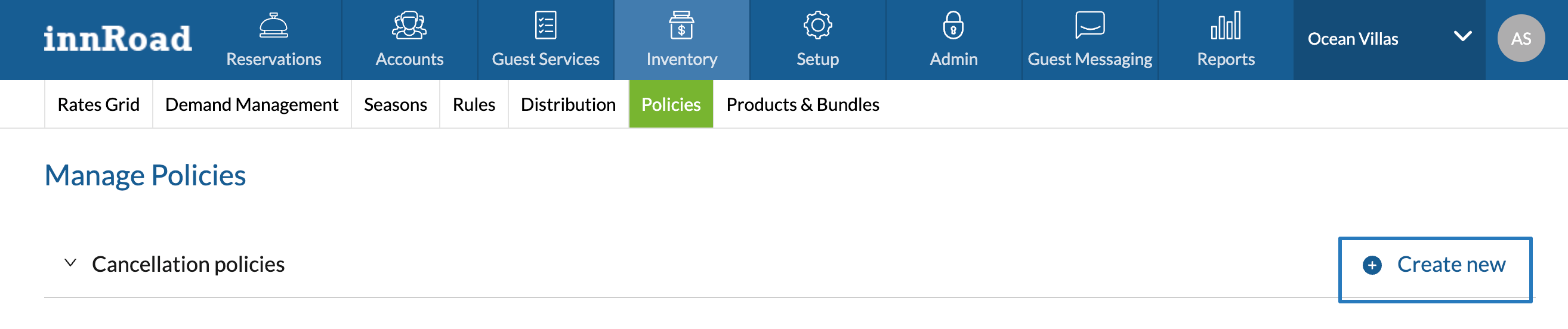
- Select a Pricing Type:
- Fill out the amount:
- Select the type of time boundary to use:
- Enter the number of days.
- If needed, click "Add 2nd clause" to create additional clauses.
This way, you can increase the cancellation fees for cancellations closer to the check-in date. - Optionally, enable Custom Text to modify the auto-generated Policy text.
- Click Add Policy to save.
Learn More: Add or Edit a Cancellation Policies
Add or Edit a Deposit Policy
Deposit Policies set the amount collected when the guest books the reservation.

innRoad Payments clients can create Deposit Policies that trigger payments on a schedule before check-in, to increase flexibility for the guest.
For OTA Reservations, the Deposit amount is controlled by policies on the OTA.
How to create a Deposit Policy:
- Go to Inventory > Policies.
- Under Deposit Policies, click Create New.
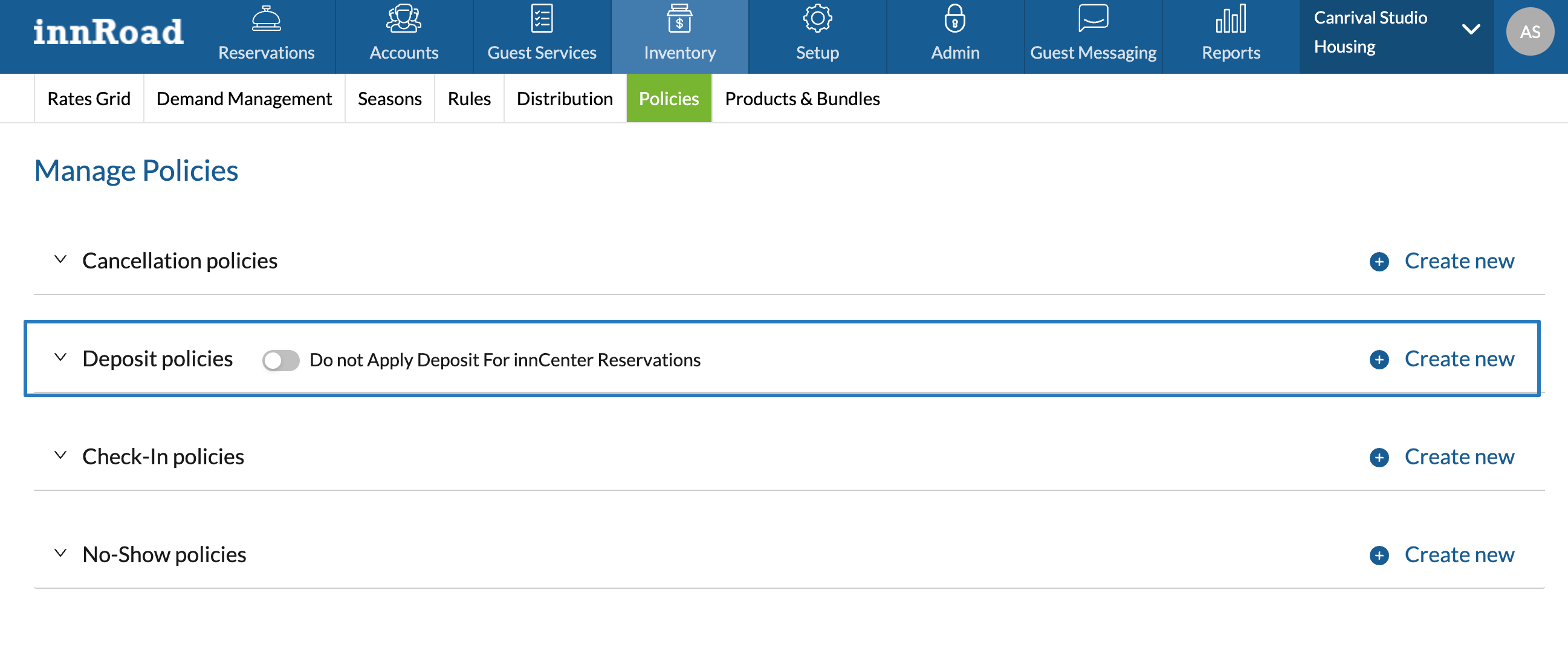
- Enter a Deposit Policy Name.
- Select Pricing Type from the dropdown:
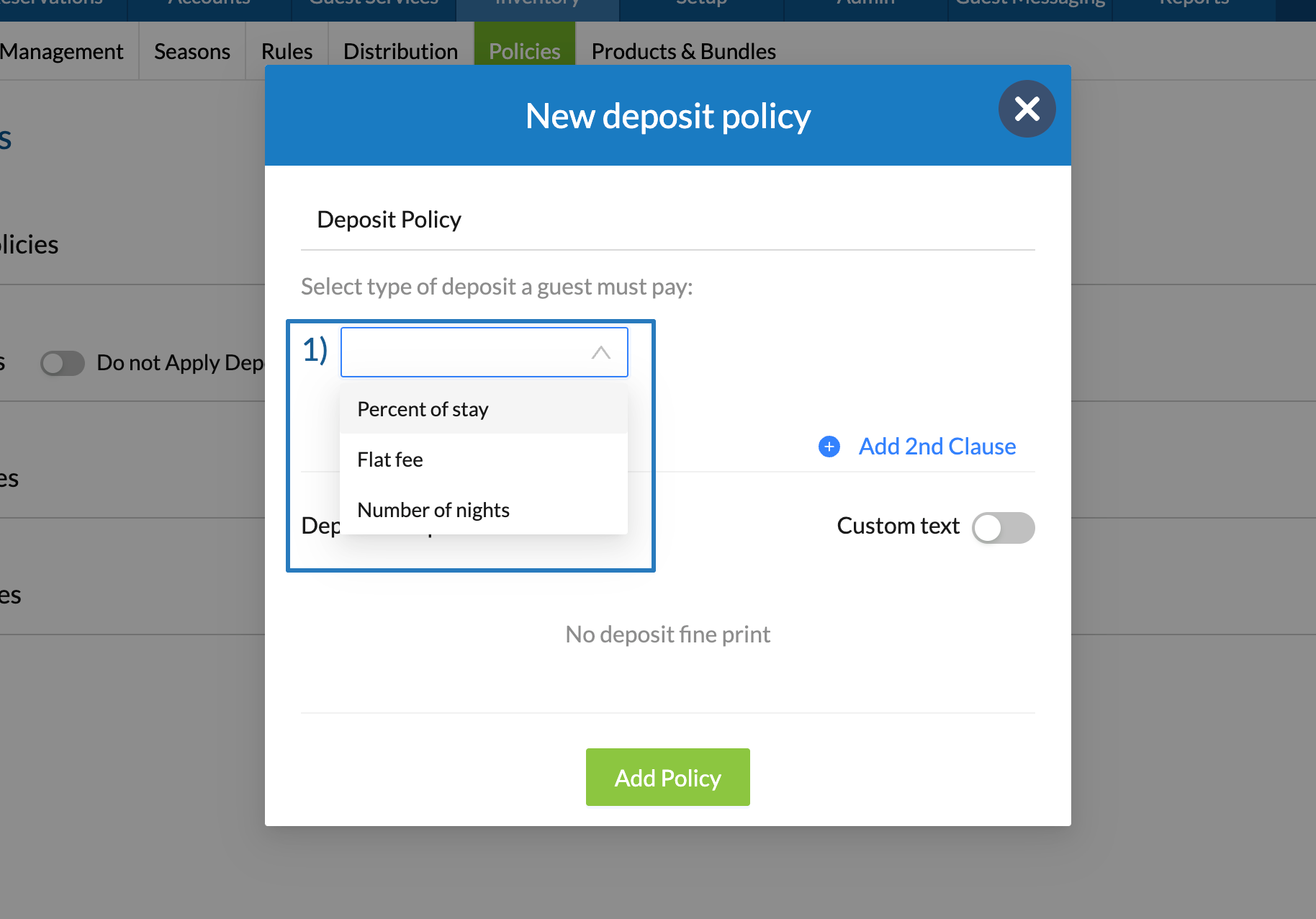
- Percent of stay calculates the amount based on total reservation charges or room charges.
- Flat fee applies a fixed deposit amount, regardless of reservation total.
- Number of Nights uses the first N nights of the reservation to calculate the deposit due.
- Enter the amount:
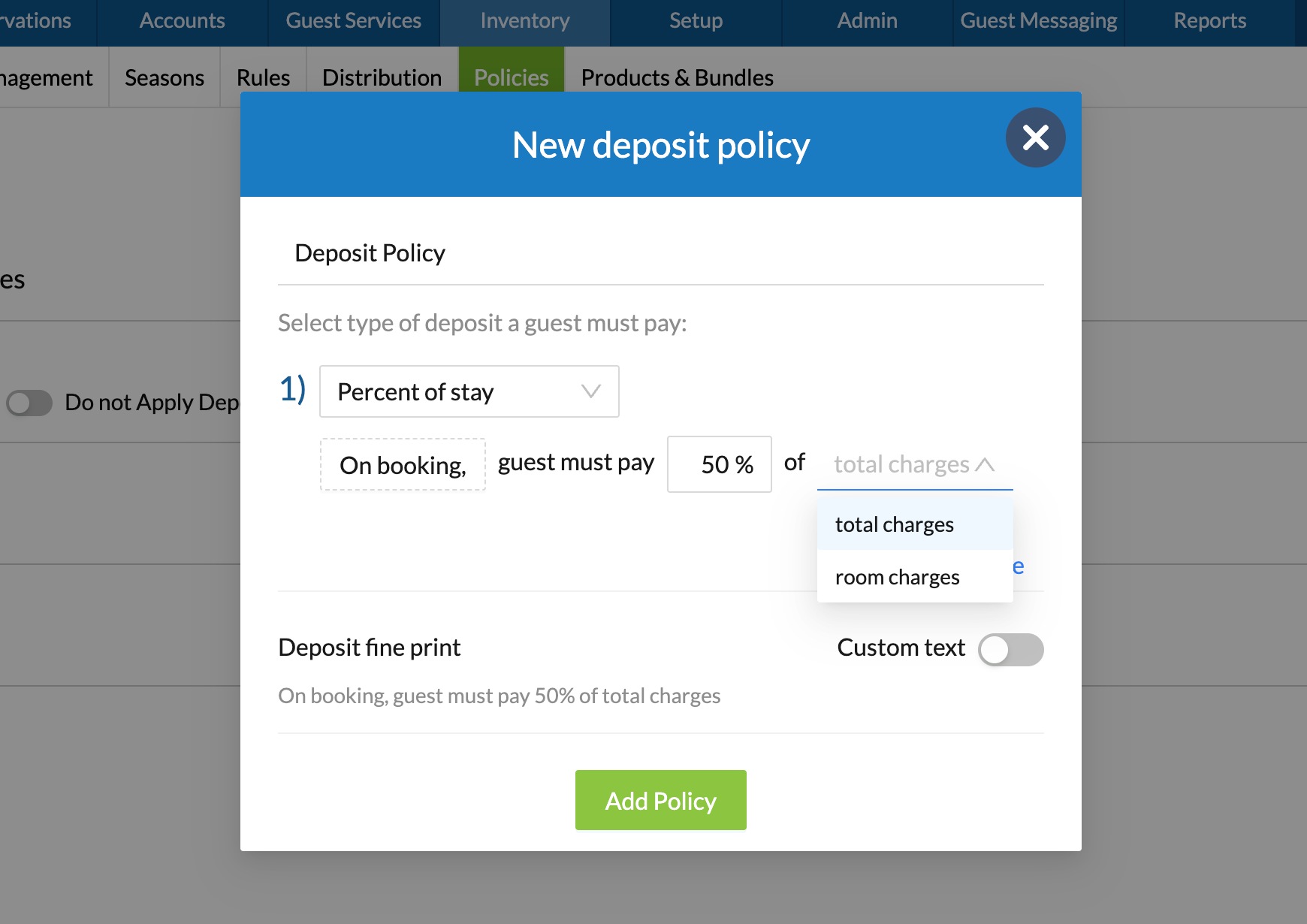
- Enable Custom Text to edit the default Deposit Policy wording.
- Click Add Policy to save.
If you want to create a Deposit Policy with scheduled charges, click here.
Check-In Policy Setup
Check-in policies set the amount to charge or hold when the guest checks-in, or completes Pre Check-in.
How to create a Check-in Policy:
- Go to Inventory > Policies.
- Under Check-In Policy, click Create New.
- Set a Check-in Policy name.
- Select "% of balance on check-in" as the type of fee:
- Enter the fee amount.
- Select whether to Capture or Authorize (Hold) the fee amount:
- Optionally, enable Custom Text to edit the auto-generated wording.
- Click Add Policy to save.
Learn more: Add or Edit a Check-in Policy
No-Show Policy Setup
No-Show policies define the fee to collect if a guest doesn't arrive on the check-in date, and doesn't cancel.
How to create a No-Show Policy:
- Go to Inventory > Rates Grid
- Under No-Show Policies, click Create New.
- Enter a Policy Title.
- Select Pricing type.
- Set the fee amount to collect.
- Optionally, enable Custom Text to modify the default wording.
- Click Add Policy to save.
Learn More: Add or Edit a No-Show Policy
Guest-Facing Policy Display
Once policies are saved, they become part of your property’s Terms & Conditions. Guests must accept these rules before completing their booking, and the same policies may be referenced again at check-in.
Policies appear in:
- The Booking Engine reservation checkout screen
- The Registration Card at check-in
- The Guest Portal
Was this article helpful?
That’s Great!
Thank you for your feedback
Sorry! We couldn't be helpful
Thank you for your feedback
Feedback sent
We appreciate your effort and will try to fix the article