Processing check-ins for guests that arrive to your property is a best practice to use your innRoad PMS. It helps you keep your account organized, and allow the system to perform some steps automatically for you.
When you process a check-in:
- Processes Payment if the reservation has a Check-in policy.
- Updates the count of In-house reservations in your Reservation Dashboard.
- The room status automatically changes to Occupied, simplifying Housekeeping workflows.
- Creates Tasks related to checked-in reservations
- Sends out Emails and text messages via Guest Messaging, if you have templates set up.
- Guest folios and charges (room rate, incidentals, etc.) begin tracking against the in-house stay.
- Any payment deposits or authorizations required by the rate plan are now in place.
To check a guest in:
- Log in to your innRoad account.
- Use the Reservation Dashboard or search feature to find the reservation scheduled to arrive.
- Click the reservation record you want to check in.
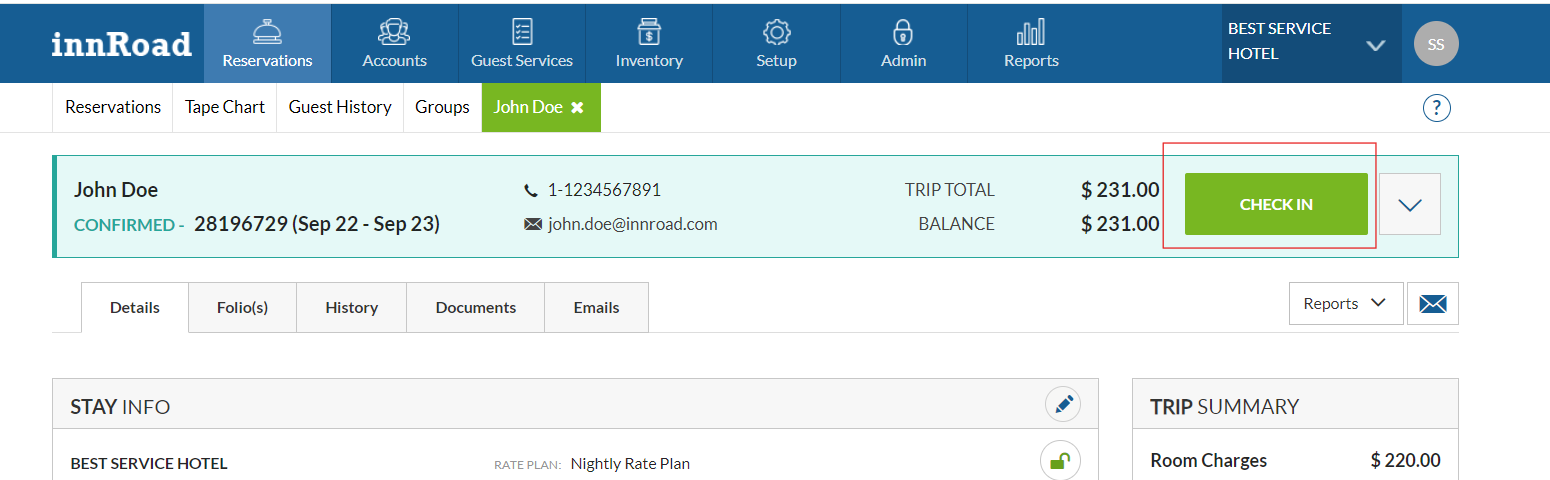
- In the reservation details view, click Check In in the top right corner of the screen.
- Click Confirm Check In to proceed.
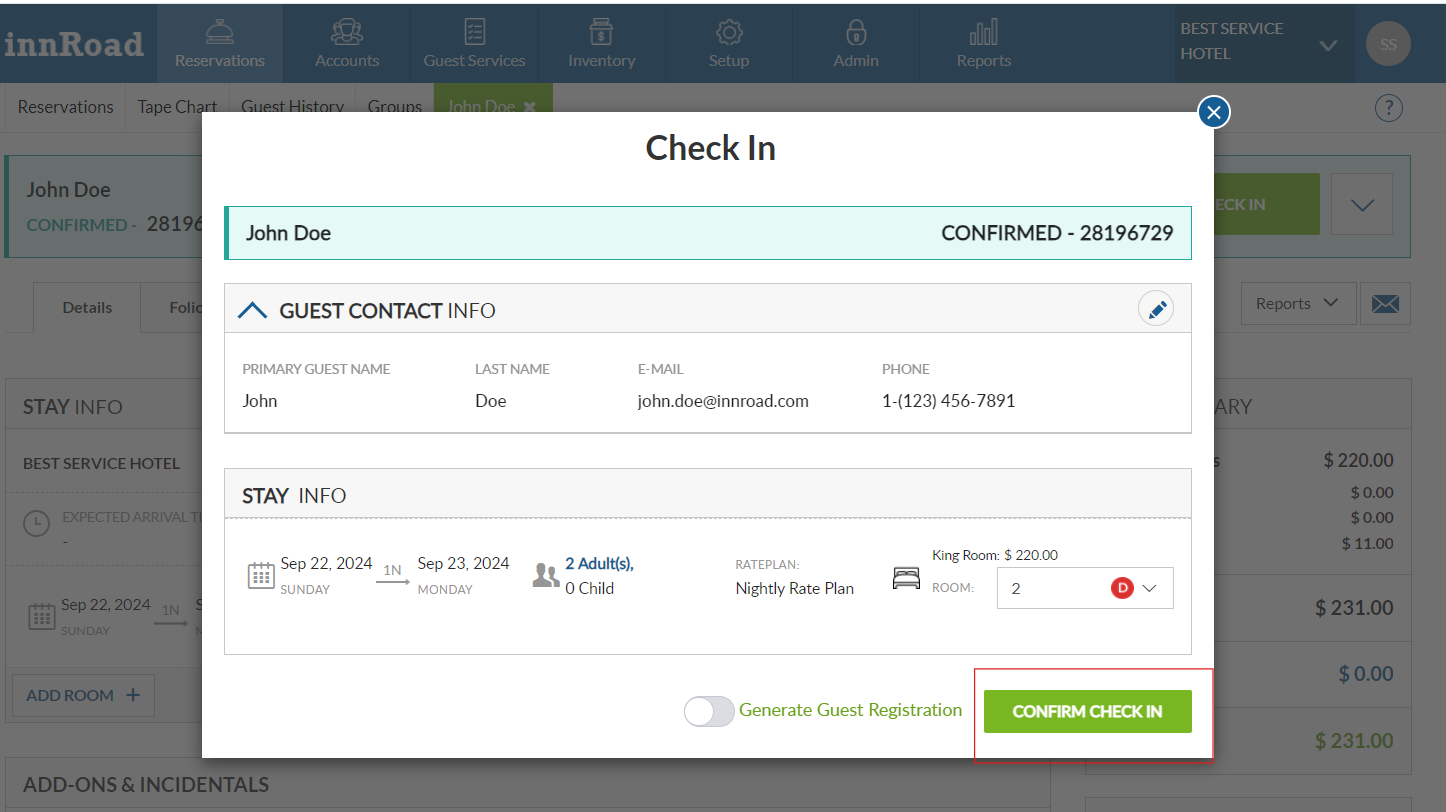
- If the rate plan on this reservation includes a check-in policy (for example, a deposit or authorization amount), innRoad will prompt you to authorize or charge that amount before completing check-in.
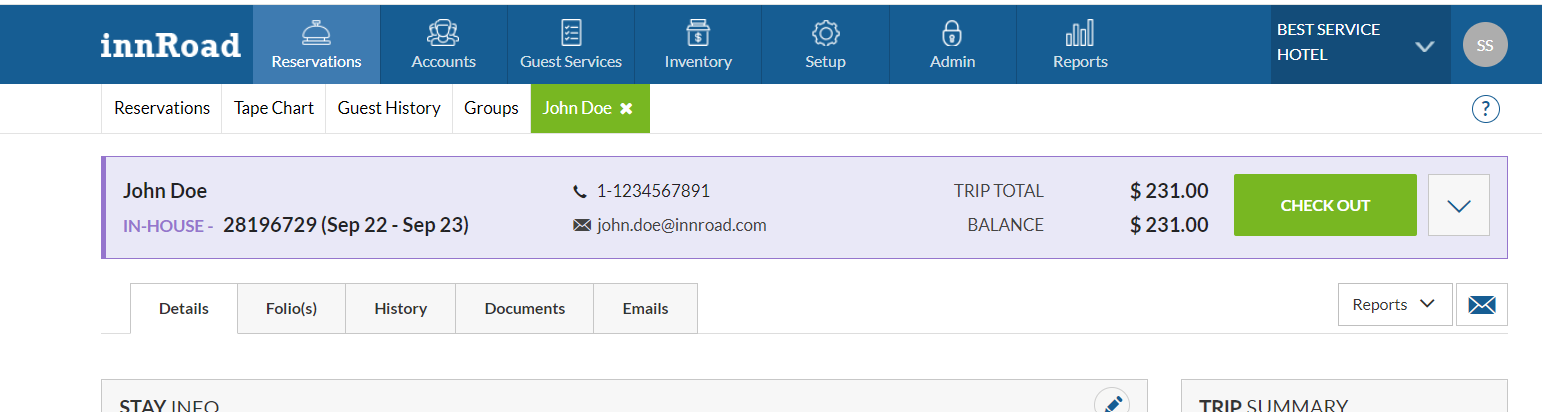
- Once confirmed, the reservation’s status will change to In-House and the guest is considered checked in.
You can also simplify parts of the check-in process, like collecting payment and payment method details using Guest Portal.
Was this article helpful?
That’s Great!
Thank you for your feedback
Sorry! We couldn't be helpful
Thank you for your feedback
Feedback sent
We appreciate your effort and will try to fix the article