Package Rate Plans let you bundle room pricing with Products and Bundles in innRoad, and display them as one total price. They are ideal for selling curated experiences like romance, wellness, or seasonal getaway packages.
Package Rates must include at least one Package or Bundle. If you haven't created a Product or Bundle yet, check out the steps below:

Create a Product to Upsell
Create a Bundle to Upsell
How to Create a Package Rate
- Go to Inventory > Rates Grid
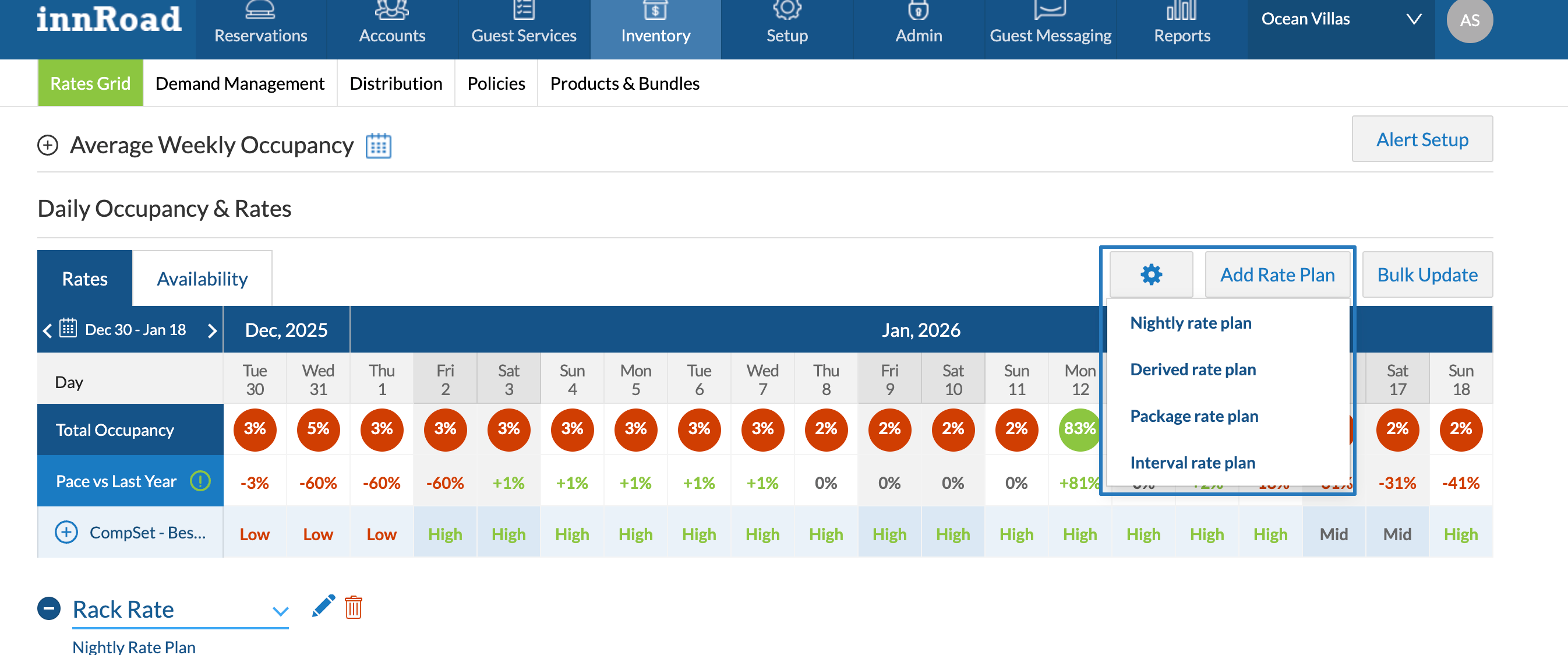
- Click Add Rate Plan
- Select Package rate plan:
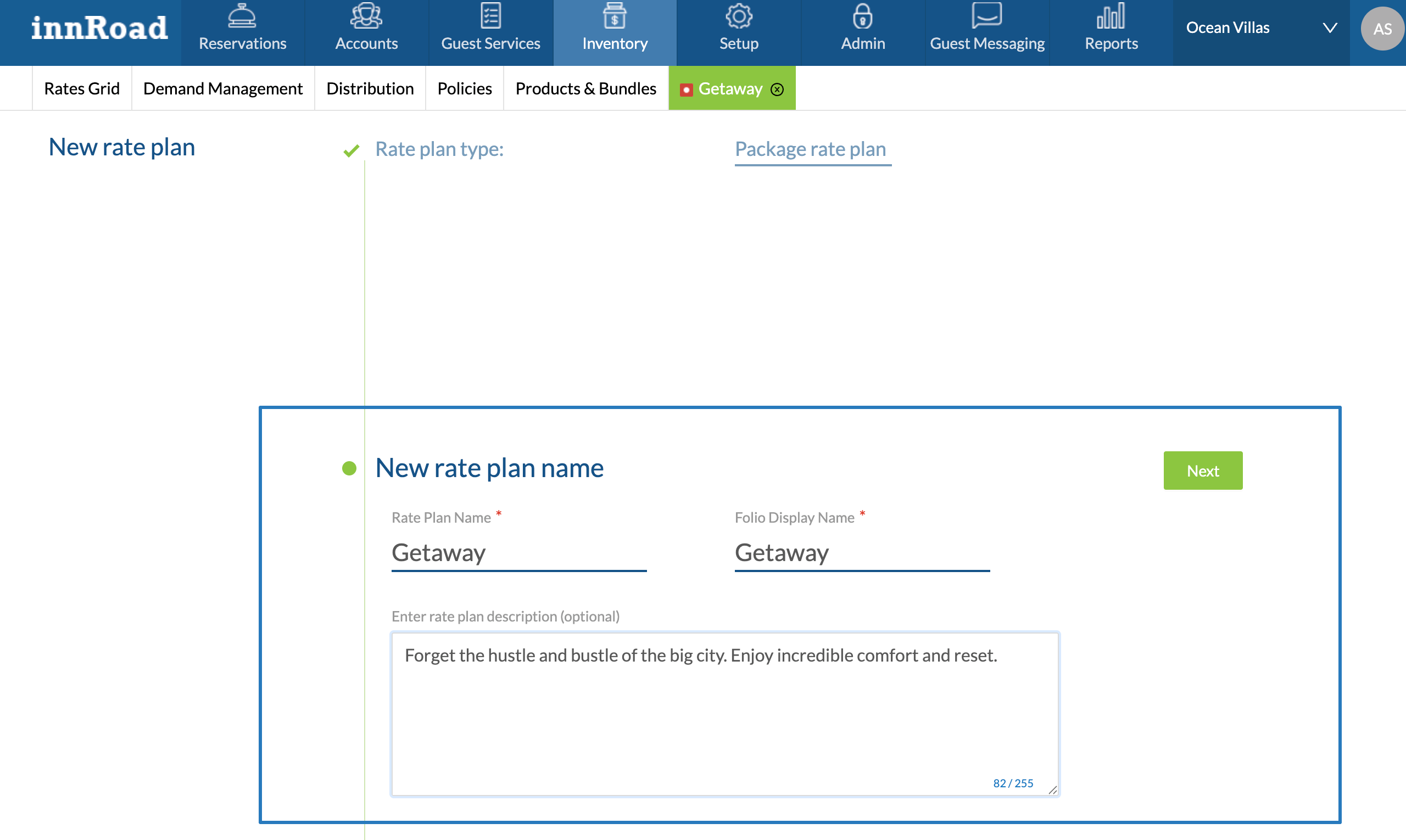
- Fill in the Rate Plan details:
- Rate Plan names are what you see inside innRoad.
- Rate Plan Display Names are what the guest sees on the Booking Engine and on folios, registration cards and statements.
- Descriptions display on the Booking Engine for guests to review before booking.
- Click Next.
- Choose how you will sell the Package rate:
- Nightly: the Package price is calculated per night of the stay.
- Interval: the Package price is calculated for a block of dates. For example, a 7 days interval would mean a Weekly Package.
Pro-rating the price allows guests to get the Package if booking for at least 1 interval. Extra nights are then priced proportionally instead of forcing another full 7-night block.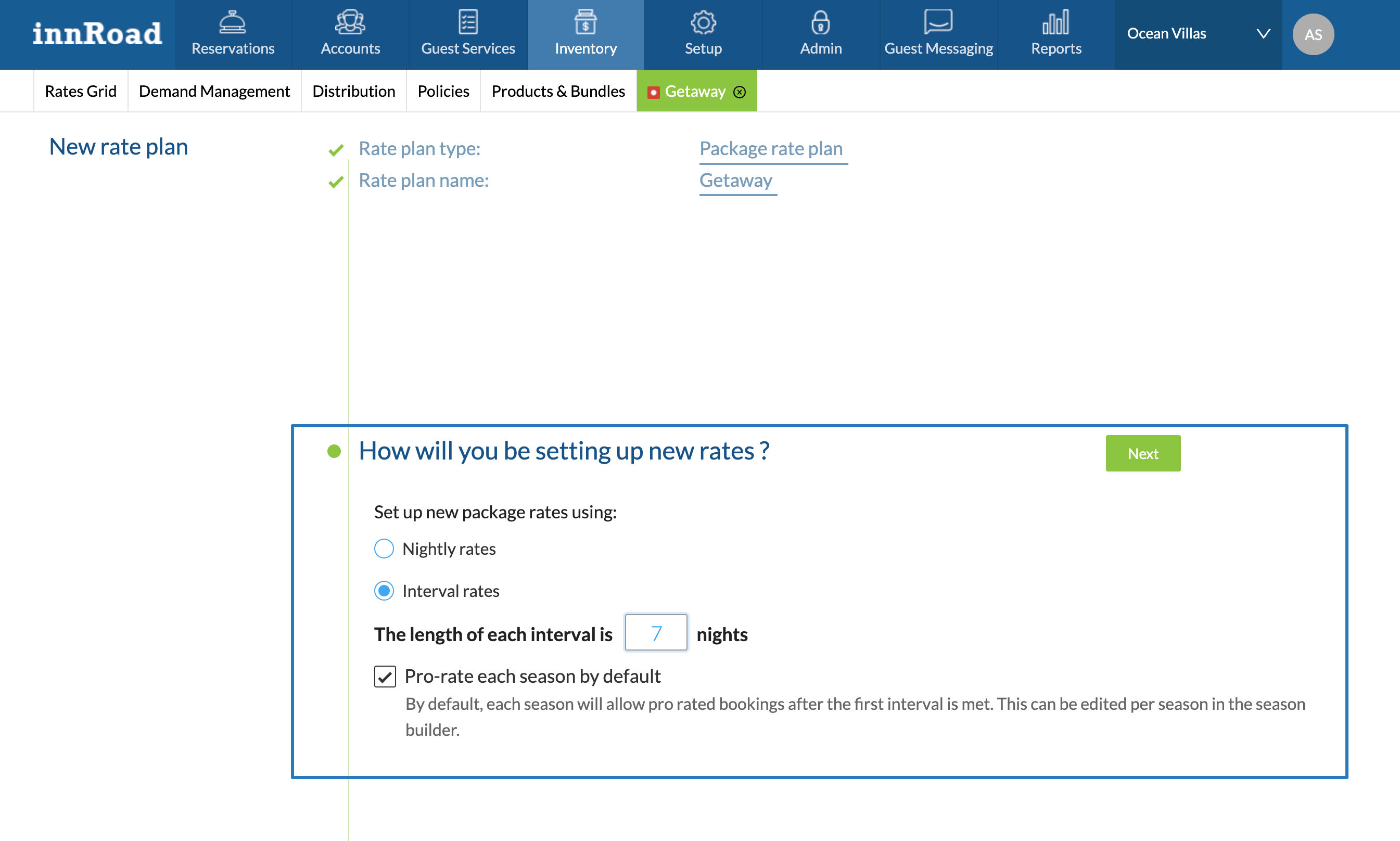
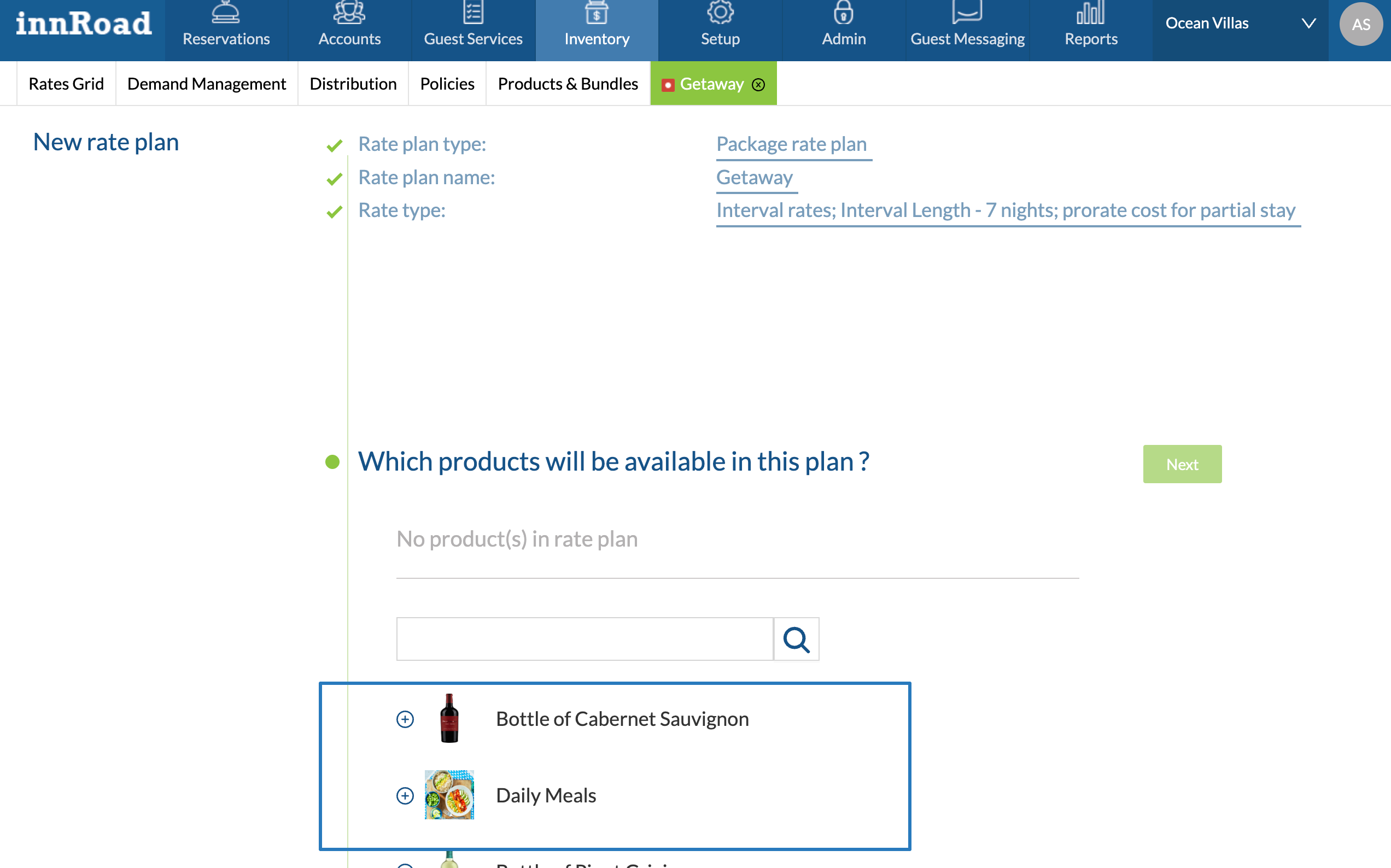
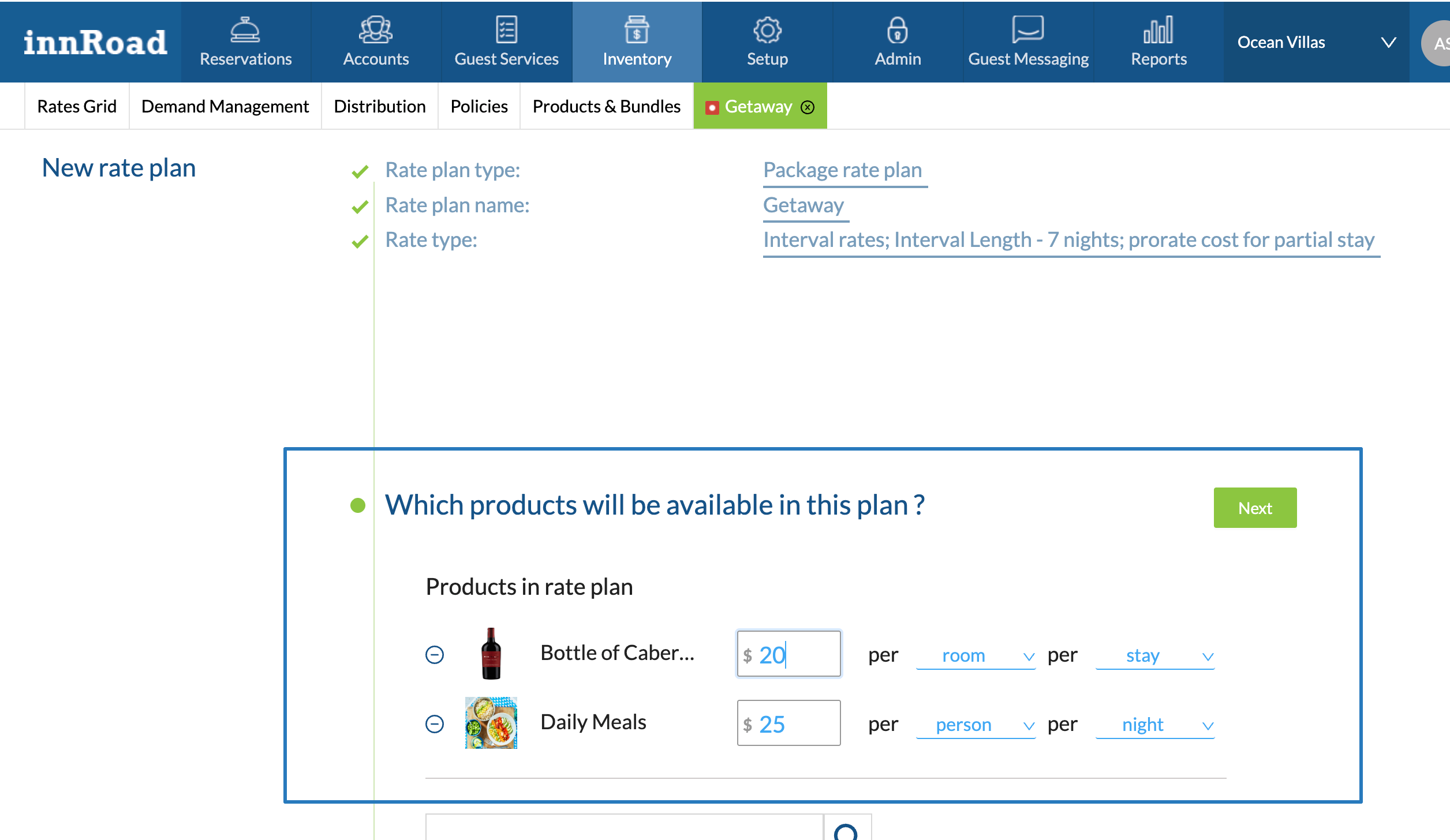
- Click "+" next to a Product or Bundles to include it in the Package:
- Adjust the default Product pricing, if required:
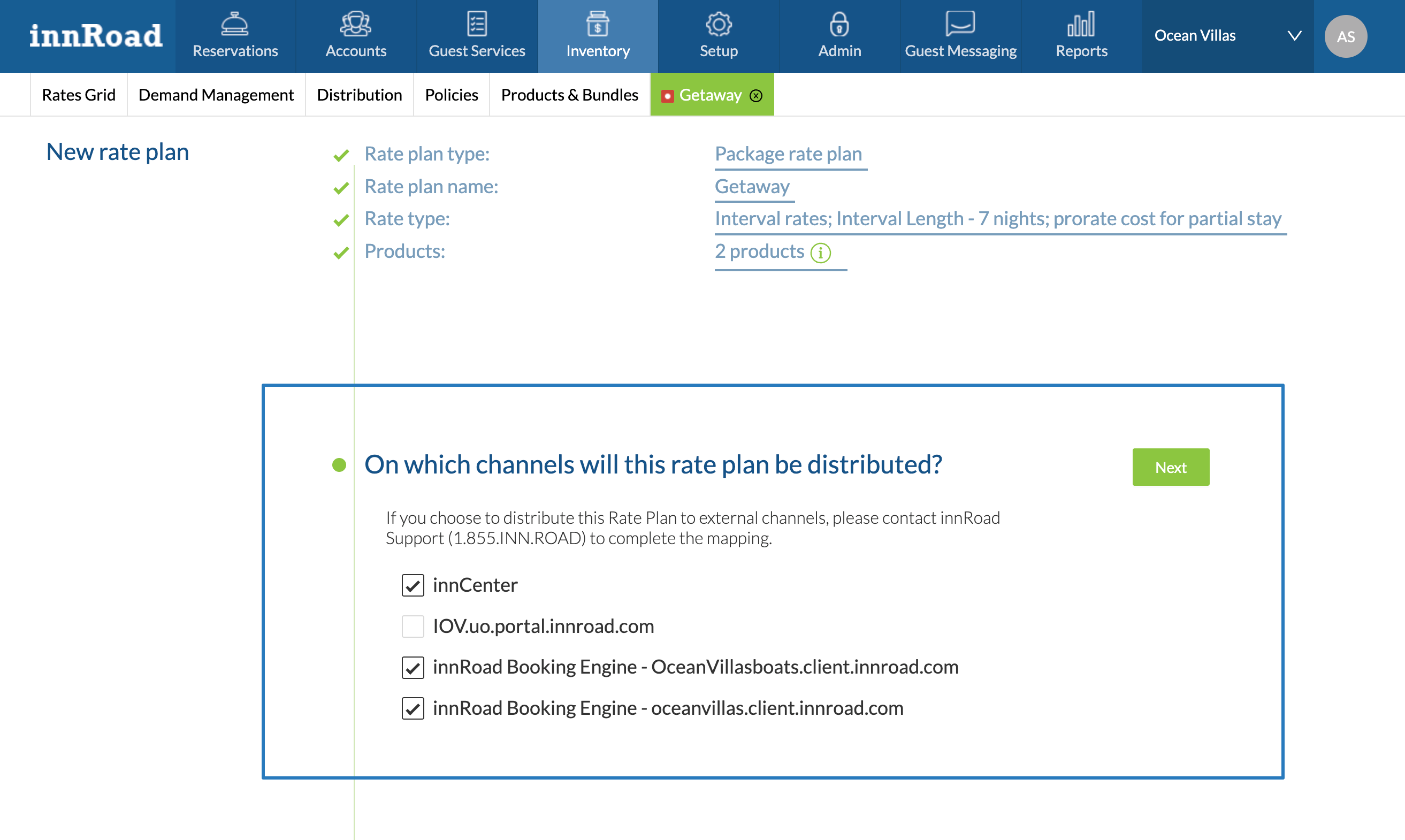
- Select DirectChannels where this package will be offered:
- innCenter makes the Package Rate available for in-house sales
- Booking Engine makes the Rate Plan available for guests online
- OTAs cannot sell Package Rate Plans
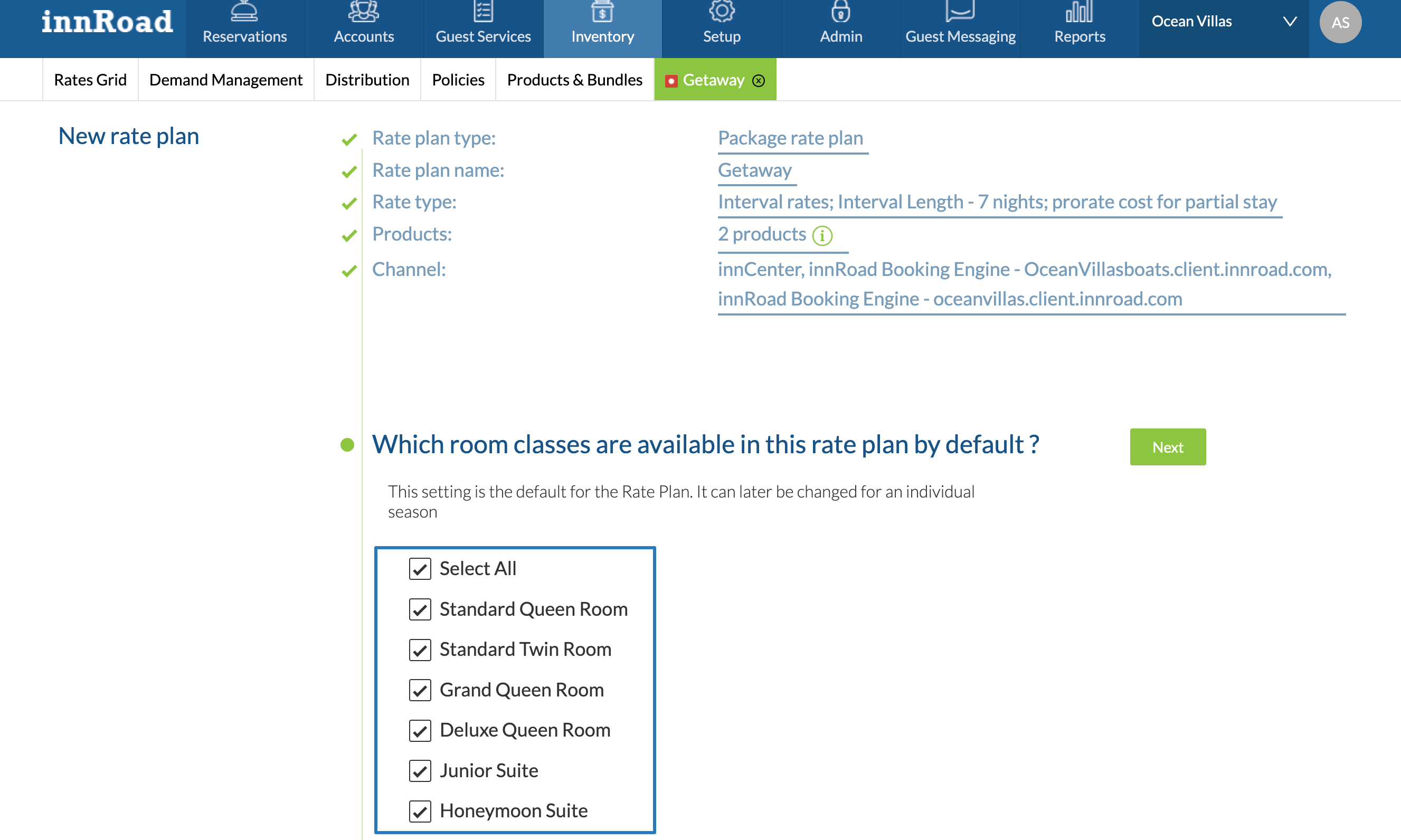
- Select Room Classes the package will apply to and click Next.
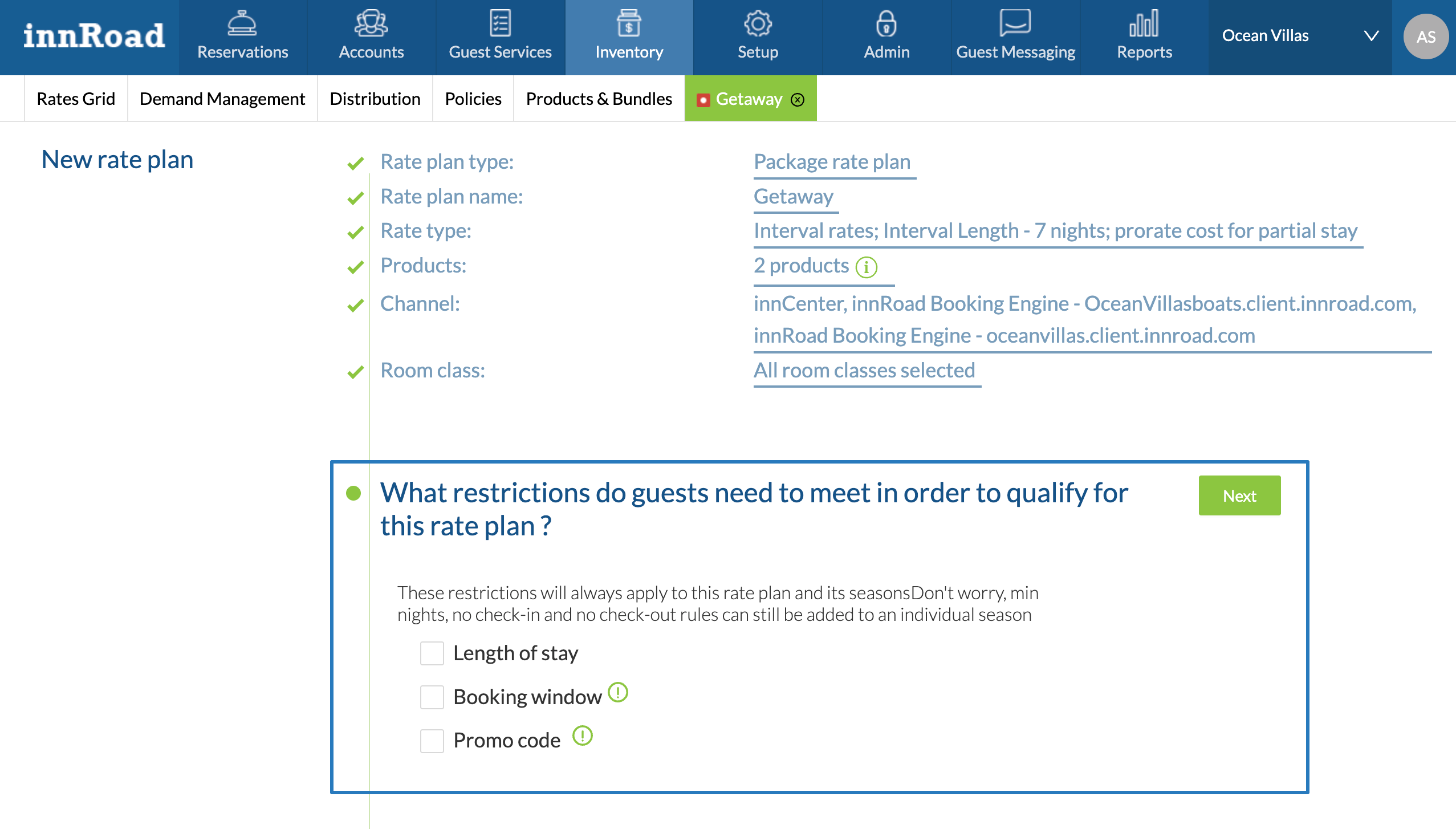
- Select any Rate Plan Restrictions(optional):
- Length of Stay set minimum or maximum nights required for the package to appear in search results.
- Booking Window control how far in advance or how close to the check-in date the rate plan becomes available.
- Promo Code requires a code to unlock the package
- Select Default Policies for the package.
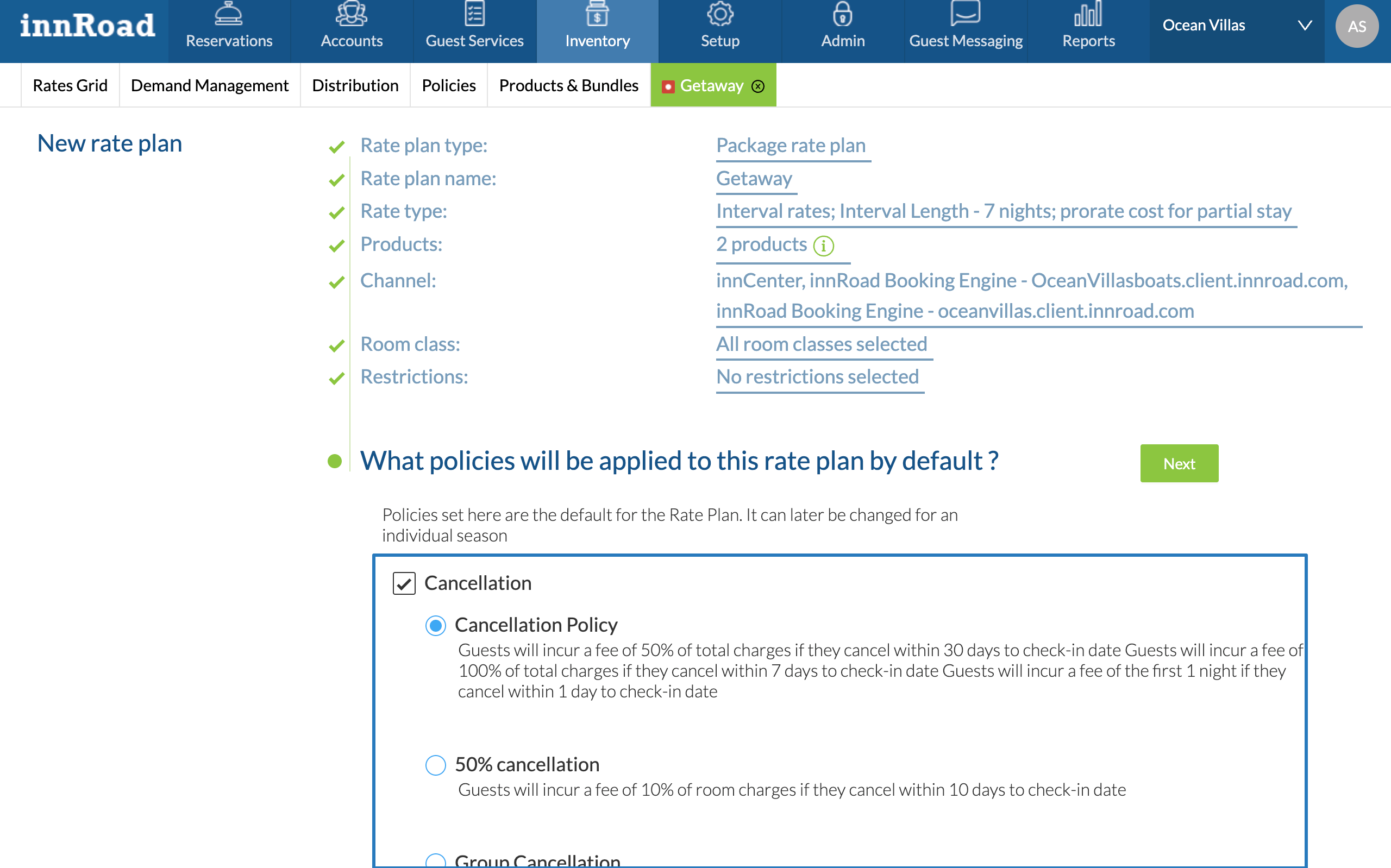
Policies define payment terms and outcomes such as deposit amount, cancellation fee, check-in charge, and no-show fee.
Default Policies apply to any new season you create for this rate plan. - Review the Package Rate Plan and click Save & Create Season to proceed.
How to Configure Seasons for a Package Rate
- Select the Season's Start Date
- Select the End Date
- Enter the Season's name, only visible inside innRoad
- Select the days of the week included in the dates:
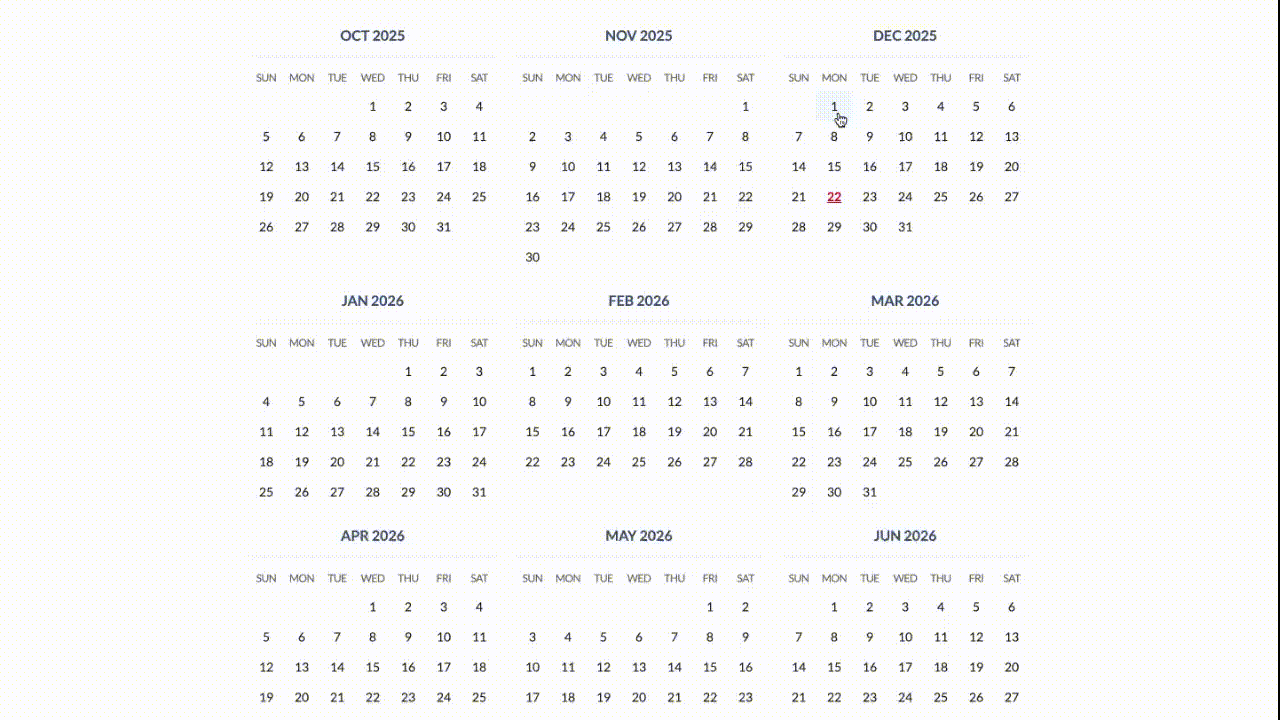
Set Prices
- Select the season's color for display on the Calendar.
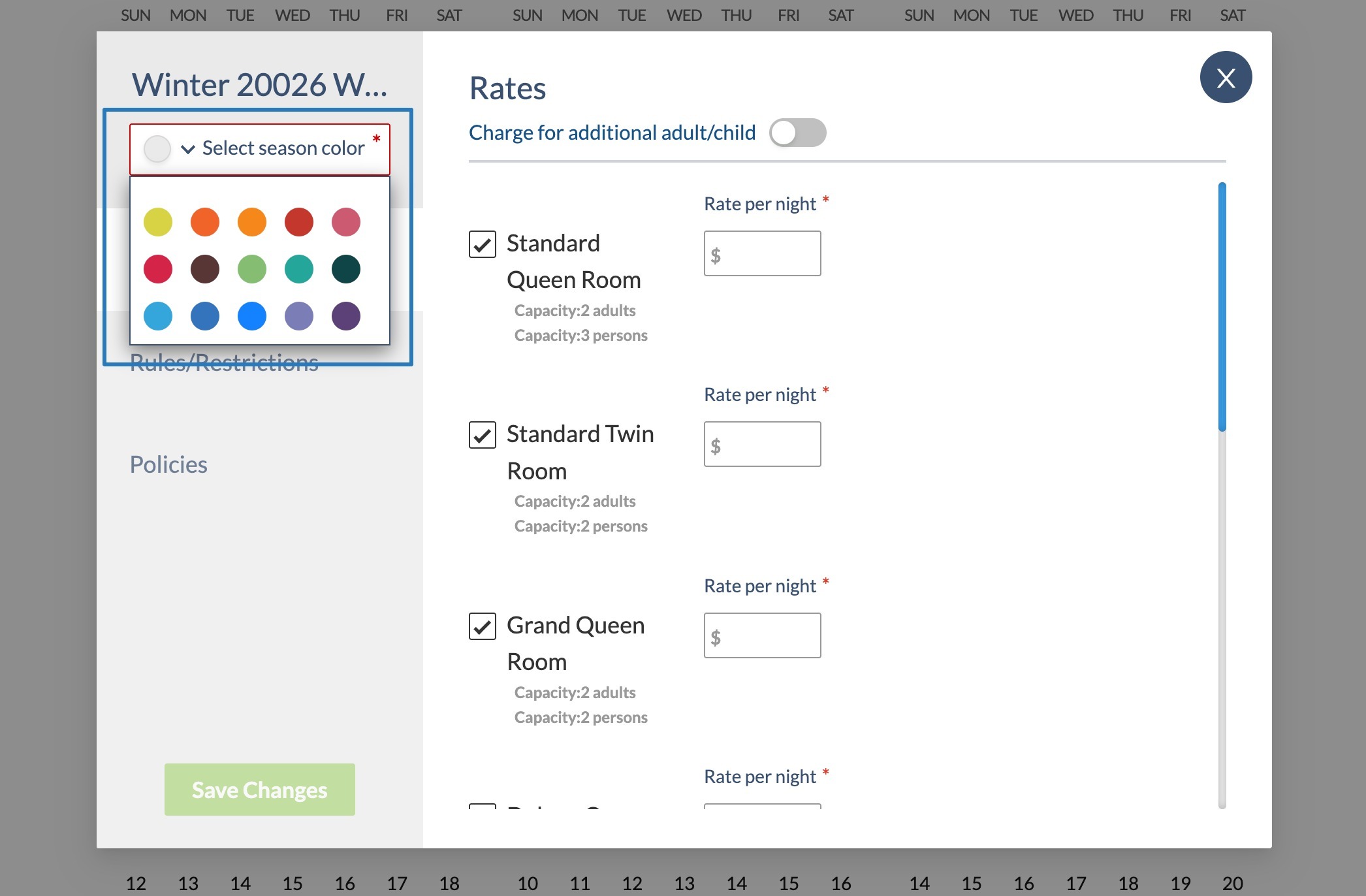
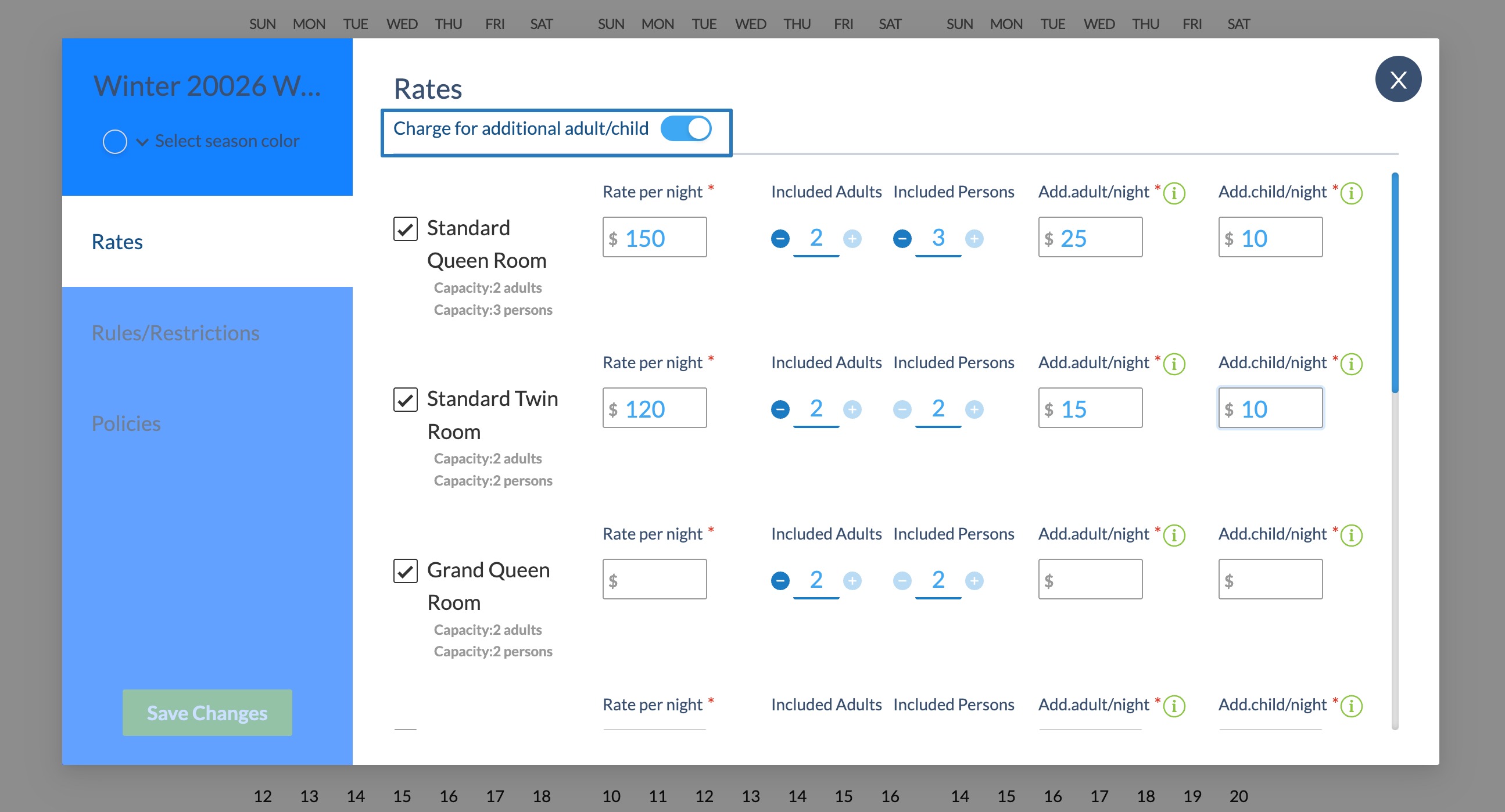
- Define the rates for the room classes to be sold in that season.
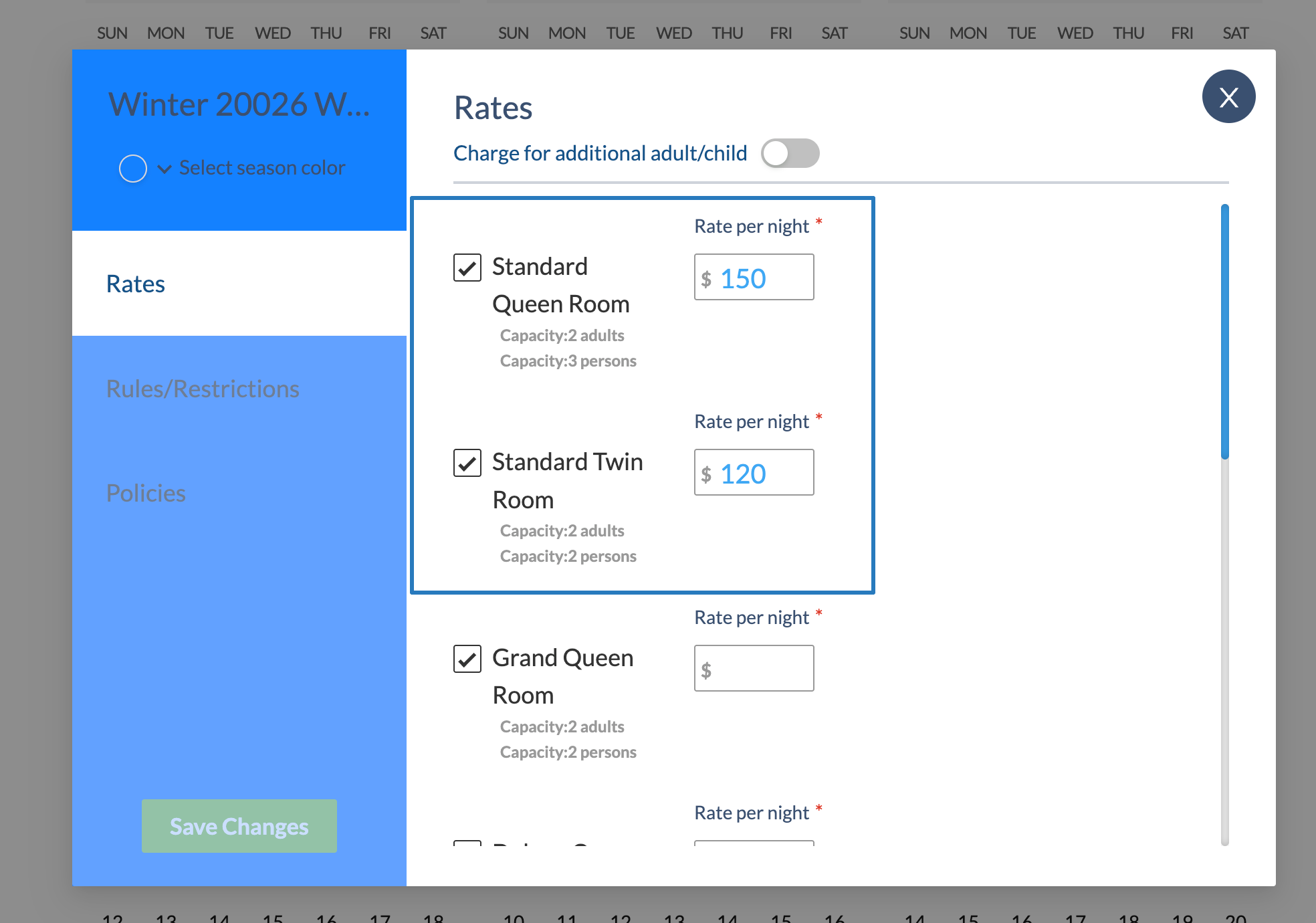
You can also set a standard occupancy included in the price, and charge an additional amount for each person above the standard occupancy.
- Enable the Charge for additional adult/child setting
- Set the number of Included Adults and Persons
- Apply the extra amount for adults beyond the included adults and persons for this rate:
Season Rules
Season-level rules are applied on top of Rate Plan restrictions to specific dates. Rules define the availability of the room class for dates included in a season.
To create rules in a season:
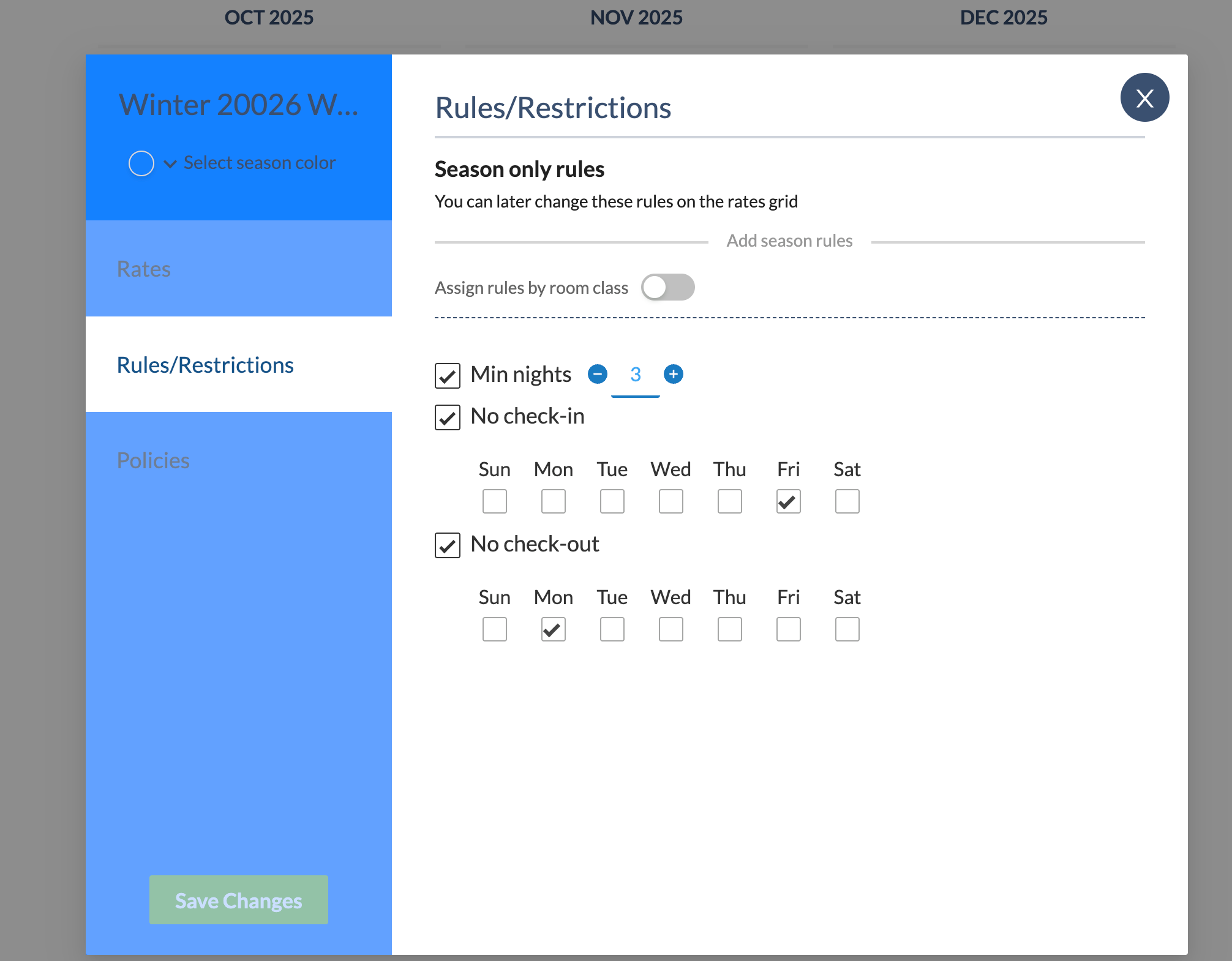
- Click Rules/Restrictions in the sidebar.
- Select applicable rules
- No Check-in will prevent reservations that start on the select day of the week.
- No Check-out will prevent reservations that end on the selected days of the week.
- Min nights will prevent reservations shorter than the Min nights rule.
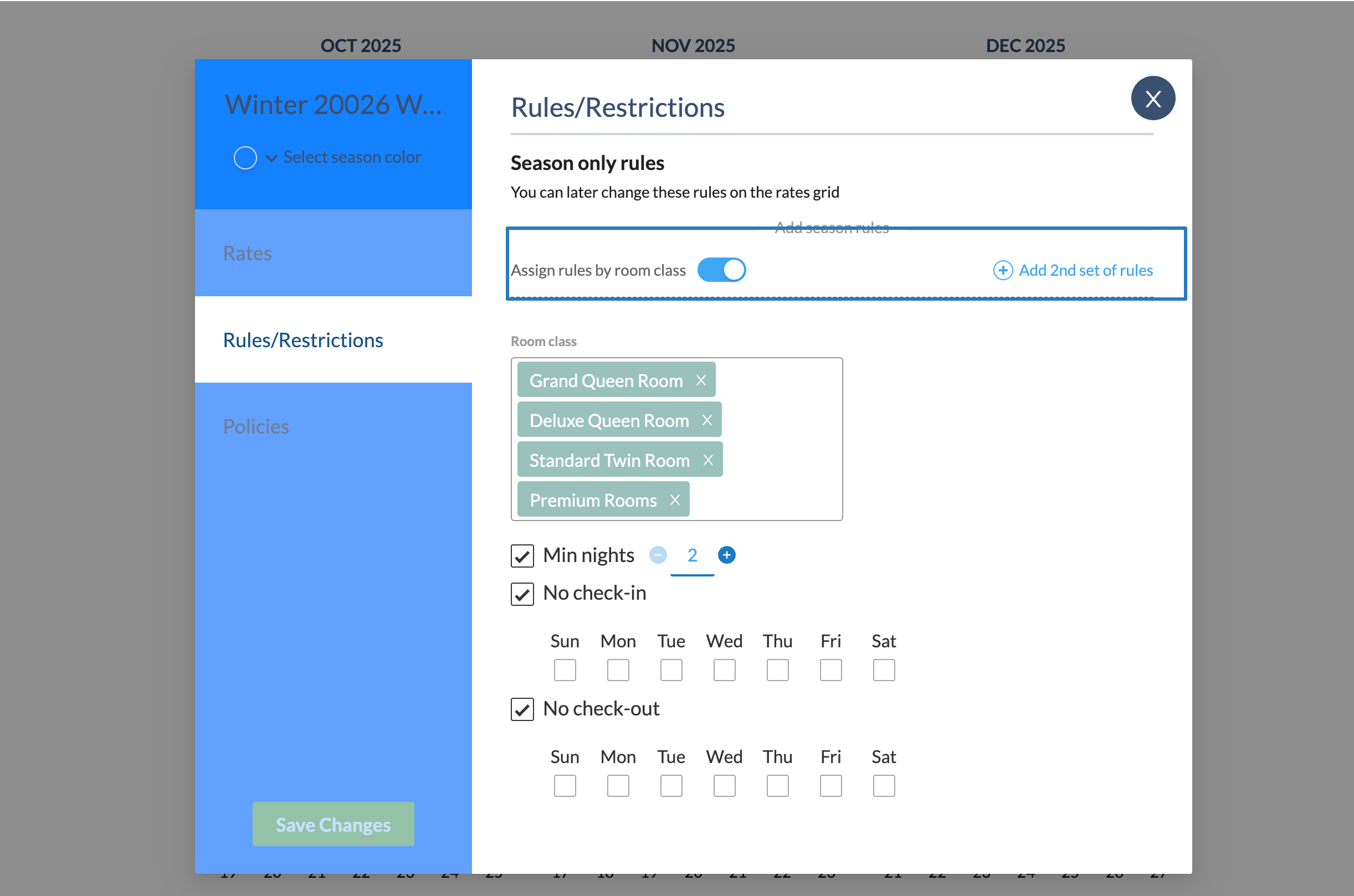
You can also apply different season-level rules to different room classes.
- Click Assign Rules by room class
- Select Room Classes for this set of rules.
- Apply a set of rules to the selected Room Classes
- Optionally, click Add 2nd set of Rules to apply different rules to other roo mclasses:
Season Policies
Policies set payment terms for different outcomes of the reservation. In other words, they define:
- Deposit to book the reservation, or deposit collected before check-in date.
- Cancellation fee if cancelling within a specified number of days before check-in.
- Check-in payments or authorizations
- No-show fee if the guest doesn't show up to their stay.
By default, the Rate Plan's Default Policy applies to any new season you create. You can change the season's policy as well.
- Click Policies in the sidebar.
- Select the applicable Policies for the season's dates:
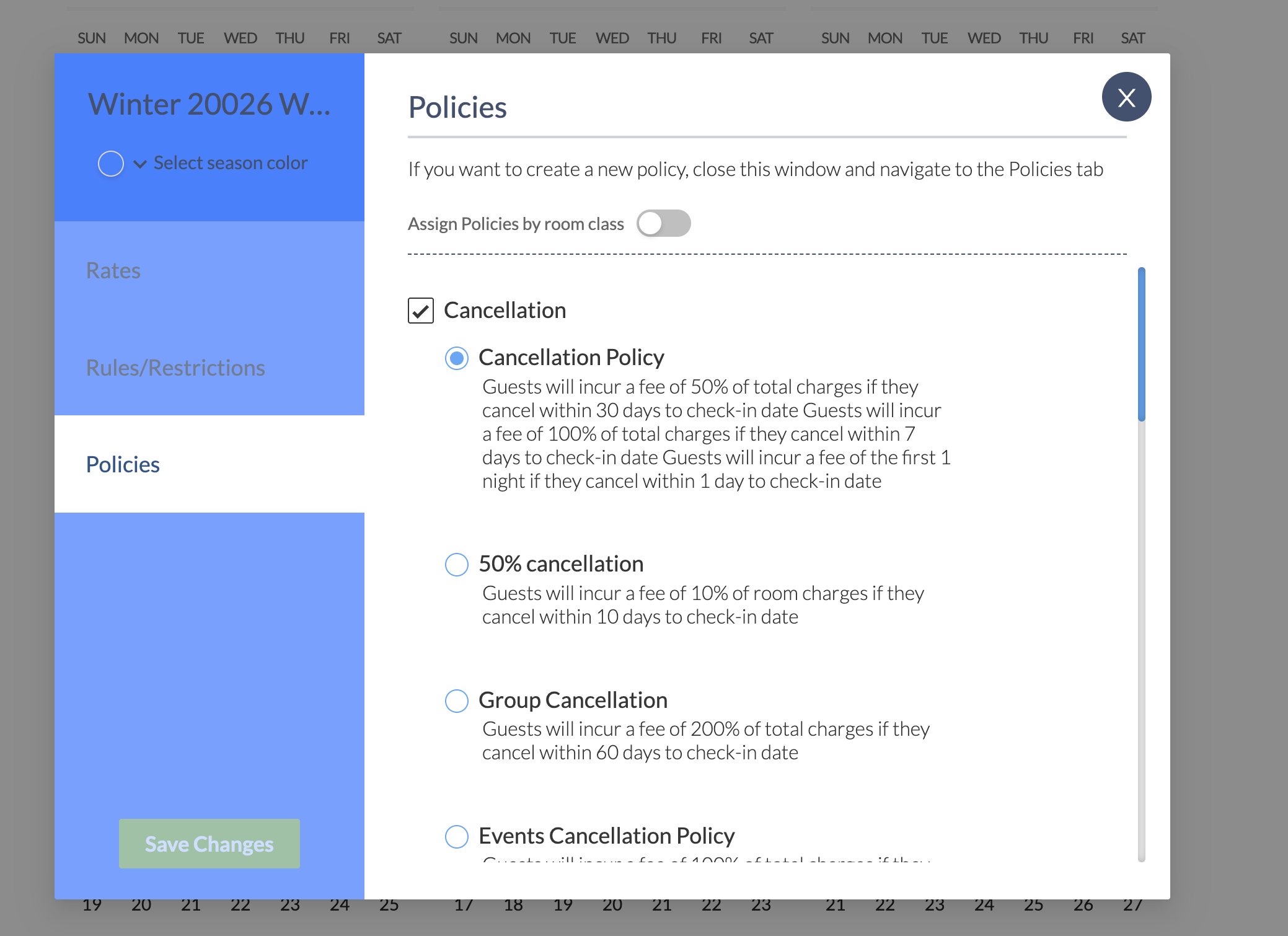
You can also apply different policies to different room classes, similar to applying Rules per room class.
- Click Assign Policies by room class
- Select Room Classes for this set of policies.
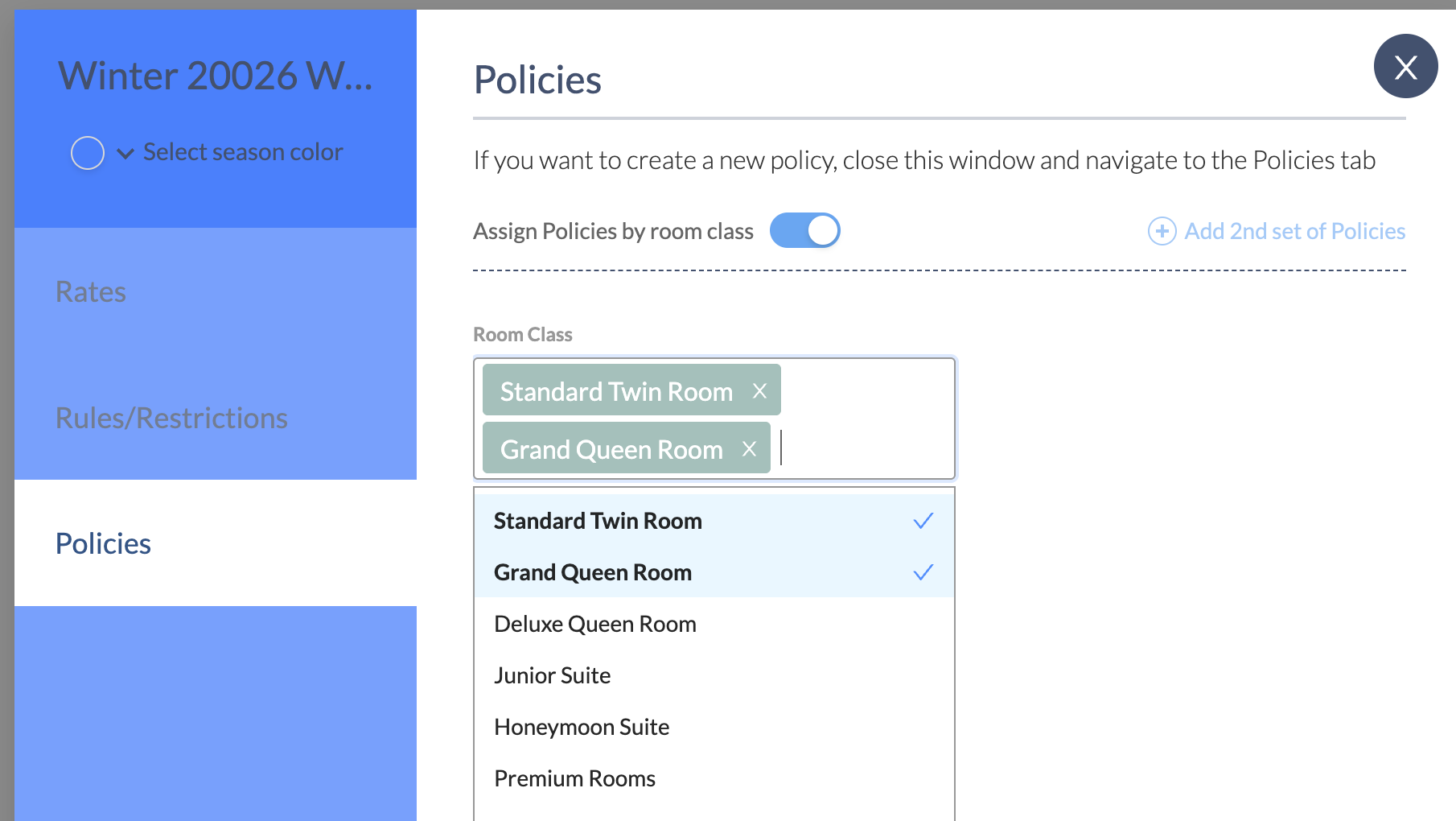
- Apply a set of policies to the selected Room Classes
- Optionally, click Add 2nd set of Policies to apply different rules to other room classes.
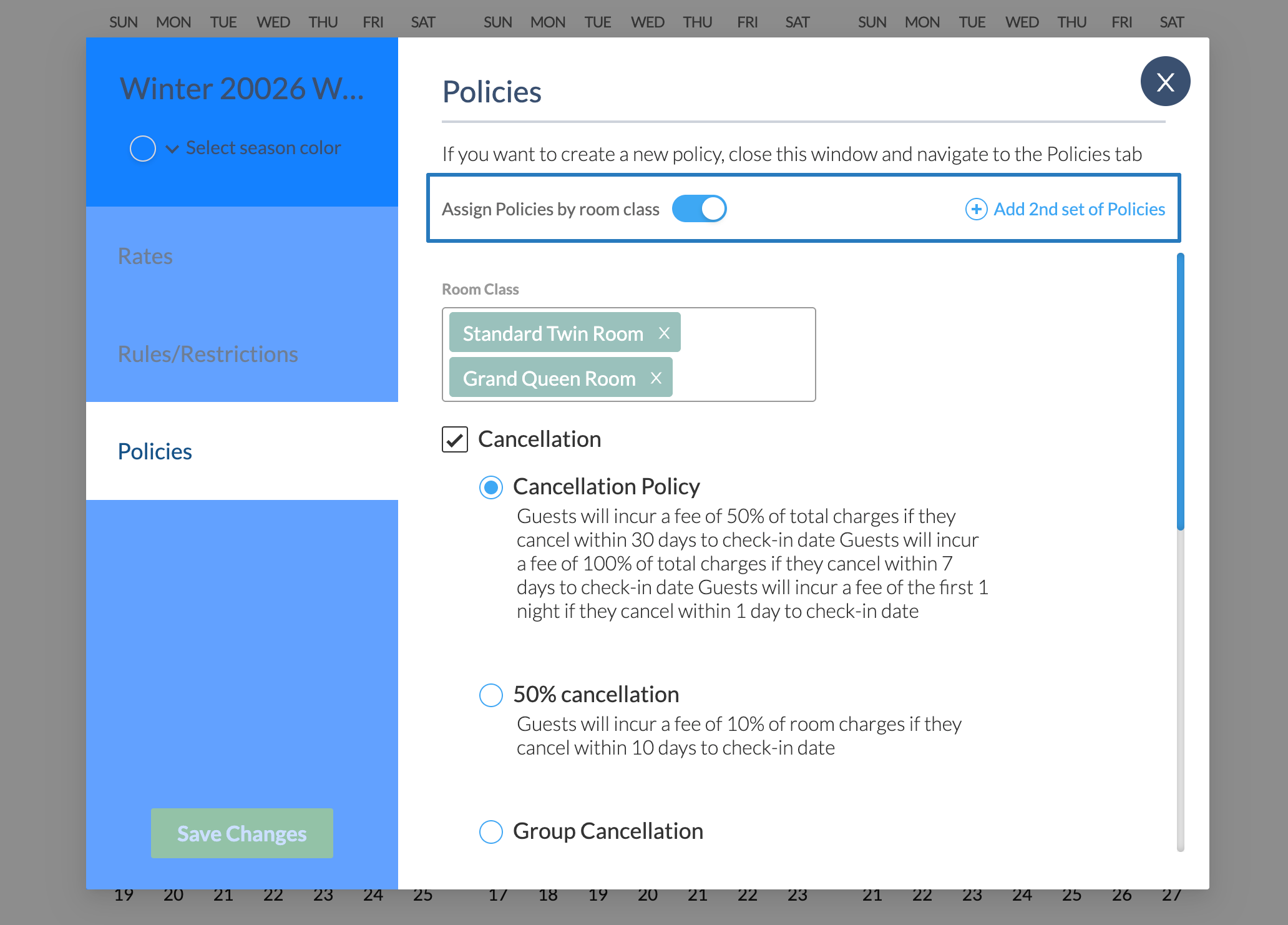
Once saved and set to Active, your package will be bookable on the innRoad Booking Engine.
Was this article helpful?
That’s Great!
Thank you for your feedback
Sorry! We couldn't be helpful
Thank you for your feedback
Feedback sent
We appreciate your effort and will try to fix the article