Interval Rate Plans allow you to set pricing for a block of dates, instead of setting a price per night. This can be a great way to sell:
- Week-long stays, as a 7-night interval
- Month-long stays, as a 30-night interval
Once you create your Interval Rate Plan, you can customize pricing, booking rules, and policies using date ranges called seasons.
Benefits of offering Interval Rates
Nightly rates a great foundation for your pricing structure. On top of that, Interval Rates help you cater to guests who are looking to stay longer and get special pricing.
With Interval Rates, you can:
- Simplify the price guests see, since you show one total instead of multiple nightly line items
- Sell longer stays easily
- Reduce housekeeping strain by decreasing turnover while maintaining occupancy
This approach helps you increase revenue, package value, and booking clarity while reducing manual rate management.
How to Create an Interval Rate Plan
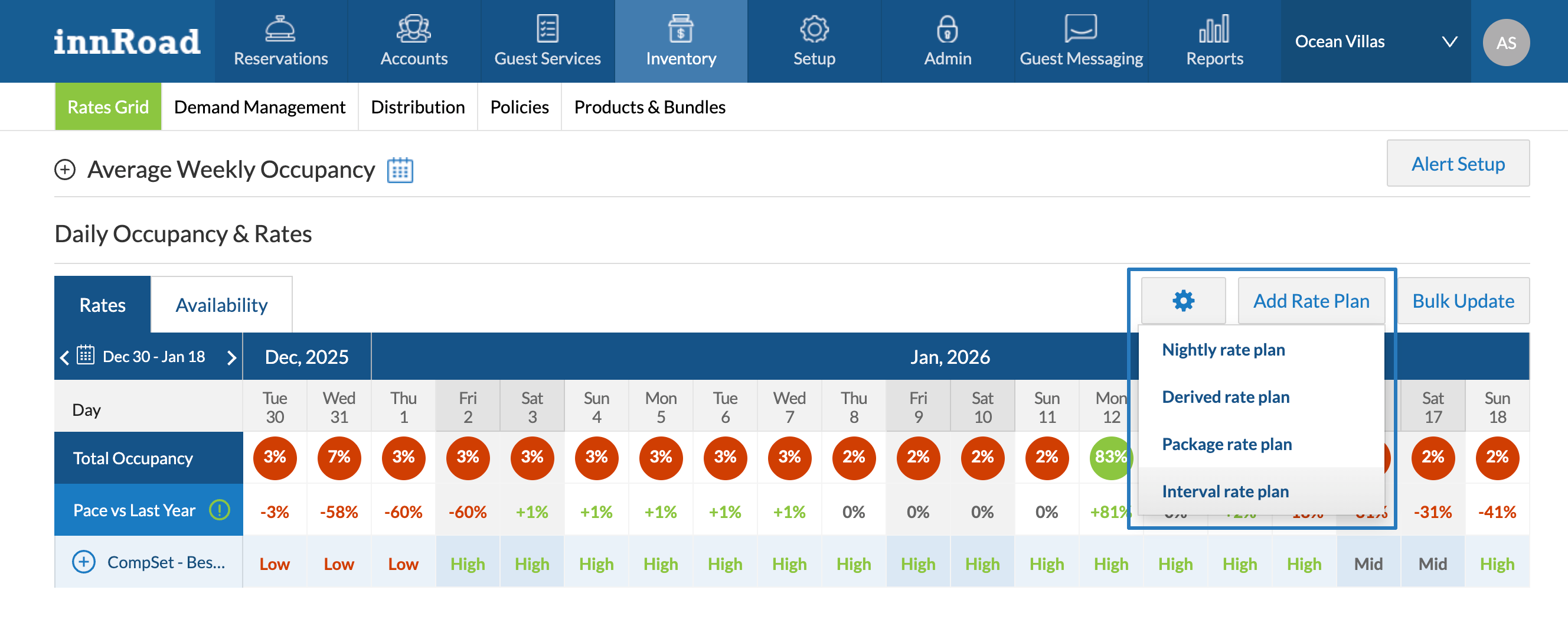
- Go to Inventory > Rates Grid
- Click Add Rate Plan
- Select the Add Interval rate plan:
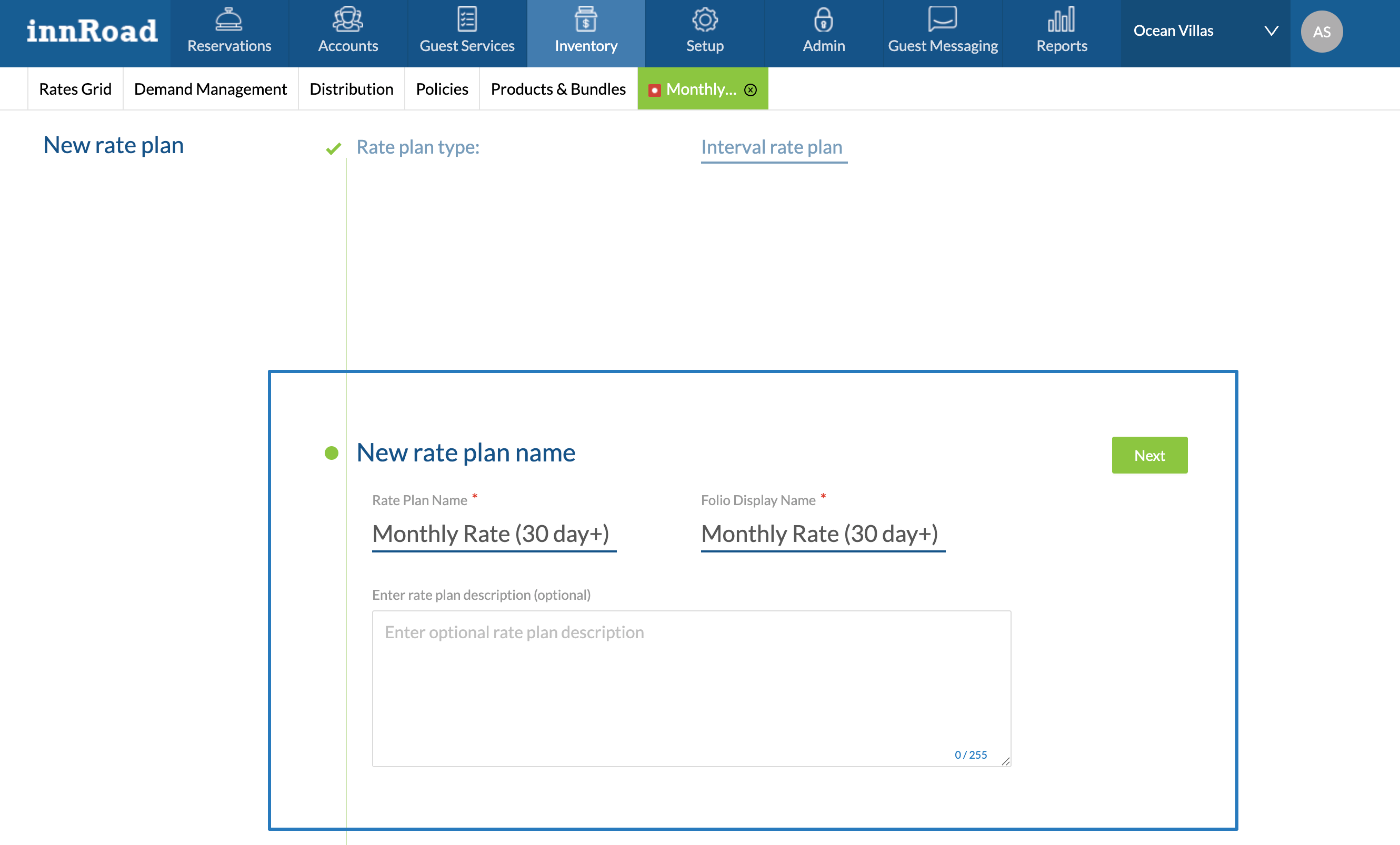
- Fill in the Rate Plandetails:
- Rate Plan Name is what you see in innRoad (internal only)
- Display Name is what the guest sees on the Booking Engine, folios, receipts, and communication templates
- Description displays on the innRoad Booking Engine
- Click Next.
- Set up the Intervals:
- Interval price is calculated for a block of dates. For example, a 7 days interval would mean a Weekly Rate Plan.
Pro-rating the price allows guests to get the Package if booking for at least 1 interval. Extra nights are then priced proportionally instead of forcing another full 7-night block.
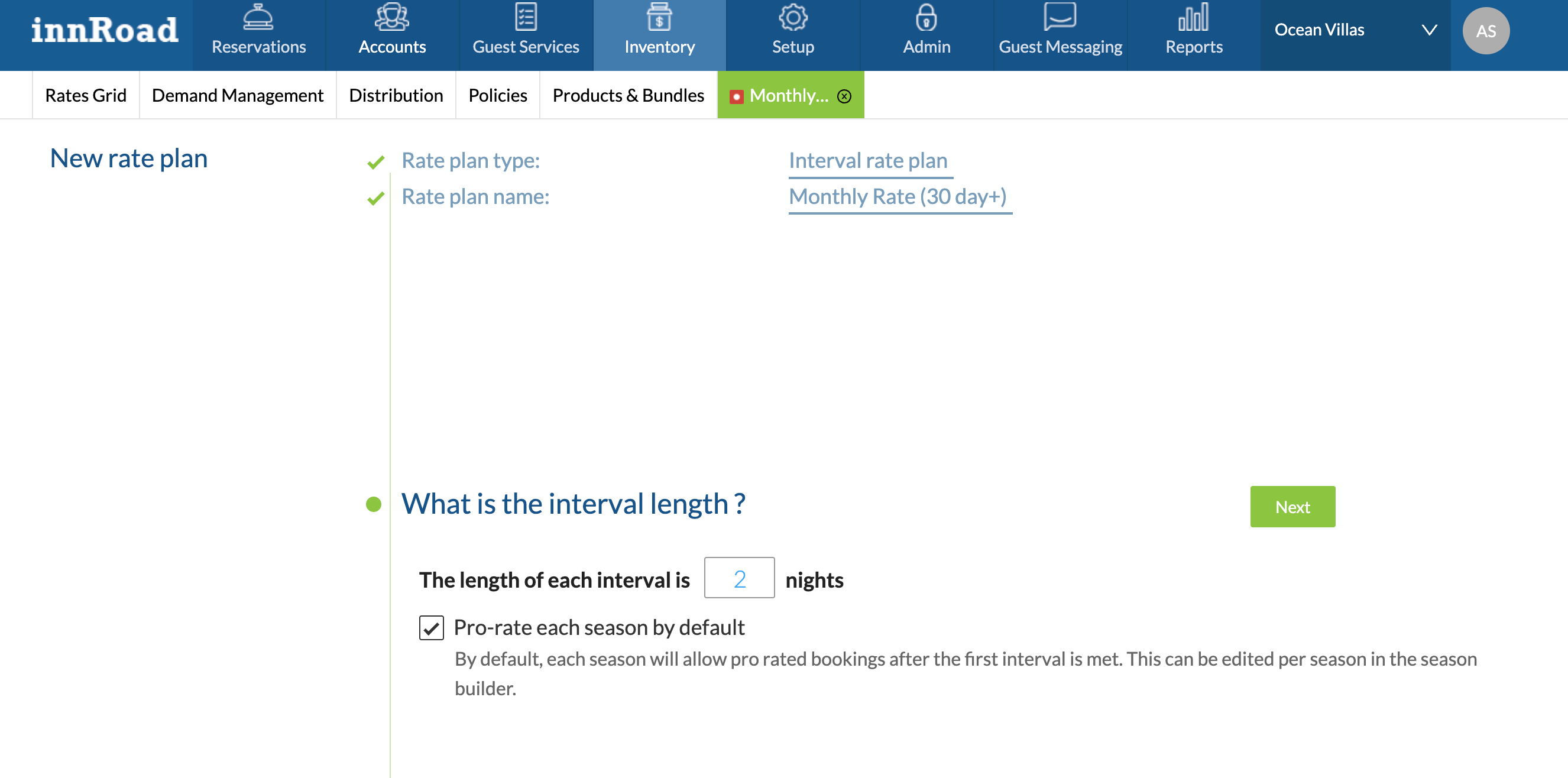
- Interval price is calculated for a block of dates. For example, a 7 days interval would mean a Weekly Rate Plan.
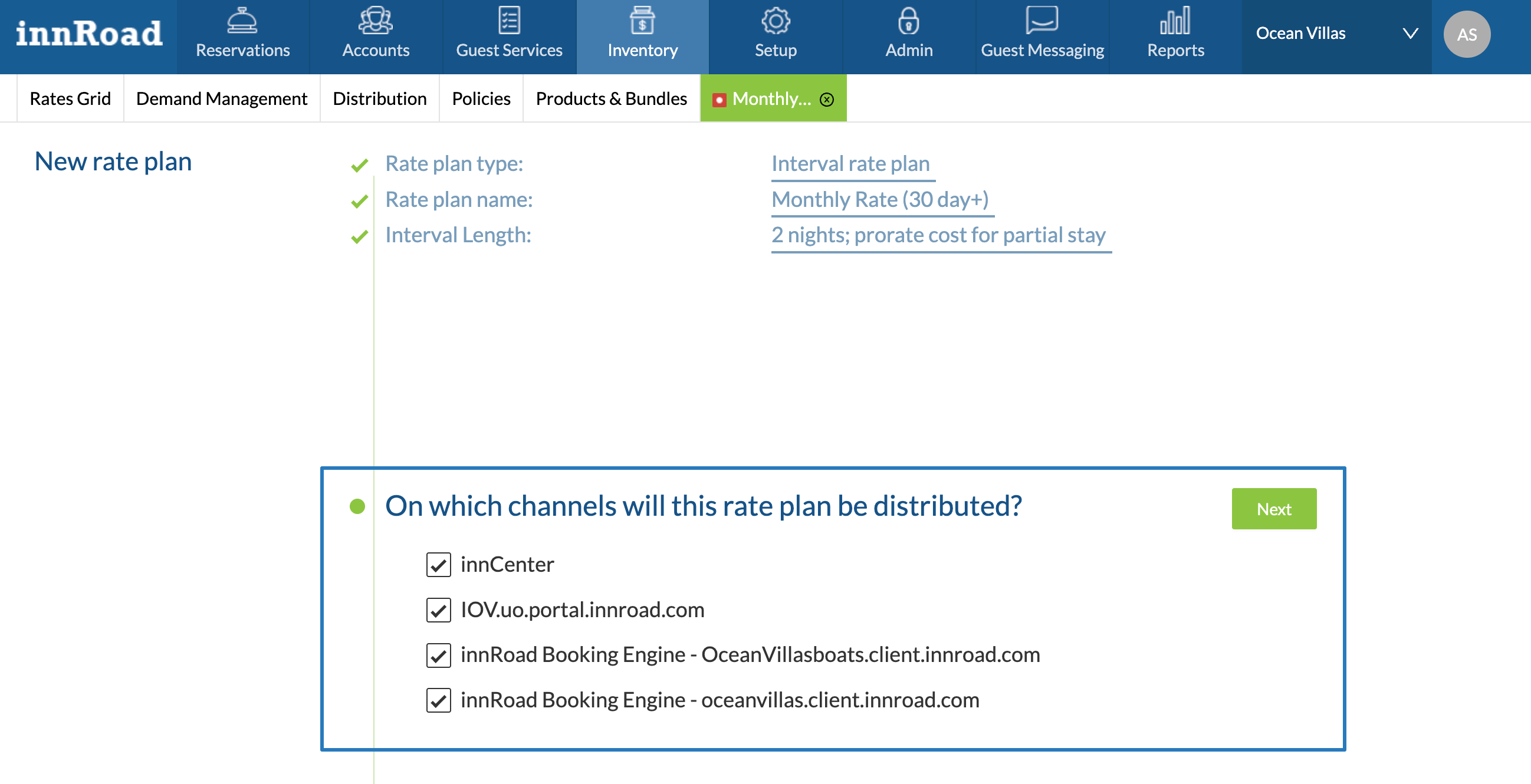
- Select the Channels where this rate will be offered, then click Next:
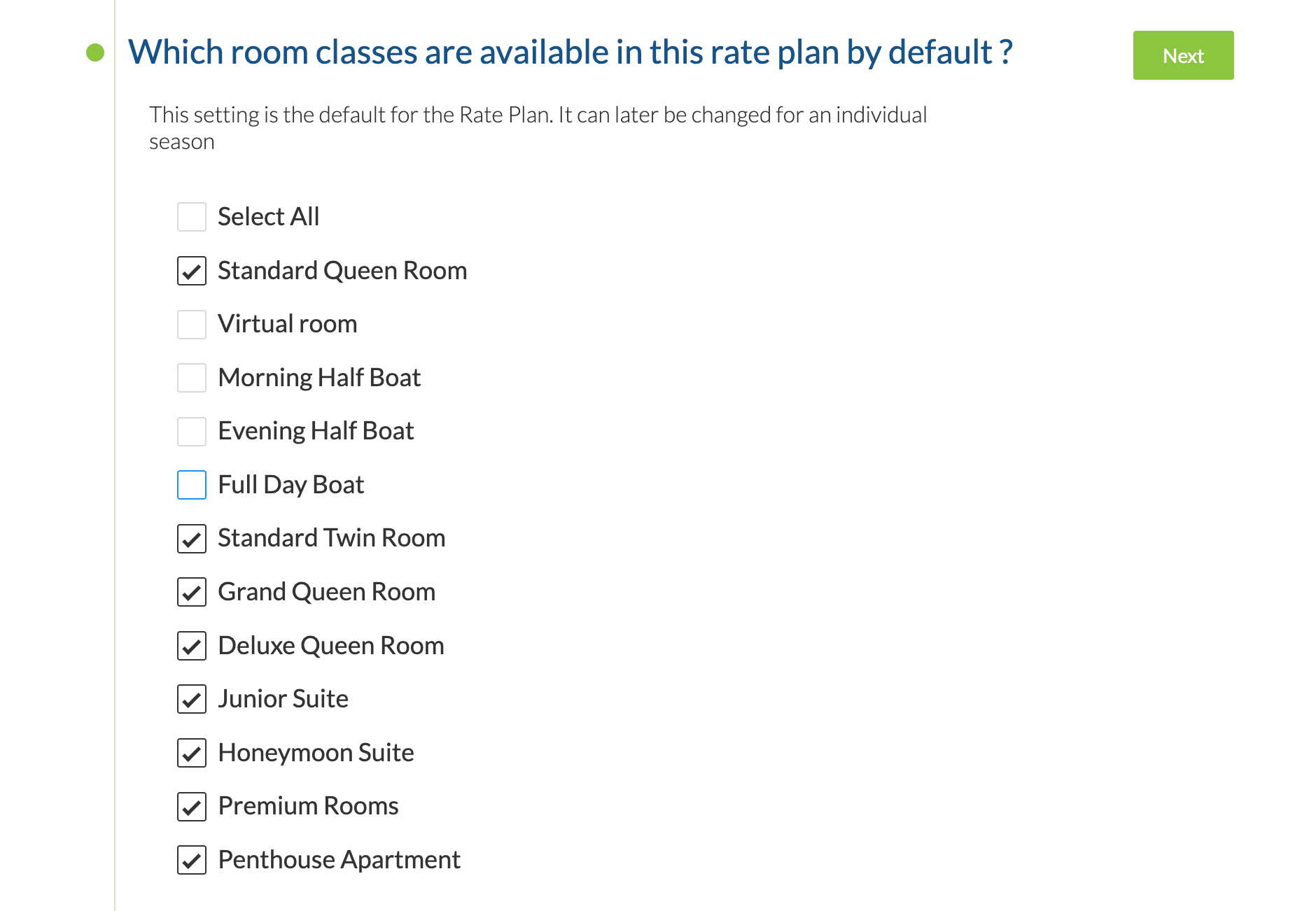
- Select Room Classes this rate plan applies to and click Next:
- Select applicable Rate Plan Restrictions.
Generally, Interval Rates already have a minimum length-of-stay restriction as the Interval length.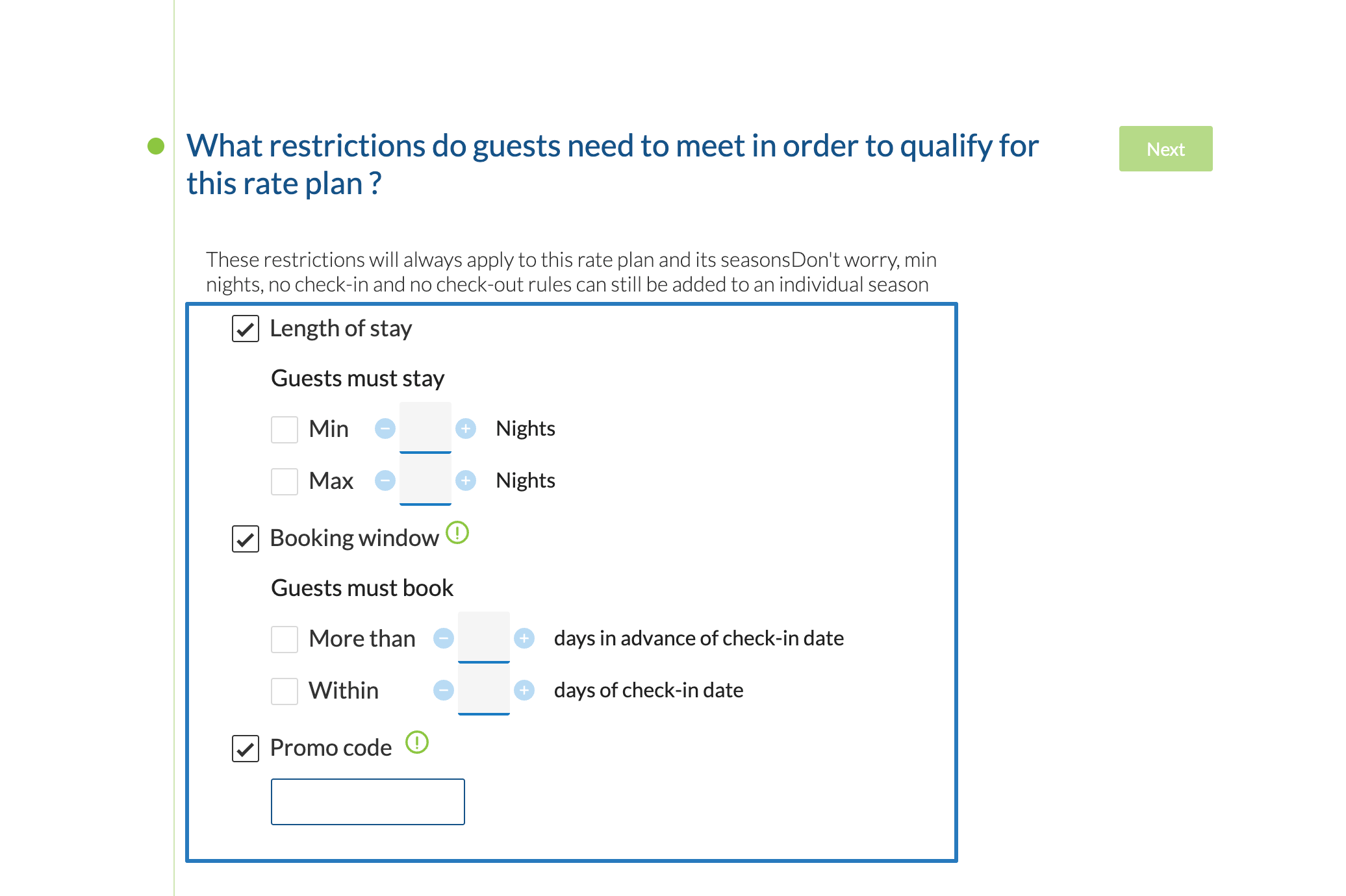
- Length of Stay
- Set Minimum and Maximum stay. For a Weekly Rate, the recommended minimum is 7 nights.
- Booking Window
- Set how many days in advance guests must book to see the rate (optional for weekly promos).
- Promo Code
- Enable this if you want guests to enter a code before booking. This makes the rate private and not publicly listed.
- Length of Stay
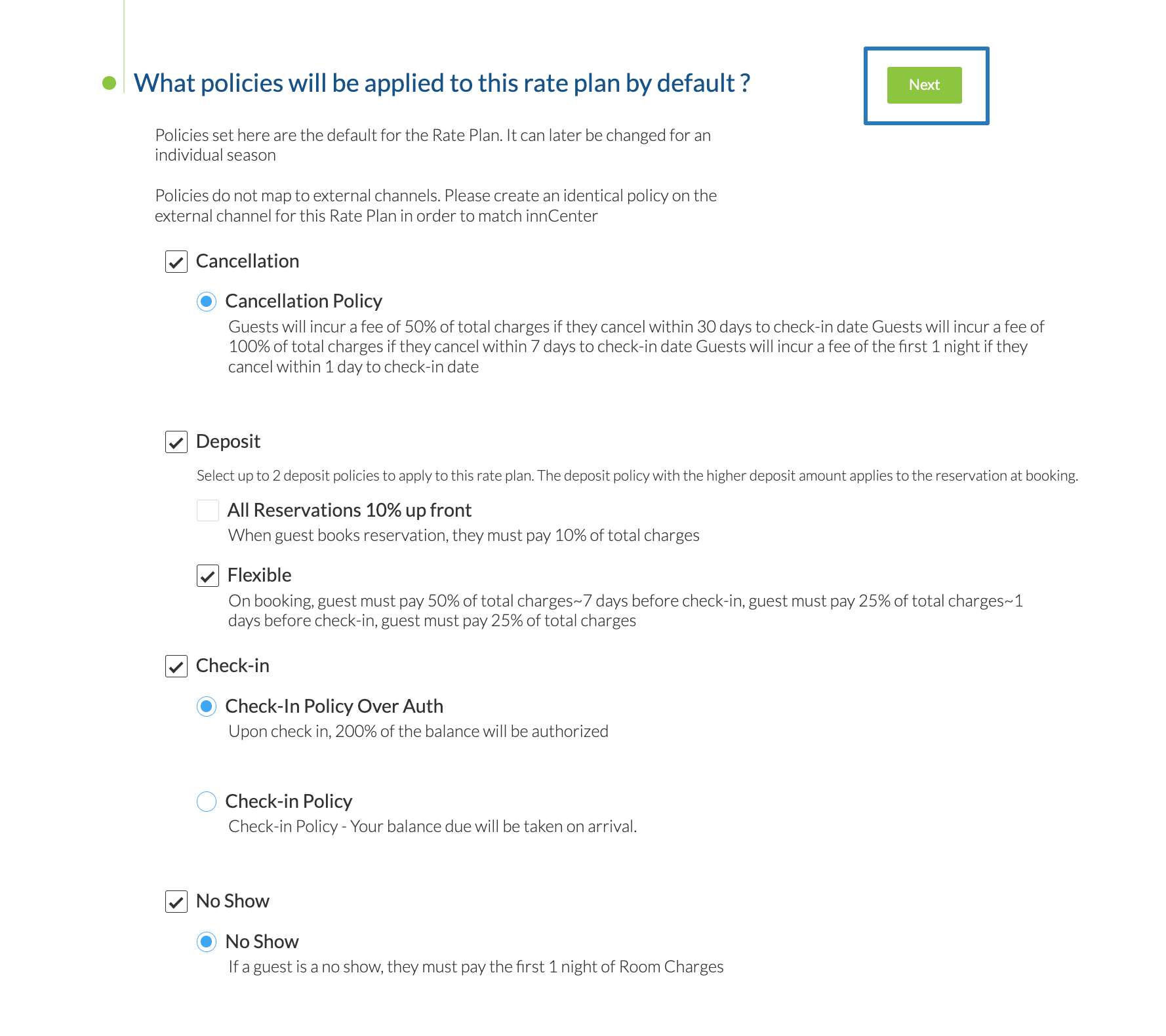
- Select Default Policies for this Rate Plan. These apply to any new season you create:
- Review the Rate Plan you’ve created. To make changes, click the underlined section to reopen it.
Click Save & Create Season to continue:
You’ve now created a Weekly (Interval) Rate Plan! The next step is to set up pricing and rules for your stay dates by creating Seasons.
Create Seasons
Seasons define pricing, policies, and booking rules for a range of dates. For example:
- Price rooms differently in low/high-season
- Apply different cancellation or deposit rules depending on the time of year
To create a Season:
- Select the Season Start Date
- Select the End Date
- Enter a Season Name
- Select the days of the week this season applies to:
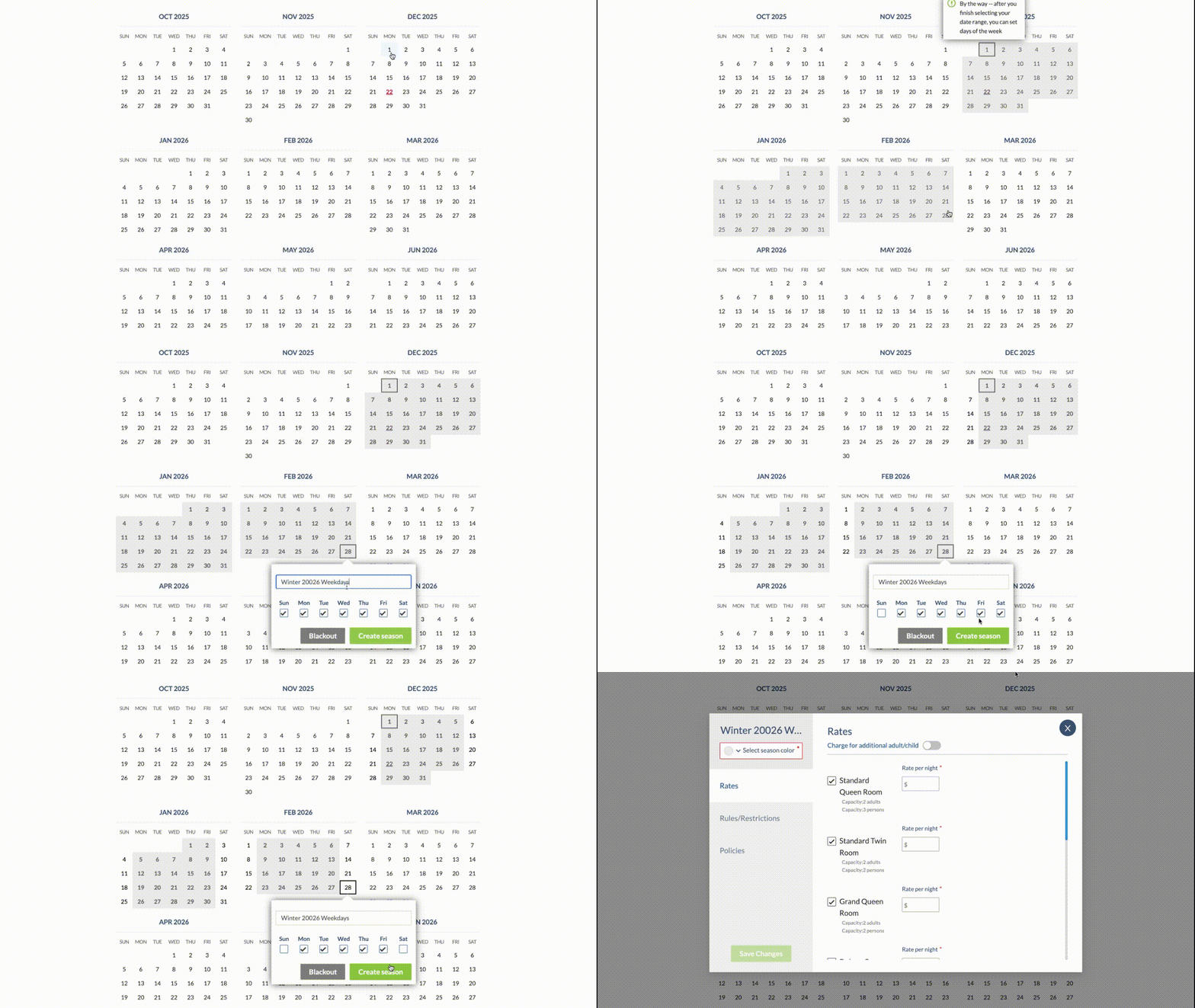
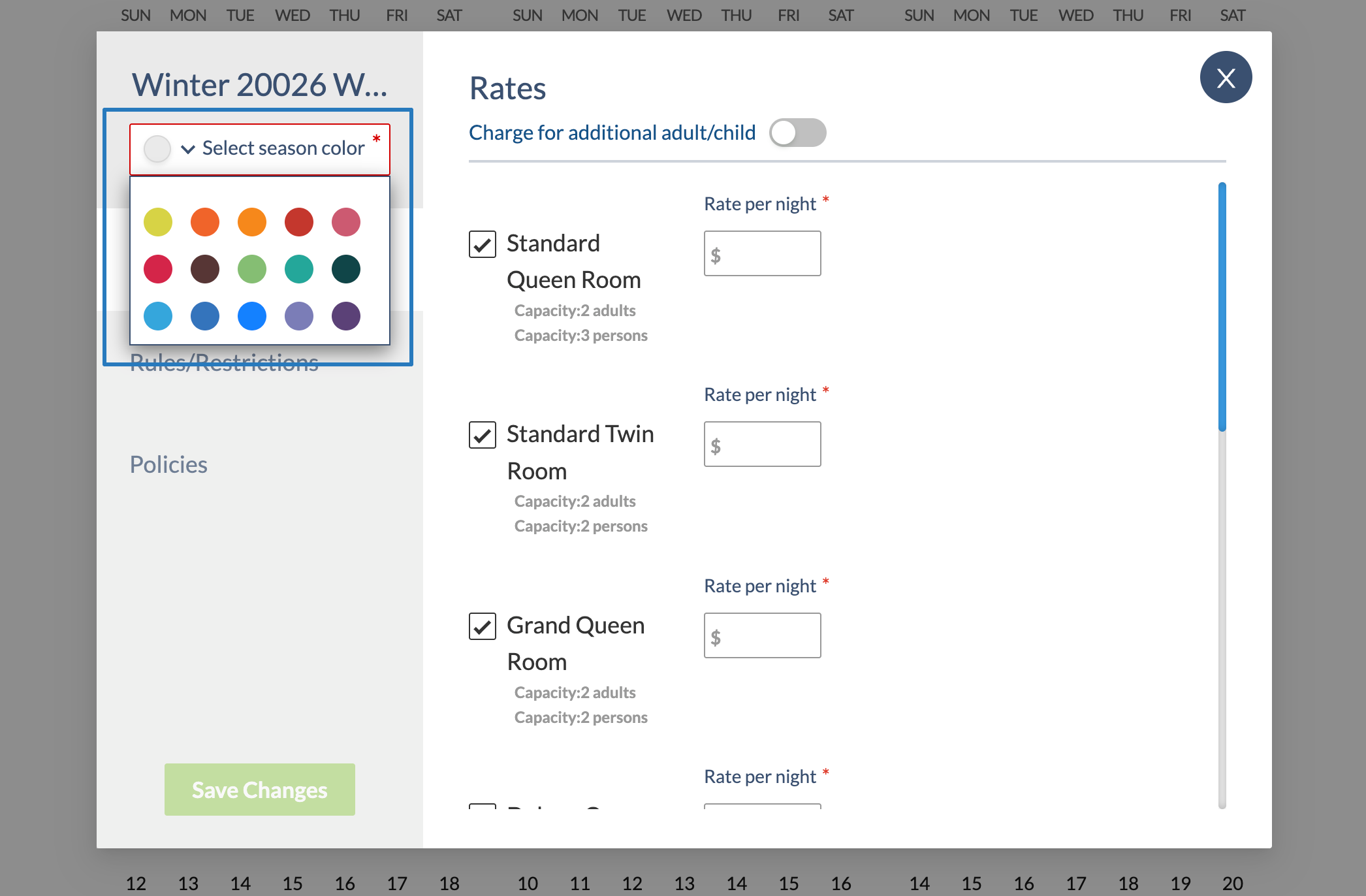
- Select a color to help identify this Season on your calendar:
- Define the Interval Rate for each room class sold in that Season.
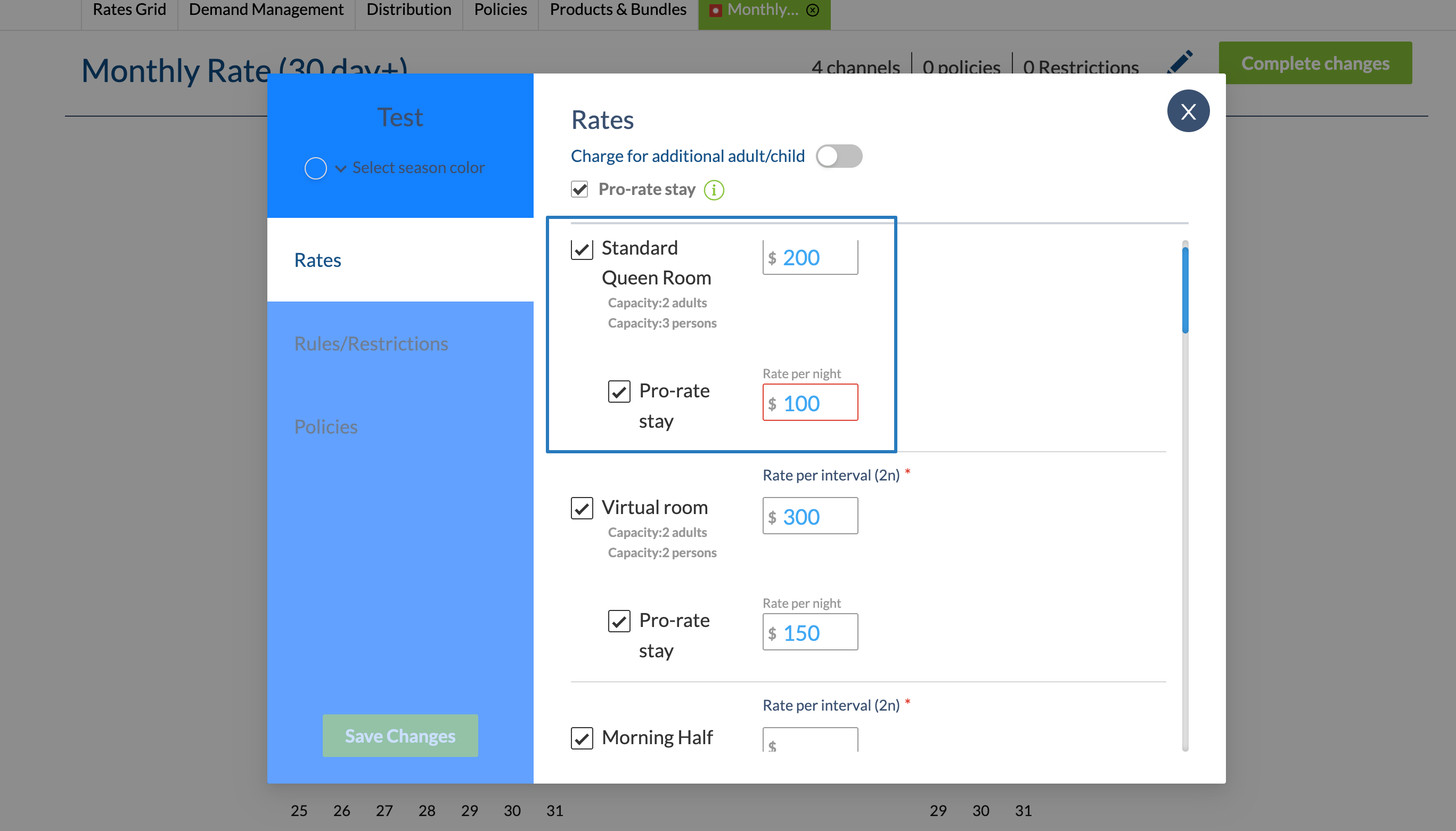
- If you have enabled Pro-rated prices, set the per-night pro-rated price as well. It will be calculated automatically, but you can set a different price if needed.
If your pricing changes by guest count:
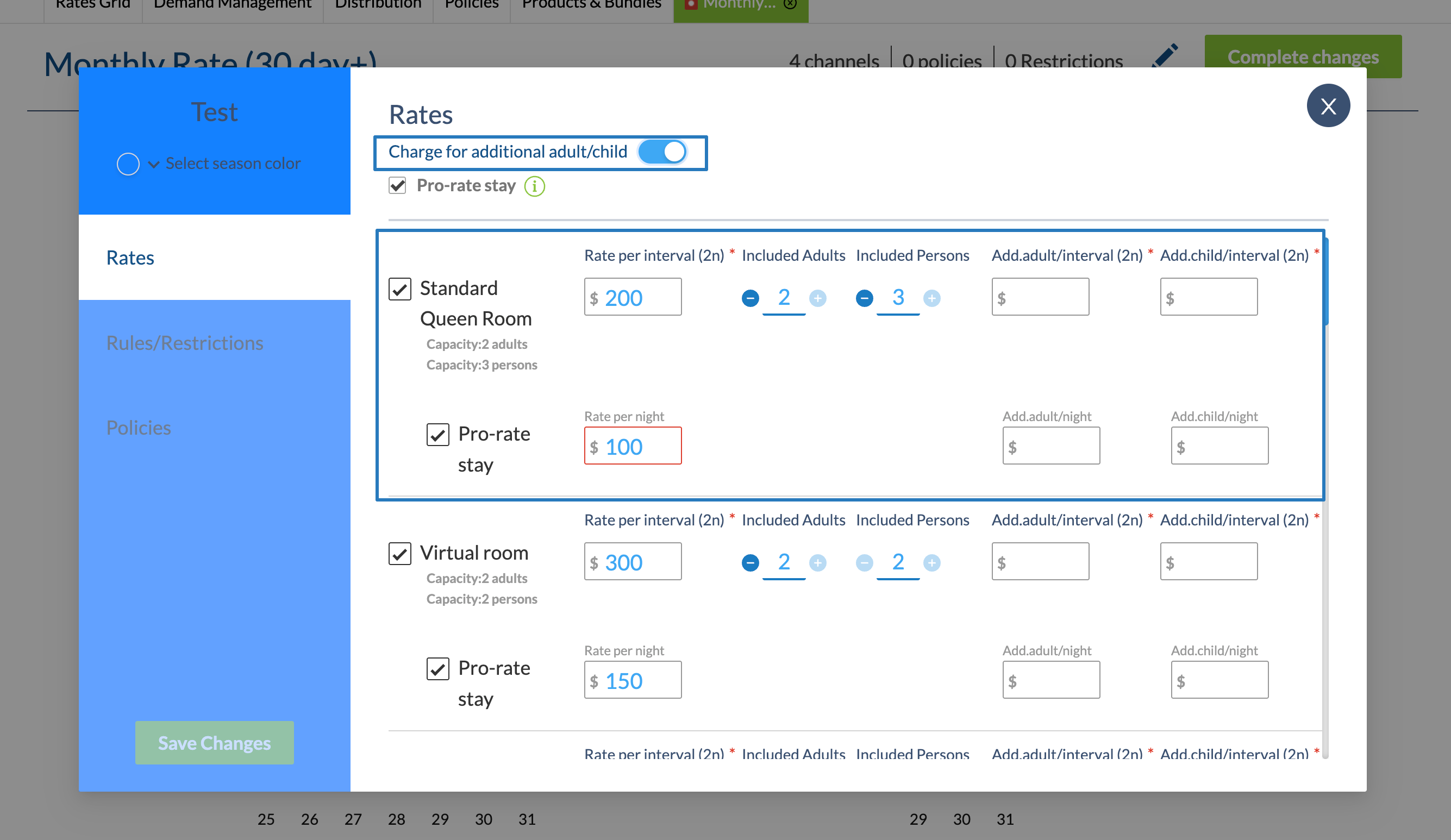
- Enable the Charge for additional adult/child toggle
- Set the number of Included Adults and Persons
- Apply the extra amount for additional adults beyond the included occupancy:
You’ve now set pricing for your season. Next, apply Season Rules (such as No Check-in, No Check-out, or Minimum Nights) and review Rate Plan Restrictions.
Set Season Rules
Season-level rules apply on top of your Rate Plan restrictions and can also vary by Room Class if needed.
To add or edit rules inside a Season:
- Click Rules/Restrictions in the sidebar
- Select applicable rules:
- No Check-in → prevents stays from starting on selected days
- No Check-out → prevents stays from ending on selected days
- Minimum Nights → prevents bookings shorter than your interval rule (recommended: 7)
Policies
Policies control payment terms for reservation outcomes. They define:
- Deposit required to book or collected before check-in
- Cancellation Fee if canceled within a set number of days
- Check-in payments or authorizations
- No-show Fee if the guest doesn’t arrive
By default, the Rate Plan’s Default Policy applies to any new Season. You can also update policies at the Season level:
- Click Policies in the sidebar
- Select the policies that apply to that Season
Promo codes, deposits, and cancellations can be adjusted per Season to support flexible pricing rules for different times of year.
Final steps:
- Click Save to store your Season settings
- Click Complete Changes when finished editing seasons
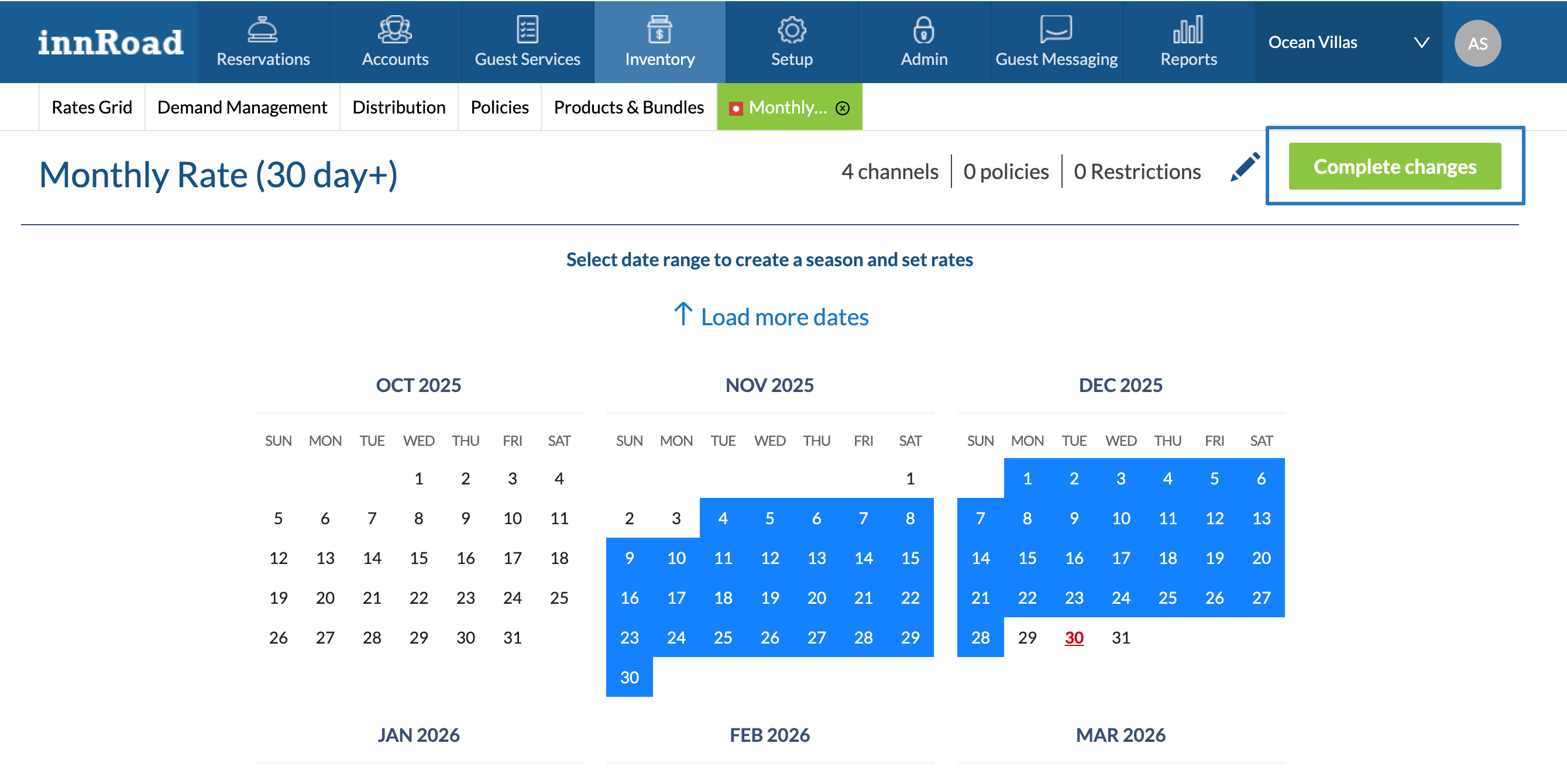
- Set the Rate Plan to Active to start selling teh rate, or Inactive to save without
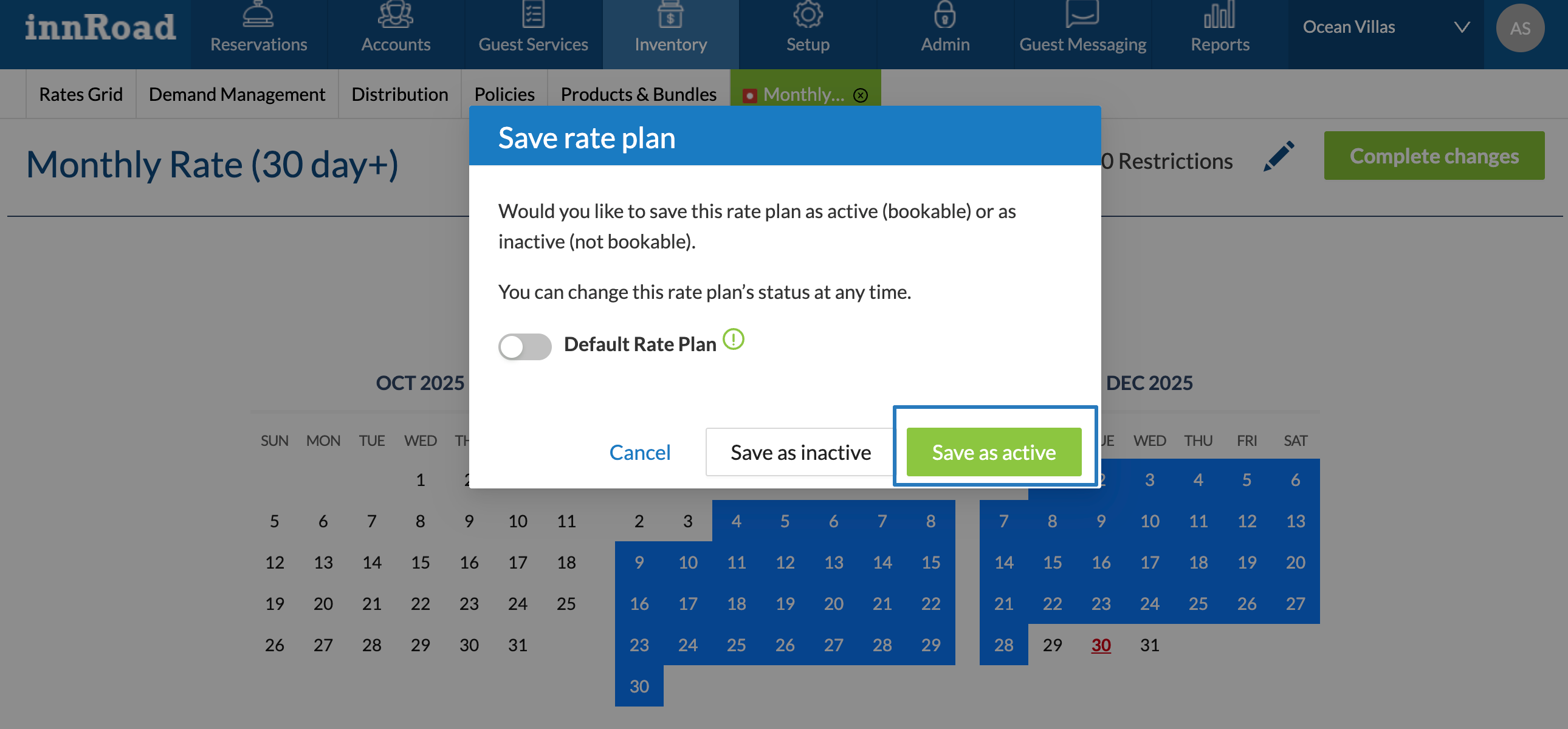
Congratulations—you’ve created a Weekly (Interval) Rate Plan for your property!
Was this article helpful?
That’s Great!
Thank you for your feedback
Sorry! We couldn't be helpful
Thank you for your feedback
Feedback sent
We appreciate your effort and will try to fix the article