Nightly Rate Plan are the core of your room pricing in innRoad. They define per-night pricing for guests using ranges of dates called seasons.
Once you create your Nightly Rate, you can use them as a foundation to create Discounted Rates for OTAs and Promotions.
How to Create a Nightly Rate
- Go to Inventory> Rates Grid
- Click Add Rate Plan
- Select the Rate Plan Type you'd like to create:

- Fill in the Rate Plan name, DisplayName and Description:
- Rate Plan names are what you see in innRoad.
- Rate Plan Display Names are what the guest sees in the innRoad Booking Engine and in communication templates, and folio item names.
- Descriptions display on the innRoad Booking Engine.
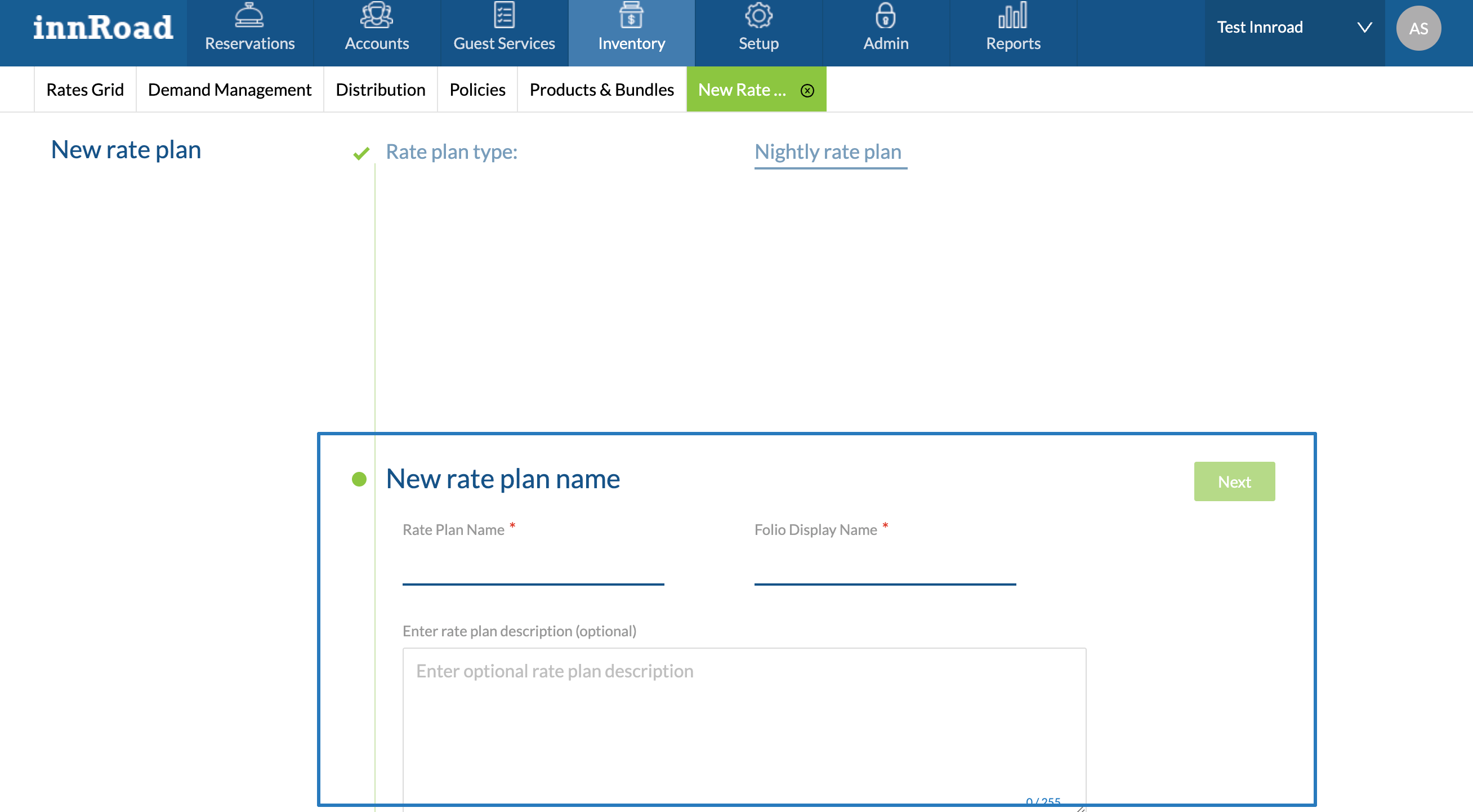
- Click Next.
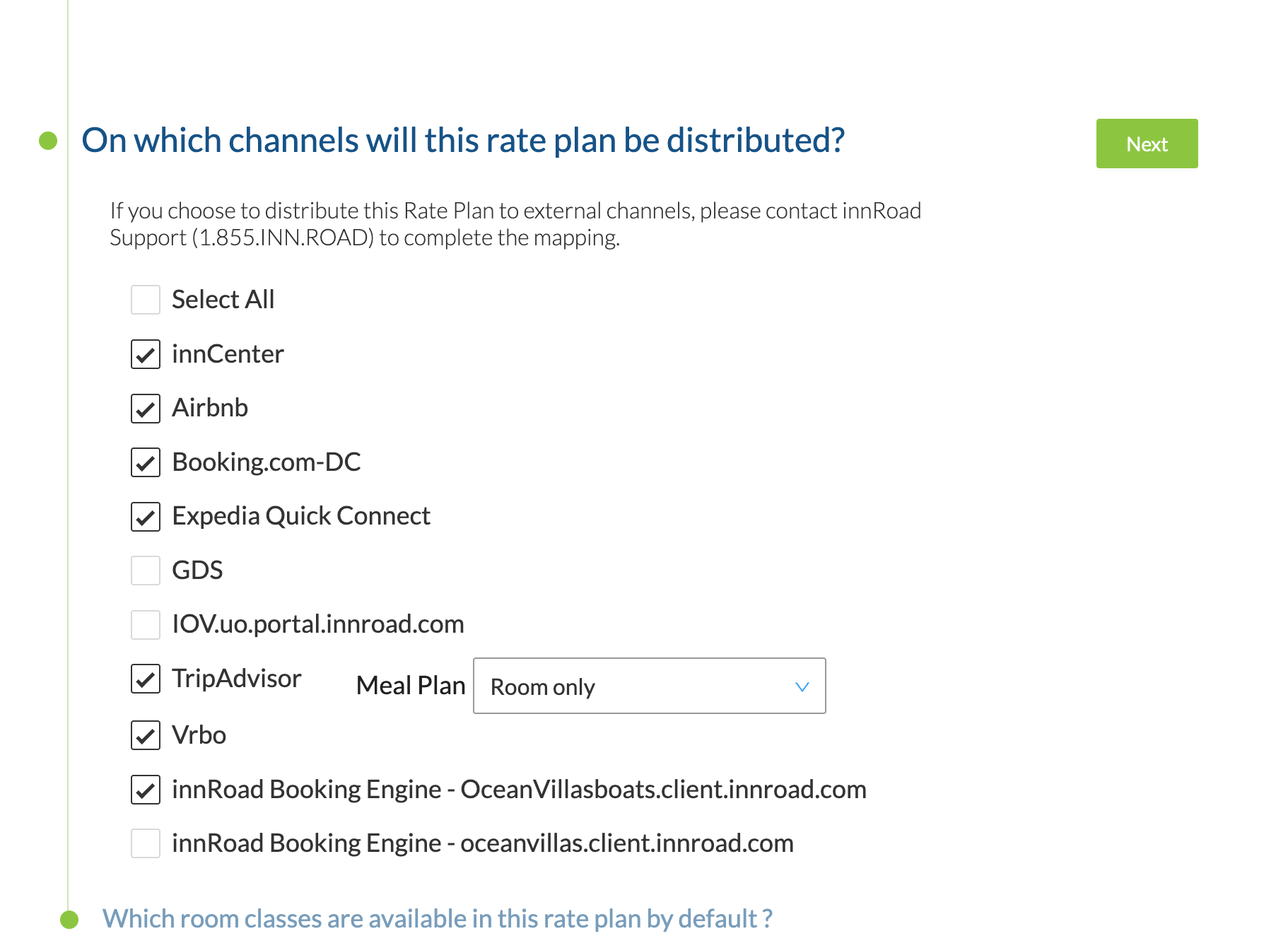
- Select Channels where this Rate Plan will be offered and click Next:
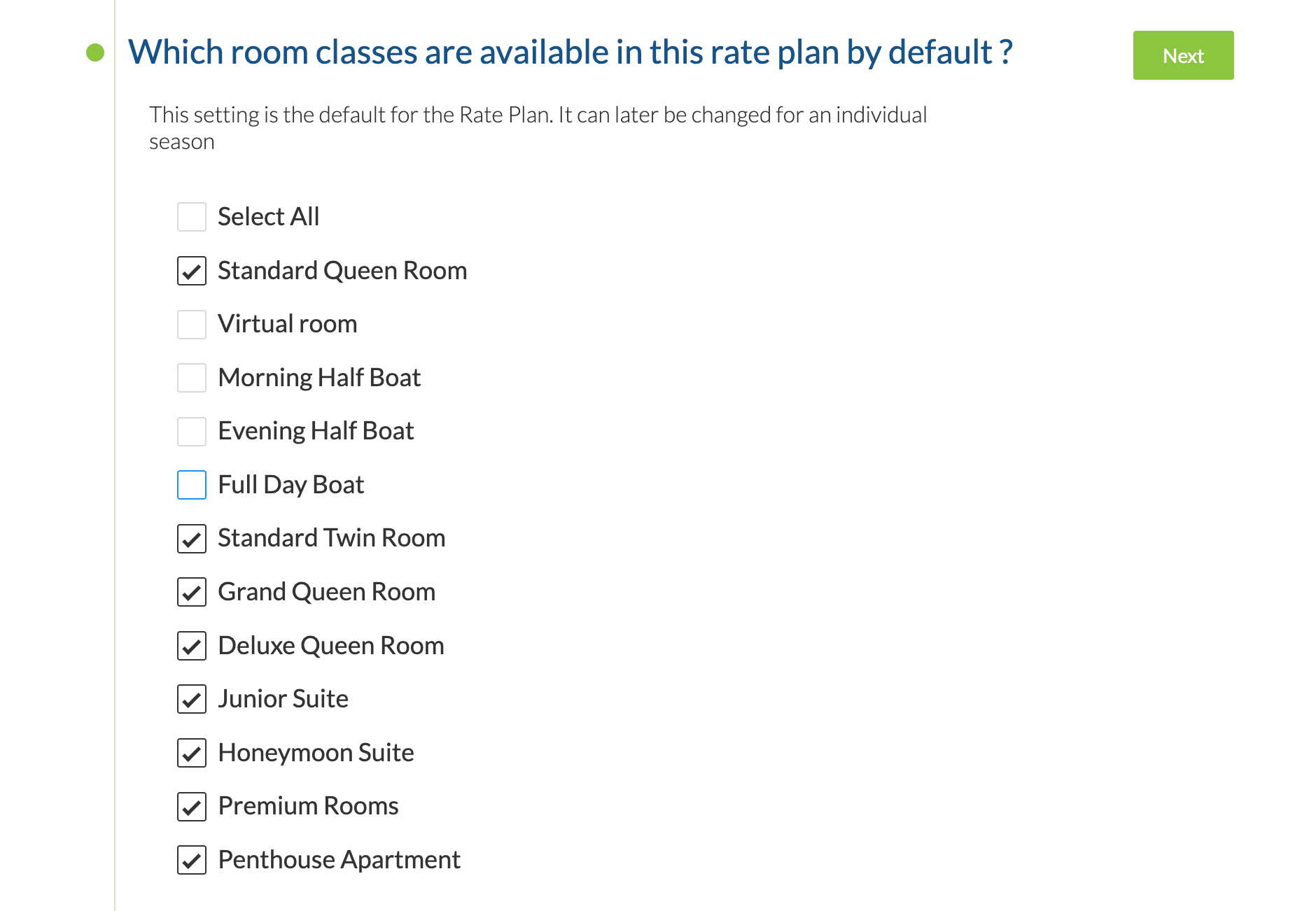
- Select Room Classes that will be sold, and click Next:
- Select applicable restrictions. If you don't want to apply restrictions to this Rate Plan, click Next.
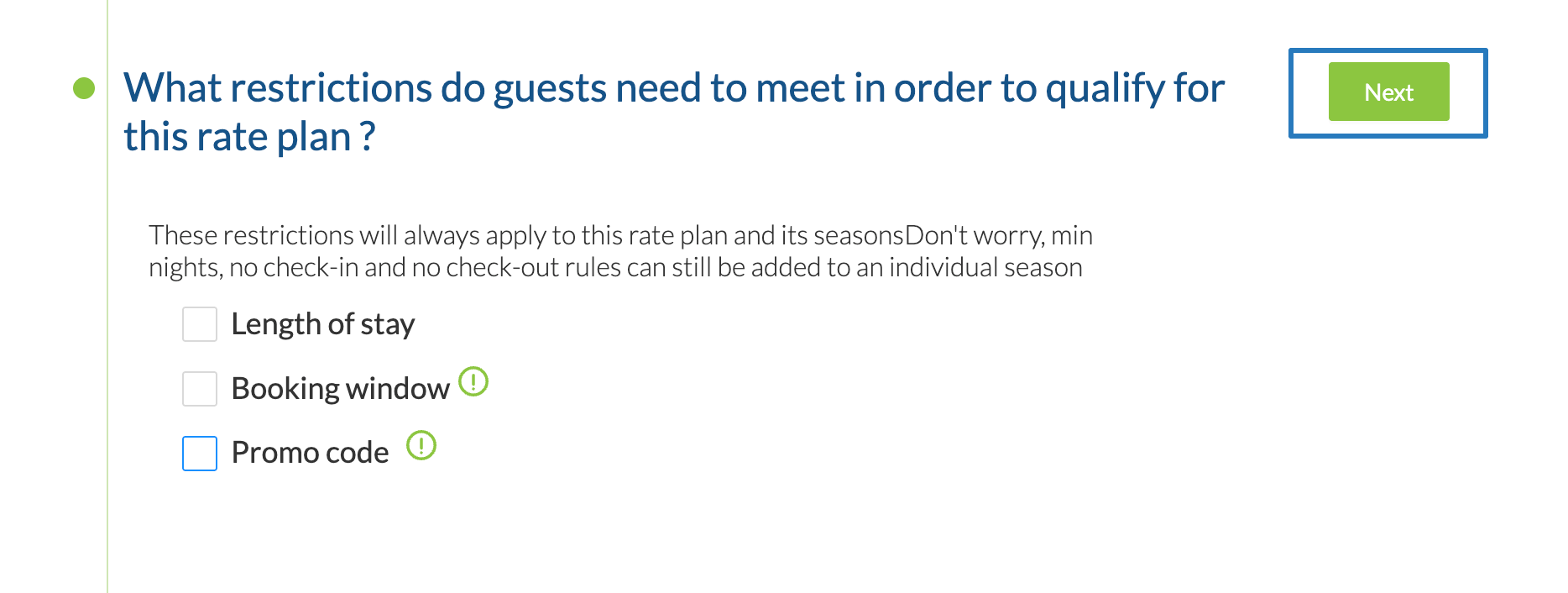
Rate Plans with Restrictions are not synced to OTAS. If you want to apply restrictions to Booking.com or Expedia rates, set up the restriction on the OTA.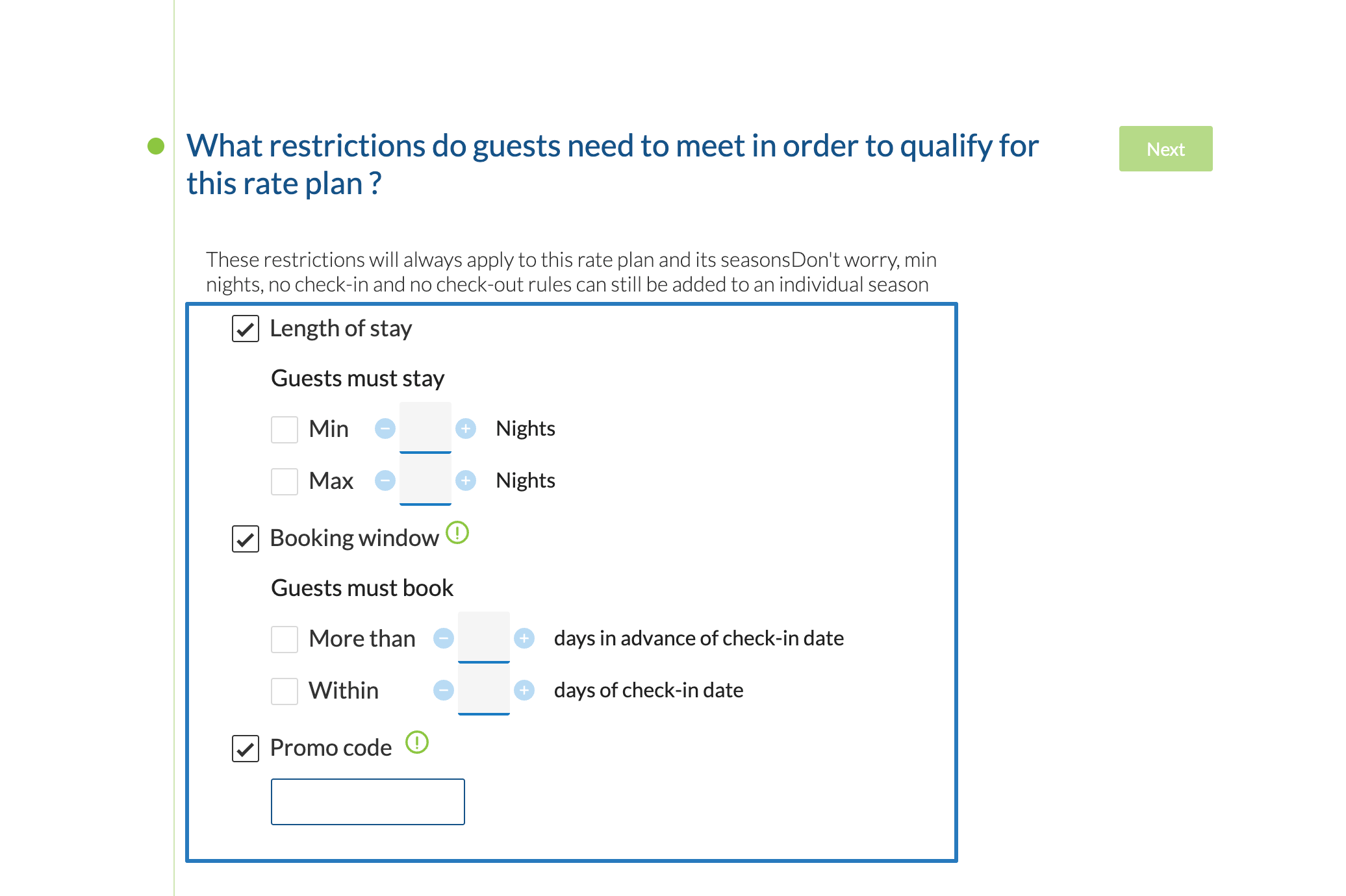
- Length of Stay
- Select minimum and Maximum stay restrictions. If guest selects stay dates that don't match this condition, they won't see this Rate Plan as an available option.
- Booking Window
- Select minimum and maximum days in advance that a guest must book to get the rate.Useful for setting up Advance Purchase or Last Minute savings rates.
- Promo Code
- Guests must enter a Promo Code to see this rate option. Only applicable for the innRoad Booking Engine.
- Length of Stay
- SelectDefault Policies for this Rate Plan. Those policies apply to any new season you create for the Rate Plan.
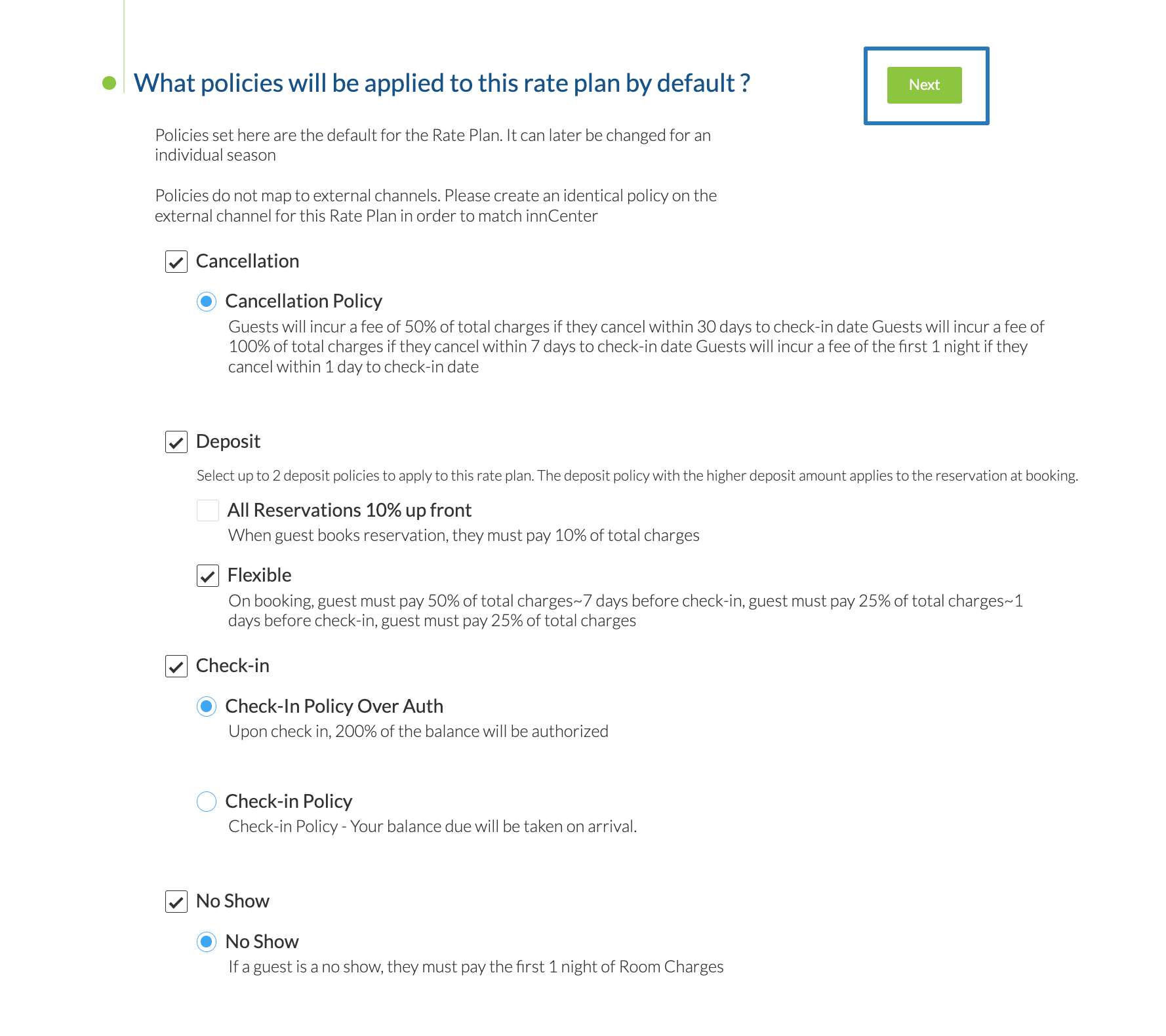
- Review the Rate Plan you've created. If you want to change any of the configurations, click the underlined text to open that section again.
Click Save & Create season to proceed.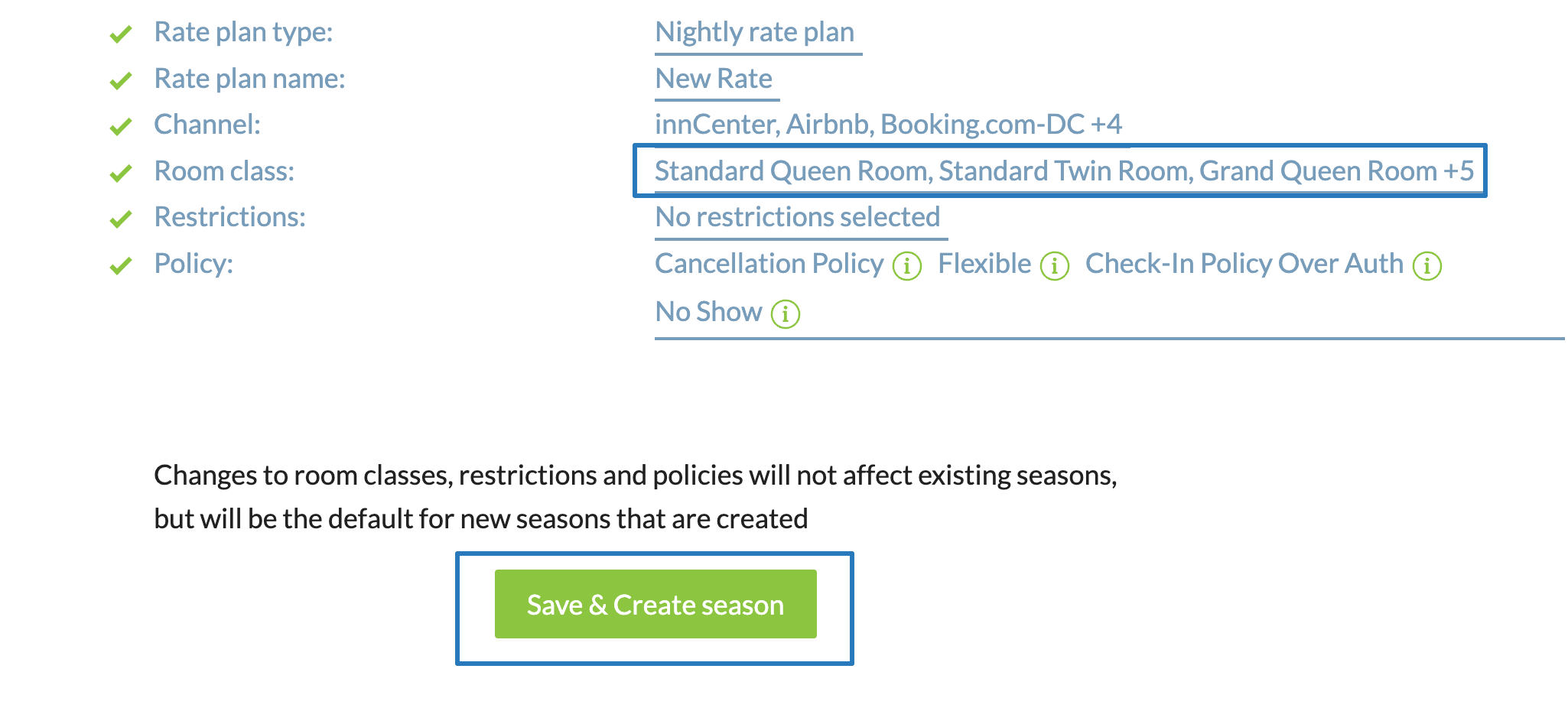
Now, you've created a Nightly Rate Plan for your property! The next step is to set up prices for dates by creating Seasons.
Learn More:
- Creating a Promo Rate Plan
- Creating a Weekly (Interval) Rate
- Creating a Package Rate
- Creating a Derived Rate
Create Seasons
Generally, room prices, booking rules and policies are different throughout the year. For example:
- Set higher prices for busy months, to maximie revenue from higher demand.
- Set higher deposit and cancellation amounts for holidays, weekends, or event dates
- Set minimum length of stay for low seasons
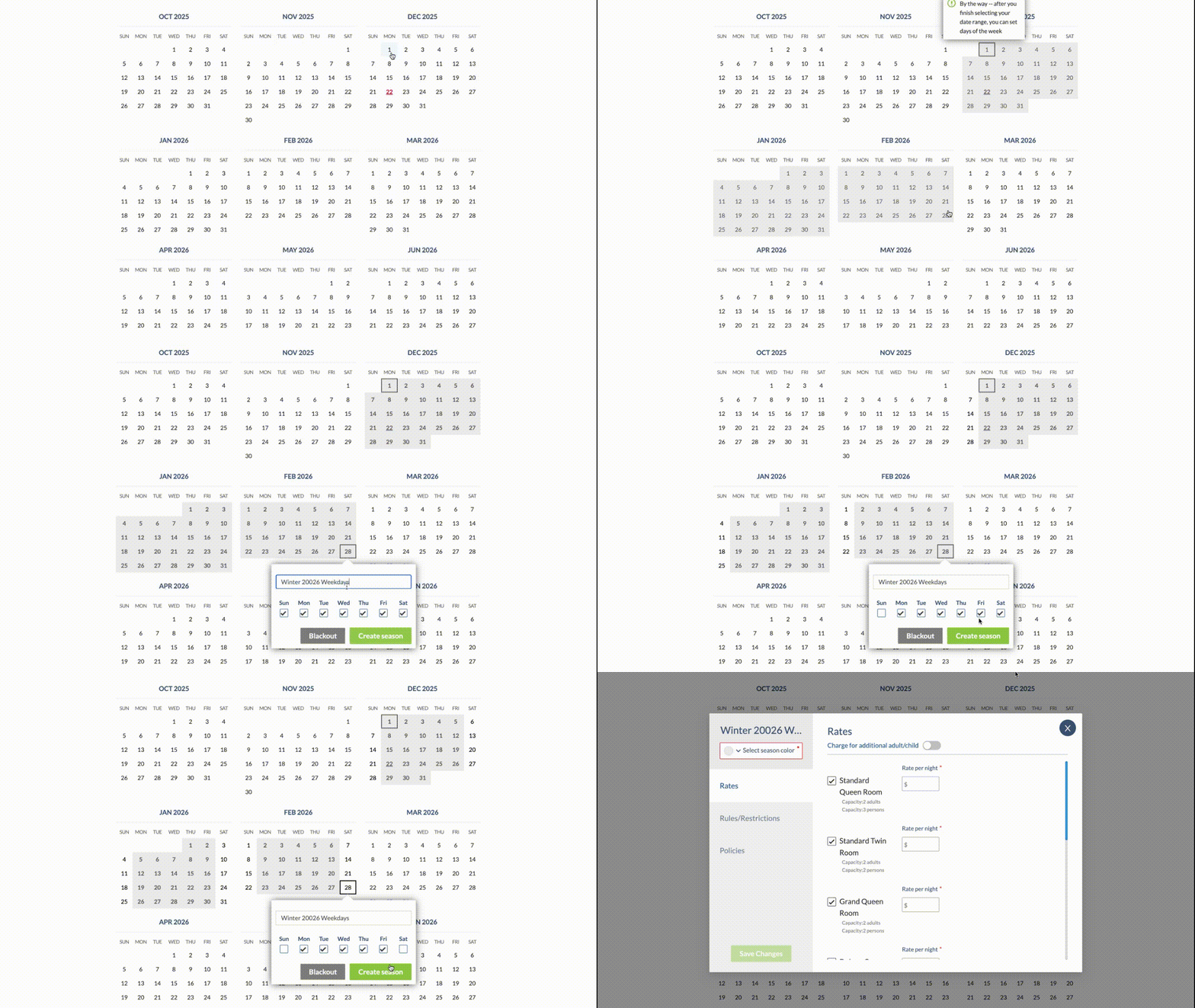
Use the season to set the rates, rules, and policies for a range of dates in a rate plan.
- Select the Season's Start Date
- Select the End Date
- Enter the Season's name, only visible inside innRoad
- Select the days of the week included in the dates:
Set Prices
First, select the season's color for the season on the calendar.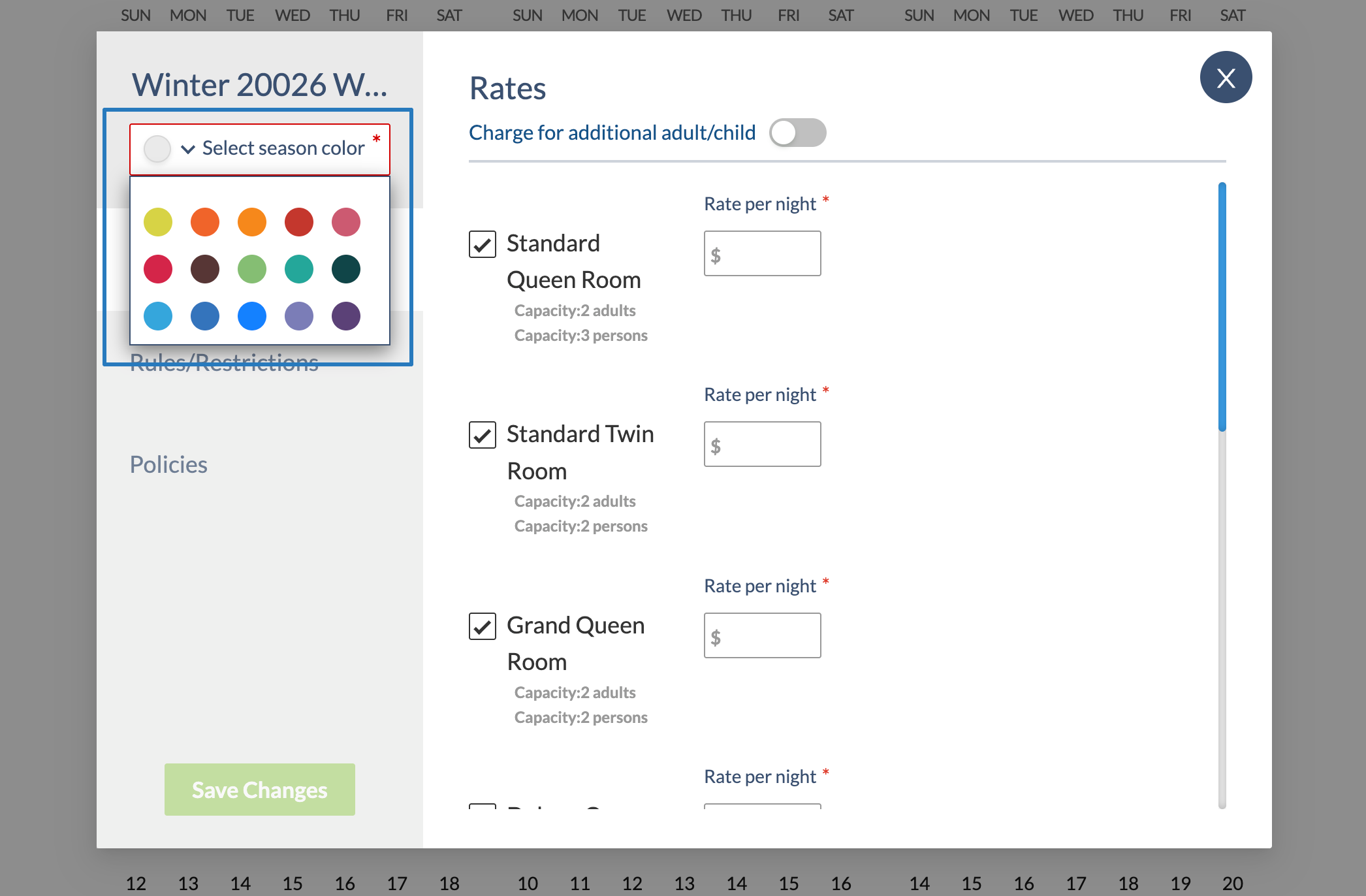
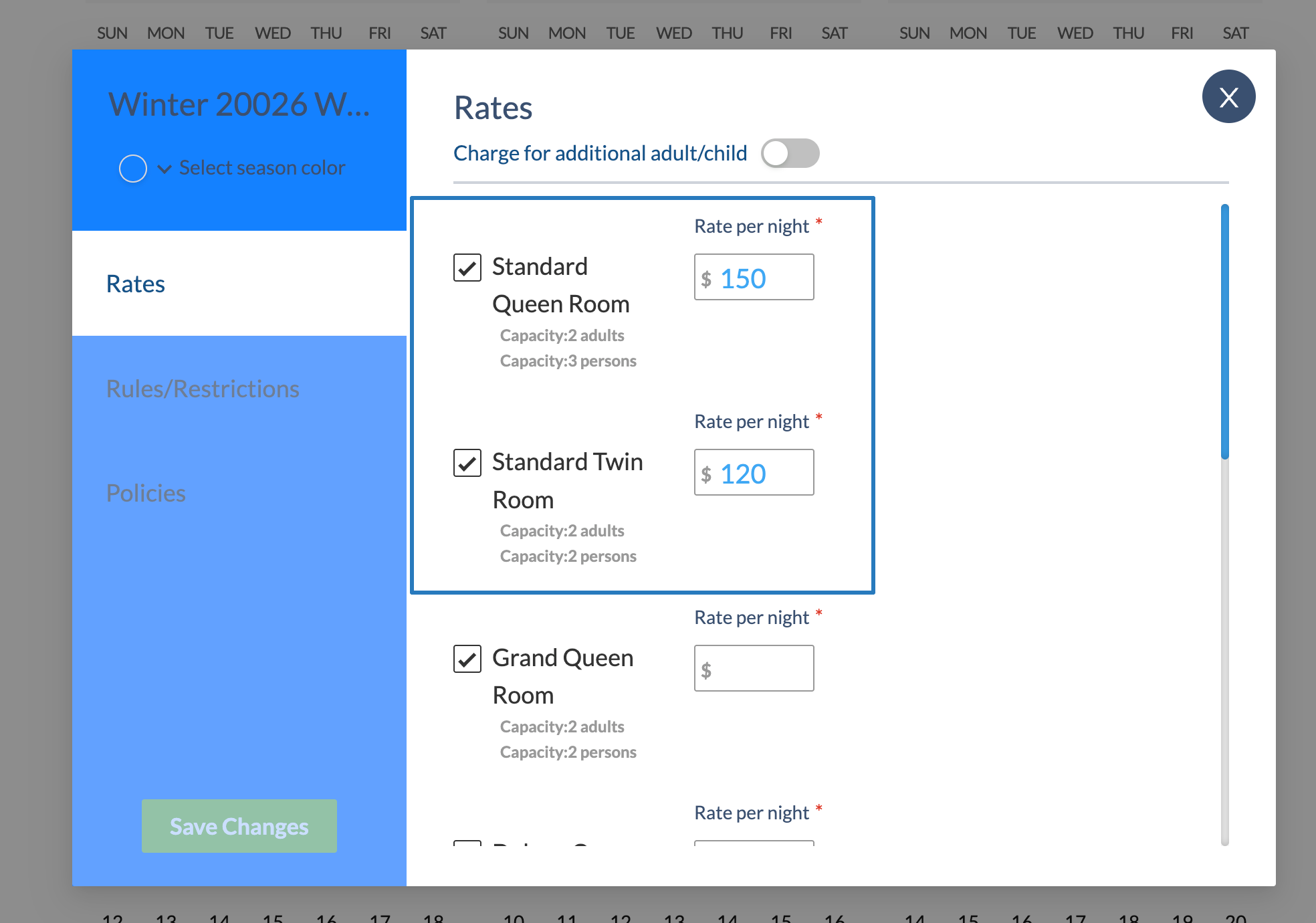
Then, define the rates for the room classes to be sold in that season.
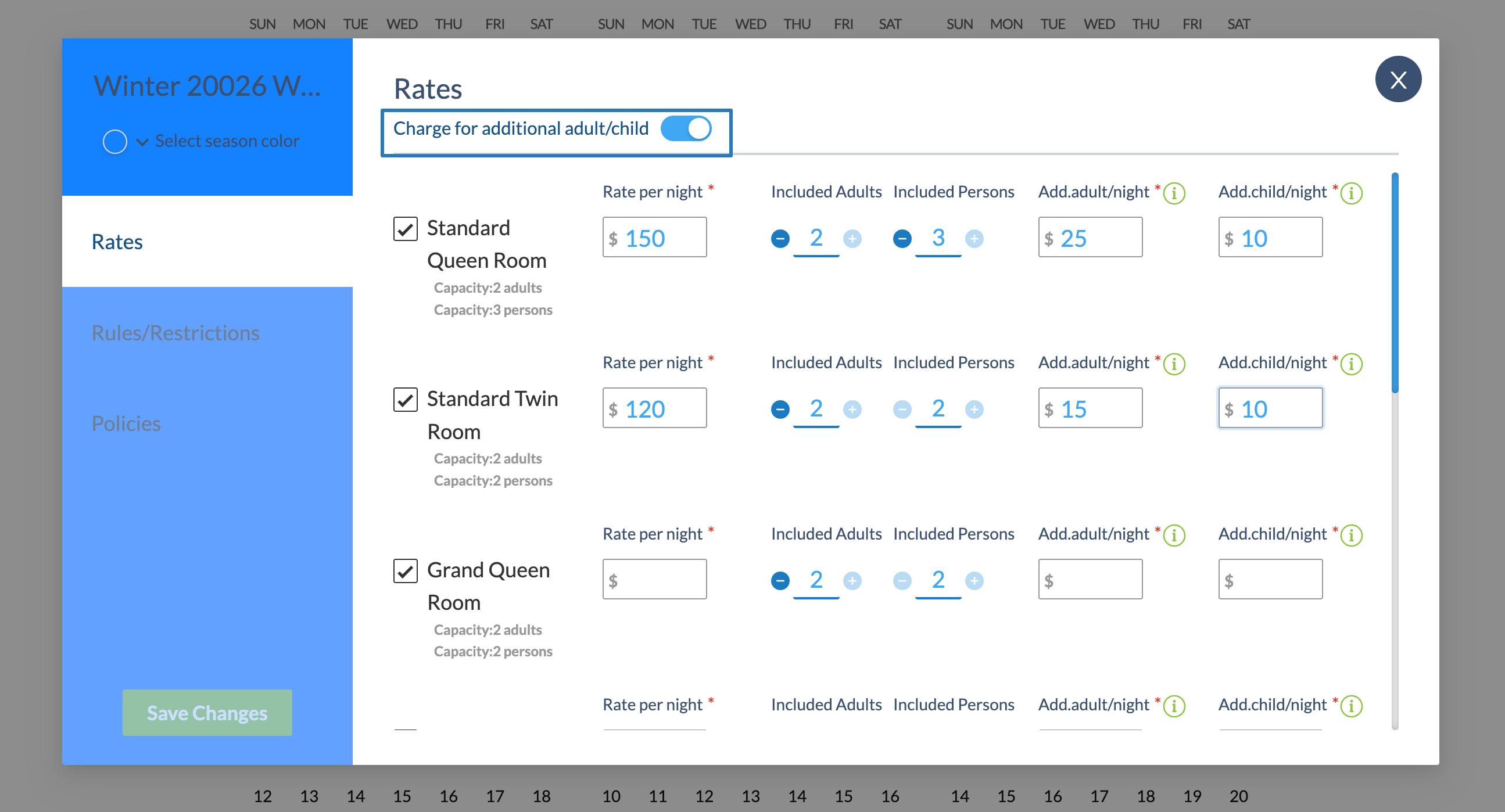
You can also set a standard occupancy included in the price, and charge an additional amount for each person above the standard occupancy.
- Enable the Charge for additional adult/child setting
- Set the number of Included Adults and Persons
- Apply the extra amount for adults beyond the included adults and persons for this rate:
Congratulations, you've set a price for your season. Next, apply Season Rules (No Check-in, No Check-out, Minimum length of stay) and review Rate Plan Restrictions.
Apply Season Rules and Rate Plan Restrictions
Rate Plan Restrictions are applied to all dates within the season. If the guest's search criteria doesn't match Rate Plan restrictions, they don't qualify for the Rate Plan.
Rate Plans with Restrictions (Min/Max Length of Stay, Booking Window, Promo Code Rate plans) are not synced to OTAs.
Season-level rules are applied on top of Rate Plan restrictions to specific dates. Rules define the availability of the room class for dates included in a season.
To create rules in a season:
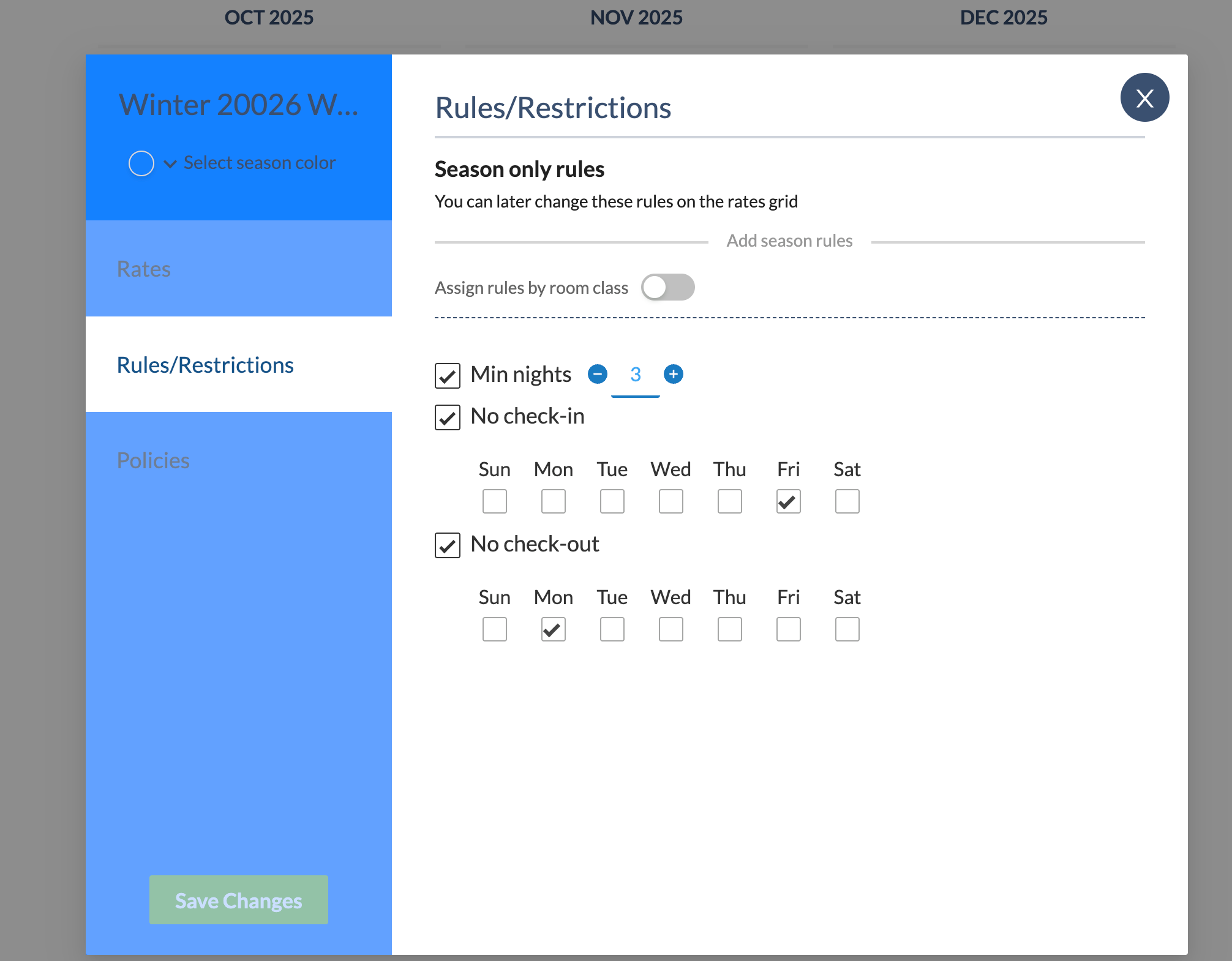
- Click Rules/Restrictions in the sidebar.
- Select applicable rules
- No Check-in will prevent reservations that start on the select day of the week.
- No Check-out will prevent reservations that end on the selected days of the week.
- Min nights will prevent reservations shorter than the Min nights rule.
You can also apply different season-level rules to different room classes.
- Click Assign Rules by room class
- Select Room Classes for this set of rules.
- Apply a set of rules to the selected Room Classes
- Optionally, click Add 2nd set of Rules to apply different rules to other roo mclasses:
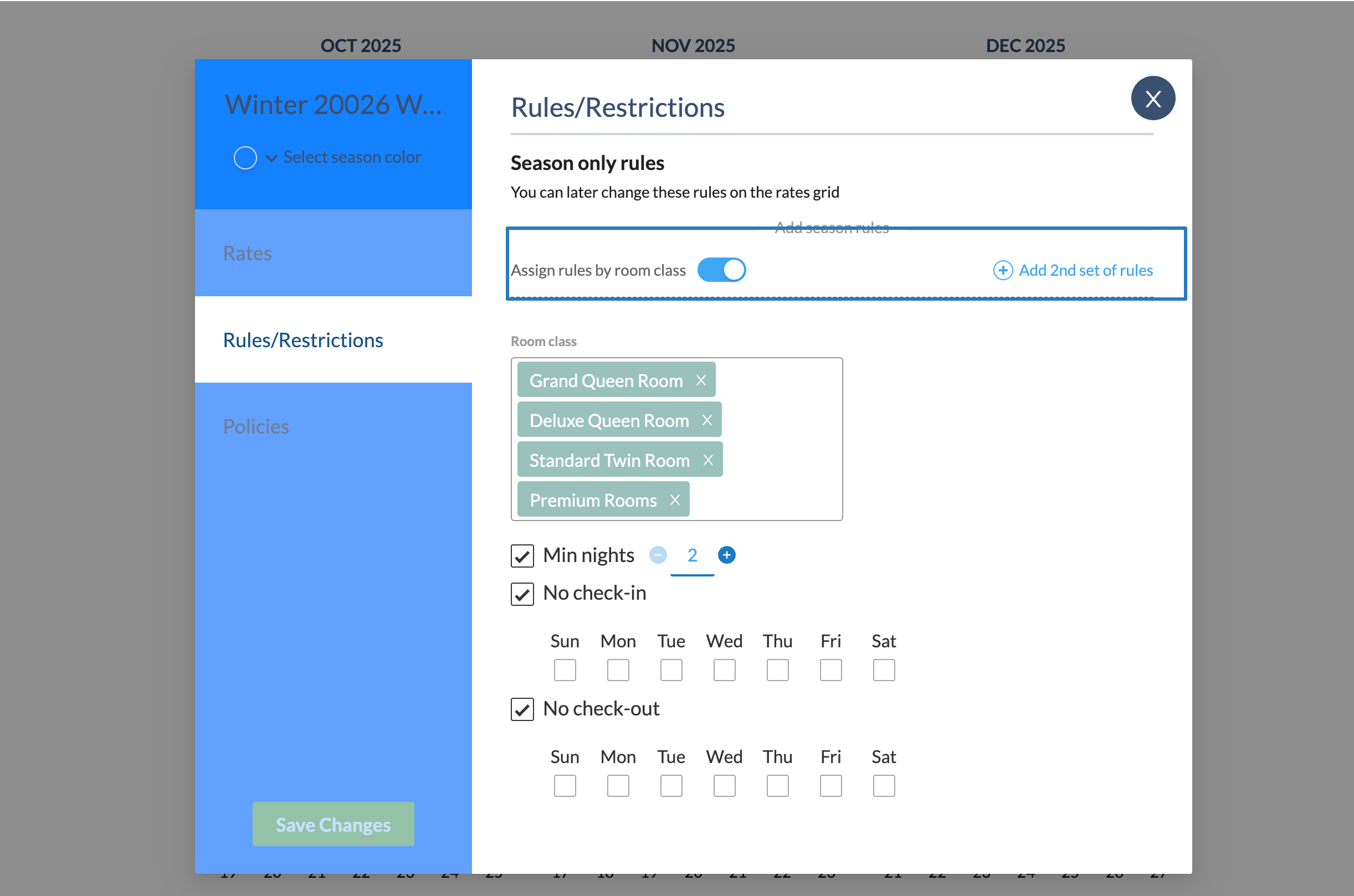
Now, you've set up Rules for the selected dates of the season. You can change the Default Policies of the season, or click Save Changes.
Policies
Policies set payment terms for different outcomes of the reservation. In other words, they define:
- Deposit to book the reservation, or deposit collected before check-in date.
- Cancellation fee if cancelling within a specified number of days before check-in.
- Check-in payments or authorizations
- No-show fee if the guest doesn't show up to their stay.
By default, the Rate Plan's Default Policy applies to any new season you create. You can change the season's policy as well.
- Click Policies in the sidebar.
- Select the applicable Policies for the season's dates:
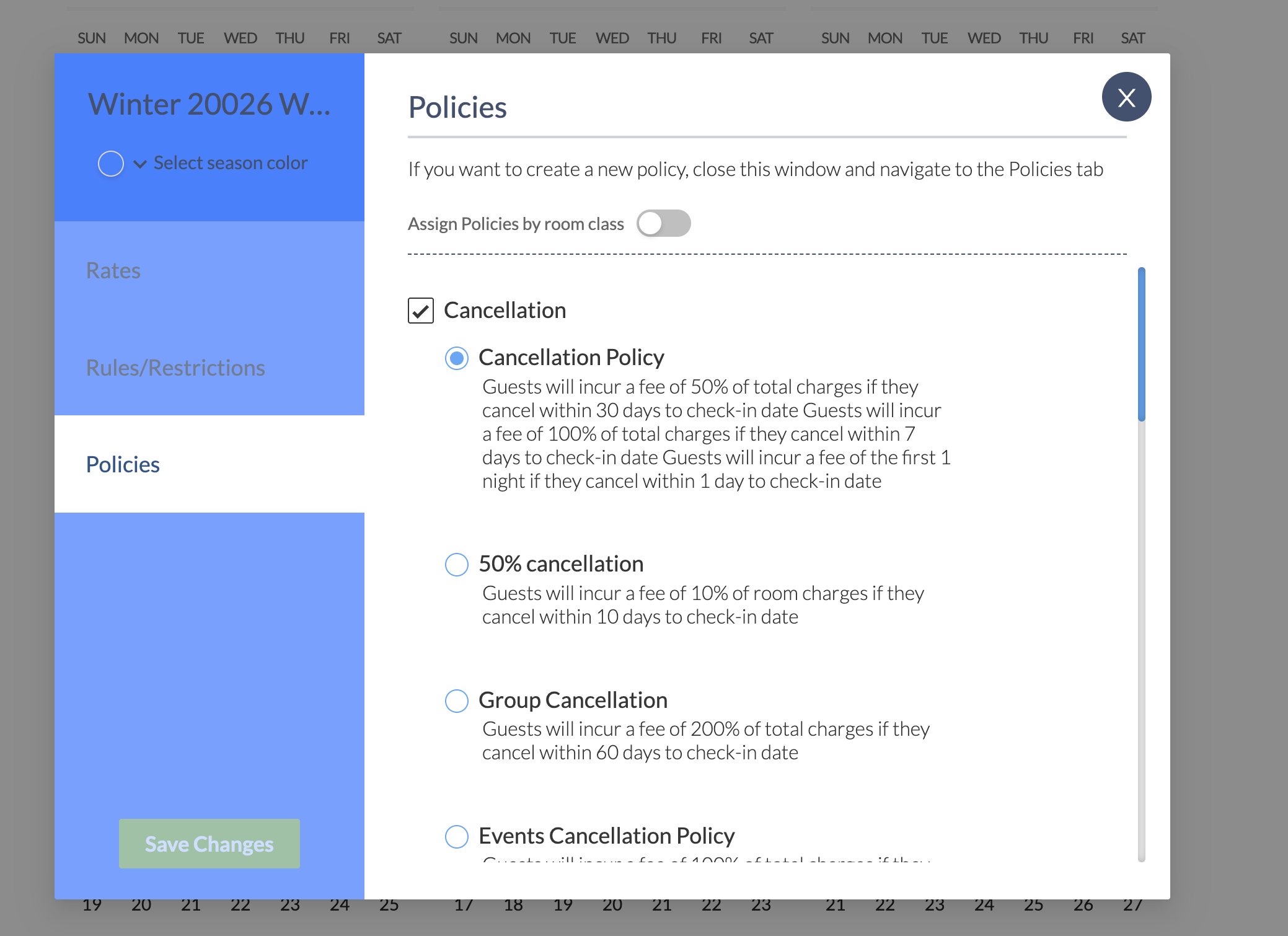
You can also apply different policies to different room classes, similar to applying Rules per room class.
- Click Assign Policies by room class
- Select Room Classes for this set of policies.
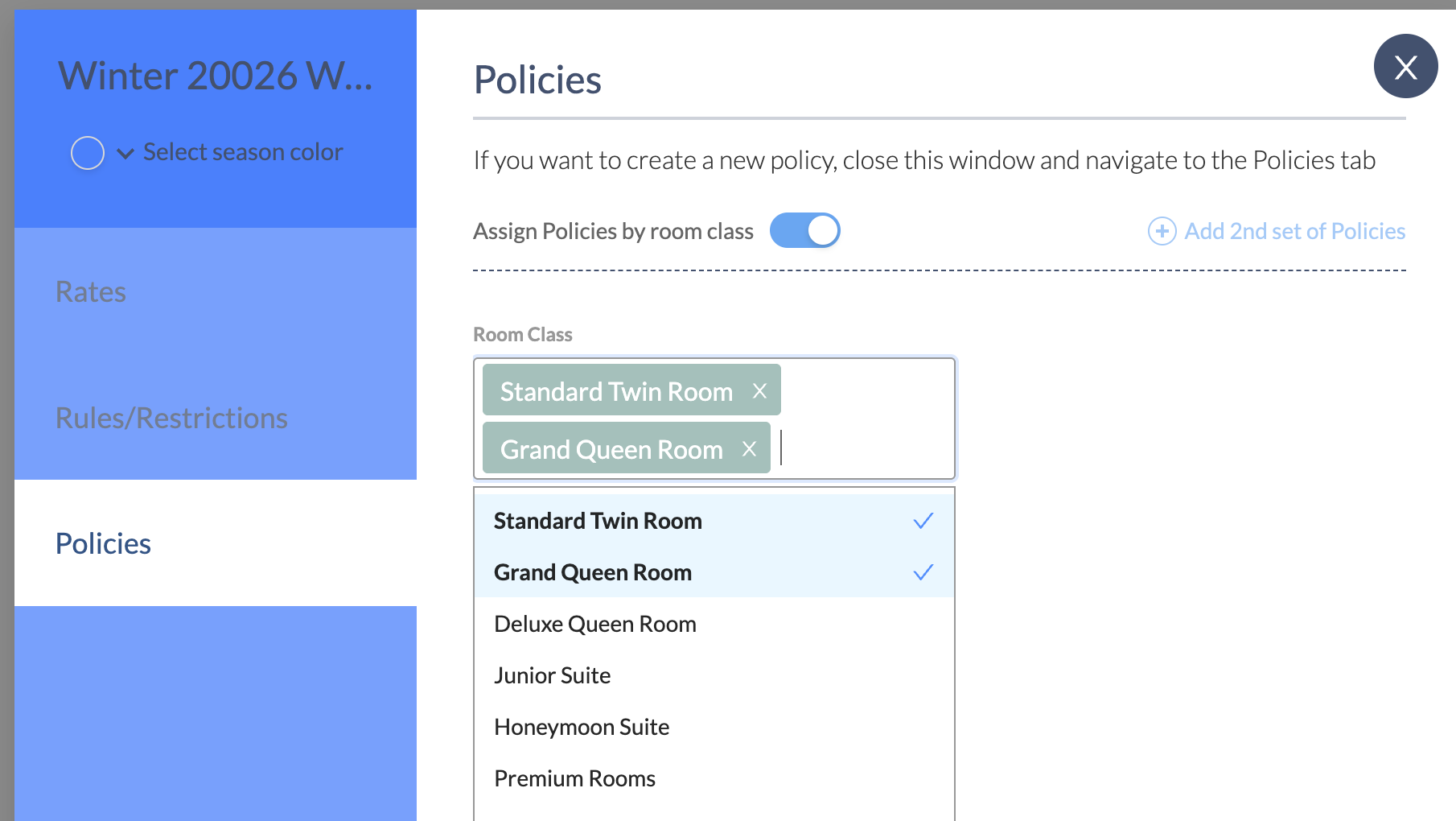
- Apply a set of policies to the selected Room Classes
- Optionally, click Add 2nd set of Policies to apply different rules to other room classes.
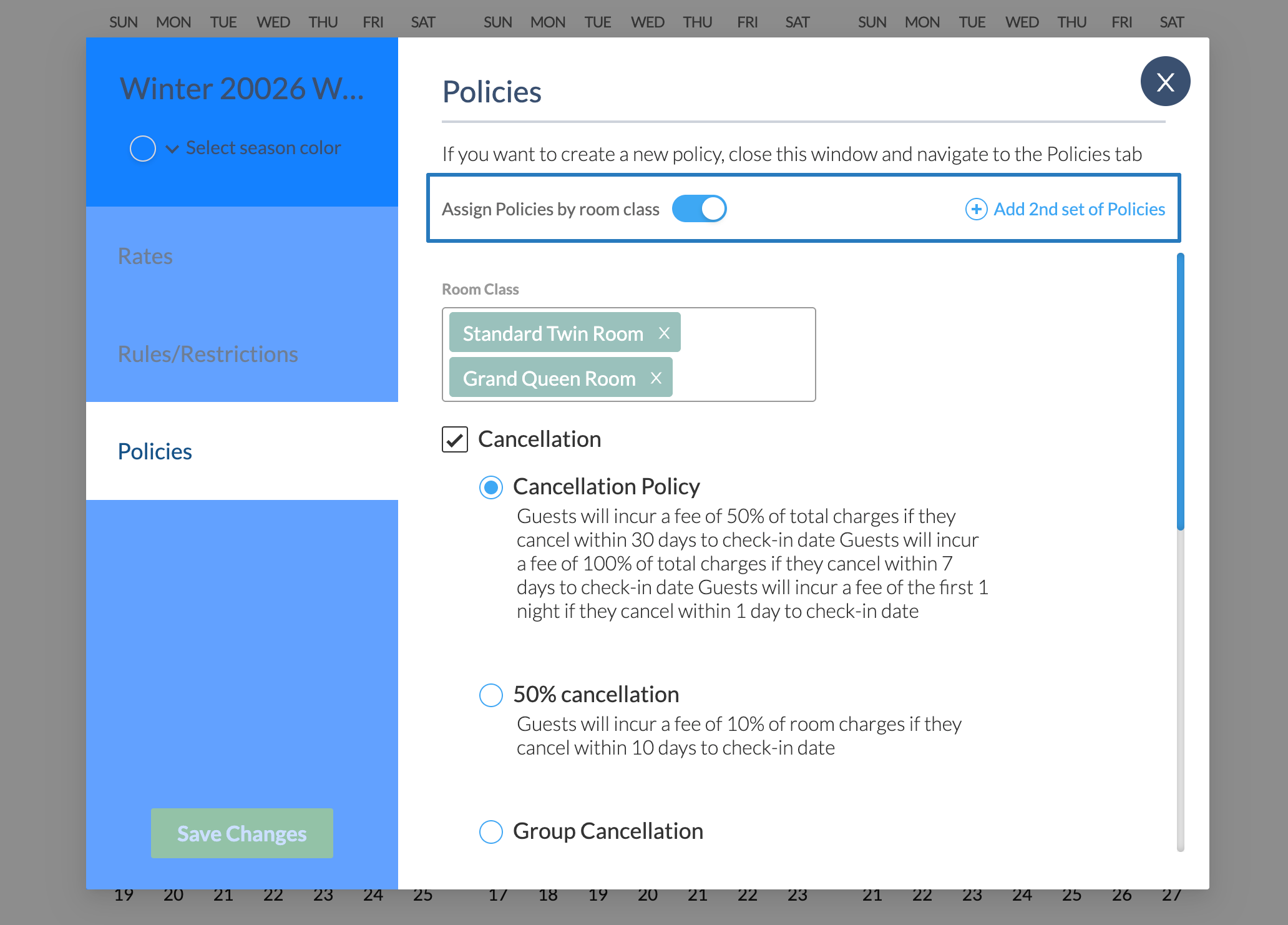
Was this article helpful?
That’s Great!
Thank you for your feedback
Sorry! We couldn't be helpful
Thank you for your feedback
Feedback sent
We appreciate your effort and will try to fix the article