AutoCharges and Payment Links in innRoad automate the collection of reservation payments based on a payment schedule you define in your Deposit Policies.
This ensures payments are collected on time with less manual work from your team.
Scheduled Payments and Payment Links are only available to innRoad Payments users. Please contact support@innroad.com if you'd like to learn more.
Why Use AutoCharges
AutoCharges and Payment Links streamline your payment process by:
- Ensuring deposits are collected automatically and on schedule
- Reducing manual follow-ups and payment reminders
- Improving cash flow with predictable, automated charges
- Giving guests a seamless way to pay failed or missing payments online
- Maintaining consistency across all reservations using the same Rate Plan
How AutoCharges Work
Here is an example deposit schedule with three clauses:
- 50% on booking
- 25% — 30 days before check-in
- 25% — 7 days before check-in
Here's how this schedule works depending on when a guest books.
Example Scenario: Guest Books 20 Days Before Check-In
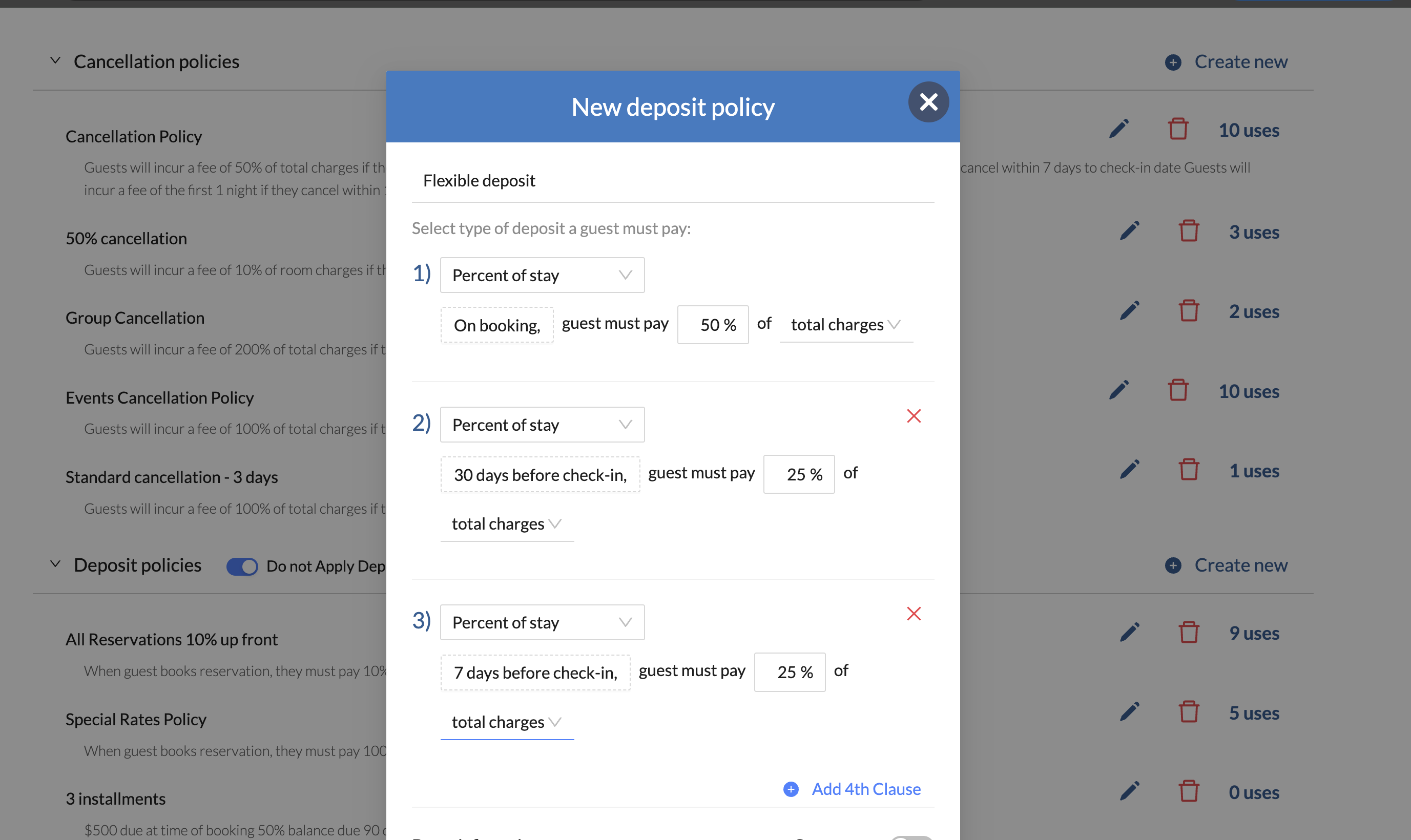
Because the booking happens only 20 days before check-in, the “30 days before check-in” clause is already overdue. Here’s how innRoad handles it:
- The 50% on-booking charge becomes due immediately.
- The 25% 30-day charge is also due immediately, since its date has passed.
- innRoad automatically consolidates both into a single 75% charge at booking.
- The remaining 25% is then charged 7 days before check-in.
If any automatic charge fails, the guest is automatically emailed a Payment Link so they can update their card and
complete the payment online.
Setting Up Your Payment Schedule
Payment schedules are created inside Deposit Policies. Each Deposit Policy can include one or more “clauses,” which define:
- Charge Amount
- Flat Fee — fixed dollar amount per reservation
- Number of Nights — cost of a specific number of nights
- % of Charges — percentage of room charges or total charges
- Charge Timing
- On booking
- X days before check-in
Learn more about creating Deposit Policies with automated charges here: Create an Automatic Deposit Schedule with innRoad Payments
Consolidation Rules
innRoad automatically consolidates charges to simplify payment collection. Consolidation happens when:
- Multiple scheduled payments fall on the same date
- A guest books after one or more scheduled charge dates have already passed
For example, if a guest books 20 days before check-in, the On Booking (50%) and 30-day (25%) payments are combined into one 75% charge.
Recovery Payment Links
If an automated charge fails, innRoad automatically:
- Generates a Payment Link for the same amount
- Sends it to the email address on the reservation
- Updates the link status automatically once the payment is completed
Viewing Scheduled Charges and Payment Links
You can view all scheduled charges and payment links in two places:
- Property-Level Reporting: Reports > Payments Dashboard > Auto Charges & Links Dashboard
- Reservation-Level: On each reservation’s Auto Charges & Links tab
You can find more information about these dashboards here:
- Scheduled Charges and Payment Links for a specific Reservation
- Scheduled Charges and Payment Links Dashboard for your entire Property
Overriding Deposit Amounts
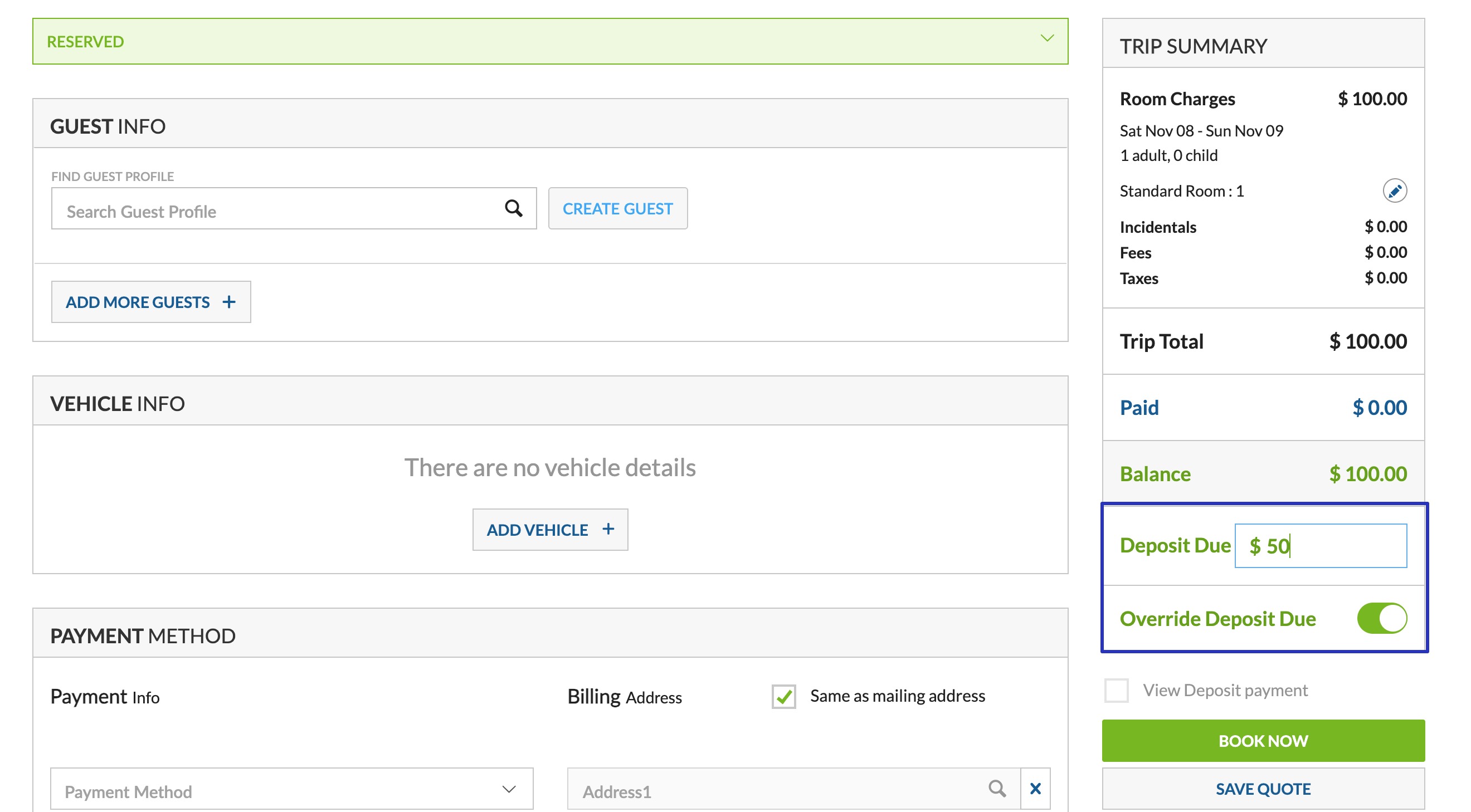
If you manually create a reservation and select Override Deposit Due, the reservation:
- Will not use automated charges
- Will charge the manual override amount instead
Reservation Modifications
Changes to stay details may adjust scheduled charges, including:
- Stay date changes (may shift timing or amounts)
- Room Class changes (may change total charges)
- Rate Plan changes (may change total charges)
These changes do not modify the deposit policy itself. They only impact the amount or timing of charges based on new reservation details.
Limitations
- Automated payments for routed charges are not supported.
- OTA Collect reservations (Booking.com, Expedia)
- Since OTA virtual cards only have funds available on specific dates, automated charges cannot be processed.
- Reservations with folio routing enabled
- If room or total charges are routed to another folio, they cannot be included in automated charges.
- OTA Collect reservations (Booking.com, Expedia)
- Changing the deposit policy on an existing reservation is not supported. You may cancel scheduled charges but cannot switch policies.
Was this article helpful?
That’s Great!
Thank you for your feedback
Sorry! We couldn't be helpful
Thank you for your feedback
Feedback sent
We appreciate your effort and will try to fix the article