The Check Out workflow allows you to complete a guest's stay, collect any remaining balance, and update the reservation to Departed. If the guest is leaving before their scheduled departure date, you can also process an Early Check-Out and determine how room charges for unused nights should be handled.
Use this article to
- Check out an In-House reservation
- Collect an outstanding balance during check-out
- Understand how to handle a refund due to the guest
- Complete a check-out without payment or refund when permitted
- Process an Early Check-Out
- Determine whether to charge for unused nights during an Early Check-Out
- Generate a guest statement
- Understand what innRoad updates and which automated actions may occur after check-out
Step 1: Find and Open the Reservation
Locate the In-House reservation from the Reservation Dashboard, Tape Chart, or another reservation view.
Open the reservation to view Reservation Details.
From Reservation Details, click Check Out in the upper-right corner.

Note: The Check Out option is available once the reservation has been checked in and is In-House.
Step 2: Review the Check-Out
The Check Out screen displays the guest's stay information and current reservation balance.
Review the details before completing the check-out.
If the guest has a zero balance, click Confirm Check Out to complete the check-out.
If the guest has an outstanding balance, click Proceed to Check Out Payment to continue to the payment step.
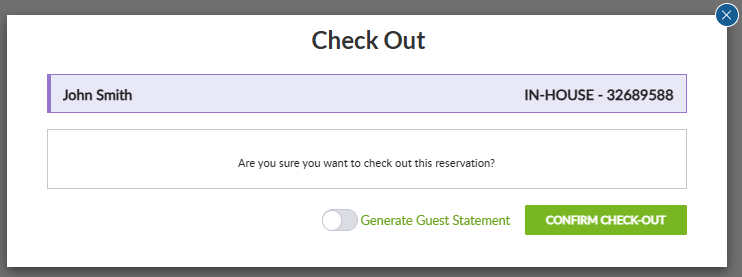
Generate a Guest Statement
To generate a guest statement as part of the check-out process, turn on Generate Guest Statement before completing the check-out.
Properties can also configure Generate Guest Statement to be selected by default for every check-out.
Note: To enable this default, go to Setup > Properties > Options > Check-In/Out Process > Check-Out Settings and select Default to Generate Guest Statement on Check Out.
If Payment Is Required
If the reservation has an outstanding balance that must be collected at check-out, the button at the bottom of the Check Out screen displays Proceed to Check Out Payment instead of Confirm Check Out.
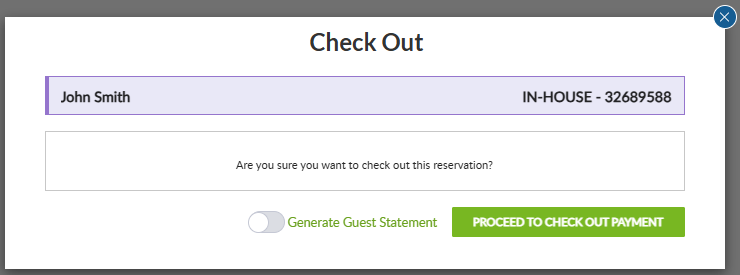
Click Proceed to Check Out Payment to continue.
The Check Out Payment screen displays the reservation's outstanding balance. You can use the payment method already associated with the reservation, select a different payment method, or add a payment method if one has not yet been entered.
Review the payment method and amount, then click Pay to process the payment and check out the guest.
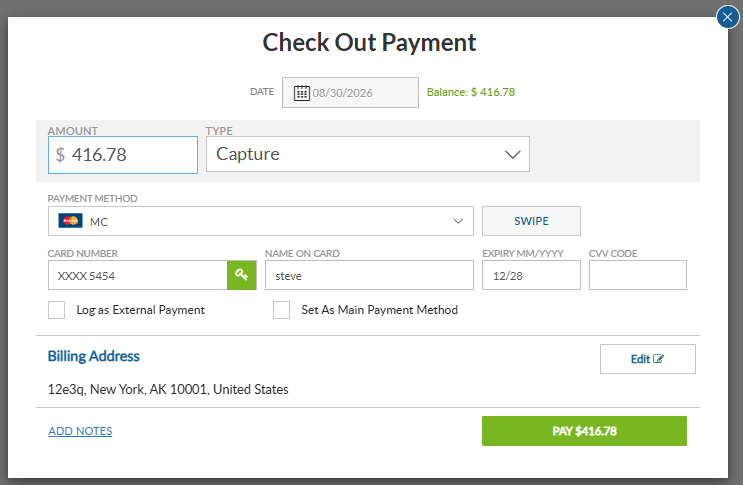
Check Out Without Collecting the Full Balance
If your property's configuration allows reservations to be checked out with a remaining balance, you can reduce the payment amount, including changing it to $0.
When the payment amount is set to $0, the action changes to Check Out Without Payment.
Note: To allow reservations to be checked out with a remaining balance, go to Setup > Properties > Options > Check-In/Out Process > Check-Out Settings and enable Allow Non-Zero Balance At The Time Of Check-Out
If a Refund Is Due
If the reservation has a credit balance and the guest is owed a refund, innRoad displays a message before completing the check-out.
You can:
- Click Yes, Take Me to the Folio to return to the reservation Folio and process the applicable refund.
- Click No, Confirm Check-Out Without a Refund to complete the check-out without issuing the refund, if your property's configuration allows it.
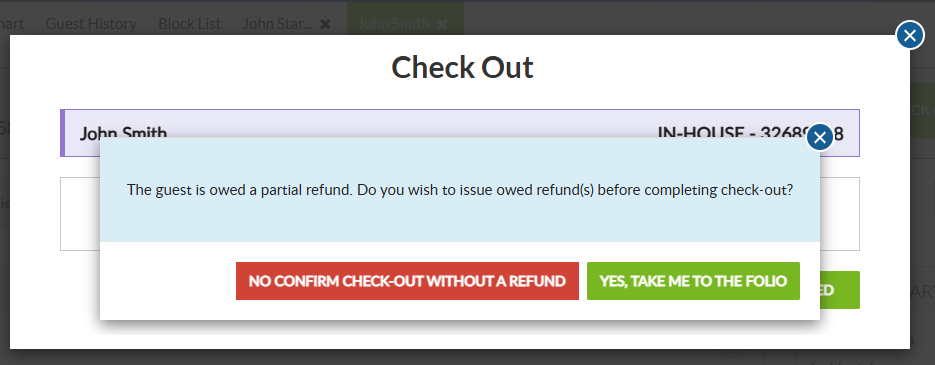
If you choose to go to the Folio, process the refund and then return to the check-out workflow to complete the guest's check-out.
Note: The option to check out without issuing the refund is only available when the property allows reservations to be checked out with a non-zero balance. This can be configured under Setup > Properties > Options > Check-In/Out Process > Check-Out Settings using Allow Non-Zero Balance At The Time Of Check-Out.
Check-Out Successful
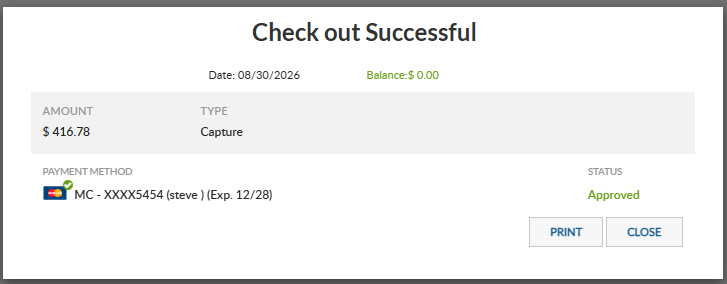
After the check-out is completed, innRoad displays a confirmation that the guest has been successfully checked out.
Click Close to close the confirmation and return to the reservation.
After check-out, the reservation status changes from In-House to Departed.

What Happens After Check-Out?
Once check-out is completed, innRoad automatically:
- Changes the reservation status from In-House to Departed.
- Sends applicable emails or text messages when the property has configured communications to be triggered at check-out.
- Depending on the property's configuration, the room's housekeeping status may also automatically change to Dirty when the guest is checked out.
Note: Properties can configure whether rooms are automatically marked Dirty at check-in/check-out under Setup > Task Management using Set rooms to dirty on check-in/check-out.
If Check-Out Cannot Be Completed
If you cannot complete the check-out, review the following:
- Payment failure: Confirm the payment method and retry the payment.
- Outstanding balance: Review the reservation Folio and collect any remaining balance.
- Non-zero balance: If you need to check out the guest without collecting the full balance, confirm that Allow Non-Zero Balance At The Time Of Check-Out is enabled under Setup > Properties > Options > Check-In/Out Process > Check-Out Settings.
Early Check-Out
Use Early Check-Out when a guest is departing before their scheduled Check-Out date.
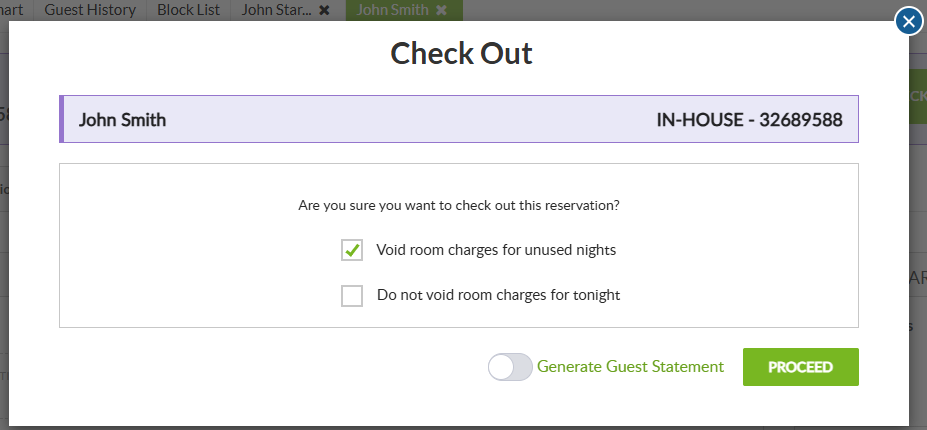
When you start the Check Out process before the scheduled departure date, innRoad displays additional options for determining how room charges should be handled.
Choose How to Handle Room Charges
You can choose whether to remove room charges for the unused nights remaining on the reservation.
- Select Void room charges for unused nights to remove room charges for nights after the Early Check-Out.
- Leave Void room charges for unused nights unselected if the guest should still be charged for the unused nights.
You can also choose how to handle the room charge for the current night:
- Select Do not void room charges for tonight if the guest should still be charged for the current night.
- Leave it unselected if the current night's room charge should also be removed.
After reviewing the options, continue with the check-out. If payment is required, follow the same Check Out Payment process described earlier in this article.
When the Early Check-Out is completed, innRoad changes the reservation's Check-Out date to the current date. The room becomes available for a new reservation that same night.
Tip: Review the reservation Folio after an Early Check-Out to confirm that the room charges reflect how you chose to handle the unused nights and current night's charge.
Simplify Check-Out with Guest Portal
Guest Portal allows guests to complete payment directly and digitally sign their guest statement, helping reduce the steps the front desk needs to complete during check-out.
Learn More: See Collecting Payment and Payment Method Details Using Guest Portal.
Related Articles
Was this article helpful?
That’s Great!
Thank you for your feedback
Sorry! We couldn't be helpful
Thank you for your feedback
Feedback sent
We appreciate your effort and will try to fix the article