In innRoad, a Product is any billable item or service your property sells in addition to room charges. Products let you capture revenue that would otherwise be tracked manually, missed at checkout, or posted to the wrong department.
Setting up Products correctly helps you:
- Increase total revenue per reservation (upsells and add-ons)
- Charge guests accurately and consistently
- Assign income to the correct category
Steps to create a Product:
Why use Products to Upsell
Use Products to optimize your revenue, simplify operations, and improve guest experience. It's a great way to get more out of each reservation, while providing options guests want. Taking the time to set up Products helps you standardize prices, avoid miscalculation when adding line items to Folios manually, and allows you to automatically sell add-ons and services online.
By using Products effectively, you ensure that every service sold is captured, accounted for, and contributes to your property’s bottom line.
Create a Ledger Account for Products
Ledger Accounts track revenue for the specific items sold. Any time a Product is sold, the revenue will be stored in the assigned Ledger Account. You can later check the total amount and quantity sold in reports like Ledger Balances Report or Product Sales Report.
You can skip this step and move forward to create Products if you already have the required Ledger Accounts.
How to create the Ledger Account:
- Log in to innRoad.
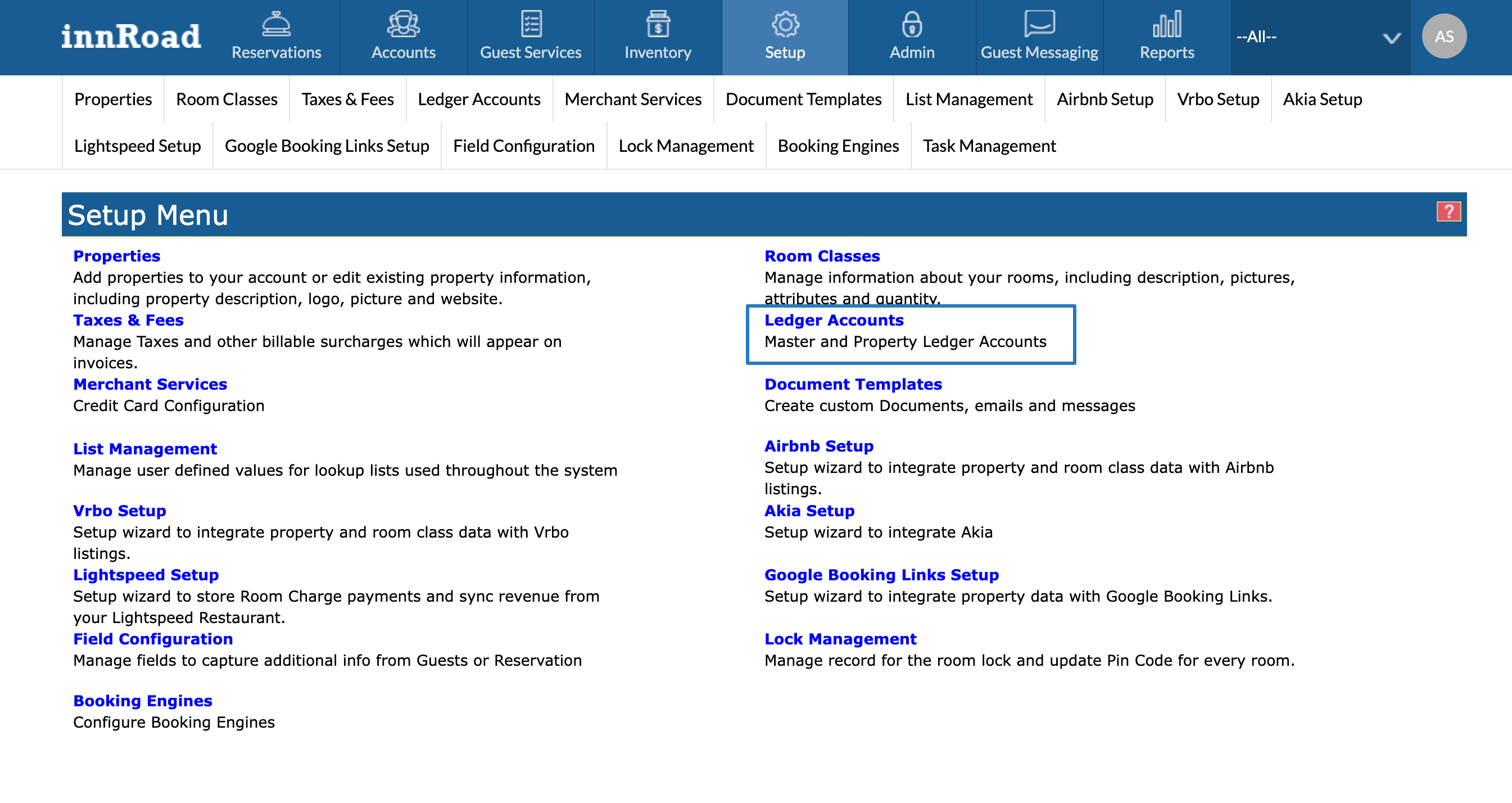
- Go to Setup > Ledger Accounts
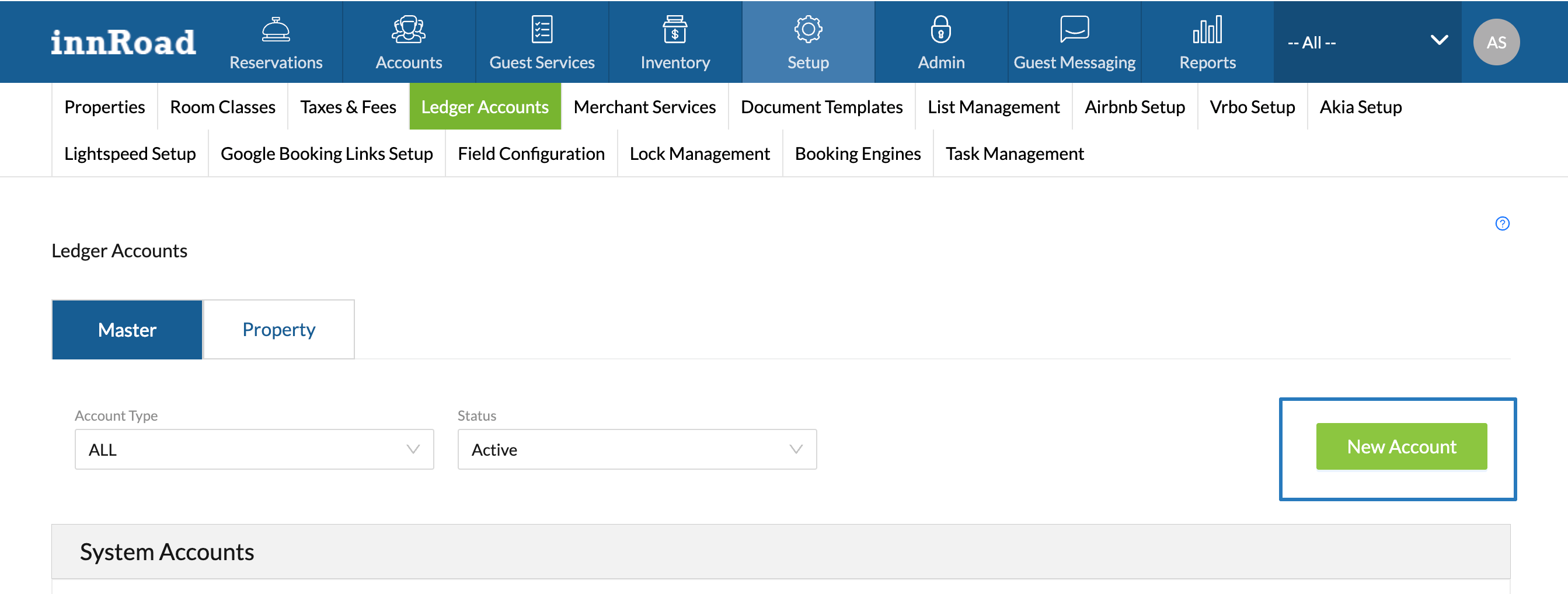
- Click New Account:
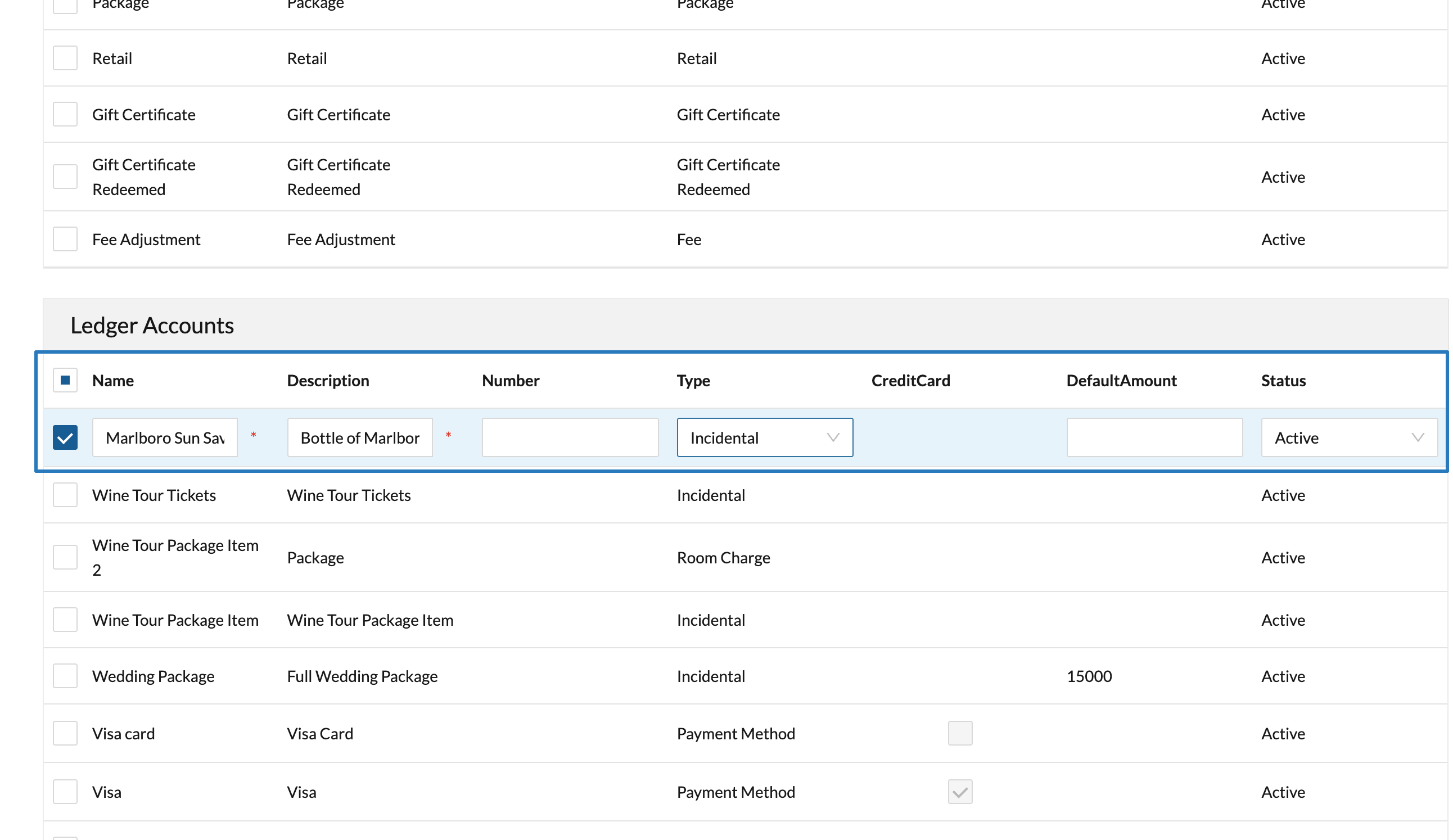
- Fill out the required details:
- Set the Ledger Account Name
- Enter the Description
- Set the Type to Incidental for Products, or Package for Bundles.
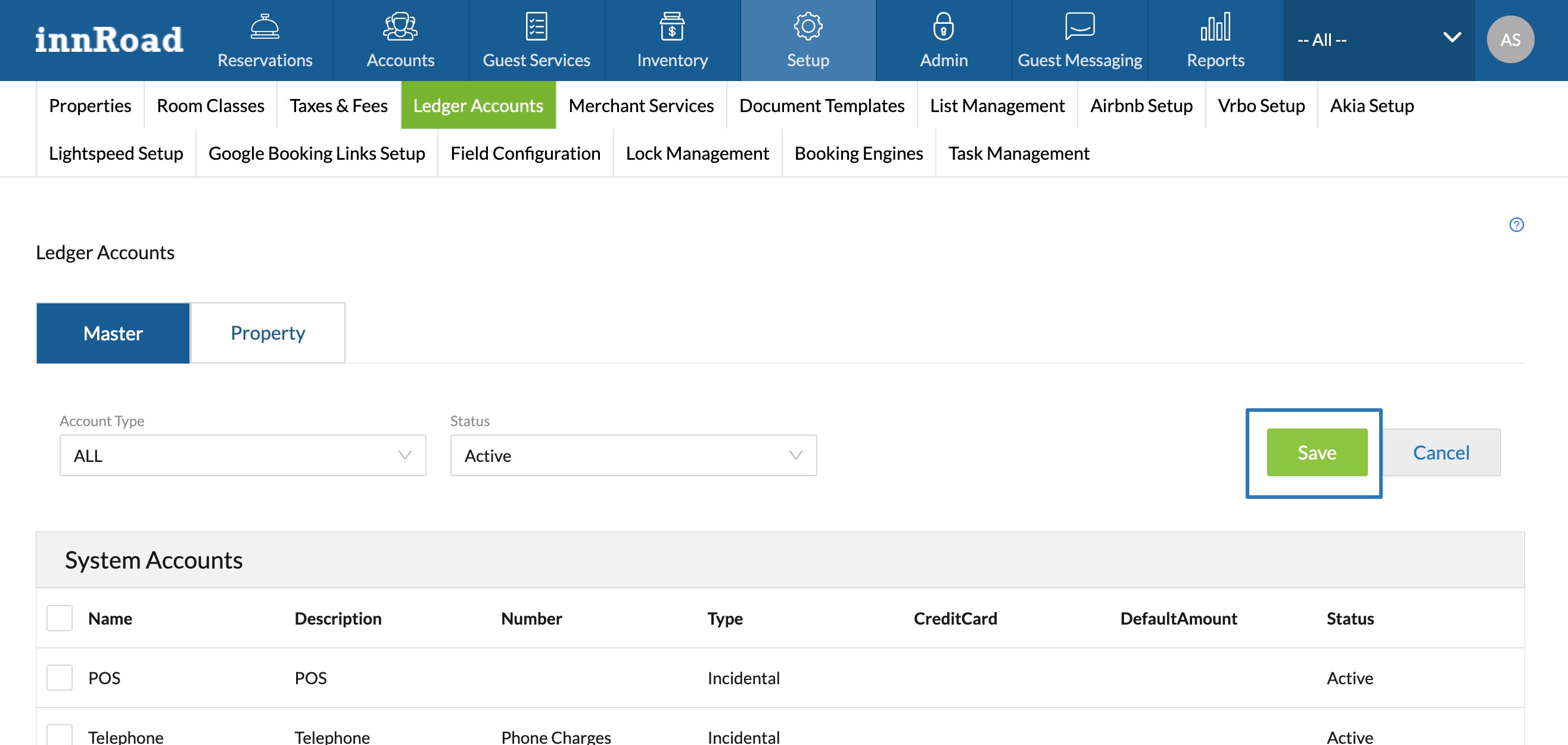
- Scroll up and click Save.
You can repeat the process to create multiple Products, or Bundles. We can now proceed to creating the actual Product.
Create a new Product
Now that you have the Ledger Accounts to store the revenue, it's time to create Products.
How to create a new Product:
- Log in to innRoad
- Select a property in the top-right corner, if you're a multi-property client.
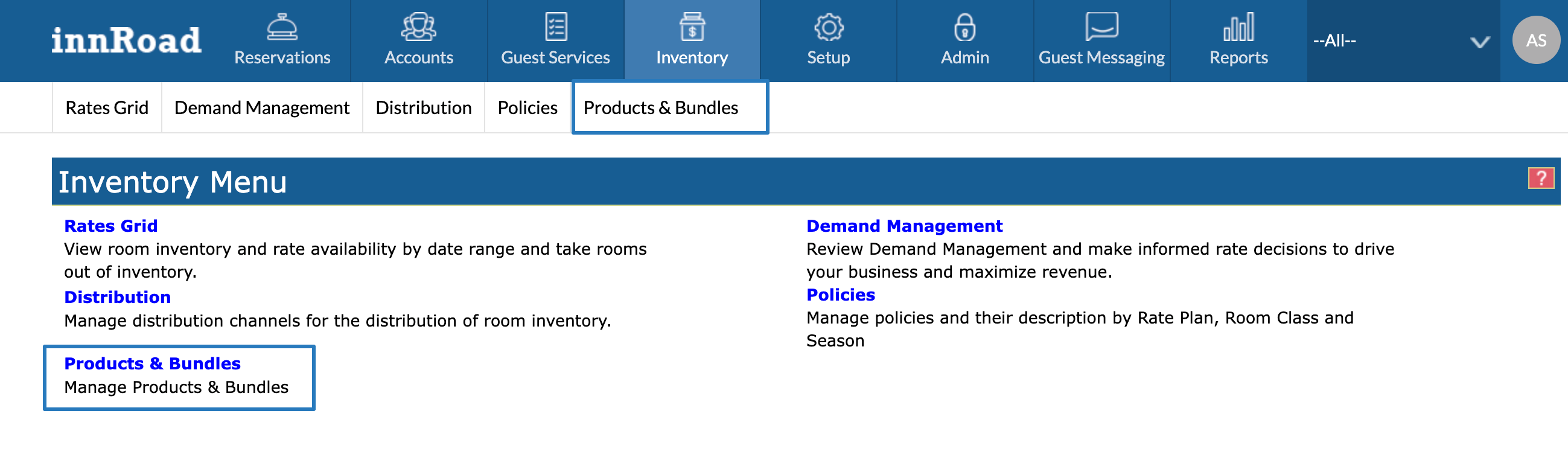
- Go to Inventory > Products & Bundles:
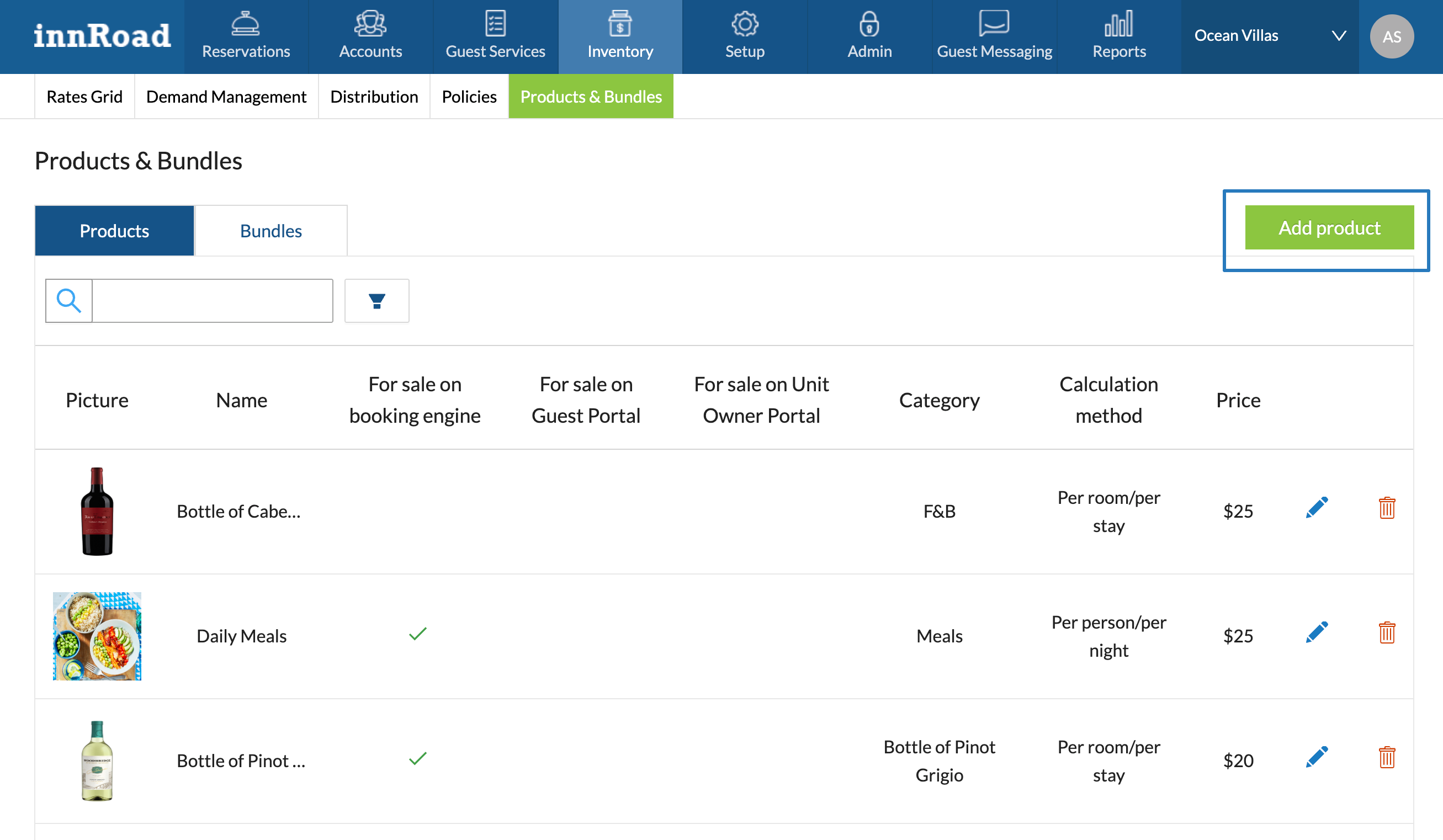
- Click Add Product:
- Fill out the required fields to create a new Product:
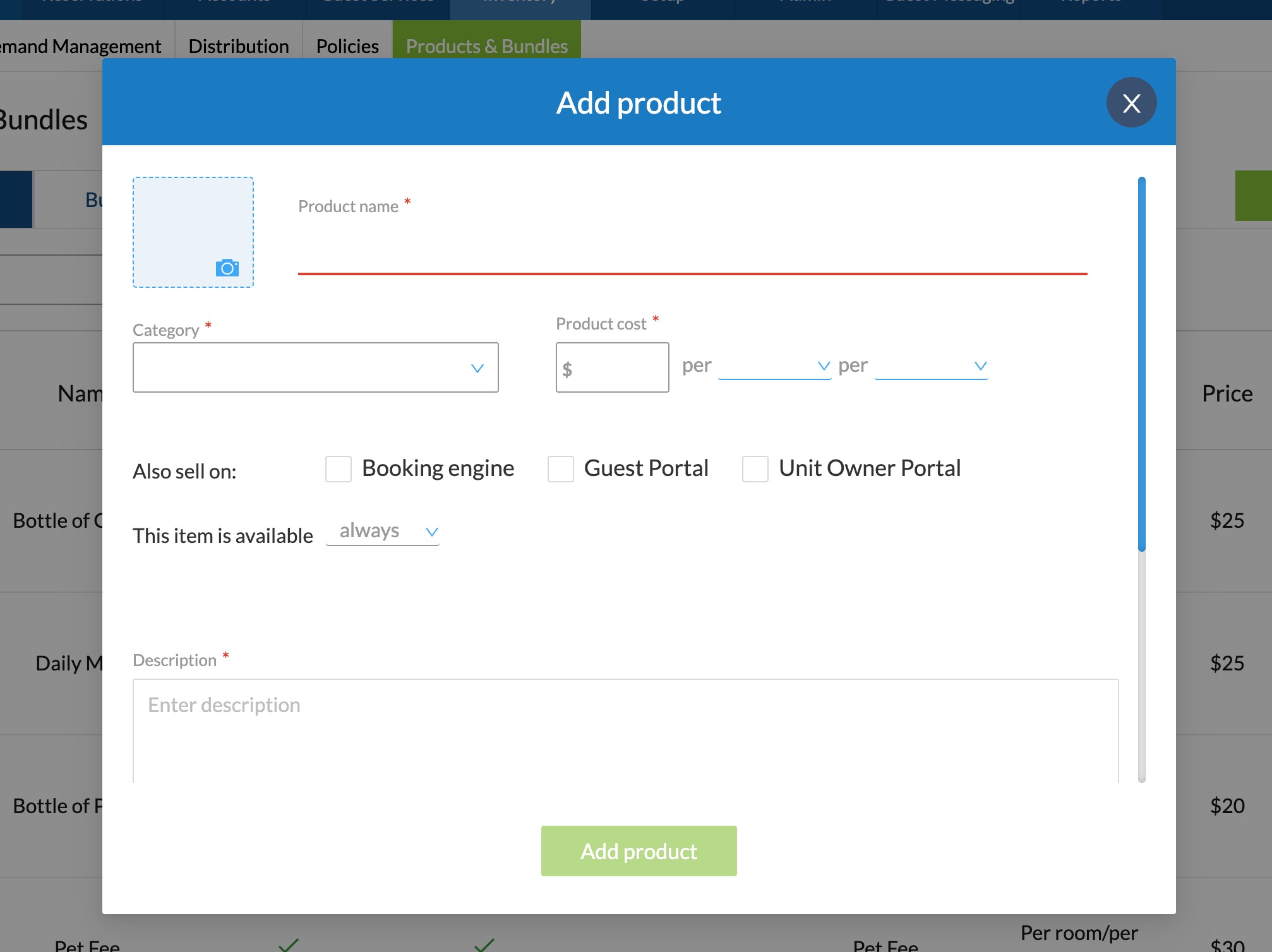
- Enter a ProductName, displayed to the Guest on the Booking Engine, Guest Portal, and the Unit Owner Portal.
- Select a Category from existing Ledger Accounts.
- Set up the pricing structure
- Set the amount
- Set the type
- Per room
- Per person
- Per adult
- Per child
- Set the frequency
- Per night
- Per stay
- Per interval
- If you want to sell the Product online, select the innRoad sources to sell it.
- Click Add product
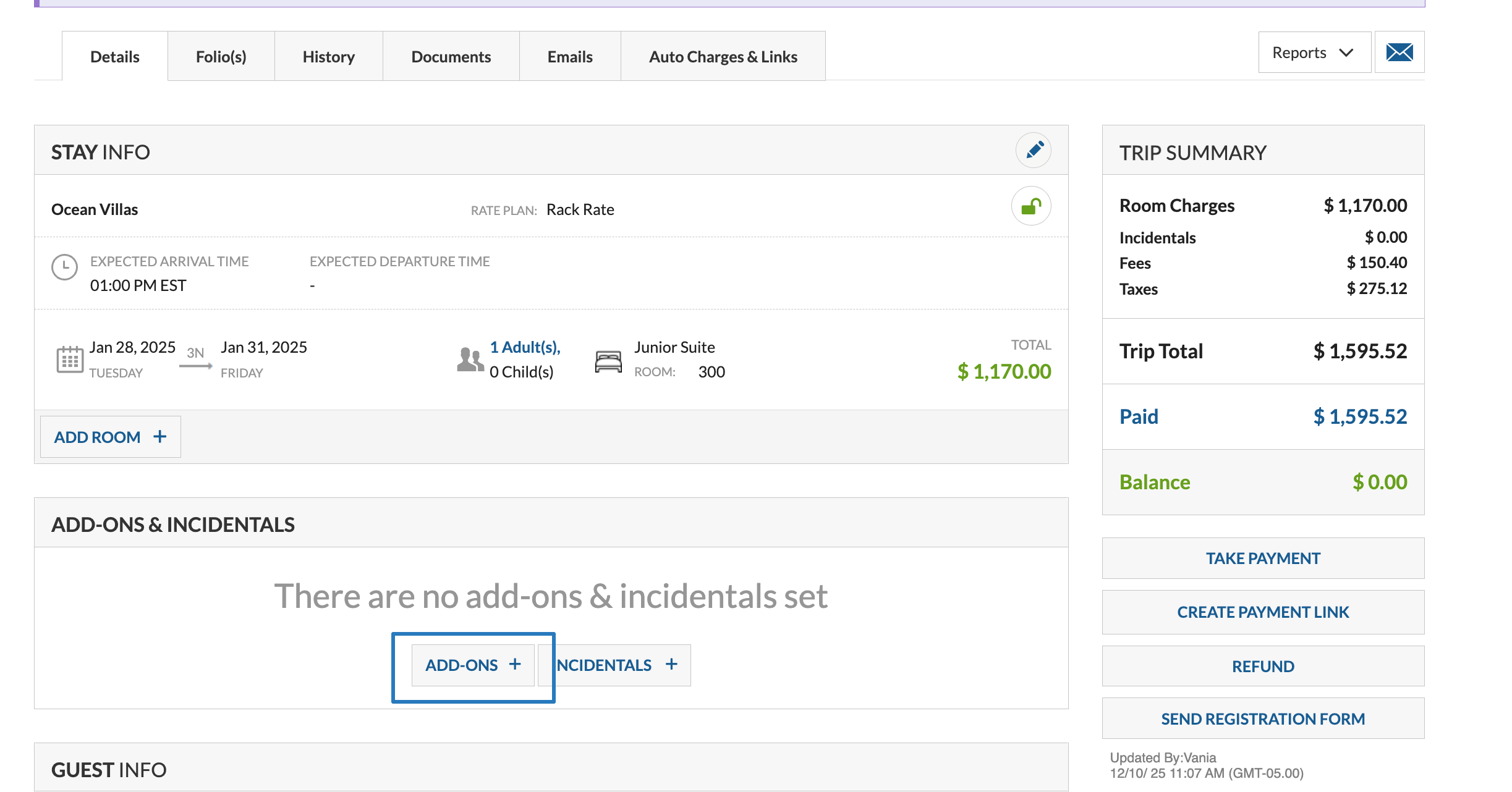
Congratulations, now you can add a Product using the Add-ons & Incidentals option on the Reservation Details page:
You can also sell products automatically.
Was this article helpful?
That’s Great!
Thank you for your feedback
Sorry! We couldn't be helpful
Thank you for your feedback
Feedback sent
We appreciate your effort and will try to fix the article