The Reservation List Report is a clear overview of guest reservations for a selected stay period.
It helps hotel teams quickly identify missing or incomplete reservation details and review key booking and revenue data.
Running this report can help you answer:
- Which reservations fall within a specific stay period
- Which bookings have an unpaid balance
- Which reservations do not have a payment method on file
- Which bookings are missing a room assignment
- How many guests are arriving, staying, or departing
- How much revenue is tied to each reservation type
The report can run for one property or multiple properties, depending on user access.
You can also run Advanced Search from the Reservation Dashboard for similar outputs.
What can I use the Reservation List Report for
You can run the report to:
- Check Daily Reservation Totals
- Find Incomplete Bookings
- Audit Revenue by Reservation Type
- Review Guest Counts (Adults & Children)
- Sort & Export Booking Data
How to configure the Reservation List Report
There are 3 main steps to run the report:
- Select a Stay On Date Range
- Choose which reservation types to include
- Customize how results are sorted and grouped
Step 1: Select a Stay Date Range
Choose a predefined stay period or pick custom dates.
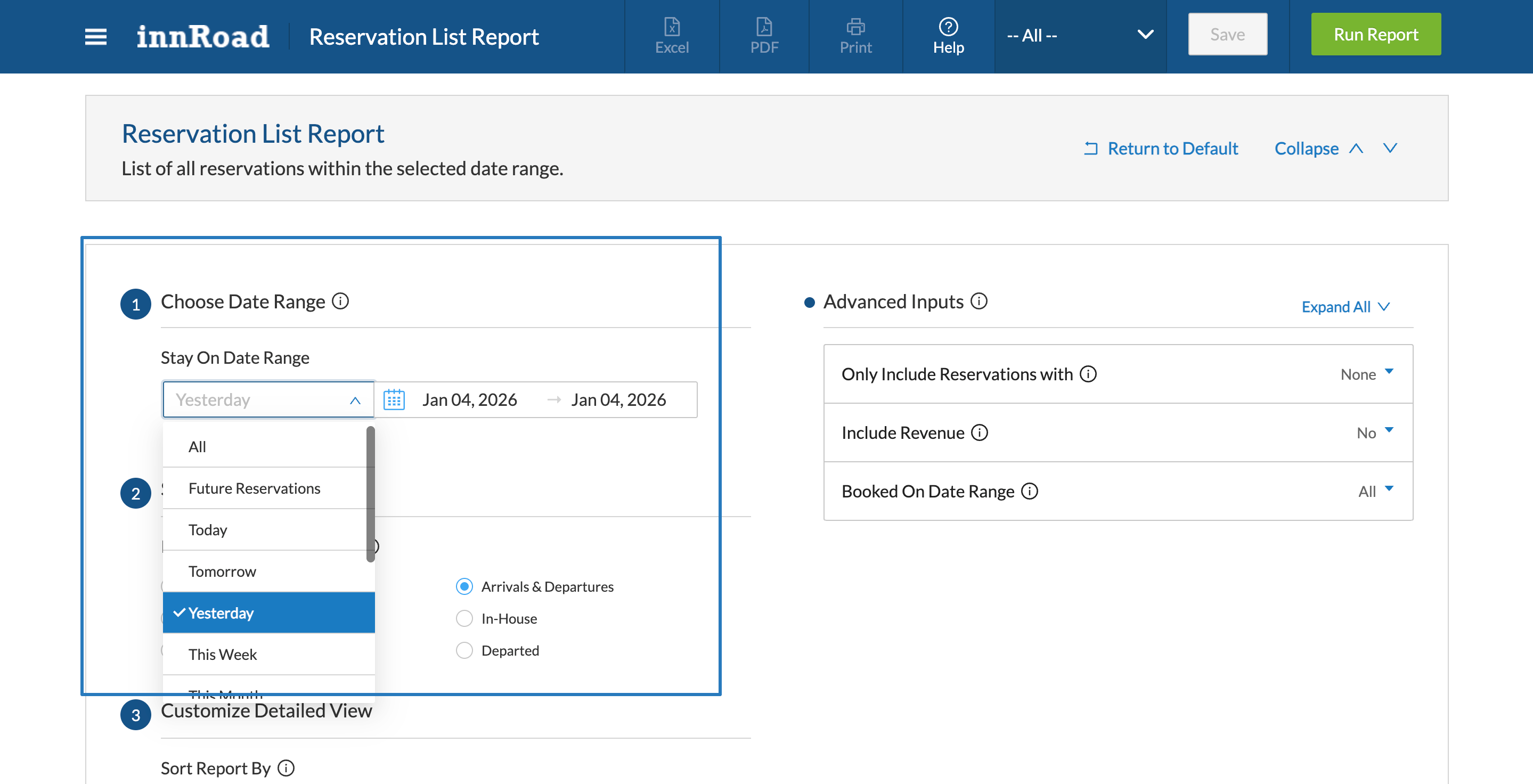
Options include:
- Today
- Tomorrow
- This Week
- This Month (default)
- Next 7 Days
- Next 30 Days
Step 2: Select Inputs
Filter which reservations appear:
- Include Reservation Types:
- All
- Arrivals
- Departures
- Arrivals & Departures
- In-House
- Departed
Step 3: Customize Detailed View
Sort results in a way that makes the most sense for your work. Common sort options include:
- Reservation Number
- Guest Name (A → Z)
- Room Number
- Stay Dates (Arrival/Departure)
- Reservation Status
- Guest Counts (Adults/Children)
- Revenue Totals (Room, Other, or Total Revenue)
Advanced Inputs
Configure additional filtering to narrow down your results further.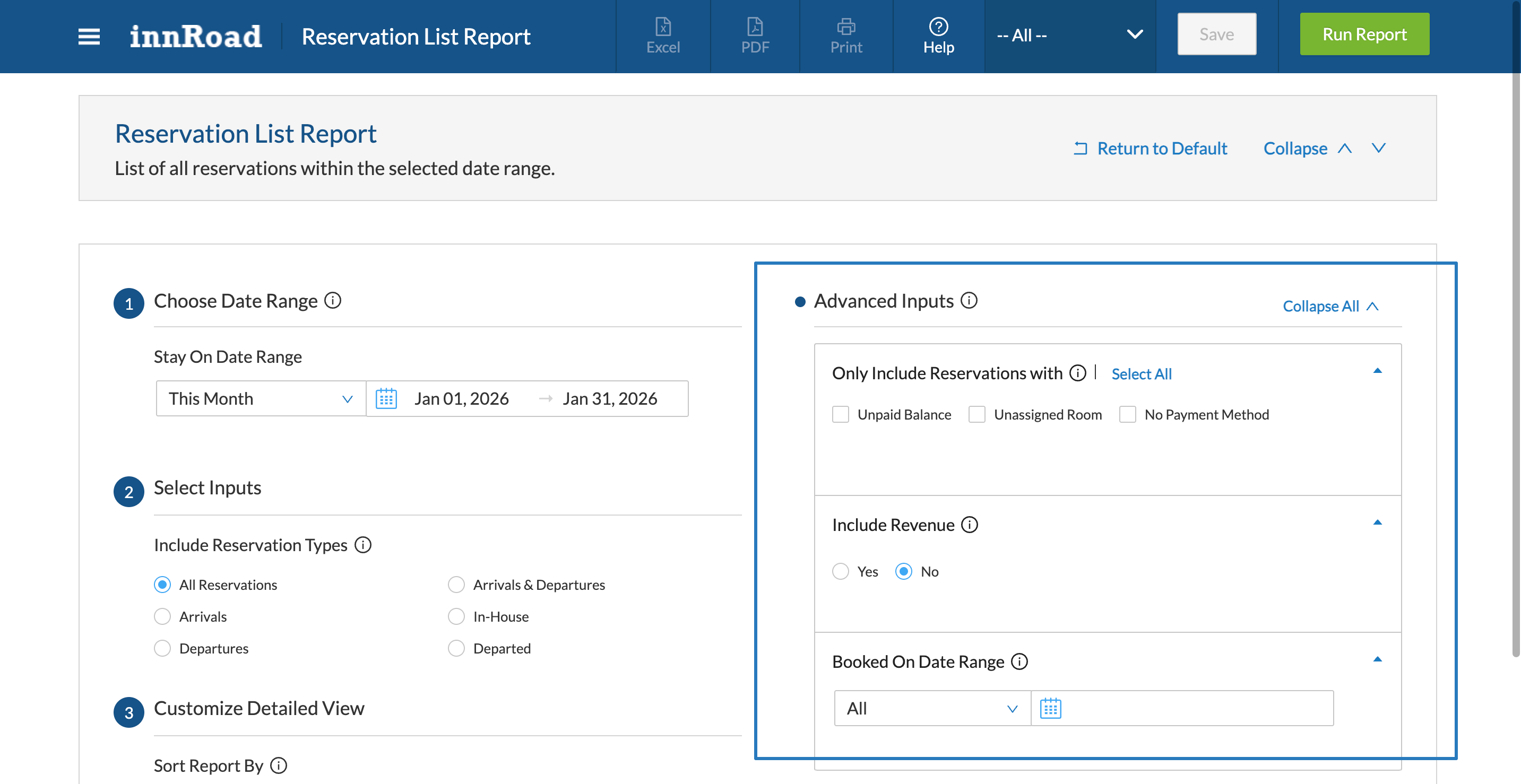
- Only Include Reservations With:
- Unpaid Balance
- Unassigned Room
- No Payment Method on File
- Include Revenue: Optional checkbox to add financial totals
- Booked On Date Range: Filter by when reservations were created.
Outputs
The report displays results in a Summary View with high-level totals, and Detailed View with all included reservations as table rows.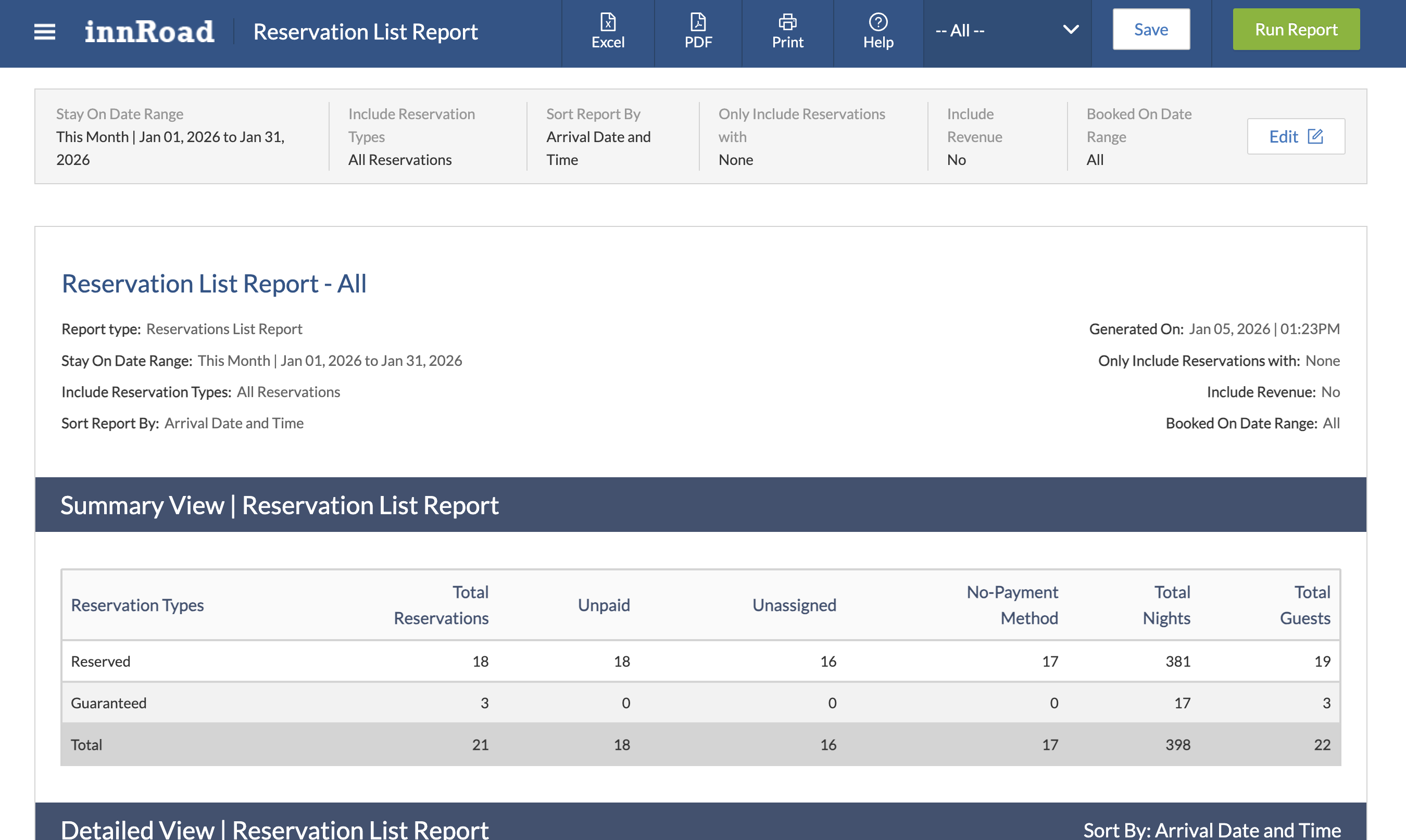
Summary View
- Totals reservations by reservation type
- Includes guest counts (adults and children)
- Shows revenue totals when enabled
- Useful for quick operational insights and reporting
Detailed View
- Shows each reservation in its own row
- Includes key booking details:
- Reservation number & status
- Assigned room (or flagged if missing)
- Payment method on file (or flagged if missing)
- Unpaid balance when applicable
- Guest counts
- Revenue totals (optional)
- Flags bookings that need attention:
- No payment method
- No room assigned
- Unpaid balance
- Ideal for auditing, front-desk planning, and reservation follow-up
Use Cases
Find Incomplete Bookings
Use this section to identify reservations missing critical details like payments or room assignments.
- Set Stay On Date Range based on when guests are expected
- Go to Only Include Reservations With and select one or more:
- Unpaid Balance
- Unassigned Room
- No Payment Method on File
- Set Sort Report By → Guest Name or Reservation Number
- Run the report and review flagged reservations in Detailed View
- Follow up with guests or internal teams to complete missing details
Review Guest Counts (Adults & Children)
Use this section to plan staffing, occupancy, and guest services needs.
- Set Stay On Date Range for expected guest stays
- Set Include Reservation Types → Arrivals, In House, or All Reservations
- Set Sort Report By → Adults or Children if you want to rank by guest volume
- Run the report and check guest totals in Summary View
- Use counts to plan housekeeping, front desk, and amenities
Sort & Export Booking Data
This section helps you organize the report and export it for sharing or offline work.
- Choose Stay On Date Range
- Set Sort Report Bydepending on your goal:
- Guest Name for alphabetical order
- Arrival/Departure Date for timeline planning
- Room Number for front desk use
- Revenue fields for finance
- Select filters if needed (unpaid, unassigned, no payment method)
- Run the report and open Detailed View
- Click Export and choose your format:
- Excel
- Optional: Save configuration for future reuse
Was this article helpful?
That’s Great!
Thank you for your feedback
Sorry! We couldn't be helpful
Thank you for your feedback
Feedback sent
We appreciate your effort and will try to fix the article