Selling additional items or offering services at the property is a great way to increase your revenue and offering convenience to your guests.
In innRoad, Products offer a structured way to manage sold items and services, like pet fees, bottles of wine, or spa access. You can also sell Products through the innRoad Booking Engine, Guest Portal, or or add manually to a guest folio.
Bundles combine multiple Products into a single offering, giving you flexibility to package items together at a customized price.
This guide will walk you through how to:
- Create Ledger Accounts for Products
- Set up individual Products
- Build Bundles from existing Products
- Make Products and Bundles available on the Booking Engine
- Make Products and Bundles available on the Guest Portal
You can also include Products or Bundles into a Rate by Creating a Package Rate.
How to Create a Prodct
Create a Ledger Account for Products
Ledger Accounts track revenue for the specific items sold. Any time a Product is sold, the revenue will be stored in the assigned Ledger Account. You can later check the total amount and quantity sold in reports like Ledger Balances Report or Product Sales Report.
You can skip this step and move forward to create Products if you already have the required Ledger Accounts.
How to create the Ledger Account:
- Log in to innRoad.
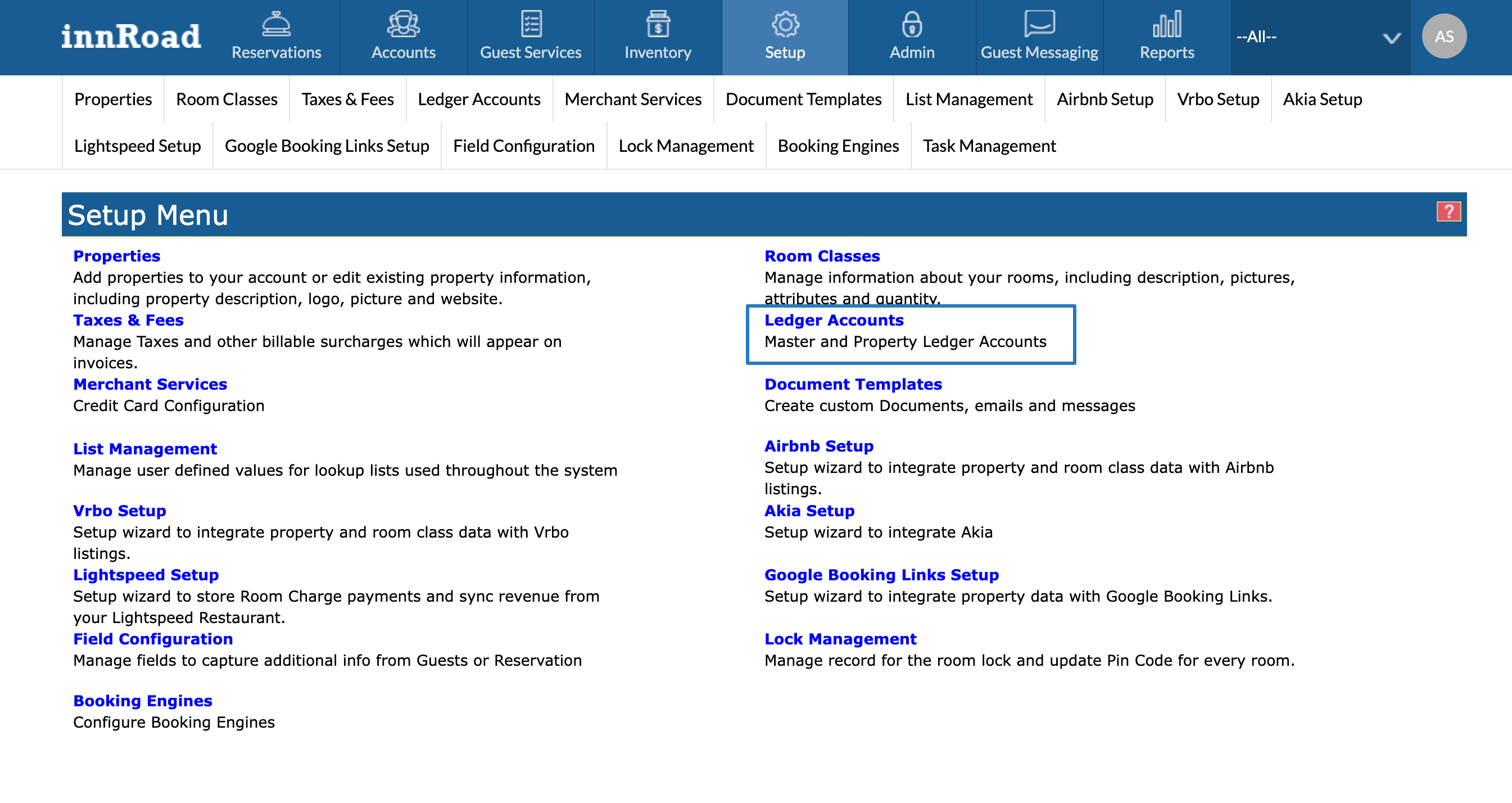
- Go to Setup > Ledger Accounts
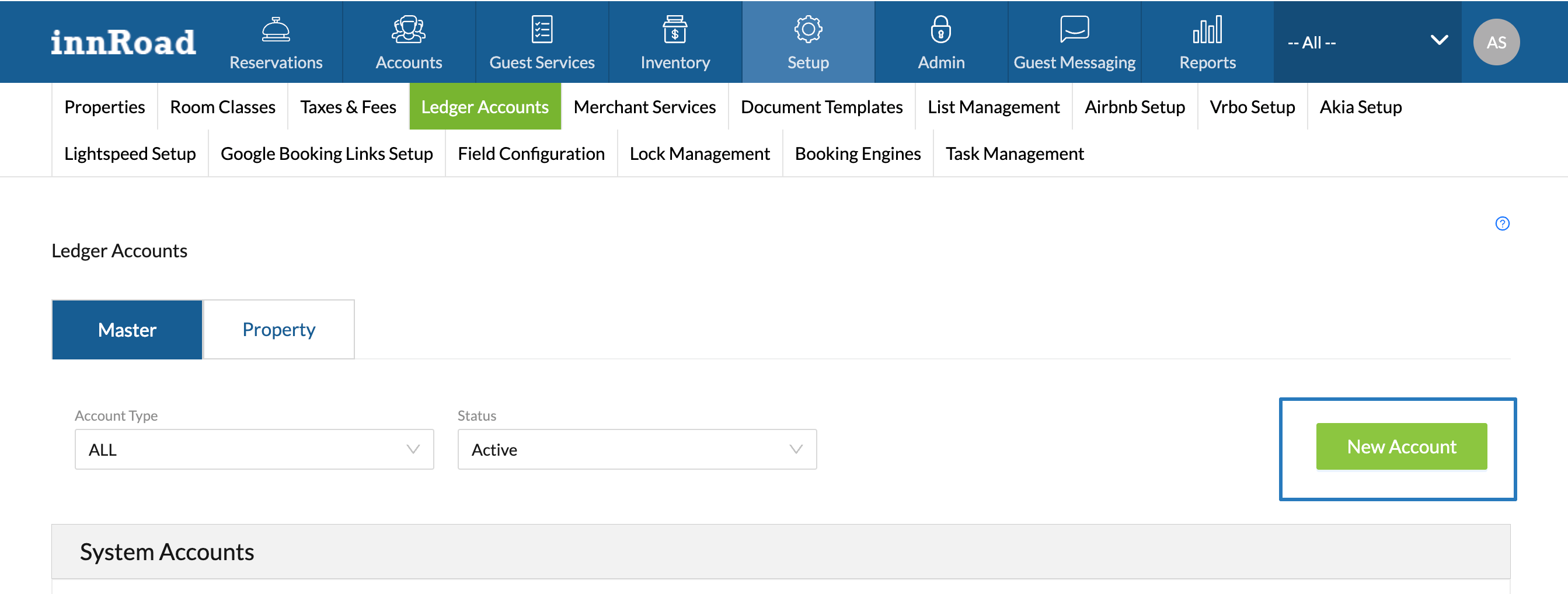
- Click New Account:
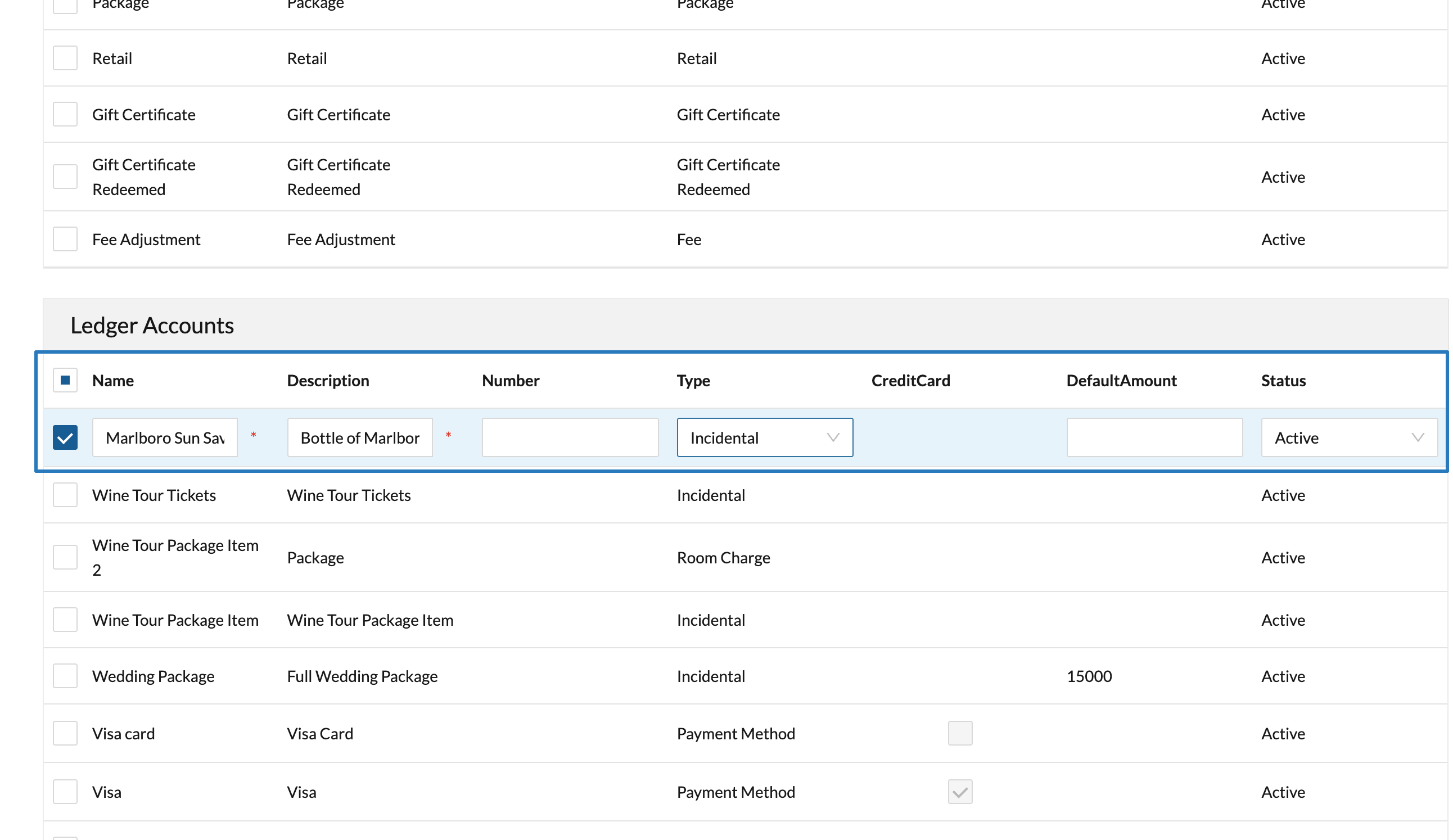
- Fill out the required details:
- Set the Ledger Account Name
- Enter the Description
- Set the Type to Incidental for Products, or Package for Bundles.
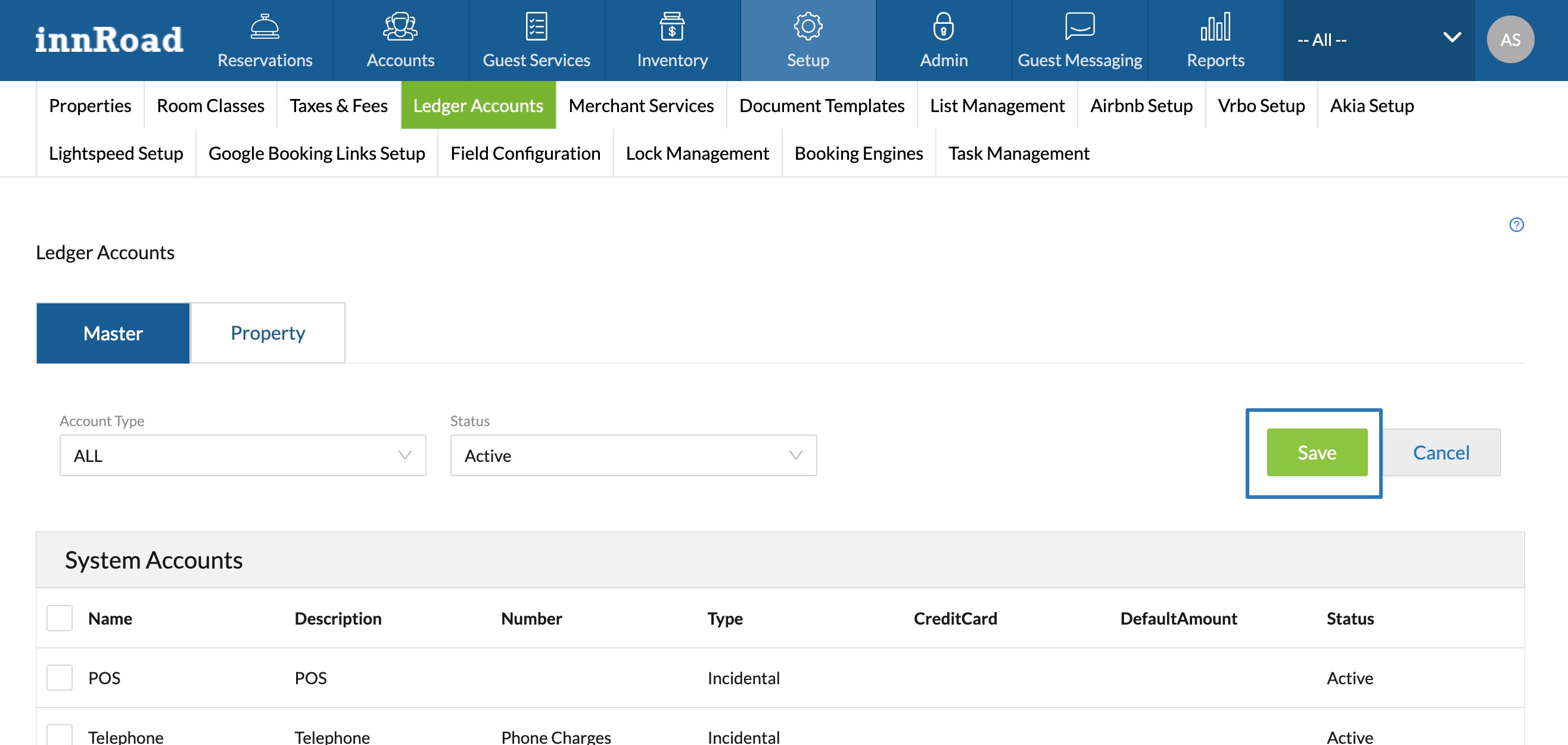
- Scroll up and click Save.
You can repeat the process to create multiple Products, or Bundles. We can now proceed to creating the actual Product.
Create a new Product
Now that you have the Ledger Accounts to store the revenue, it's time to create Products.
How to create a new Product:
- Log in to innRoad
- Select a property in the top-right corner, if you're a multi-property client.
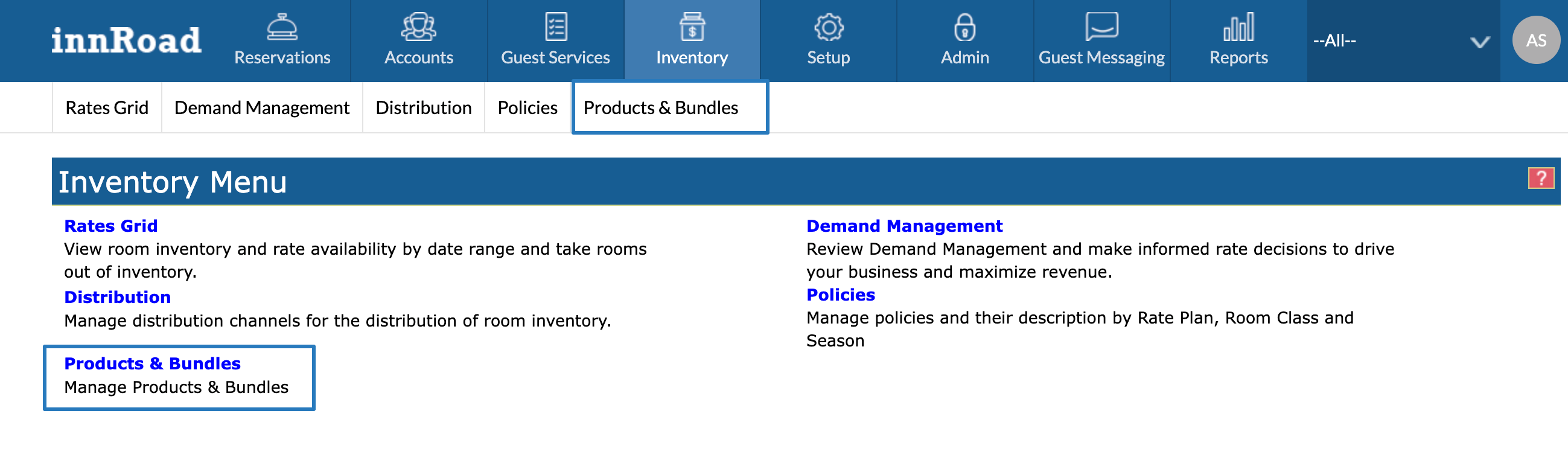
- Go to Inventory > Products & Bundles:
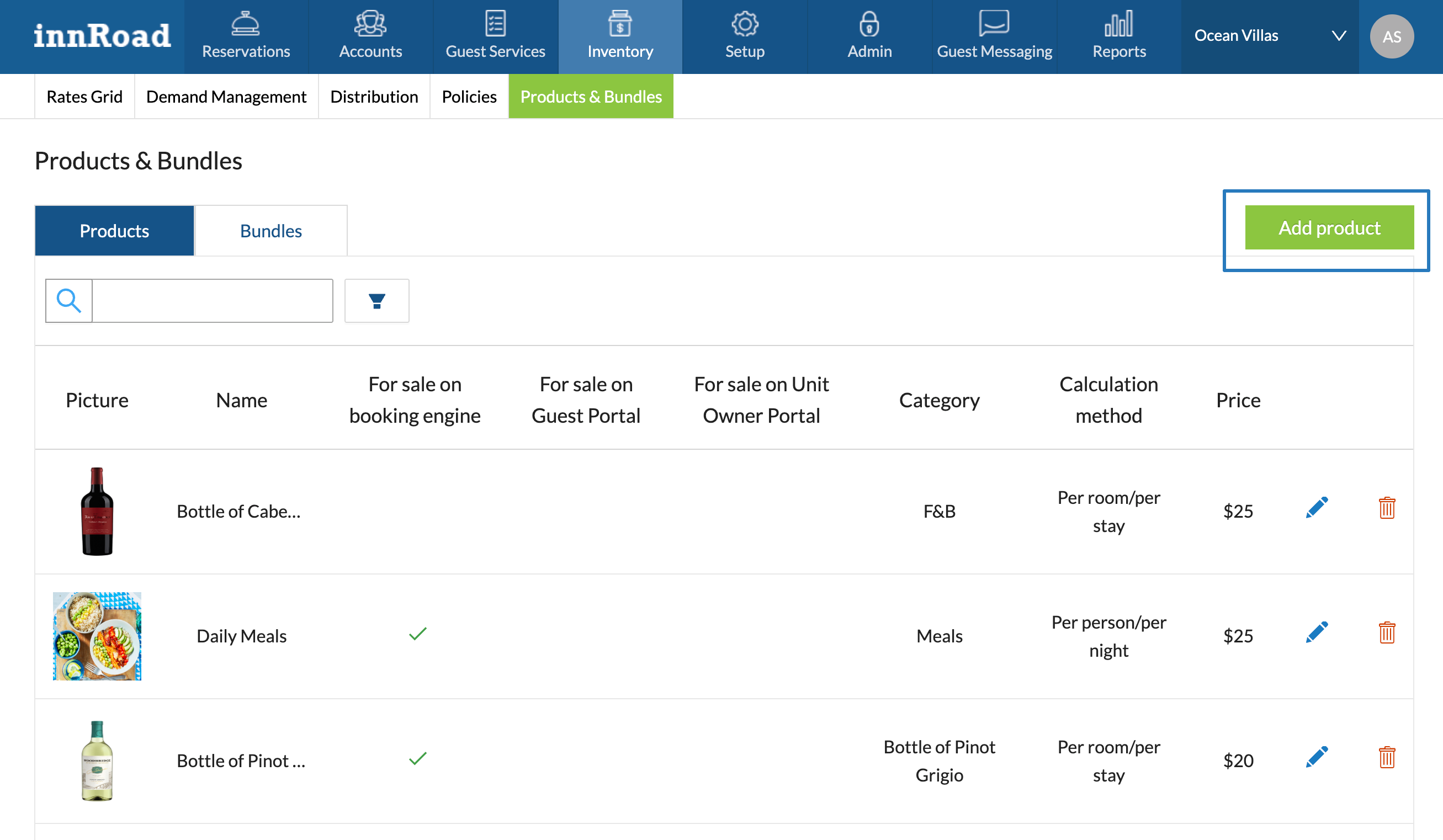
- Click Add Product:
- Fill out the required fields to create a new Product:
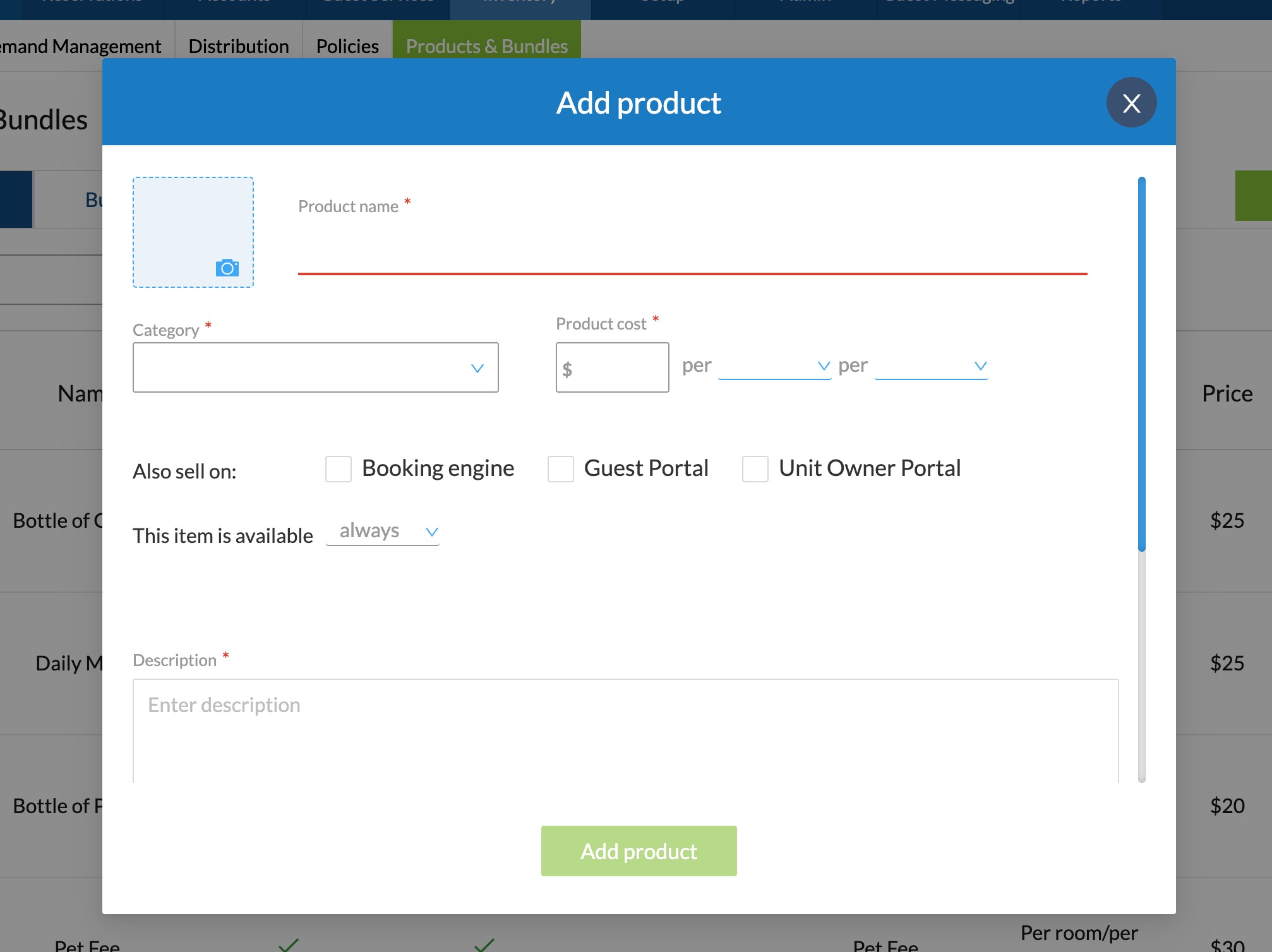
- Enter a ProductName, displayed to the Guest on the Booking Engine, Guest Portal, and the Unit Owner Portal.
- Select a Category from existing Ledger Accounts.
- Set up the pricing structure
- Set the amount
- Set the type
- Per room
- Per person
- Per adult
- Per child
- Set the frequency
- Per night
- Per stay
- Per interval
- If you want to sell the Product online, select the innRoad sources to sell it.
- Click Add product
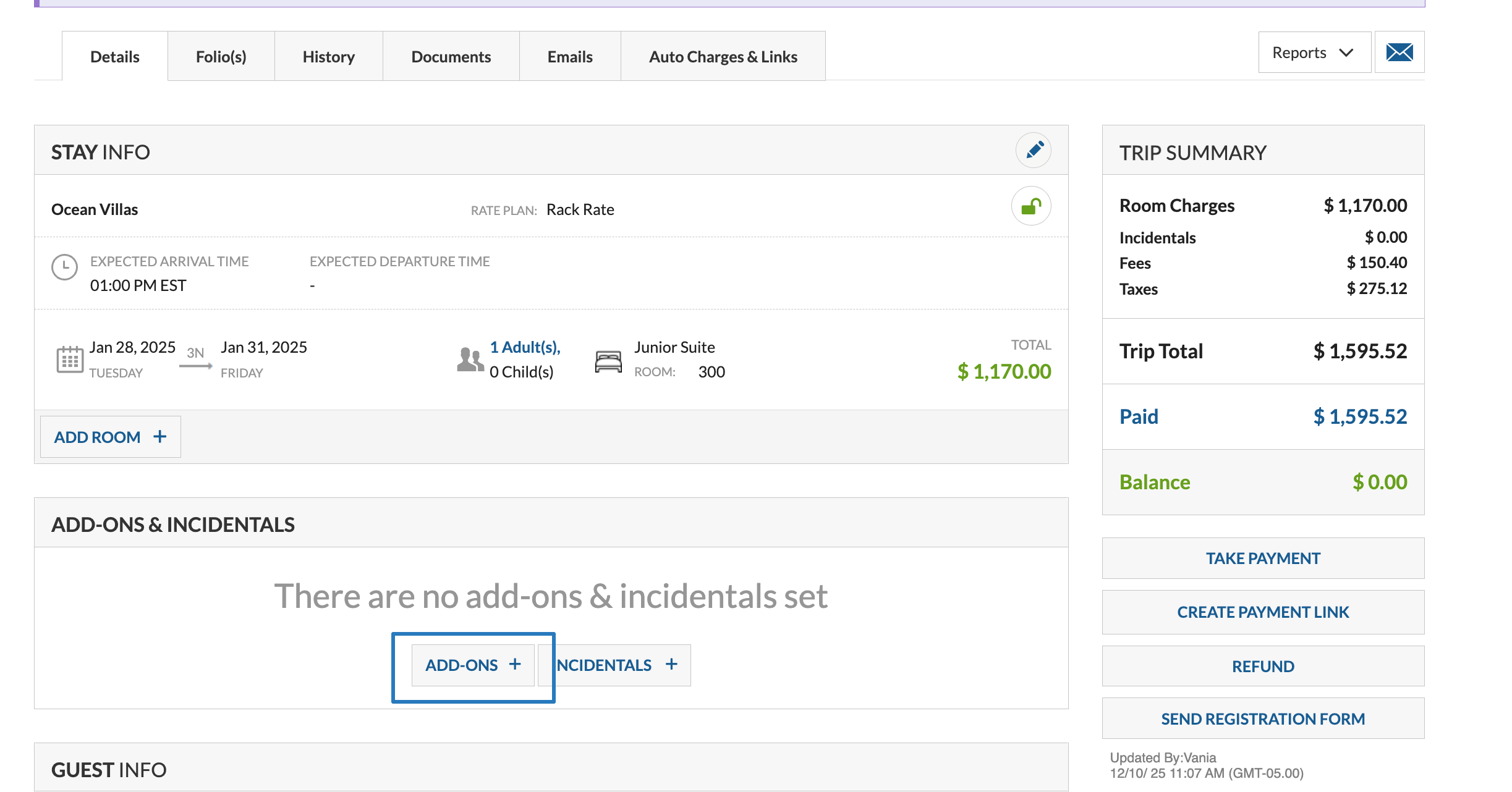
Congratulations, now you can add a Product using the Add-ons & Incidentals option on the Reservation Details page:
How to sell a Product Online
You can choose to sell Products online, for new or existing products. Here's how:
- Create a new Product or edit an existing one.
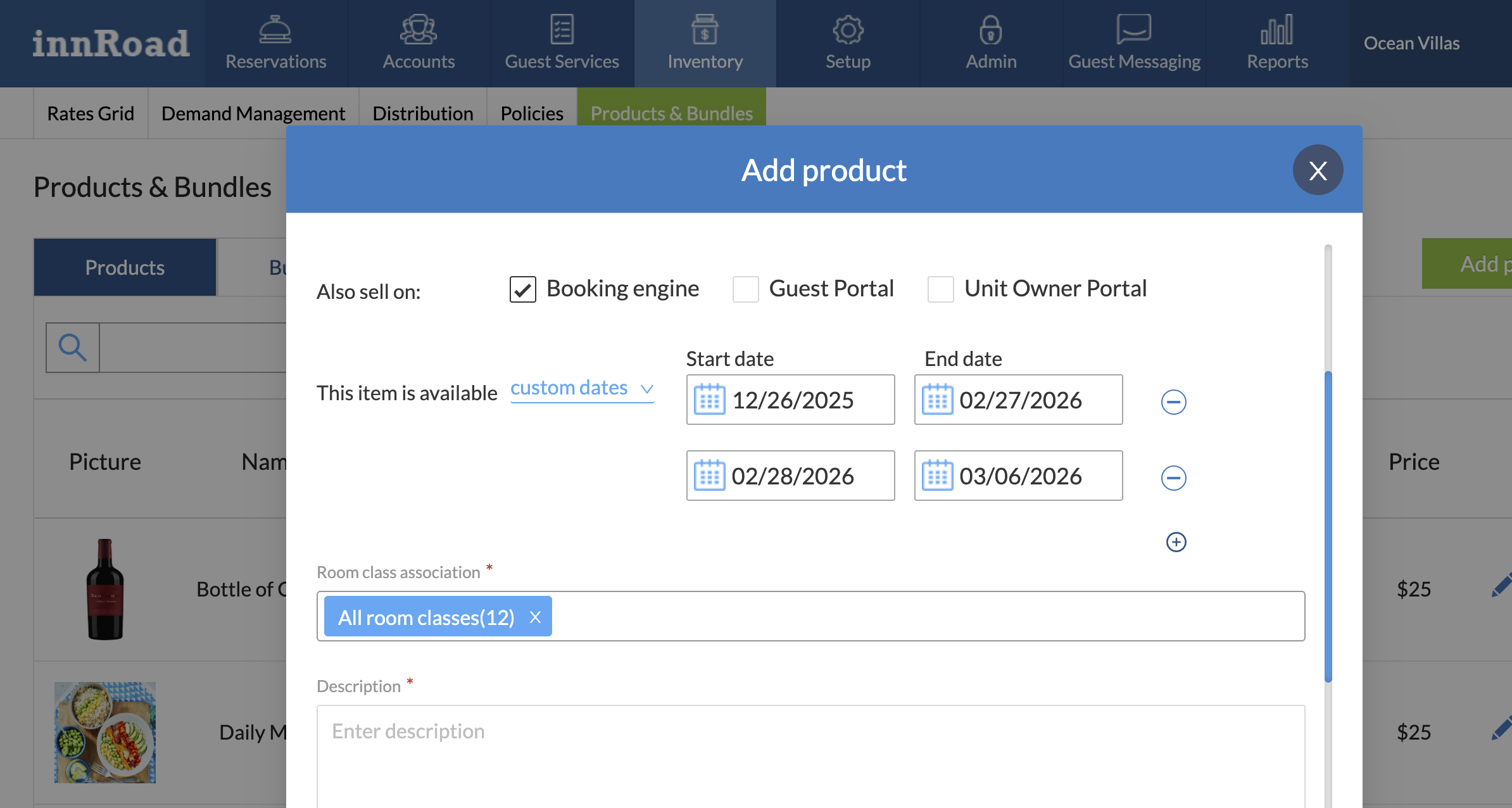
- Choose whether to sell the Product online through:
- Booking Engine
- Guest Portal
- Unit Owner Portal
- If you sell the product online, choose when the product is available:
- Always
- Specific dates
- Finally, select if the product is available for all room classes or onlyspecific room classes.
- Add a Description to display to guests online.
- Optionally, but highly recommended, add a photo to make the purchase more visual.
Add a Product to a Reservation
After you've created products for your innRoad Properties, you can add the pre-sets to reservations manually.
How to add a Product to a Reservation:
- Open the reservation via the Dashboard or the Tape Chart.
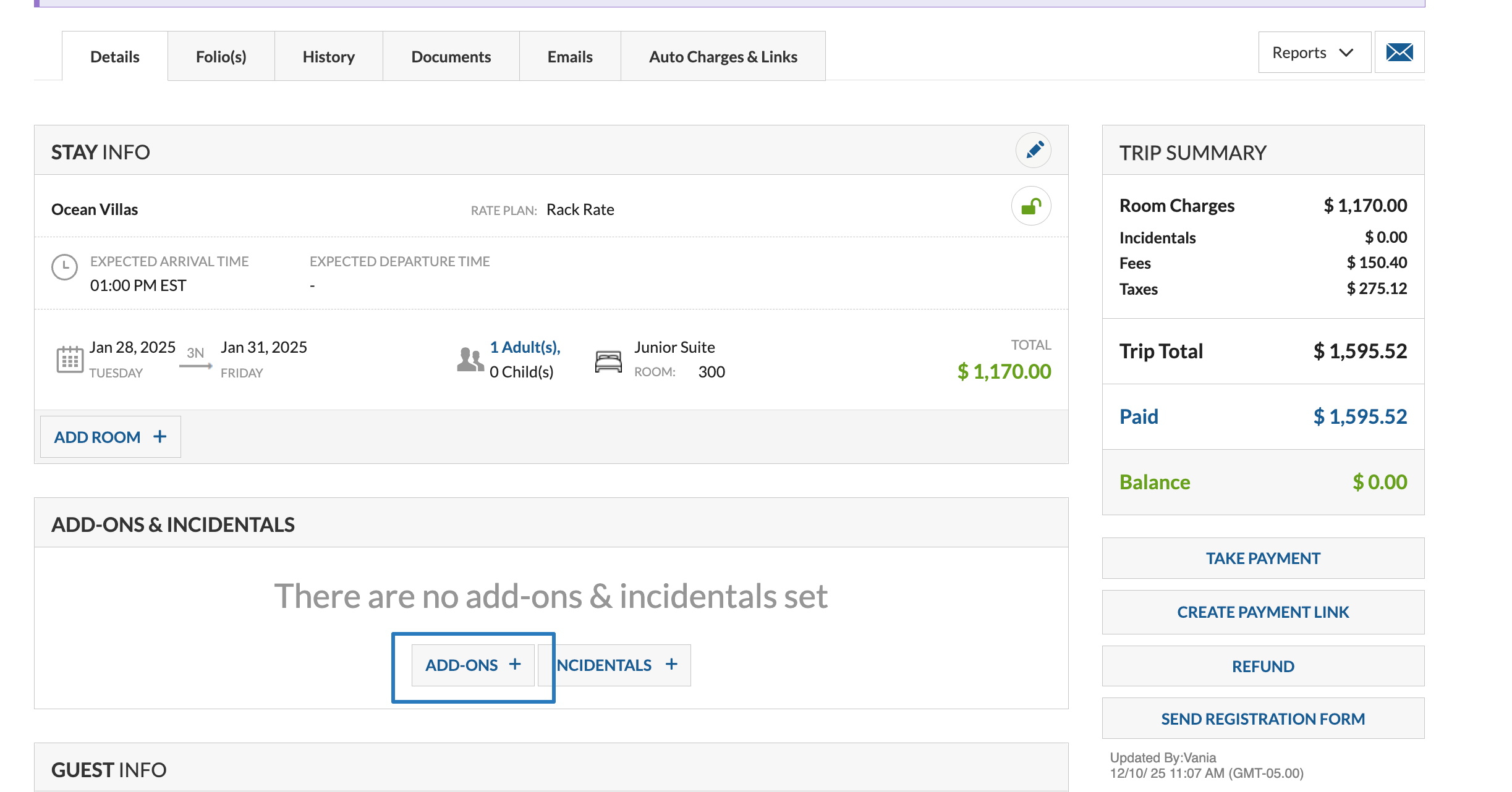
- Scroll to the Add-ons & Incidentals sectoin.
- Click Add-ons:
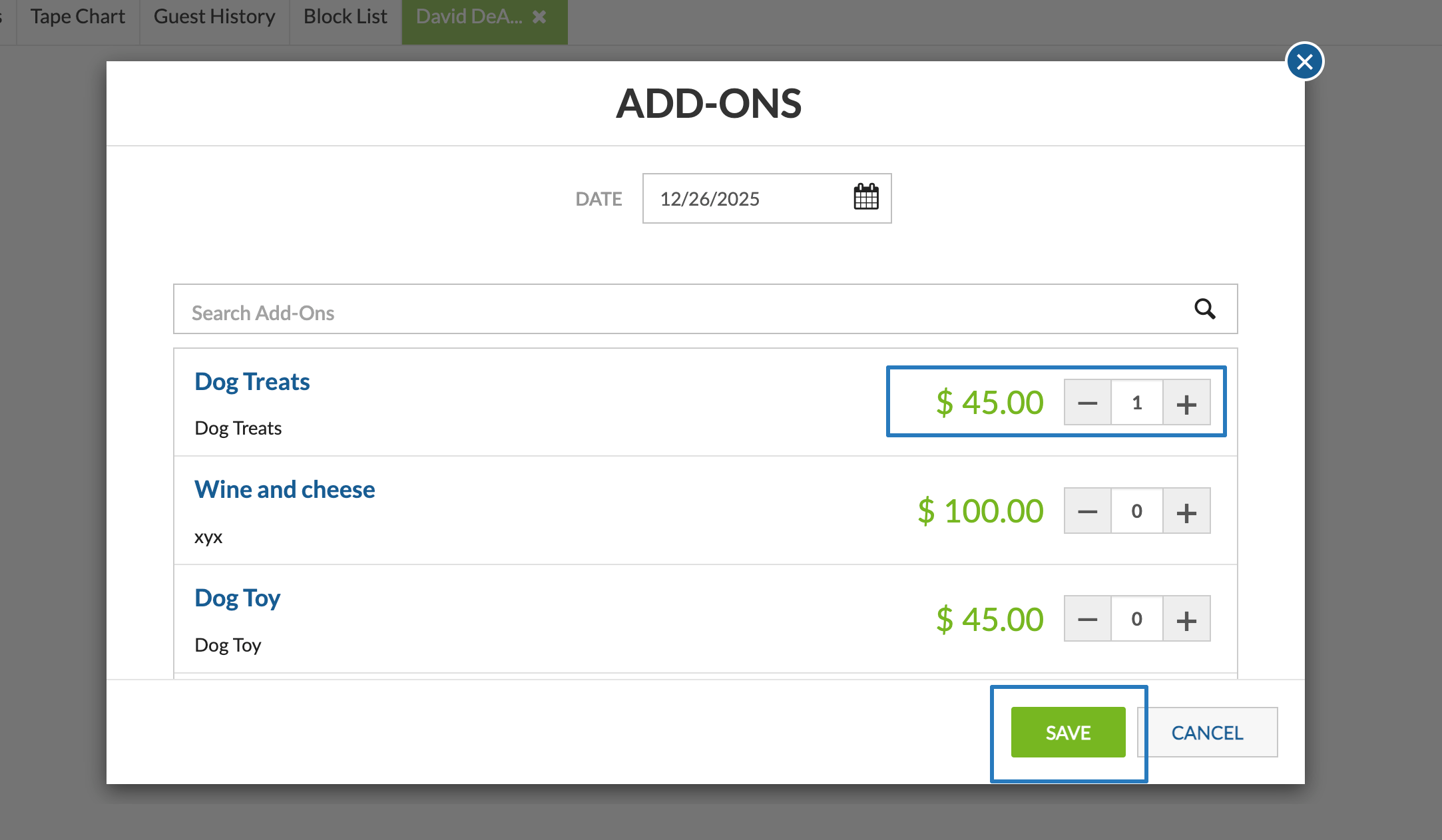
- Add the required quantity of products for the selected product.
- Click Save.
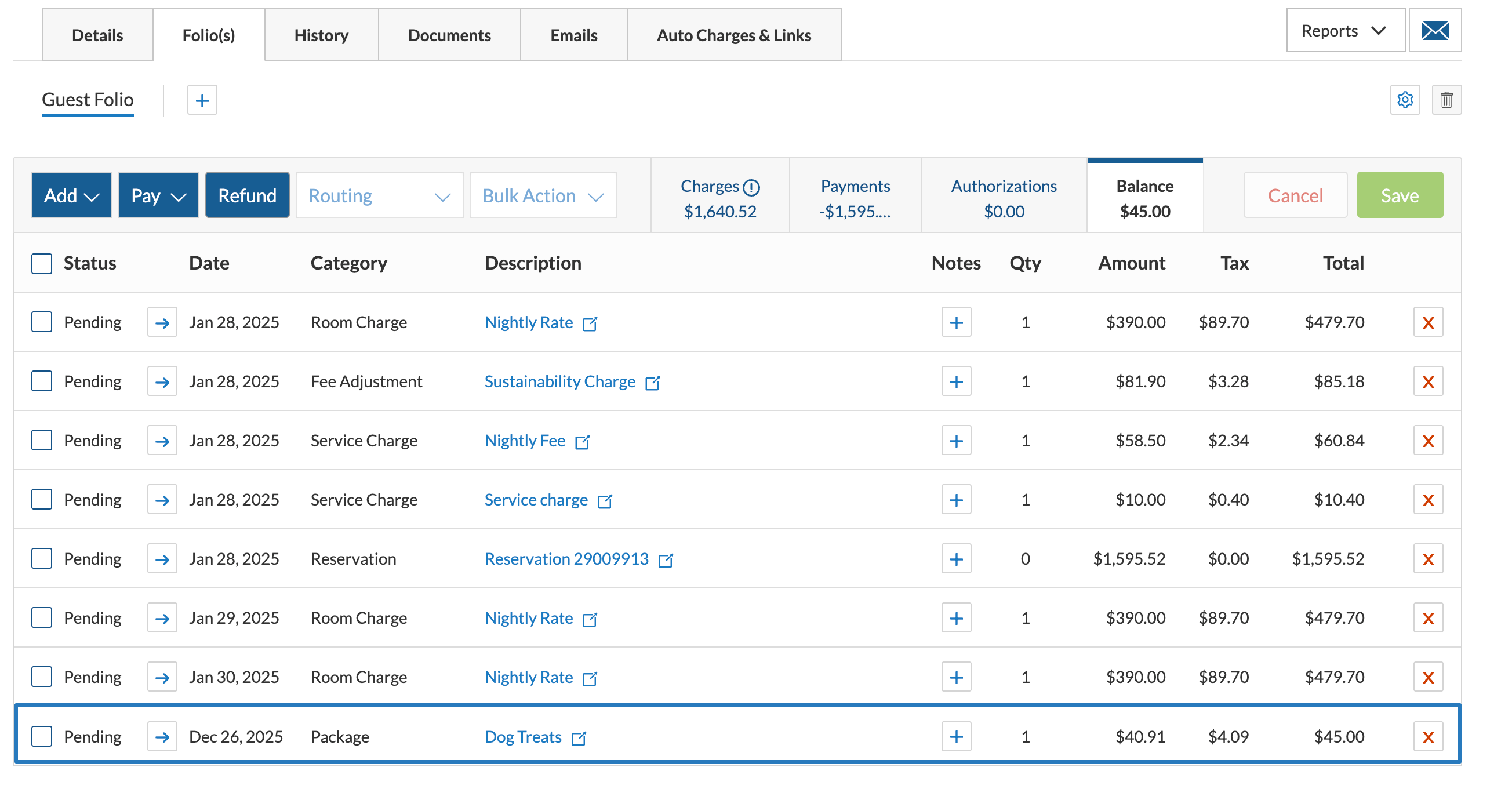
- The product will be added to the guest Folio:
Create a Bundle
A Bundle is a set of multiple Products, sold together.
You can package multiple products together, for example:
- Romance Bundle
- Bottle of Wine
- Box of chocolate candy
- Flowers
- Pet Experience
- Treats
- Branded Collar
- Grooming
How to create a bundle:
- Log in to innRoad
- Select a property in the top-right corner, if you're a multi-property client.
- Go to Inventory > Products & Bundles:
- Click Bundles in the top tabs.
- Click Add Bundle:
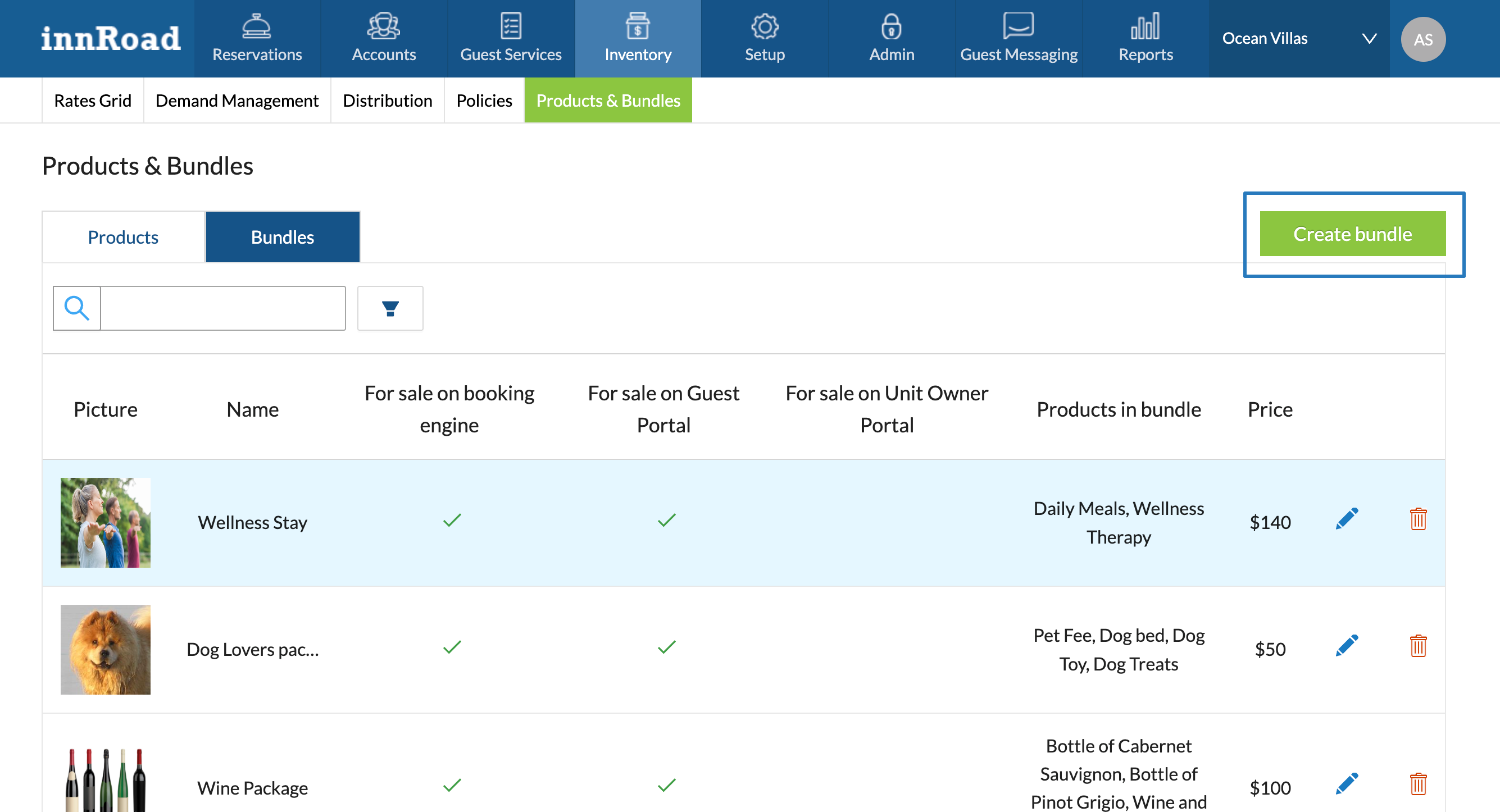
- Add General details about the Bundle:
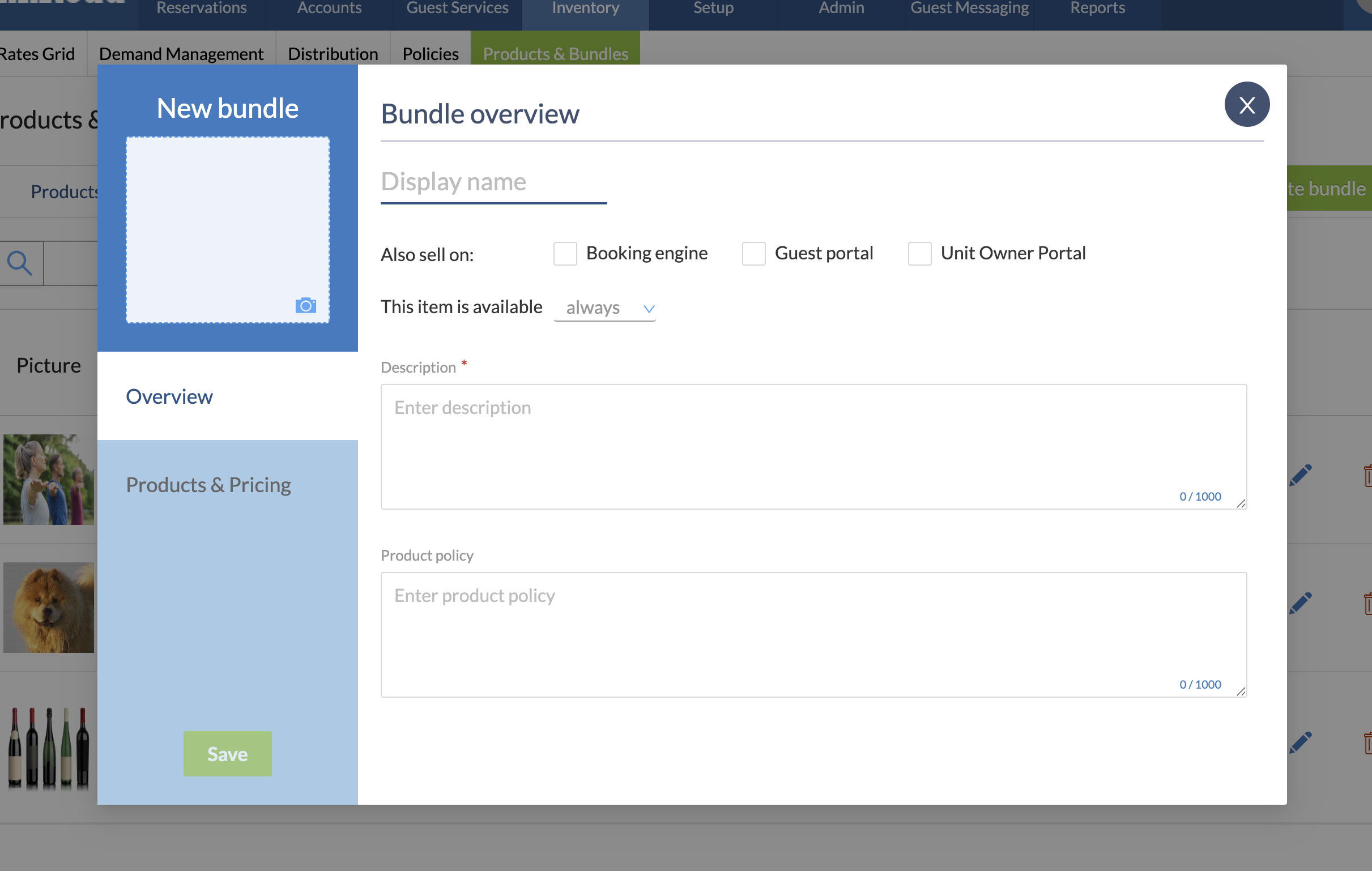
- Add a Display name
- Set whether the Bundle is always available, or only on specific dates.
- Add a Description.
- Add a photo in the top-left corner.
- Switch to Products & Pricing to select included Products.
- Select a Product to include in the Bundle.
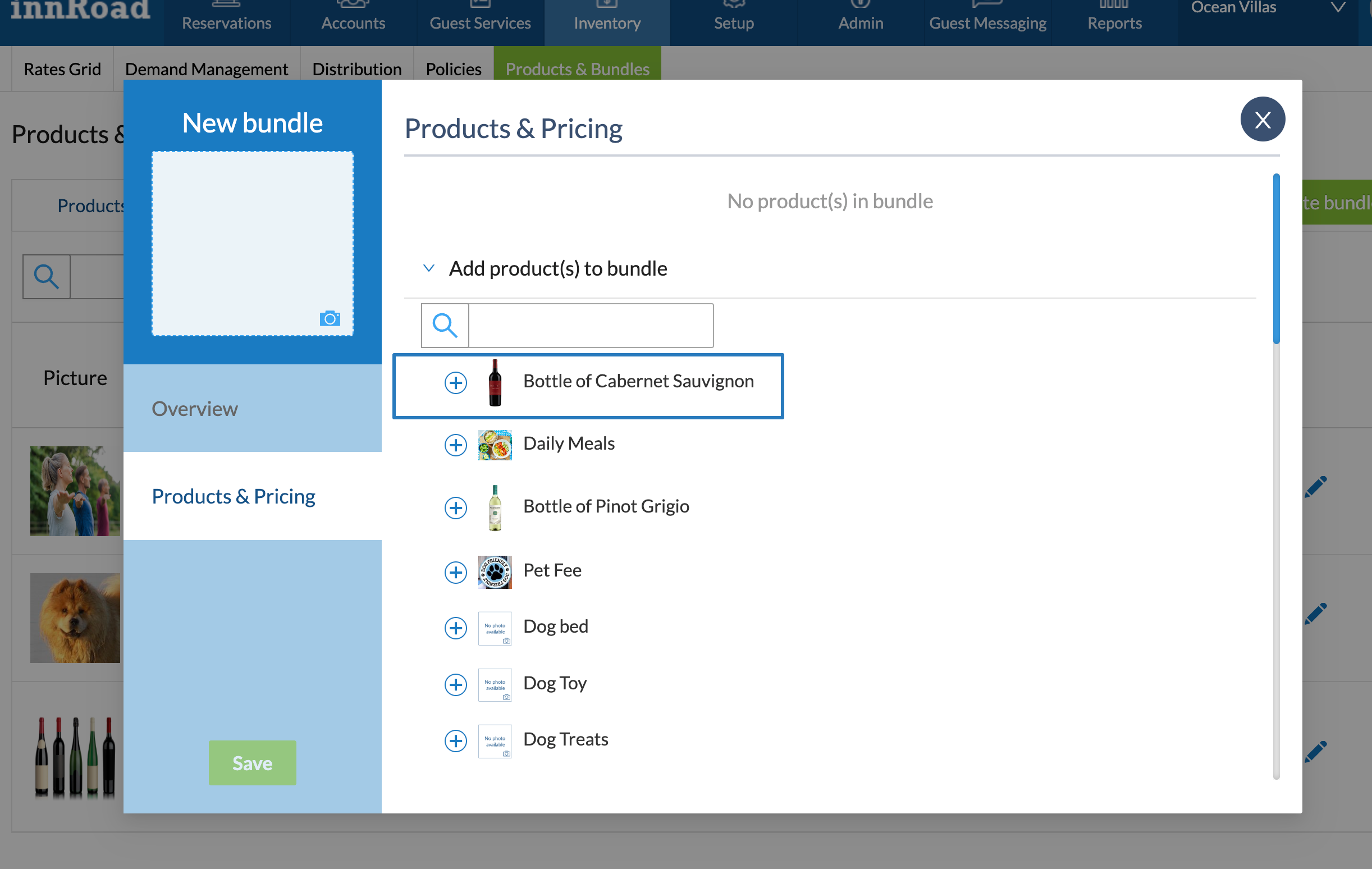
- Add other included products in the Bundle.
- Set up the Product pricing for the Bundle.
- Click Save.
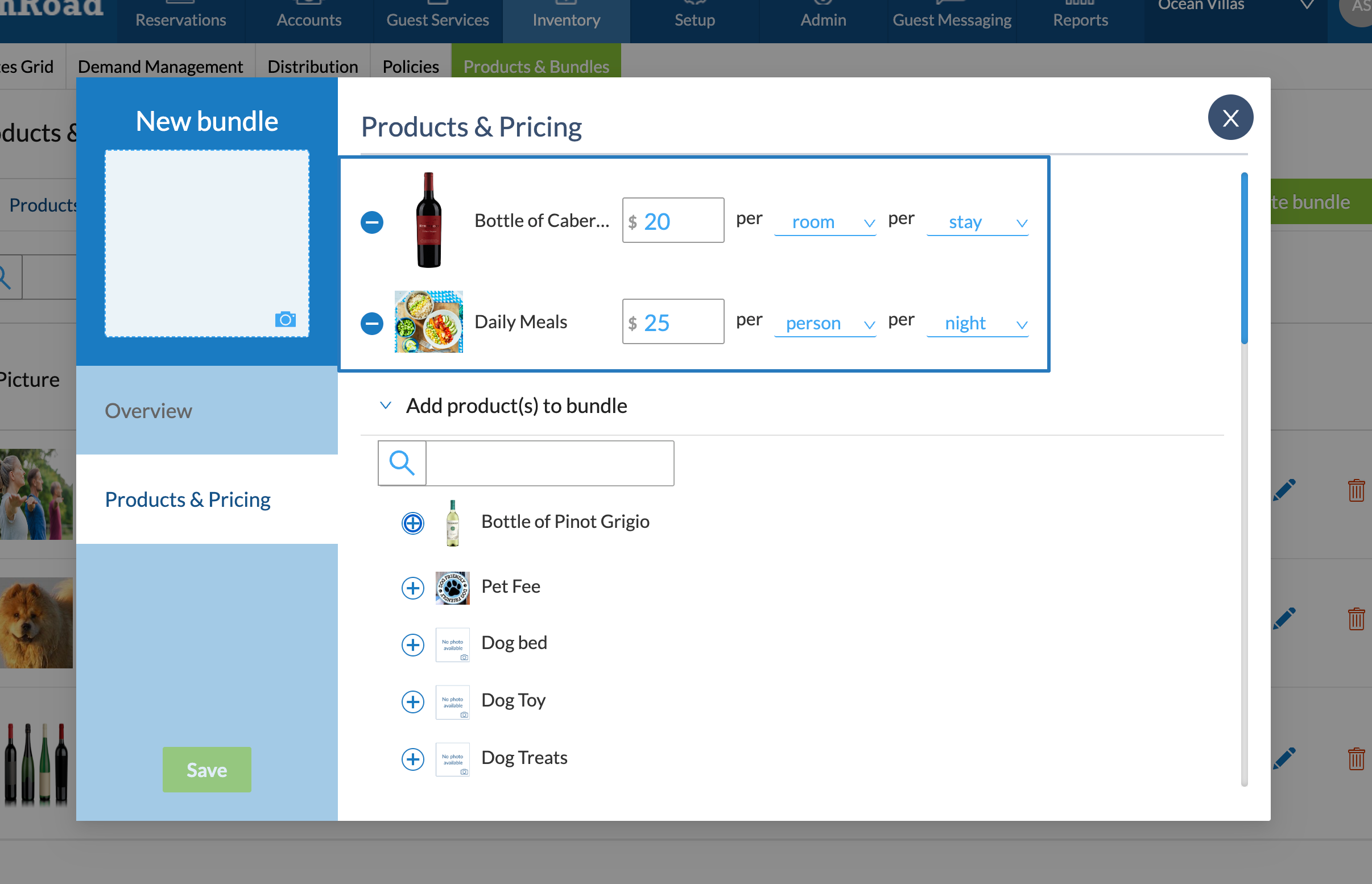
- Select a Product to include in the Bundle.
Was this article helpful?
That’s Great!
Thank you for your feedback
Sorry! We couldn't be helpful
Thank you for your feedback
Feedback sent
We appreciate your effort and will try to fix the article