You can create a Rate Plan with prices that will only be accessible via Promo code, for example:
- Discounted Friends & Family rate
- Newsletter promo-rate
- Referral sales through influencers with promo-codes
Rate Plans with a Promo Code restriction are not sent to OTAs. You can instead apply a promotion in the OTA directly.
How to create a Promo Rate Plan
- Log in to innRoad
- Select a Property in the top-right corner.
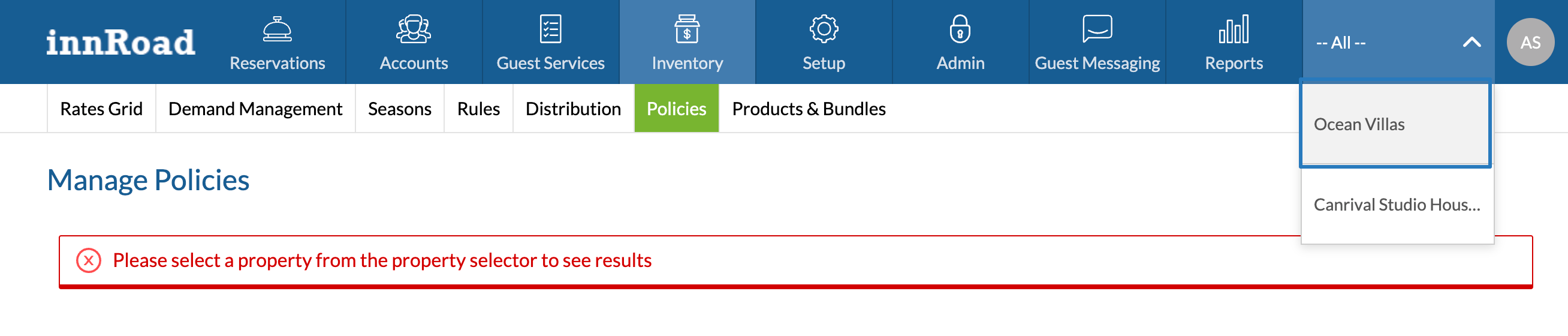
- Go to Inventory > Rates Grid.
- Add a Rate Plan:
- Click Add Rate Plan and select the Rate Plan Type.
Use Derived Rate Plan if your promo is based on an existing rate (e.g., 10% lower than the Rack/Base Rate).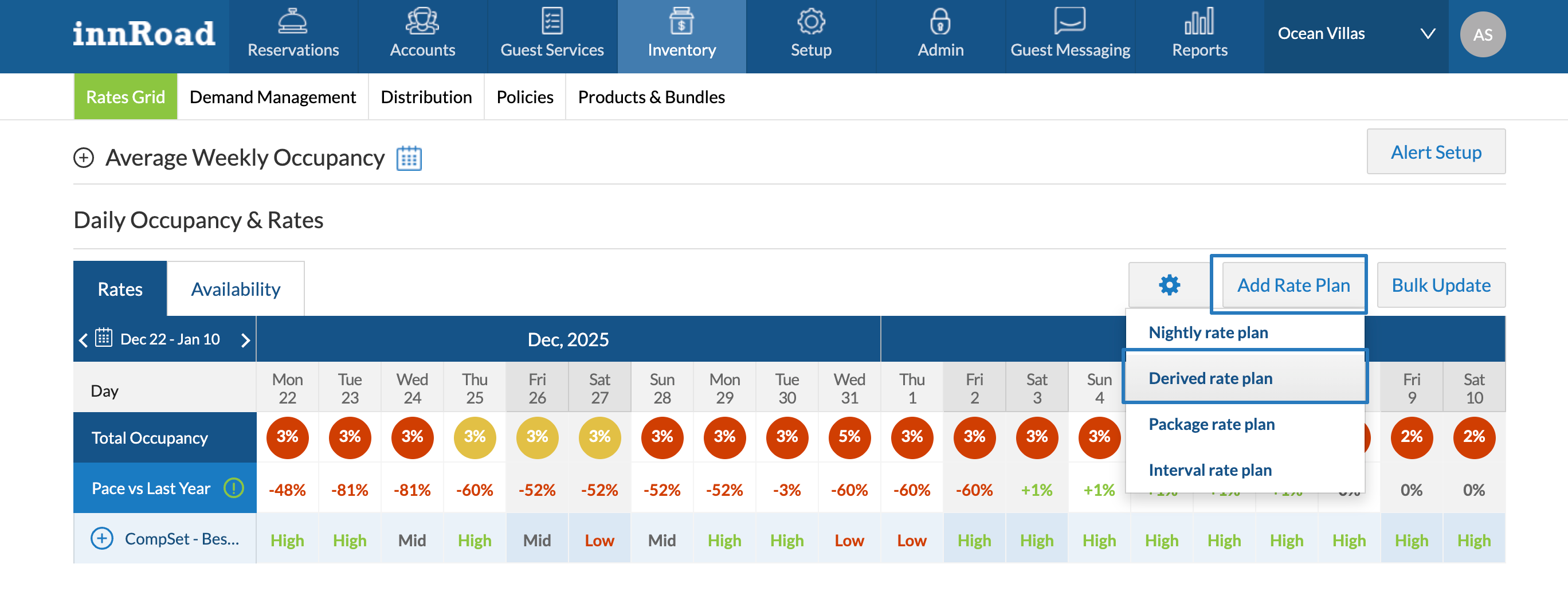
- Click Add Rate Plan and select the Rate Plan Type.
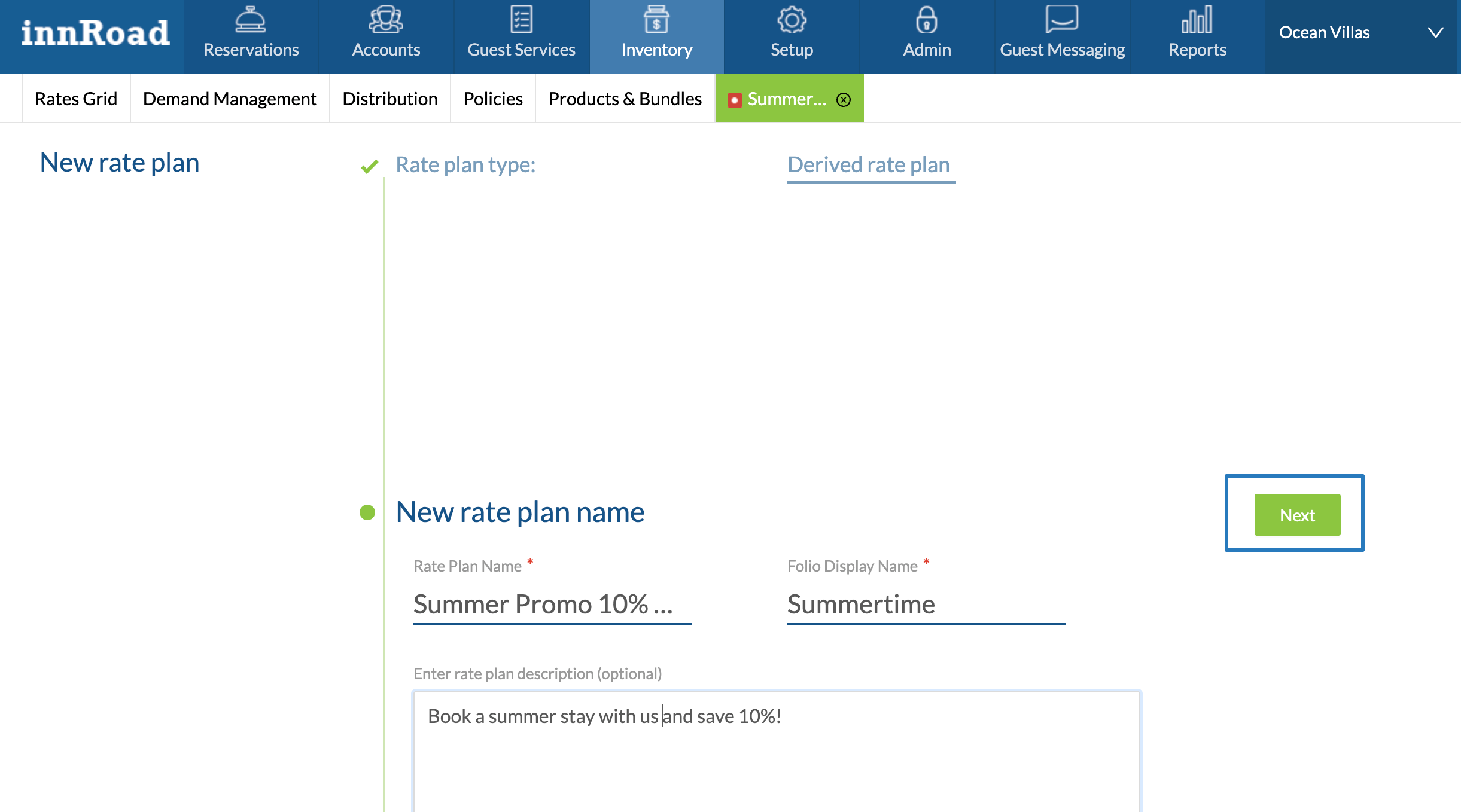
- Fill in Rate Plan Details:
- Enter the Rate Plan Name, visible for internal use.
- Folio Display Nam, shown on the guest's folio, and guest's registration and statement forms.
- Rate Plan Description, which appears on the Booking Engine.
- Click Next.
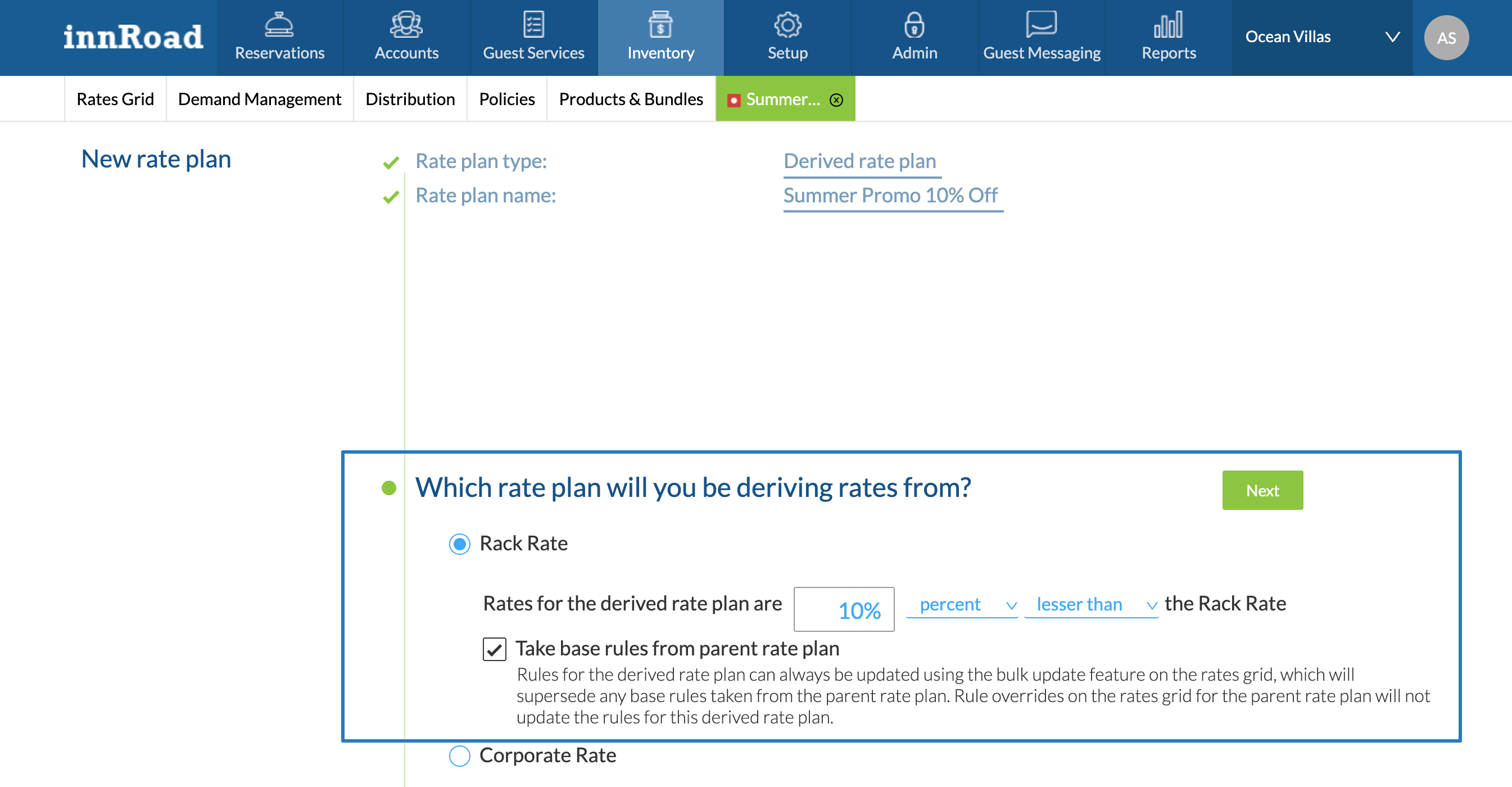
- Select Base Rate:
- Choose the rate this promo will be derived from, usually your Rack/Standard Rate.
- Enter the discount amount, using fixed values or a percentage decrease:
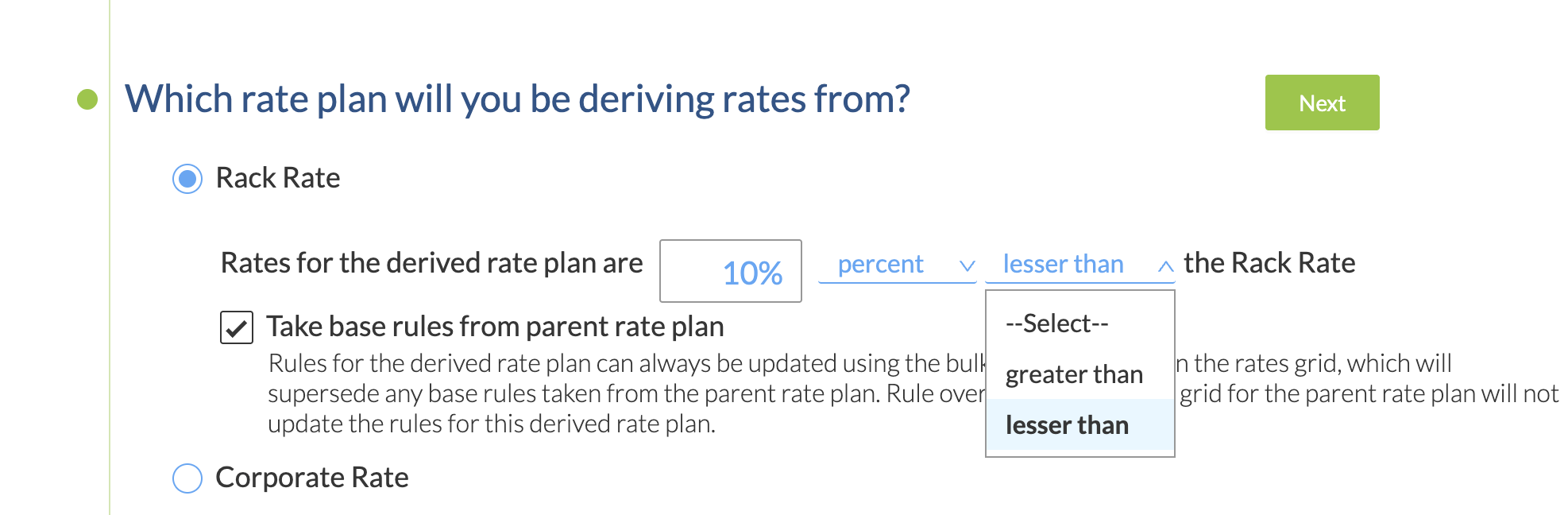
- Click Take base rules from parent rate plan if you want your derived rate to follow the same Min Stay, No Check-in and No Check-out rules as the parent rate plan.
- Click Next.
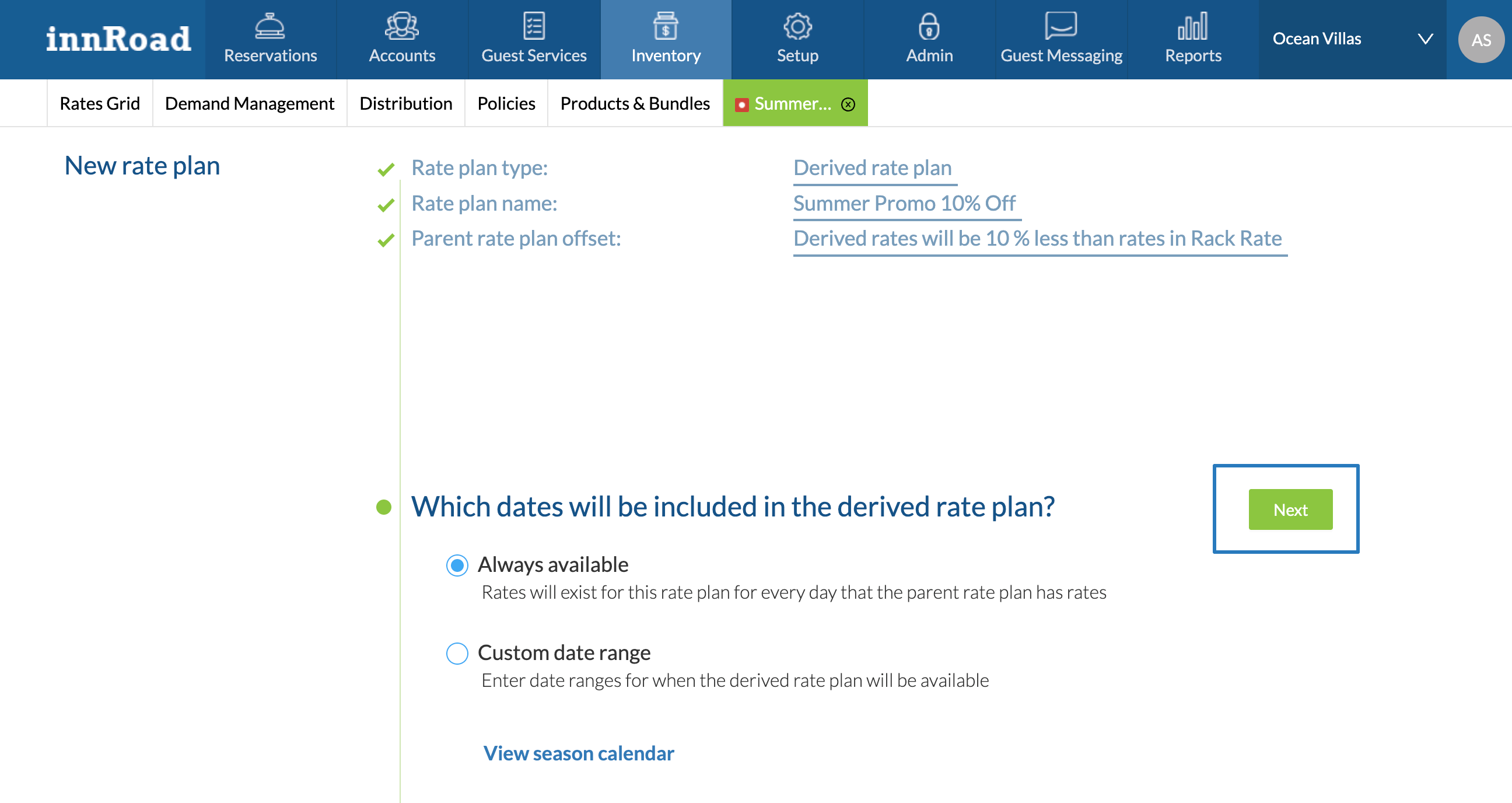
- Set Availability Dates
- Choose Always Available if the Derived Rate is available on the same dates as the selected Parent Rate Plan or select Custom Date Range to enter specific dates.
- Click Next.
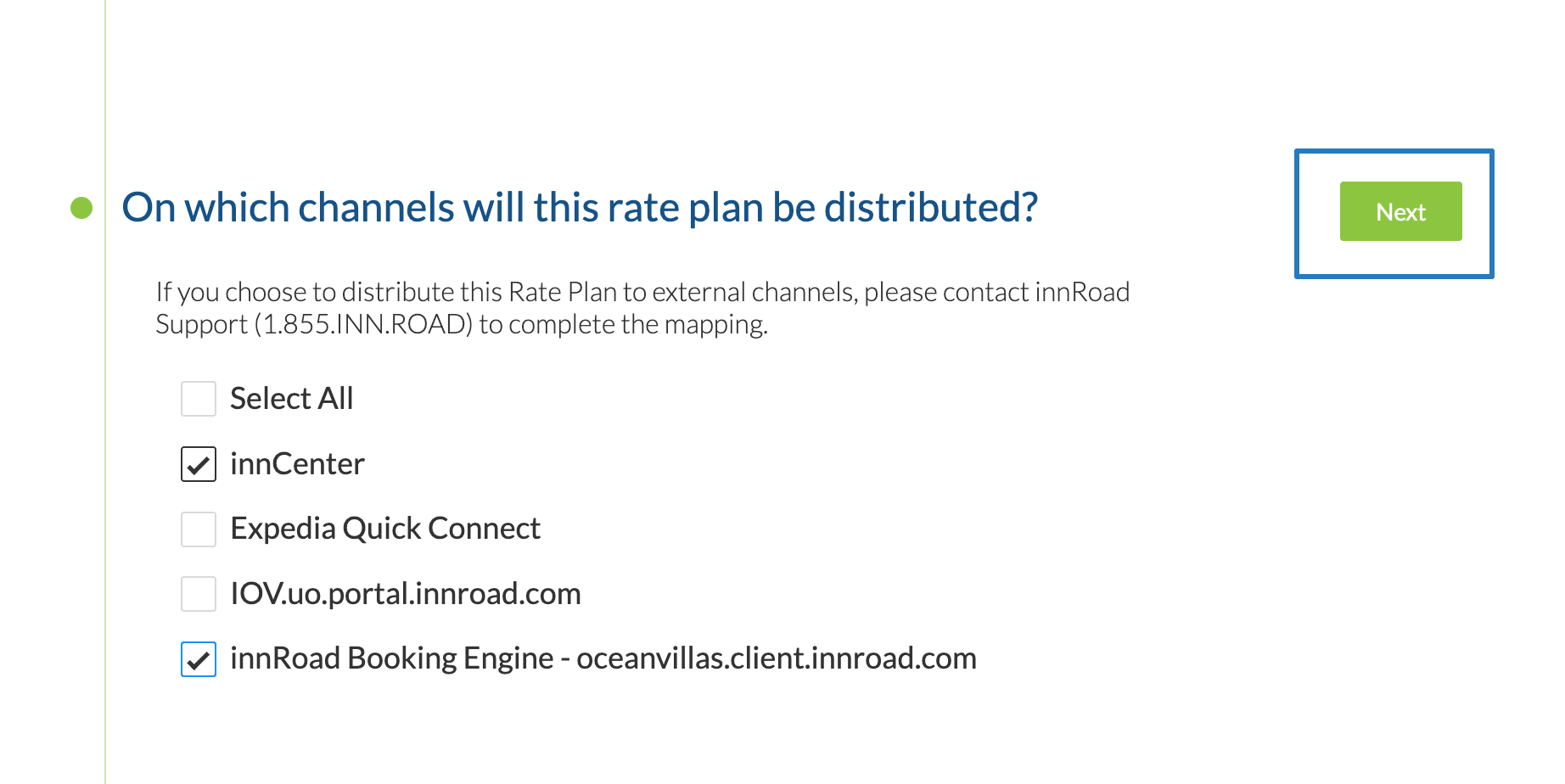
- Select Channels:
- Choose channels where the Rate Plan is offered.
- Promo Rate Plans cannot sync to OTAs, so we suggest selecting innCenter or your Booking Engine.
- Click Next.
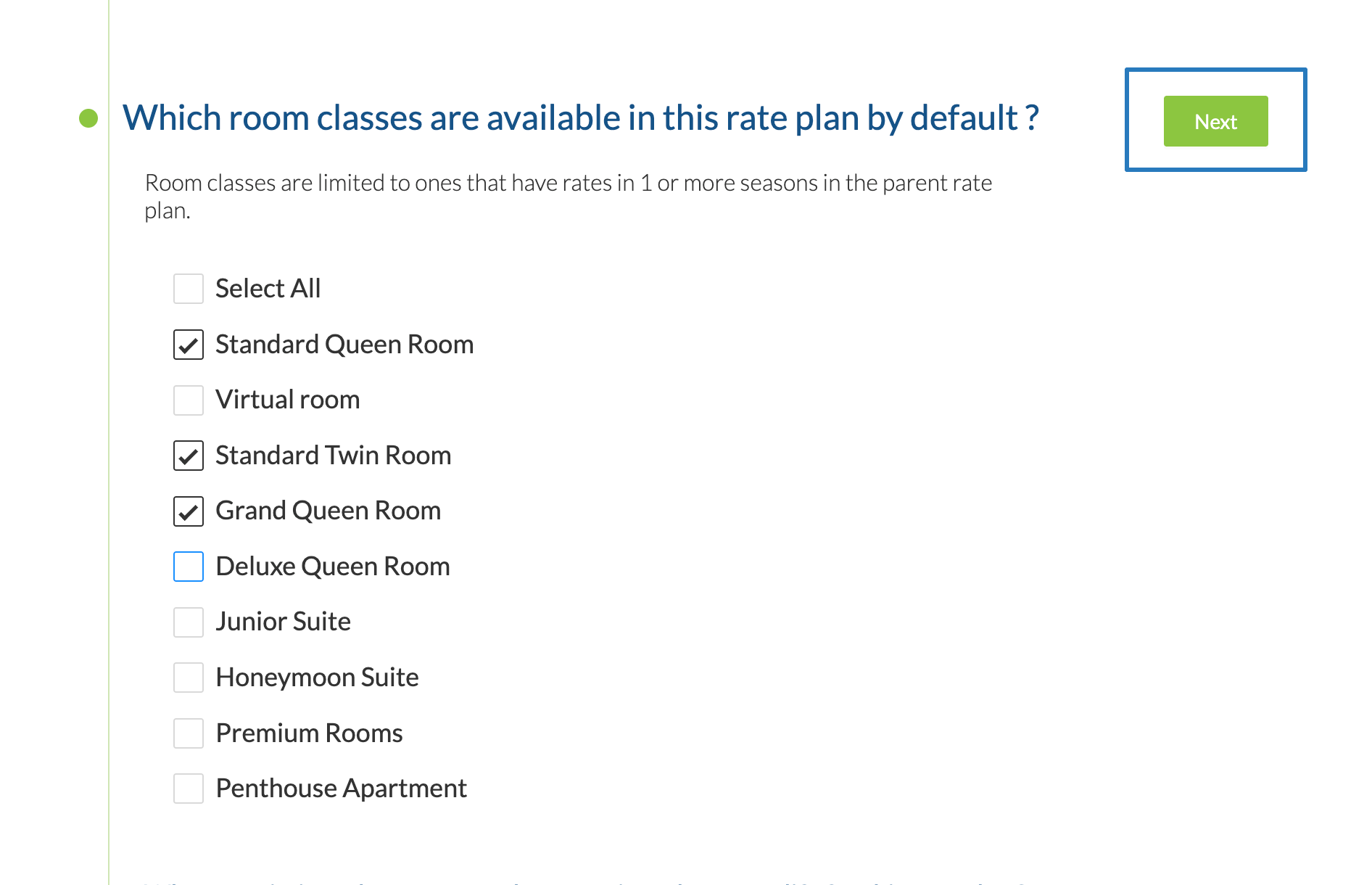
- Select Room Classes:
- Pick the room types included in this special rate.
- Click Next.
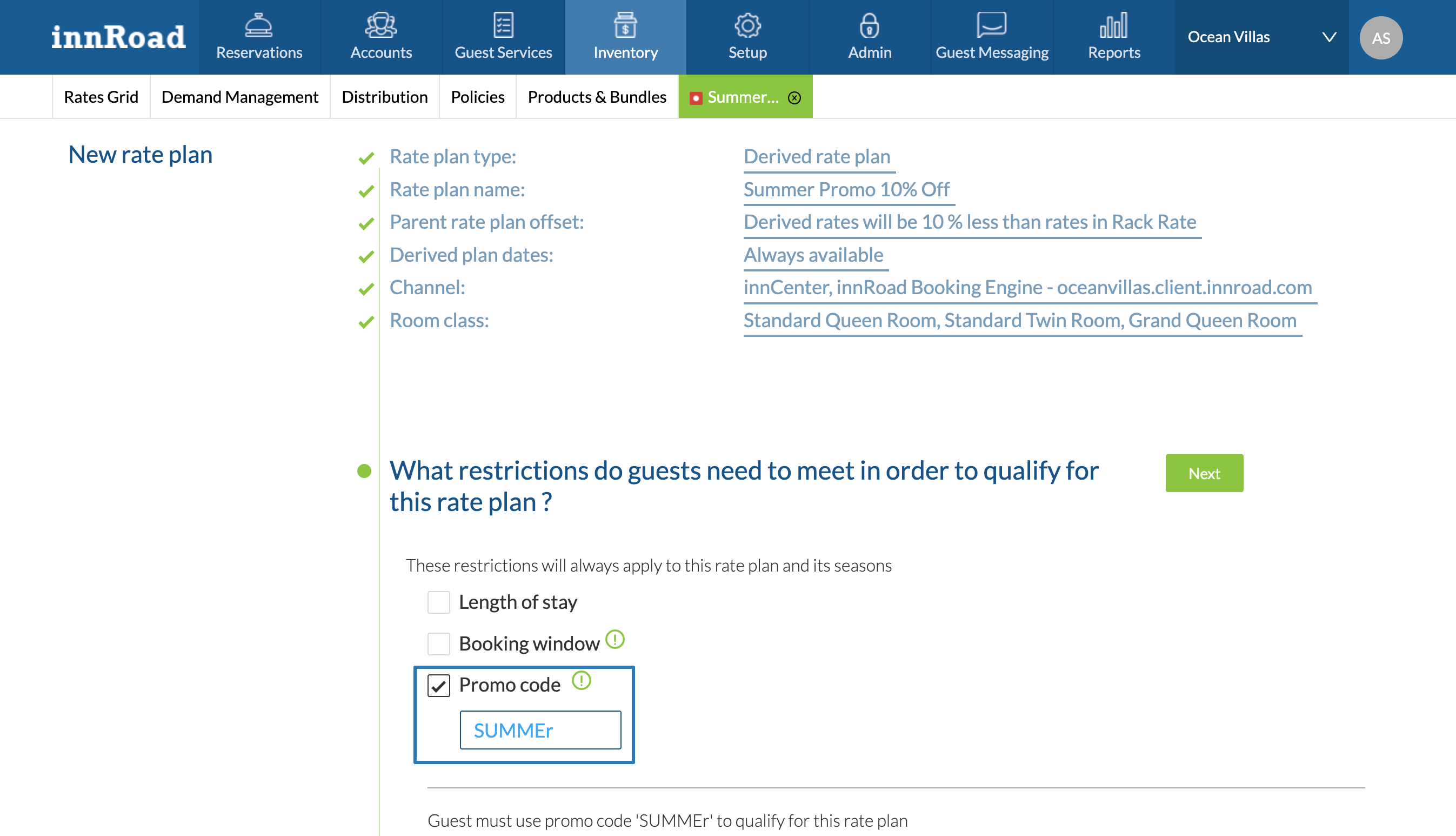
- Add Promo Code:
- Click Promo Code to restrict this Rate Plan to only guests that enter the code.
- Enter the promo code guests can use to book this rate.
- Click Next.
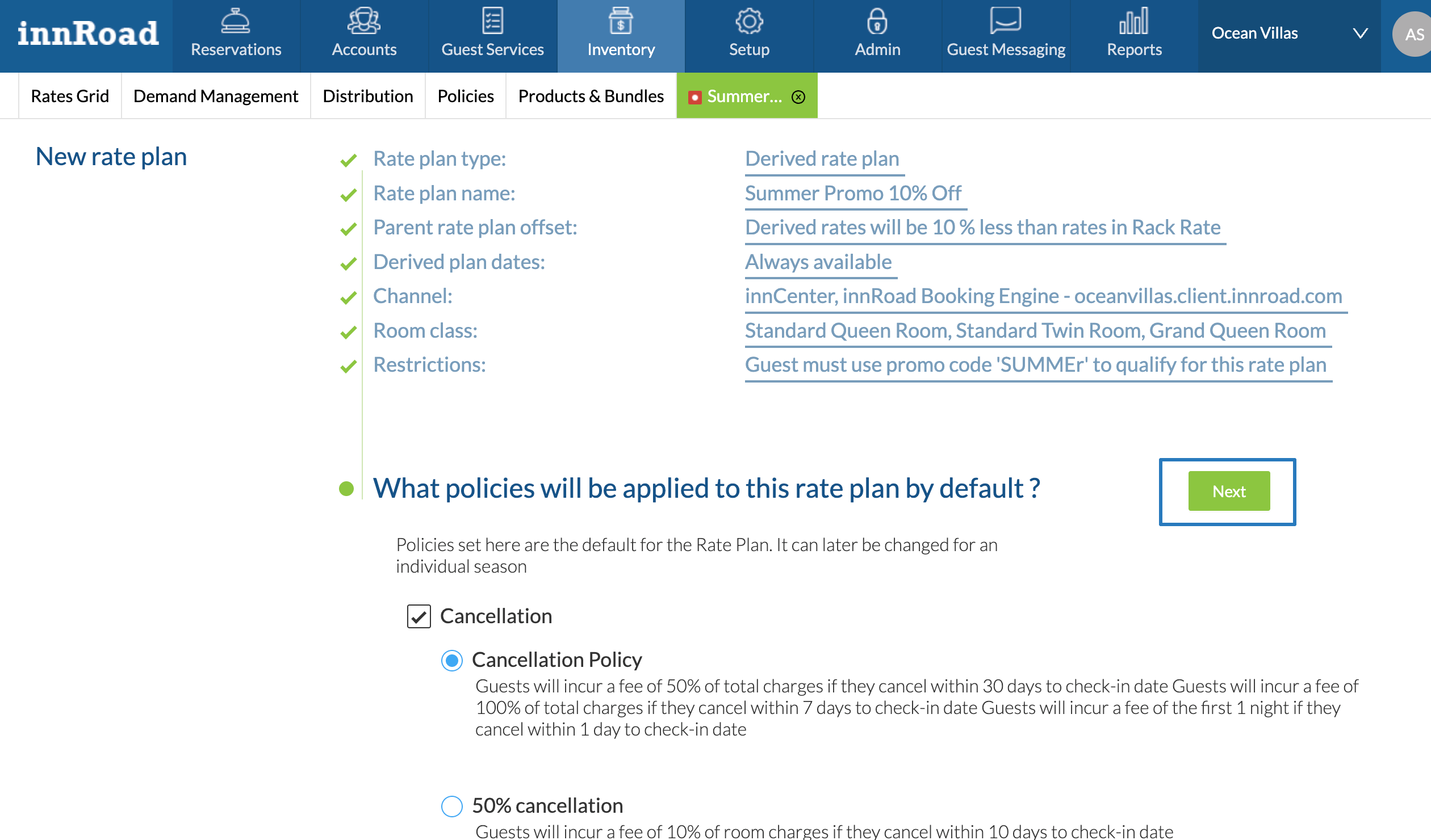
- Attach Policies:
- Select the policies you want applied to this rate.
- Click Next.
- Review and Save:
- Review your settings.
- Click Save as Active.
Was this article helpful?
That’s Great!
Thank you for your feedback
Sorry! We couldn't be helpful
Thank you for your feedback
Feedback sent
We appreciate your effort and will try to fix the article