The Assignments tab in Guest Services lets you assign today’s rooms to housekeepers from a single list, without creating and assigning tasks one by one.
Use the Assignments tab to:
- See every room for today with its housekeeping status, occupancy, and assigned housekeeper.
- Assign rooms to housekeepers one at a time or in bulk.
- See how many rooms each housekeeper has for the day.
- Find rooms that are still unassigned.
Note: The Assignments tab is available to any user who can open Room Status. If you don’t see the tab, contact innRoad Support to have it enabled for your property.
Open the Assignments Tab
- Go to Guest Services.
- Select the Assignments tab.
Guest Services opens on Room Status by default. The Assignments tab always shows rooms for today, based on the room classes and physical rooms of the selected property.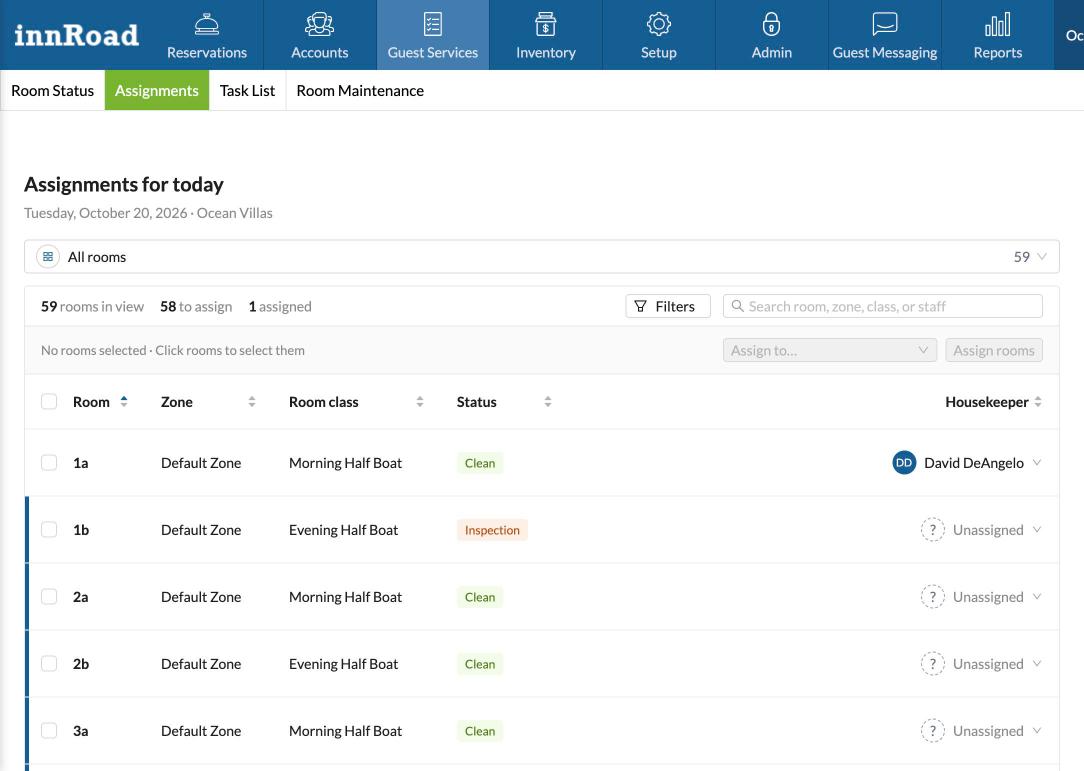
Assignment List Columns
The list shows one row per room. Every column can be sorted and filtered.
| Column | Description |
|---|---|
| Room # | The room number. |
| Zone | The zone the room belongs to. |
| Room Class | The room class of the room. |
| Room Status | The current housekeeping status, such as Clean, Dirty, or Inspection. |
| Occupancy | Whether the room is occupied. |
| Stay | Details of the current or arriving stay for the room. |
| Housekeeper | The housekeeper assigned to the room today. |
Filter by Housekeeper
The housekeeper list shows each user with the Housekeeping role and the number of rooms assigned to them today. Room counts update immediately when you assign, reassign, or unassign a room.
- Select a housekeeper to see only their rooms.
- Select Unassigned to see rooms that don’t have a housekeeper yet.
- Select All rooms to clear the filter and see the full list.
Note: Only users with the Housekeeping role appear in the housekeeper list. If a housekeeper is missing, check their user role.
Assign Rooms to Housekeepers
There are three ways to assign rooms.
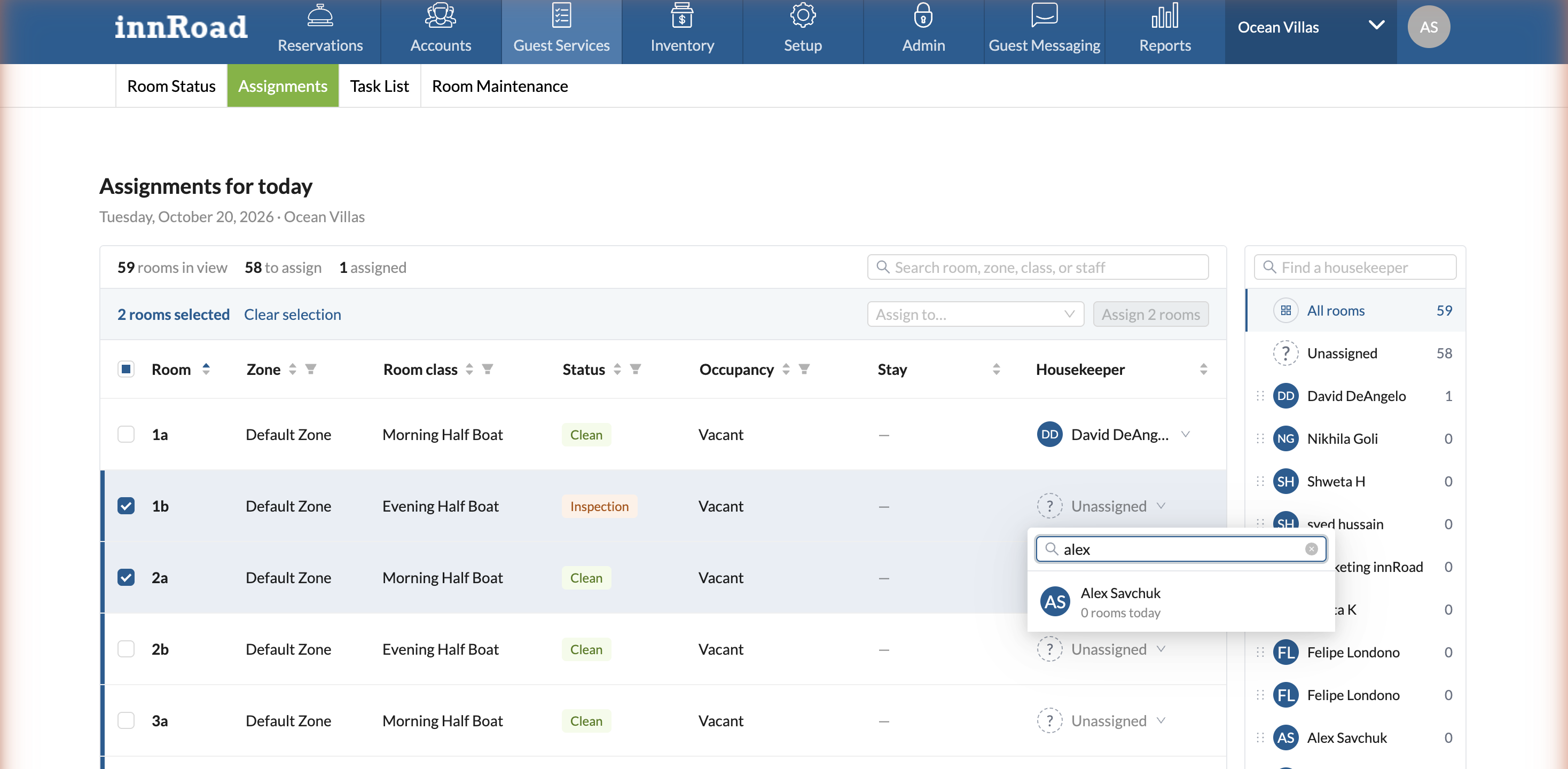
Assign One Room
- Find the room in the list.
- Select a housekeeper in the room’s row.
Assign Several Rooms at Once
- Select the rooms you want to assign.
- Choose a housekeeper in the bulk assign control.
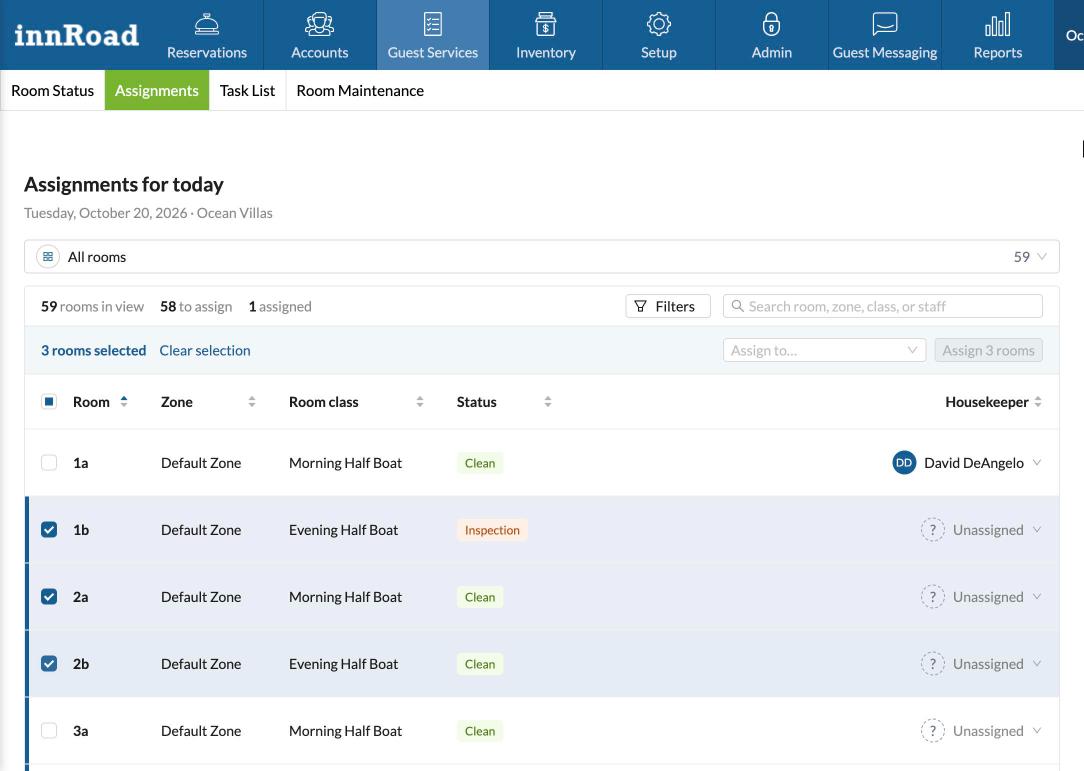
A confirmation shows how many rooms were assigned and to whom, and the selection is cleared.
Drag and Drop
You can drag in either direction: housekeepers onto rooms, or rooms onto housekeepers.
- Drag a housekeeper onto a room to assign that room to them.
- Drag a room onto a housekeeper to assign that room to them.
- To assign several rooms at once, select the rooms first, then either drag a housekeeper onto any of the selected rooms or drag the selected rooms onto a housekeeper.
- While you drag, the room or housekeeper you are over is highlighted. If you drop anywhere else, nothing is assigned and no changes are made.
How Assignments Work with Tasks
Assigning rooms creates and updates housekeeping tasks for you.
| Action | What Happens |
|---|---|
| Assign | A Cleaning task dated today is created for the room if one doesn’t already exist, and is assigned to the housekeeper. All other tasks on that room for today are also assigned to the same housekeeper. |
| Reassign | All of the room’s tasks for today move to the new housekeeper. No new tasks are created. |
| Unassign | The room’s tasks stay in place but no longer have an assignee. |
Assigning a room overwrites the assignee on all of that room’s tasks for today, including tasks already assigned to someone else and tasks in progress.
Tasks created from the Assignments tab work the same as tasks created manually. They appear in Task List, in the housekeeper’s task list, and on printed housekeeping sheets.
Room Status After Cleaning
When a housekeeper completes the Cleaning task, the room status updates on both Room Status and the Assignments tab:
- Clean, if Inspection required is turned off in Setup > Task Management.
- Inspection, if Inspection required is turned on.
Frequently Asked Questions
Why can’t I see the Assignments tab?
The Assignments tab is turned on per property. Contact innRoad Support to have it enabled.
Why doesn’t a housekeeper appear in the housekeeper list?
Only users with the Housekeeping role are listed. Check the user’s role in their user settings.
Can I assign rooms for a future date?
No. The Assignments tab always shows today’s rooms, and tasks are created for today.
Why did assigning a room create a task even though the room is Clean?
Assigning a room always creates a Cleaning task for today if one doesn’t exist, regardless of the room’s current status.
Will assigning a room change a task another housekeeper already started?
Yes. Every task on that room for today moves to the housekeeper you select, including tasks in progress.
Related Articles
Was this article helpful?
That’s Great!
Thank you for your feedback
Sorry! We couldn't be helpful
Thank you for your feedback
Feedback sent
We appreciate your effort and will try to fix the article