The Reservation Dashboard gives you a quick view of reservation activity at your property and helps you find the reservations you need.
Video Tutorial
Watch the video below for a walkthrough of the Reservation Dashboard before reading the detailed instructions.
Use the Reservation Dashboard to:
- See what's happening at your property today or on a selected date.
- Review expected arrivals and check-in progress.
- Review expected departures and check-out progress.
- See guests who are currently in house.
- View reservations booked on a specific date.
- Find a specific reservation using Basic Search.
- Find reservations that match specific criteria using Advanced Search.

Access Reservations
There are three ways to view and find reservations:
- Dashboard: Review reservation activity and quickly view New Reservations, In-House guests, Arrivals, and Departures.
- Basic Search: Find a specific reservation using a guest name, account name, reservation number, or room number.
- Advanced Search: Find one or more reservations that match specific criteria, such as stay dates, reservation status, room class, outstanding balance, guest information, or reservation source.
Reservations that match your dashboard selection or search criteria are displayed in the reservation list.
Review Property Activity from the Dashboard
The dashboard provides a quick view of reservation activity at your property.
When you first open the Reservation Dashboard:
- Today's date is selected.
- In-House is selected.
- The reservation list displays reservations that are currently in In-House status.
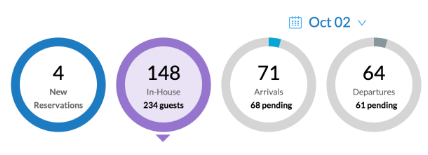
The dashboard includes four reservation activity filters:
Dashboard Filter | How It Works |
|---|---|
| New Reservations | Shows reservations created on the selected date. |
| In-House | Shows reservations that are currently in In-House status. |
| Arrivals | Shows reservations arriving on the selected date and the progress of check-ins. |
| Departures | Shows reservations departing on the selected date and the progress of check-outs. |
The number displayed in each dashboard filter represents the number of reservations that match that category.
Select a dashboard filter to display the matching reservations in the reservation list.
Note: Cancelled reservations are not included in dashboard counts. Once a reservation is cancelled, it is no longer considered a New Reservation, Arrival, or Departure for dashboard purposes. Cancelled reservations can still be found using Basic Search or Advanced Search.
View New Reservations
New Reservations shows reservations that were created on the selected date.
- The number displayed represents the total number of reservations created on the selected date.
- Click New Reservations to display those reservations in the reservation list.
- New Reservations is based on the date the reservation was created, not the reservation's arrival or stay dates.
- Example: When today's date is selected, New Reservations shows reservations created today. A reservation created yesterday and modified today is not considered a new reservation today.
View In-House Guests
In-House shows reservations that are currently in In-House status.
- The number displayed represents the total number of reservations currently in In-House status.
- Click In-House to display those reservations in the reservation list.
- In-House is based on the reservation's current status, not its stay dates. A reservation remains included in In-House until its status is changed, even if its scheduled departure date has passed.
Note: In-House is not affected by the selected dashboard date. It always displays reservations that are currently in In-House status.
Review Arrivals and Check-In Progress
Arrivals shows reservations with an arrival date that matches the selected date and provides a quick view of check-in progress.
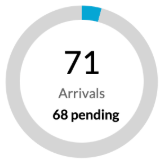
The number in the center of the Arrivals circle represents the total number of expected arrivals for the selected date.
The Arrivals circle is divided into:
- Completed: Reservations that have been checked in.
- Pending: Reservations that have not yet been checked in.
To view arrival reservations:
- Select the center of the Arrivals circle to view all arrivals for the selected date.
- Select the Completed section to view arrivals that have been checked in (blue part of circle).
- Select the Pending section to view arrivals that have not yet been checked in (grey part of circle).
Example: If Arrivals shows 71 total arrivals, with 3 completed and 68 pending, 71 reservations are expected to arrive on the selected date. Three have been checked in and sixty eight have not yet been checked in.
Cancelled reservations are excluded from Arrivals.
Review Departures and Check-Out Progress
Departures shows reservations with a departure date that matches the selected date and provides a quick view of check-out progress.
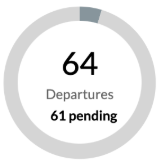
The number in the center of the Departures circle represents the total number of expected departures for the selected date.
The Departures circle is divided into:
- Completed: Reservations that have been checked out.
- Pending: Reservations that have not yet been checked out.
To view departure reservations:
- Select the center of the Departures circle to view all departures for the selected date.
- Select the Completed section to view departures that have been checked out (dark grey part of circle).
- Select the Pending section to view departures that have not yet been checked out (light grey part of circle).
Example: If Departures shows 64 total departures, with 3 completed and 61 pending, 64 reservations are expected to depart on the selected date. 3 have been checked out and 61 have not yet been checked out.
Cancelled reservations are excluded from Departures.
View Reservation Activity for a Different Date
By default, the Reservation Dashboard displays reservation activity for today. Use the date selector to review reservation activity for a different date.
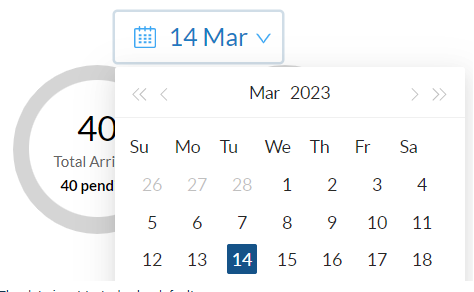
Changing the selected date updates:
- New Reservations
- Arrivals
- Departures
Note: In-House does not change based on the selected date. It always shows reservations that are currently in In-House status.
Find a Reservation Using Basic Search
Use Basic Search when you know information about the reservation you are trying to find.
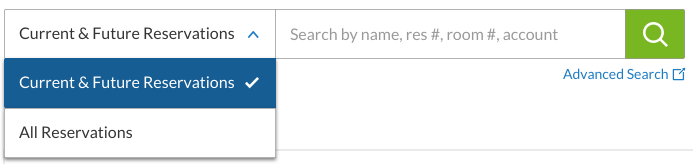
Basic Search searches the following fields at the same time:
- Guest Name
- Account Name
- Reservation Number
- Room Number
You do not need to select the type of information you are searching for. Enter your search text and Basic Search checks all four fields.
A reservation is returned if it matches any of the four searchable fields.
Example: If a guest named John has a reservation and a separate reservation is associated with an account named John's Wedding, searching for John can return both reservations.
Search Current, Future, or Past Reservations
By default, Basic Search searches Current & Future Reservations.
Current and future reservations include reservations that are in process and reservations for future stays.
To include past reservations in your search, select All Reservations.
Example: If you are searching for a guest who completed a stay last month, select All Reservations before searching for the guest.
Basic Search can return cancelled reservations when they match your search criteria.
Basic Search Fields
| Search Field | How It Works |
|---|---|
| Guest Name | Searches primary and additional guest names. Supports partial matches and can search by first or last name. For example, searching Smi can return Smith. |
| Account Name | Searches the account name associated with the reservation and supports partial matches. |
| Reservation Number | Searches for an exact reservation number. Searching for 123 returns reservation 123, not reservation 12345. |
| Room Number | Searches for an exact room number. Searching for room 10 returns room 10, not rooms 100 or 101. |
Find Reservations Using Advanced Search
Use Advanced Search to find one or more reservations that match specific criteria.
Advanced Search is useful when you need to find a group of reservations or do not know the specific guest or reservation number.
For example, use Advanced Search to find:
- Unassigned arrivals for tomorrow.
- Reservations with an outstanding balance.
- Upcoming reservations with no payment method.
- Reservations with open tasks.
- Guests staying during a specific date range.
- Reservations for a specific room class or room number.
- Reservations associated with a group or account.
- Guests from a specific country or state.
- Reservations from a specific source, marketing segment, or referral.
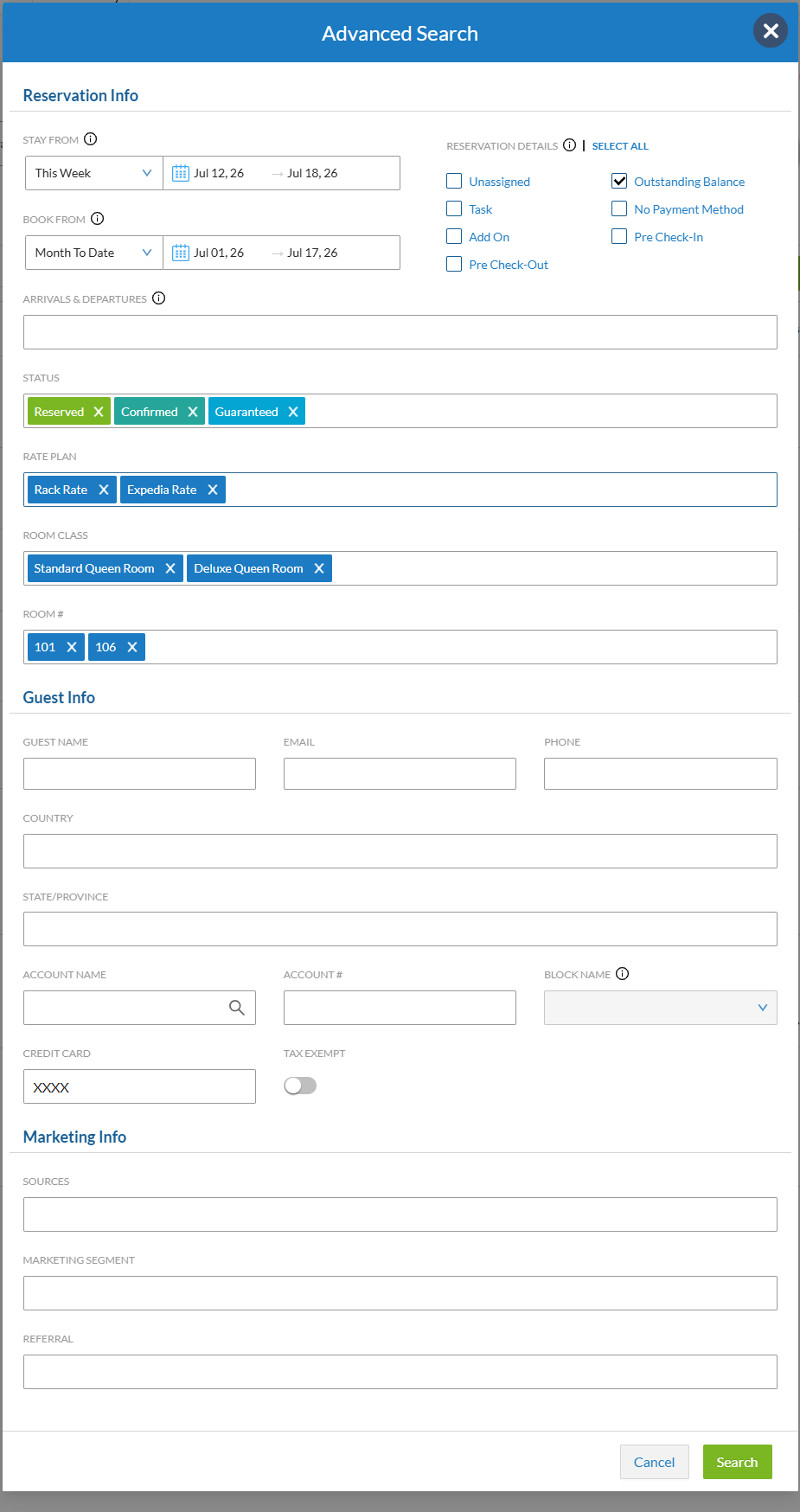
How Advanced Search Filters Work
You can use one or more Advanced Search filters to narrow your results.
Advanced Search uses:
- AND between different filters. A reservation must match each filter you use.
- OR within a filter that allows multiple selections. A reservation can match any selected value within that filter.
Example: If you select tomorrow as the Stay From date, Arrivals, and Unassigned, the search only returns reservations that match all three conditions.
Example: If you select Reserved and Guaranteed in the Status filter, reservations with either status are returned.
Advanced Search filters are organized into:
- Reservation Info
- Guest Info
- Marketing Info
Reservation Info Filters
Use Reservation Info filters to find reservations based on stay dates, booking dates, reservation conditions, status, rate plan, or room information.
| Filter | How It Works |
|---|---|
| Stay From | Finds reservations whose stay intersects the selected date range. A reservation is included if any portion of the stay overlaps the selected dates. For example, a July 8–17 stay is included when searching July 10–15. |
| Book From | Finds reservations created during the selected date range. Uses the reservation creation date, not the arrival or stay dates. |
| Arrivals & Departures | Limits results to reservations arriving or departing during the selected Stay From date range. This filter is available when a Stay From date range is selected. |
| Status | Finds reservations matching one or more selected statuses. When multiple statuses are selected, reservations matching any selected status are returned. |
| Rate Plan | Finds reservations associated with one or more selected active rate plans. |
| Room Class | Finds reservations associated with one or more selected active room classes. |
| Room # | Finds reservations assigned to one or more selected active room numbers. |
Reservation Details
Use reservation detail filters to find reservations based specific scenarios you are looking for
| Filter | How It Works |
|---|---|
| Unassigned | Finds reservations without an assigned room. |
| Outstanding Balance | Finds reservations with a positive balance due. |
| Task | Finds reservations with at least one open task. Completed tasks are not included. |
| No Payment Method | Finds reservations with no payment method attached. |
| Add-On | Finds reservations with an add-on. |
| Pre-Check-In | Finds reservations where the guest has completed pre-check-in. |
| Pre-Check-Out | Finds reservations where the guest has completed pre-check-out. |
Guest Info Filters
Use Guest Info filters to find reservations based on guest or account information.
| Filter | How It Works |
|---|---|
| Guest Name | Finds reservations by primary or additional guest name. |
| Finds reservations using the email address associated with the reservation. | |
| Phone | Finds reservations using the phone number associated with the reservation. |
| Country | Finds reservations for guests from one or more selected countries. |
| State | Finds reservations for guests from one or more selected states. |
| Account Name | Finds reservations associated with an account, such as a group or corporate account. |
| Account # | Finds reservations associated with a specific account number. |
| Credit Card | Searches the last four digits of the reservation's primary payment method. The search checks the primary payment method only. |
| Tax Exempt | Finds tax-exempt reservations. |
Marketing Info Filters
Use Marketing Info filters to find reservations based on how the reservation was generated or categorized.
| Filter | How It Works |
|---|---|
| Sources | Finds reservations associated with one or more selected reservation sources, such as a specific online travel agency (Expedia, Booking.com, etc.) or booking source. |
| Marketing Segment | Finds reservations associated with one or more selected marketing segments. |
| Referral | Finds reservations associated with one or more selected referral types. |
Advanced Search Examples
Advanced Search filters can be combined to find reservations that match a specific operational need.
Find Tomorrow's Unassigned Arrivals
- Select tomorrow in Stay From.
- Select Arrivals.
- Select Unassigned under Reservation Details.
The search returns reservations arriving tomorrow that do not have a room assigned.
Find Reservations with an Outstanding Balance During a Stay Period
- Select the date range in Stay From.
- Select Outstanding Balance under Reservation Details.
The search returns reservations whose stay intersects the selected dates and have a positive balance due.
Find Upcoming Reservations Without a Payment Method
- Select the upcoming date range in Stay From.
- Select No Payment Method under Reservation Details.
The search returns reservations whose stay intersects the selected dates and do not have a payment method attached.
Find Reservations from a Specific Source
- Select the source under Marketing Info > Sources.
- Add other filters, such as Stay From or Status, to further narrow the results.
Example: Select a date range in Stay From and select Booking.com under Sources to find Booking.com reservations associated with that stay period.
Work with Reservation Results
Reservations that match your Dashboard selection, Basic Search, or Advanced Search criteria are displayed in the reservation list.
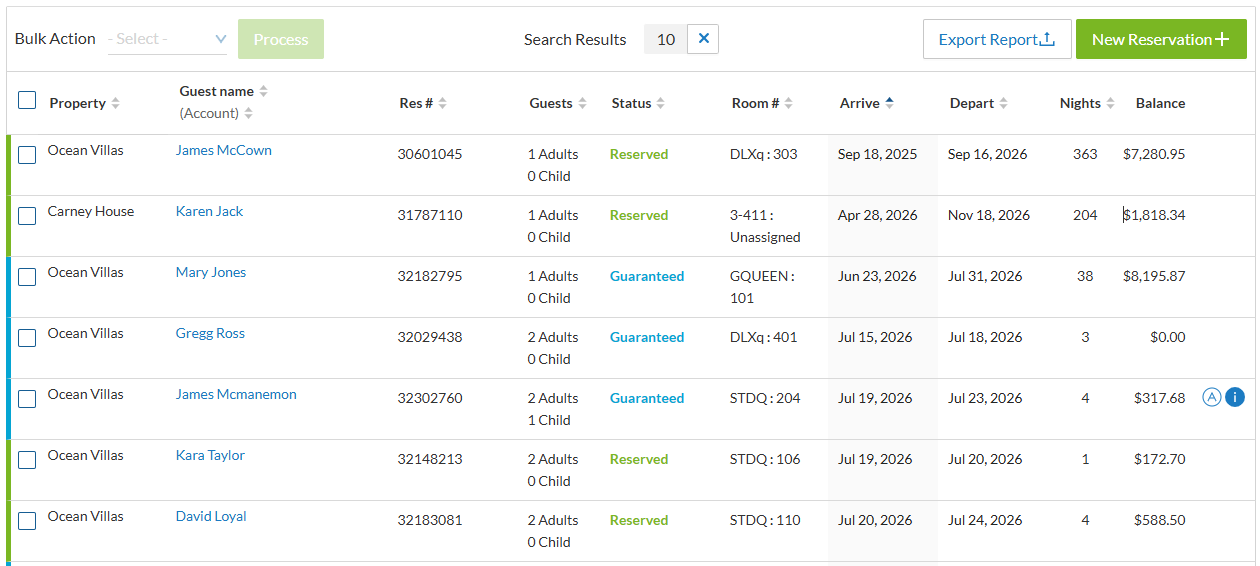
Default Reservation Sort Order
The same default sorting is used for Dashboard, Basic Search, and Advanced Search results. By default, reservations are sorted by:
- Arrival date, from earliest to latest.
- Expected arrival time, from earliest to latest, for reservations arriving on the same date.
- Reservations without an expected arrival time are displayed after reservations with an expected arrival time.
Reservation List Columns
| Column | Description |
|---|---|
| Property | The property where the reservation is booked. This column is hidden when a specific property is selected. |
| Guest Name / Account Name | Displays the guest name and associated account name. Account names are displayed in parentheses if the reservation is associated with an account. |
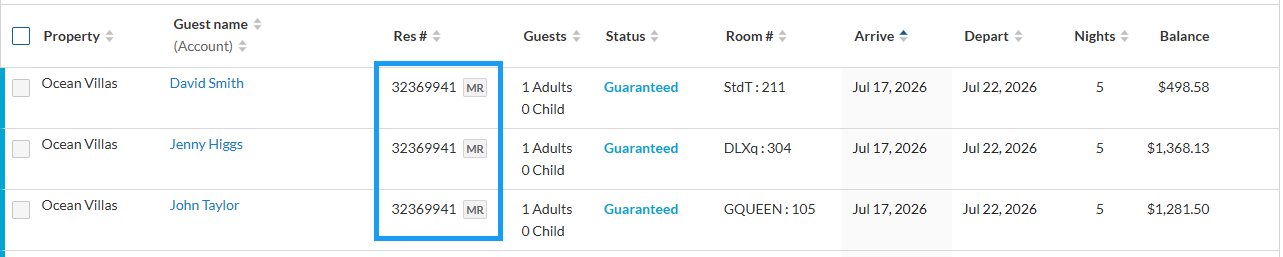
| Res # | Displays the reservation confirmation number. Multi-room reservations display the MR icon. |
| Guests | Displays the total number of adults and children on the reservation. |
| Status | Displays the current reservation status. |
| Room # | Displays the room number assigned to the reservation. |
| Arrive | Displays the arrival date and expected arrival time. |
| Depart | Displays the departure date and expected departure time. |
| Nights | Displays the number of nights in the reservation. |
| Balance | Displays the current reservation balance. |
| Icons | Displays indicators for reservation information, including add-ons and open tasks. |
View Multi-Room Reservations
Multi-room reservations display as multiple rows in the reservation list, with one row for each room. The MR icon identifies reservations that are part of a multi-room reservation.
Sort Reservation Results
Select a column heading to sort the reservation list by that column.
Select the same column heading again to reverse the sort order.
The Guest Name / Account Name column can be sorted by guest name or account name.
View More Reservation Results
Scroll down the reservation list to load additional matching reservations. Additional results load as you continue scrolling.
Export Reservation Results
After performing a search or filtering the reservation list, you can export the displayed results for reporting or further analysis.
To export the reservation list:
- Perform a search or apply the desired filters.
- Select Export.
- Choose the appropriate export option.
Tips & Best Practices
Use these tips to find reservations more efficiently.
- Use Basic Search when you know information about a specific reservation, such as a guest name, reservation number, account name, or room number.
- Use Advanced Search when you need to locate a group of reservations that share common criteria, such as arrivals, outstanding balances, or reservations from a specific source.
- Leave Current & Future Reservations selected unless you need to search historical stays. Searching only current and future reservations typically returns results more quickly.
- Combine multiple Advanced Search filters to narrow large result sets. Different filter categories use AND logic, while multiple selections within the same filter use OR logic.
- If you cannot find a reservation on the dashboard, use Basic Search or Advanced Search. Cancelled reservations are excluded from dashboard counts but can still be located through search.
Frequently Asked Questions
Why can't I find a cancelled reservation on the dashboard?
Cancelled reservations are not included in the New Reservations, Arrivals, Departures, or In-House dashboard counts. Use Basic Search or Advanced Search to locate cancelled reservations.
Why is a reservation still showing as In-House after its departure date?
The In-House dashboard is based on the reservation's current status, not its scheduled departure date. A reservation remains In-House until it has been checked out.
Why doesn't my room, room class, or rate plan appear in Advanced Search?
Advanced Search only displays active room numbers, room classes, and rate plans. Inactive items cannot be selected as search criteria.
When should I use Basic Search instead of Advanced Search?
Use Basic Search when you are looking for a specific reservation and know identifying information such as the guest name or reservation number. Use Advanced Search when you need to find multiple reservations that meet one or more criteria.
Use the Reservation Dashboard on Mobile
The Reservation Dashboard is also available on mobile devices, allowing you to quickly search for reservations and review reservation activity while away from your desk.
The mobile experience includes the same core search capabilities as the desktop version but is optimized for smaller screens.
Search for Reservations
Tap the Search icon to open the reservation search screen.
You can:
- Use Basic Search to find a reservation by guest name, account name, reservation number, or room number.
- Use Advanced Search to find reservations using stay dates, reservation status, room information, guest information, or marketing information.
Search results are displayed in a mobile-friendly list. Tap a reservation to open the reservation details.
Review Dashboard Activity
The mobile dashboard also provides quick access to:
- New Reservations
- In-House
- Arrivals
- Departures
Tap any dashboard category to display the matching reservations.
As on the desktop version:
- New Reservations, Arrivals, and Departures update based on the selected date.
- In-House always displays reservations that are currently in In-House status, regardless of the selected date.
Open a Reservation
Tap any reservation in the results list to open the reservation and view or update reservation details.
Related Articles
- Creating a Reservation
- Editing a Reservation
- Checking In a Guest
- Checking Out a Guest
- Managing Reservation Tasks
- Accounts
- Rate Plans
- Room Classes
Was this article helpful?
That’s Great!
Thank you for your feedback
Sorry! We couldn't be helpful
Thank you for your feedback
Feedback sent
We appreciate your effort and will try to fix the article