The Room Forecast Report provides a detailed overview of room occupancy and availability with a focus on future projections and performance metrics.
Running the Room Forecast report can help you answer the following questions:
- How many rooms are available for a specific future date range?
- What is the projected occupancy percentage for the upcoming week?
- How many arrivals, stay-overs, and departures are expected today?
- What is the forecasted Revenue, ADR, and RevPAR?
- How many group block rooms have been picked up versus remaining blocked?
In other words, the Room Forecast report helps you predict future trends and perform revenue management, showing exactly how "full" the property is expected to be.
The Room Forecast report is best used for future dates to understand trends and expected performance.
For comparisons with previous periods, we recommend using The Pickup Report.
You can only run The Room Forecast for a single property.

Select a Property in the top-right corner before setting up the report:

What can I use the Room Forecast report for
You can run the report to:
- Project Future Availability
- Monitor Group Block Pickup
- Analyze Forecasted Performance Metrics (ADR/RevPAR)
- Breakdown Occupancy by Room Class or Market Segment
How to configure the Room Forecast report
There are 3 main steps to run the report:
- Select a Date Range
- Select the "Break Out" and Input data
- Customize the Detailed view grouping
We'll go over each of the steps in more detail below.
Step 1: Select a Date Range
Choose a "Stay on Date Range."
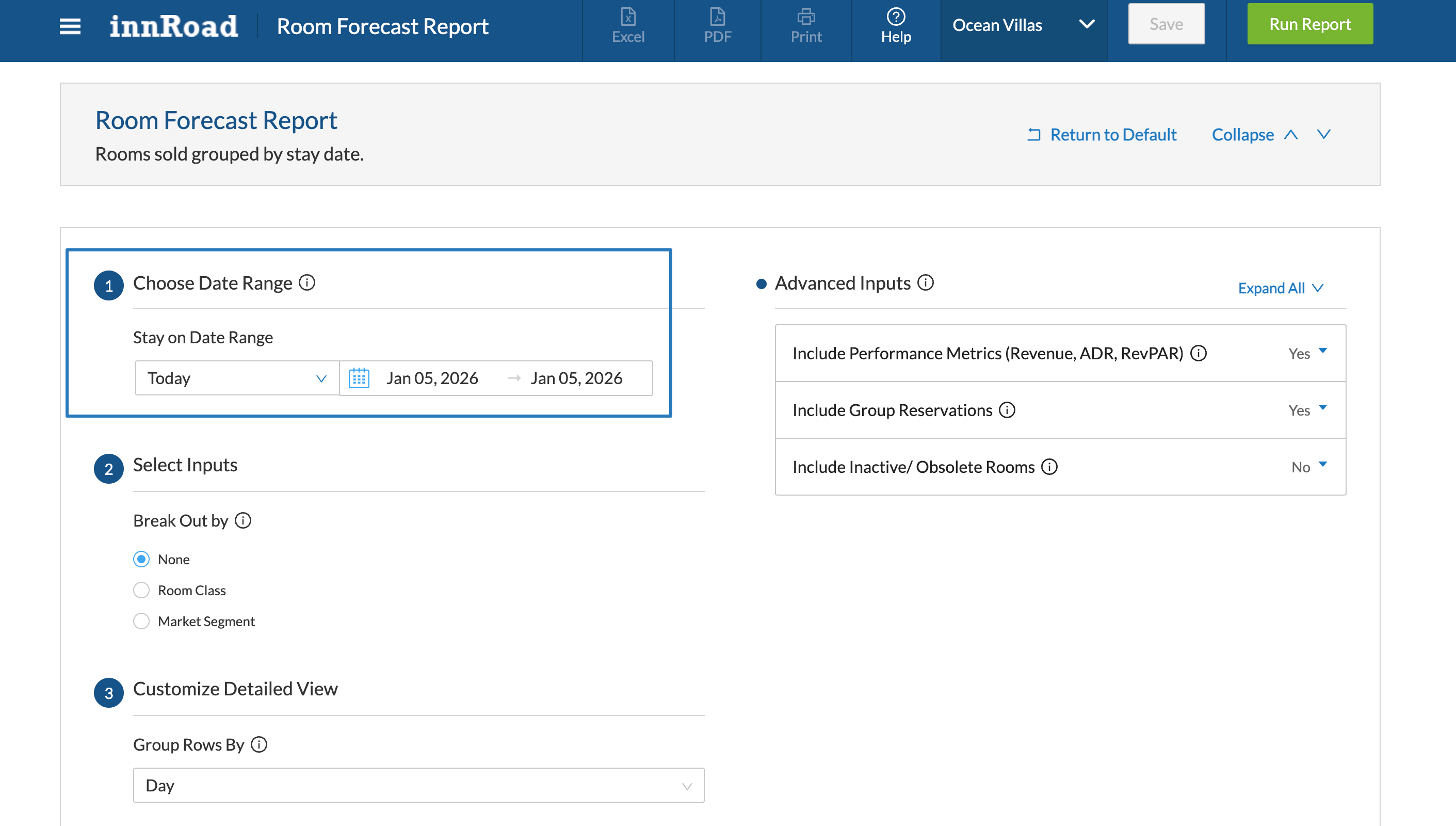
You can select pre-defined ranges like "Today," "Next 30 Days," or enter a custom date range using the calendar icons.
Step 2: Select Inputs
Choose how you want to categorize the room data in the report output.
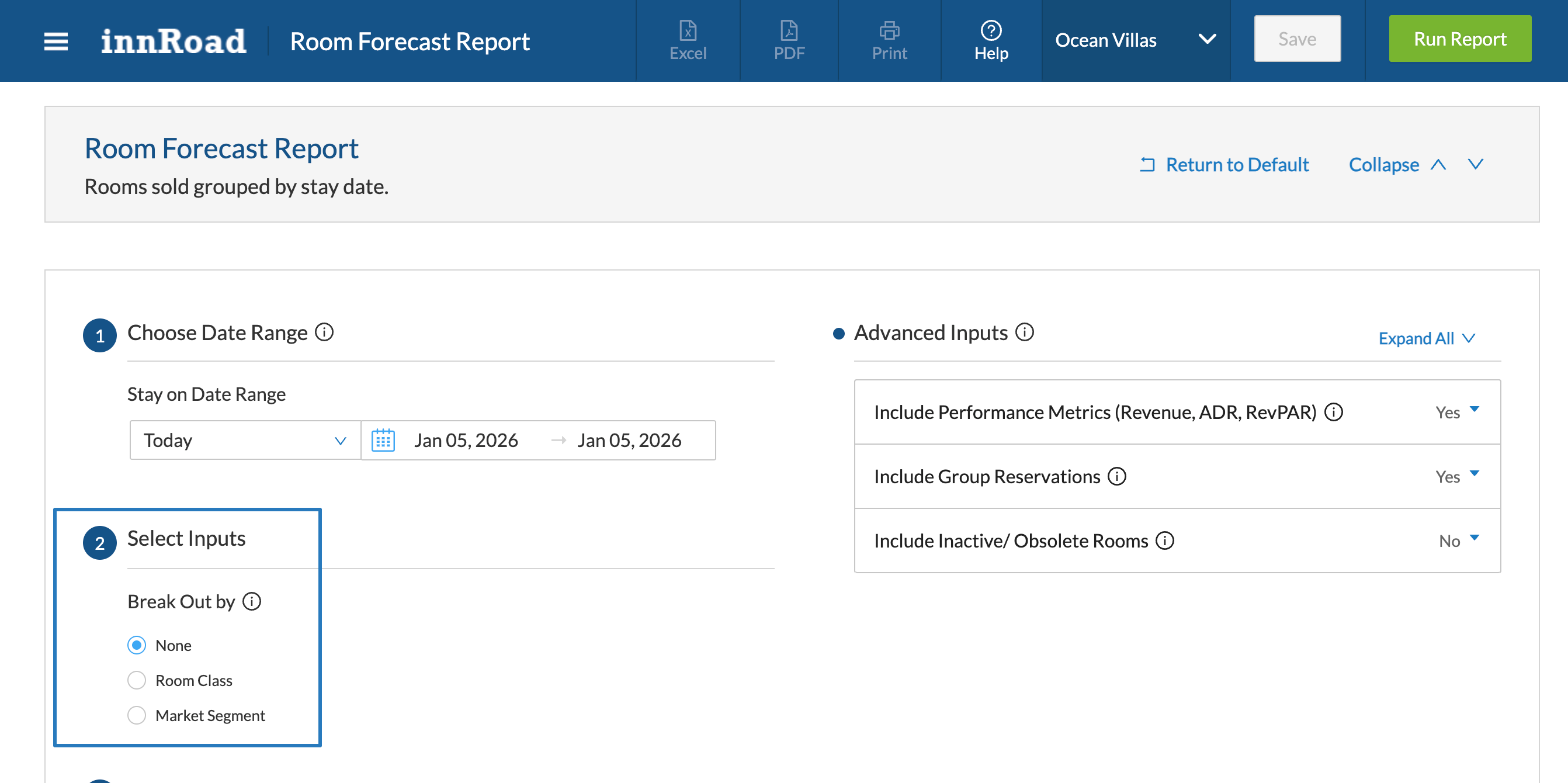
Break Out By:
- None - Shows the property totals as a single line.
- Room Class - Separates the data by Room Classes (for example: King, Queen, Suite).
- Market Segment - Breaks down the occupancy based on the Market Segments assigned to reservations.
Step 3. Customize Detailed View
Group the report's Detailed View output by time range.
- Day – Displays data line-by-line for every day in the range.
- Week – Groups data by calendar week.
- Month – Summarizes data by month.
- Year - Groups data by year.
Advanced Inputs
To refine your results, use Advanced Inputs on the right:
- Include Performance Metrics: Toggle "Yes" to see Revenue, ADR, and RevPAR columns.
- Include Group Reservations: Toggle "Yes" to include Group Block (BLK) and Pickup (P/U) data.
- Include Inactive/Obsolete Rooms: Toggle "Yes" if you need to report on rooms that have been deactivated but held historical data.
Report Outputs and Definitions
The report output is divided into three sections:
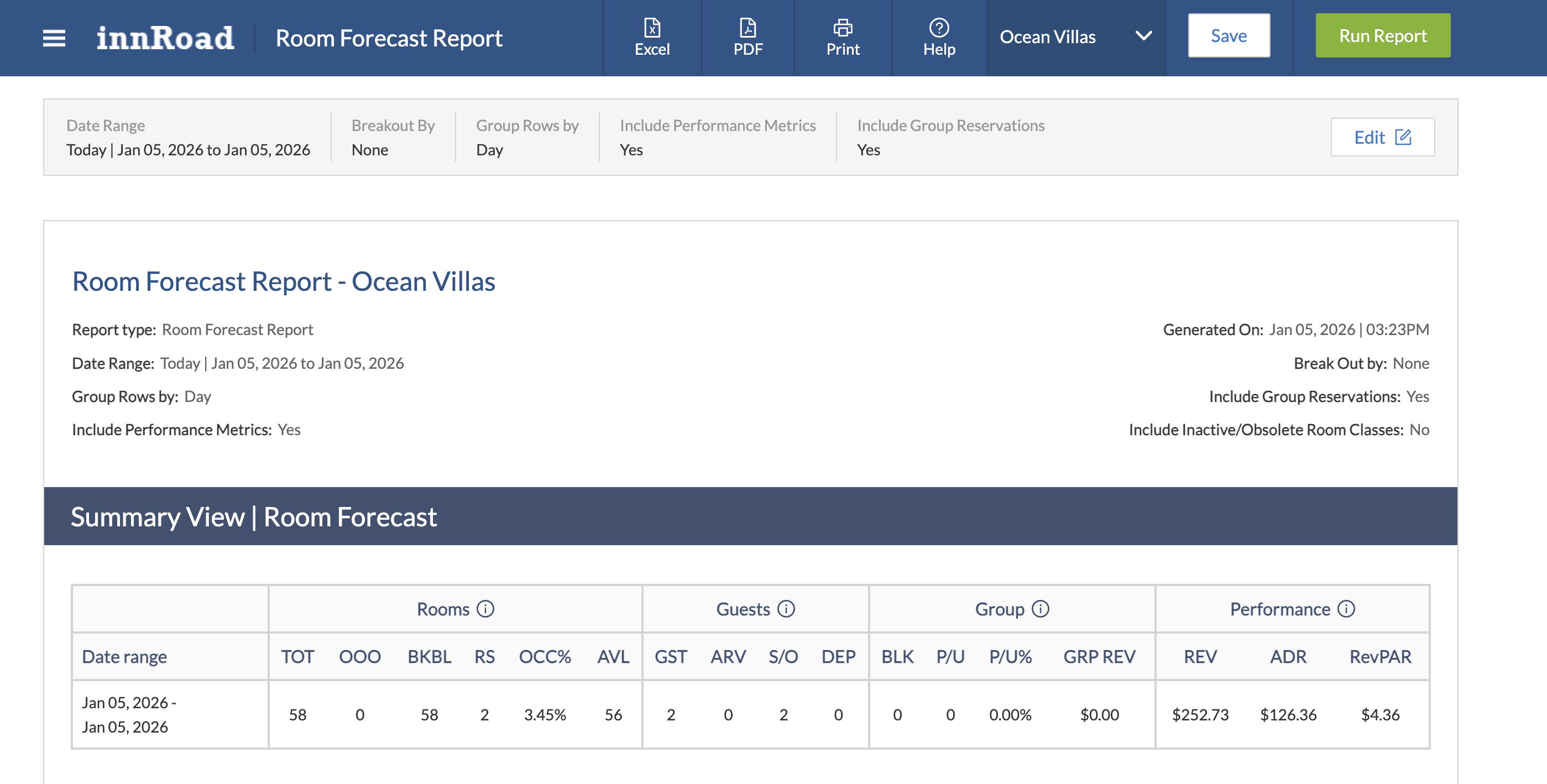
- Header: Displays the selected date range and filters.
- Summary View: Displays aggregated totals for the entire selected date range.
- Detailed View: Provides the breakdown based on your "Group Rows By" selection (Day, Week, or Month).
Column Definitions
| Abbreviation | Definition |
|---|---|
| TOT | Total number of physical rooms in the property. |
| OOO | Out of Order rooms (Rooms set to maintenance). |
| BKD | Booked: Total number of non-guaranteed reservations. |
| RS | Room Nights Sold: Total number of sold nights. |
| OCC% | Occupancy Percentage: Total Sold / (Total Rooms - OOO). |
| AVL | Available rooms remaining to be sold. |
| GST / ARV / DEP | Total Guests / Total Arrivals / Total Departures. |
| S/O | Stay-overs (Guests not arriving or departing today). |
| BLK / P/U | Group Blocked rooms / Rooms Picked Up from those blocks. |
| ADR / RevPAR | Average Daily Rate / Revenue Per Available Room. |
Use Cases
Project Future Availability
Goal: Determine how many rooms are left to sell for an upcoming holiday weekend.
Steps:
- Go to Reports > Room Forecast.
- In Choose Date Range, select the specific holiday dates.
- In Select Inputs, set Break Out to Room Class to see which specific room types are still available.
- Click Run Report.
Monitor Group Block Pickup
Goal: Check if a wedding group has filled their allocated room block before the cutoff date.
Steps:
- Select the date range the group is staying.
- Ensure Include Group Reservations is set to Yes in Advanced Inputs.
- Review the BLK vs P/U columns to see the remaining inventory in the block.
- Click Run Report.
Once you've set up the filters, click Run Report.
Use Cases
Project Future Availability
Goal: Determine exactly how many rooms are left to sell for an upcoming peak period or holiday weekend.
Steps:
- Go to Reports > Room Forecast.
- In Choose Date Range, select your upcoming peak dates.
- In Select Inputs, set Break Out By to Room Class to see availability for specific room types (e.g., King vs. Suite).
- Click Run Report.
Review the AVL (Available) column to see remaining inventory for each day.
Monitor Group Block Pickup
Goal: Track if a specific group (like a wedding or corporate event) is filling their allocated rooms before the cutoff date.
Steps:
- Go to Reports > Room Forecast.
- Select the date range of the group's stay.
- In Advanced Inputs, toggle Include Group Reservations to Yes.
- Click Run Report.
Compare the BLK (Total Blocked) against the P/U (Picked Up) columns to see how many rooms remain in the group allotment.
Analyze Forecasted Performance Metrics (ADR/RevPAR)
Goal: Evaluate the financial health of your future bookings and ensure your pricing strategy is meeting goals.
Steps:
- Open the Room Forecast Report.
- Select a future month or quarter in the Date Range.
- In Advanced Inputs, toggle Include Performance Metrics to Yes.
- Click Run Report.
Review the Revenue, ADR, and RevPAR columns in the Summary View to see your projected financial performance.
Understand Occupancy by Room Class or Market Segment
Goal: Identify which types of rooms or which business segments are driving your occupancy.
Steps:
- Open the Room Forecast Report.
- Select the desired Date Range.
- In Select Inputs, use the Break Out By dropdown to select Market Segment.
- Click Run Report.
The report will now display individual rows for each Market Segment (e.g., OTA, Direct, Corporate), allowing you to see which segment is booking the most rooms.
Was this article helpful?
That’s Great!
Thank you for your feedback
Sorry! We couldn't be helpful
Thank you for your feedback
Feedback sent
We appreciate your effort and will try to fix the article