The Net Sales Report provides a comprehensive breakdown of revenue from reservation sales, including Room Charges, Incidentals, and Fees for a selected period.
Running the Net Sales report can help you answer the following questions:
- Which booking channels are driving the highest reservation volume?
- What is the most profitable day of the week for the property?
- Which room classes and rate plans are the most attractive to guests?
- What are the specific demographic and purchasing patterns of my guests?
To summarize, this report allows you to analyze your property's performance based on revenue, occupancy, and pricing strategy.
The Net Sales Report does NOT include revenue from Account Master folios.

The report exclusively tracks revenue from Reservations.
This report can be run for an individual property or across all properties in a multi-property setup.
What can I use the Net Sales Report for?
You can run the report to:
- Identify Top Performing Channels
- Analyze Revenue by Day of the Week
- Determine Most Profitable Room Classes
- Evaluate Rate Plan Attractiveness
Navigation
- From the Main menu, click on Reports.
- Under Performance Reports, click on Net Sales.
How to configure the Net Sales Report
There are 4 main steps to run the report:
- Select a Date Range
- Select Summary Inputs (Group and Sort)
- Customize the Detailed View
- Set Advanced Inputs
We'll go over each of the steps in more detail below.
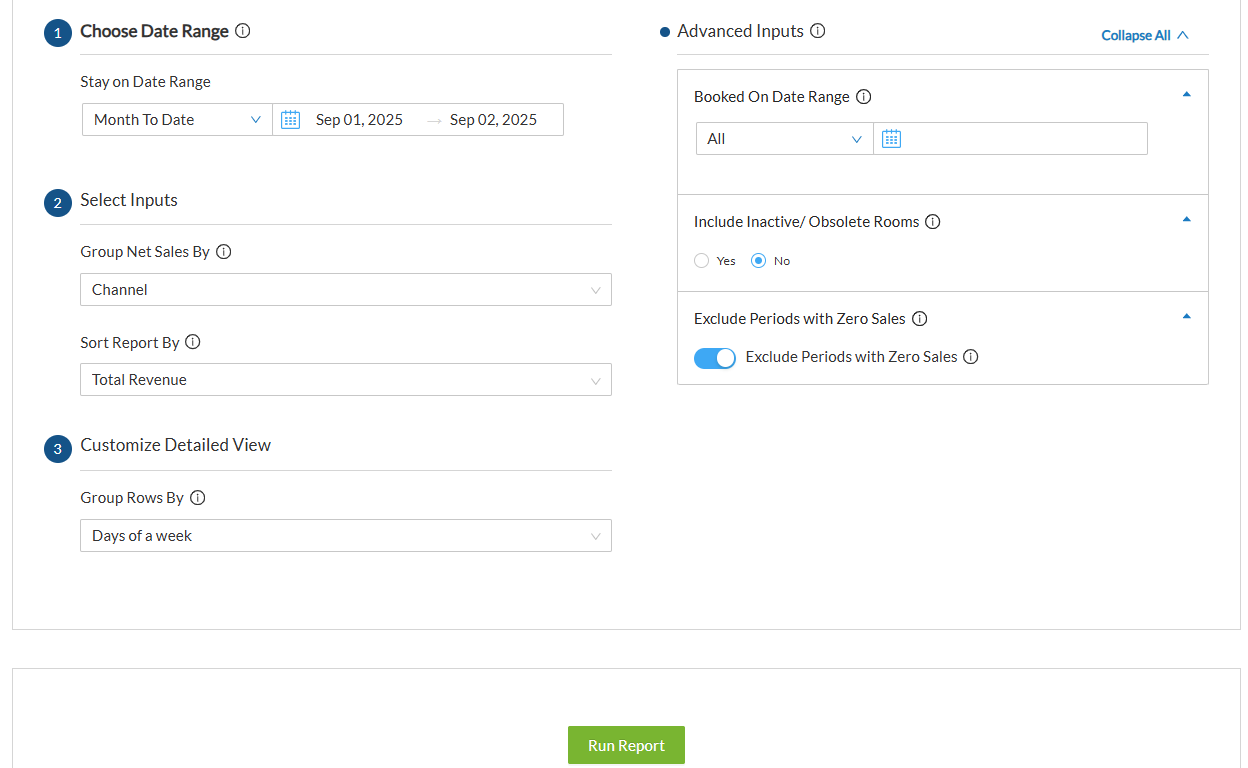
Step 1: Select a Date Range
Select the date range from the list of predefined options (e.g., This Month, Last Quarter) or enter a custom date range.
Step 2: Select Summary Inputs
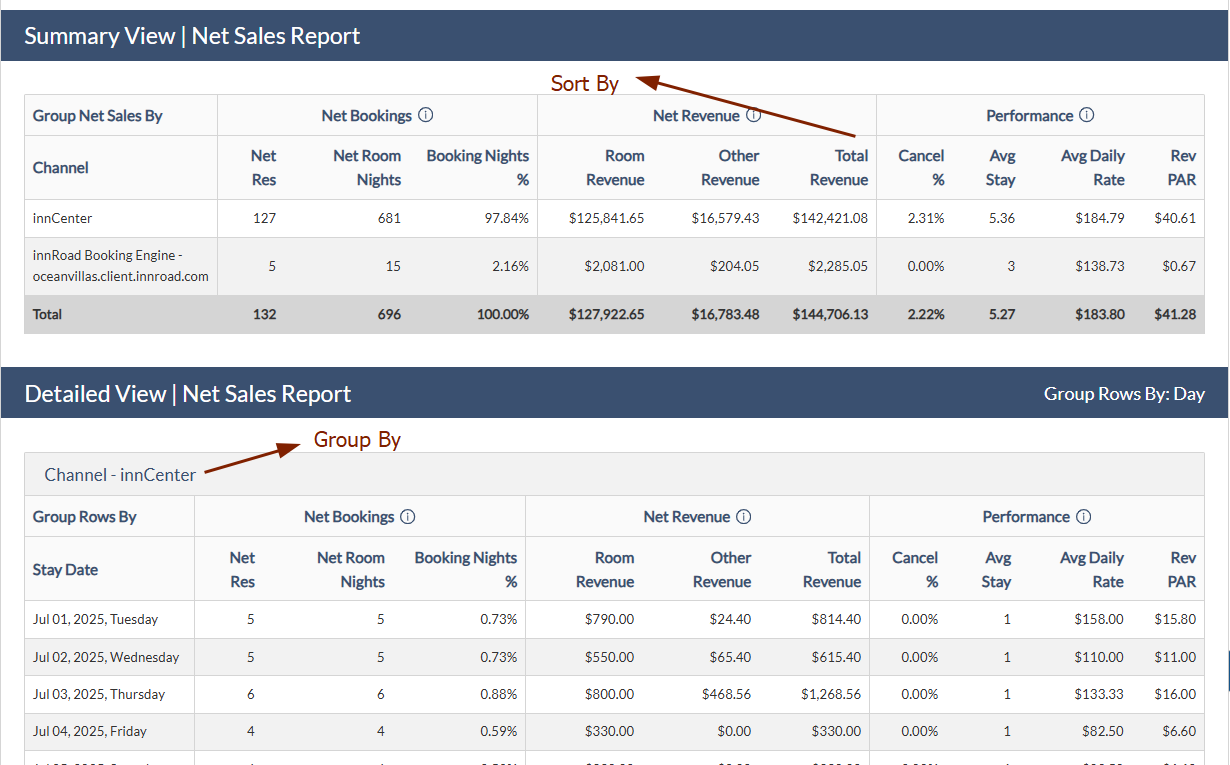
Choose how you want to organize the data in both the Summary and Detailed sections.
a) Group By: Organize the data categories (e.g., by Channel, Market Segment, Room Class, or Rate Plan).
b) Sort Report By: Determine the order of the summary results (e.g., by Total Revenue, ADR, or Booking Nights %).
Step 3. Customize Detailed View
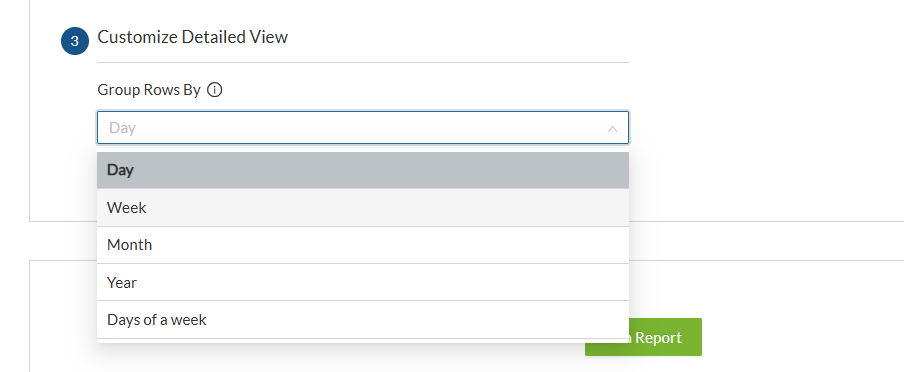
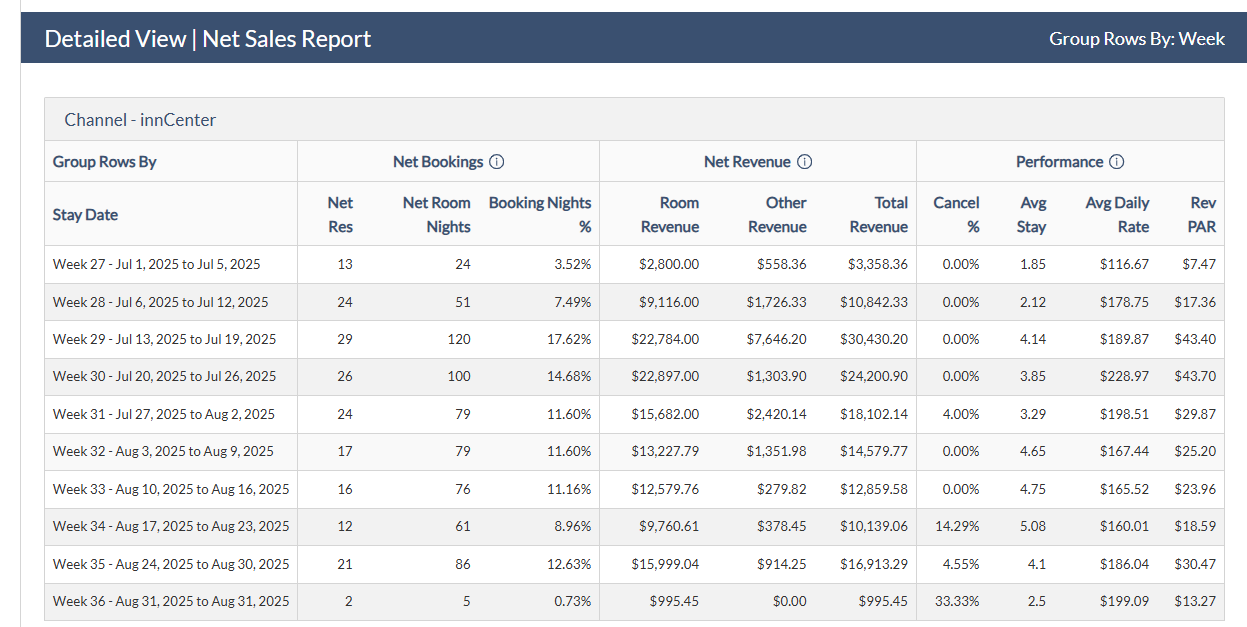
This defines the time-based rows in the Detailed section of the report. If "Week" is selected, each row represents a week of the year and displays the corresponding reservation data.
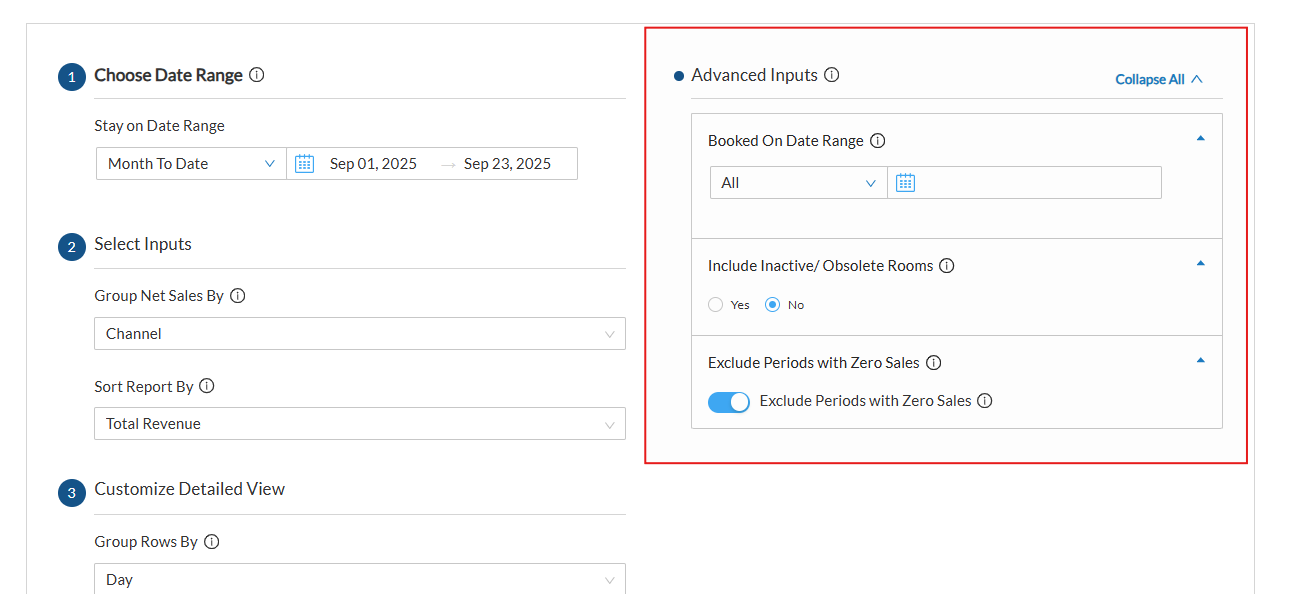
Step 4: Advanced Inputs
Refine your report with these additional filters:
- Booked on Date Range: Filter results based on when the reservation was actually made. Select "All" to include all bookings regardless of their creation date.
- Include Inactive/Obsolete Rooms: Toggle this on to include data from rooms that are no longer active in your system.
- Exclude Periods with Zero Sales: When enabled, the report will hide any time periods (e.g., specific days or weeks) that had no sales activity.
Report Output
The report organizes metrics into three primary sections based on your chosen "Group By" option:
- Net Bookings - Includes Net Reservations (Total Reservations minus Cancellations), Net Room Nights, and Booking Nights %.
- Net Revenue - Total revenue generated from room charges, incidentals, and fees.
- Performance - Key metrics including Average Daily Rate (ADR) and RevPAR.
Use Cases
Identify Top Performing Channels
Goal: Determine which OTA or booking channel generates the most revenue to optimize marketing spend.
Steps:
- Go to Reports > Net Sales.
- Select your desired Stay Date Range.
- Set Group By to "Channel."
- Set Sort Report By to "Total Revenue."
- Click Run Report.
Track Monthly Revenue Performance
Goal: See the revenue performance for the yaer, grouped by month.
Steps:
- ISelect a broad date range, for example, the whole year of 2026.
- Set Group By to "Consumption Day."
- Review the summary to see which day (e.g., Saturday vs. Monday) performs best.
- Click Run Report.
Analyze Revenue by Day of the Week
Goal: Identify which days of the week have the highest sales volume for staffing and rate adjustments.
Steps:
- In the Net Sales Report, select a broad date range (e.g., Last 90 Days).
- Set Group By to "Booking Day."
- Review the summary to see which day (e.g., Saturday vs. Monday) performs best.
- Click Run Report.
Determine Most Profitable Room Classes
Goal: See which room classes are top-sellers to manage inventory effectively.
Steps:
- Select the desired date range.
- Set Group By to "Room Class."
- Set Sort Report By to "Booking Nights %" or "Total Revenue."
- Click Run Report.
Evaluate Rate Plan Attractiveness
Goal: Understand which rate plans (e.g., AAA, Non-Refundable, Standard) guests are choosing most often.
Steps:
- Open the Net Sales Report.
- Set Group By to "Rate Plan."
- Analyze the Net Reservations column to see popularity.
- Click Run Report.
Once you have configured your categories and filters, click Run Report.
Was this article helpful?
That’s Great!
Thank you for your feedback
Sorry! We couldn't be helpful
Thank you for your feedback
Feedback sent
We appreciate your effort and will try to fix the article