The Pickup Report compares performance data for selected stay dates across two different points in time, showing exactly how many rooms or how much revenue has been “picked up” during that timeframe.
The Pickup Report compares your property's performance a for a set of dates (Stay On date range) in comparison with 2 distinct points in time.

For example, you can view your property's occupancy for 4th of July as of April 1st and compare it to April 15th to see how bookings are progressing and whether you're on track with your goals.
Running the Pickup report can help you answer the following questions:
- How many new reservations were added between today and 7 days ago
- How ADR changed for next month compared to this time last week
- Which booking channel (e.g., OTA vs. Direct) saw the most growth in the last 14 days
- Is ur occupancy for a specific period pacing ahead of where it was yesterday
In other words, The Pickup Report is great to measure your booking pace and identify trends in reservation activity over specific comparison intervals.
The Pickup report is run for a single property at a time. Select a Property first to run the report:

What can I use the Pickup report for
You can run the report to:
- Track Weekly Booking Pace
- Analyze Revenue and ADR Growth
- Monitor Channel-Specific Pickup
- Evaluate Room Class Demand
How to configure the Pickup report
There are 3 main steps to run the report:
- Select a Stay on Date Range
- Choose Comparison Dates
- Customize the Detailed View
We'll go over each of the steps in more detail below.
Step 1: Select a Stay on Date Range
Choose the dates you are interested in analyzing, for example Next 30 Days. 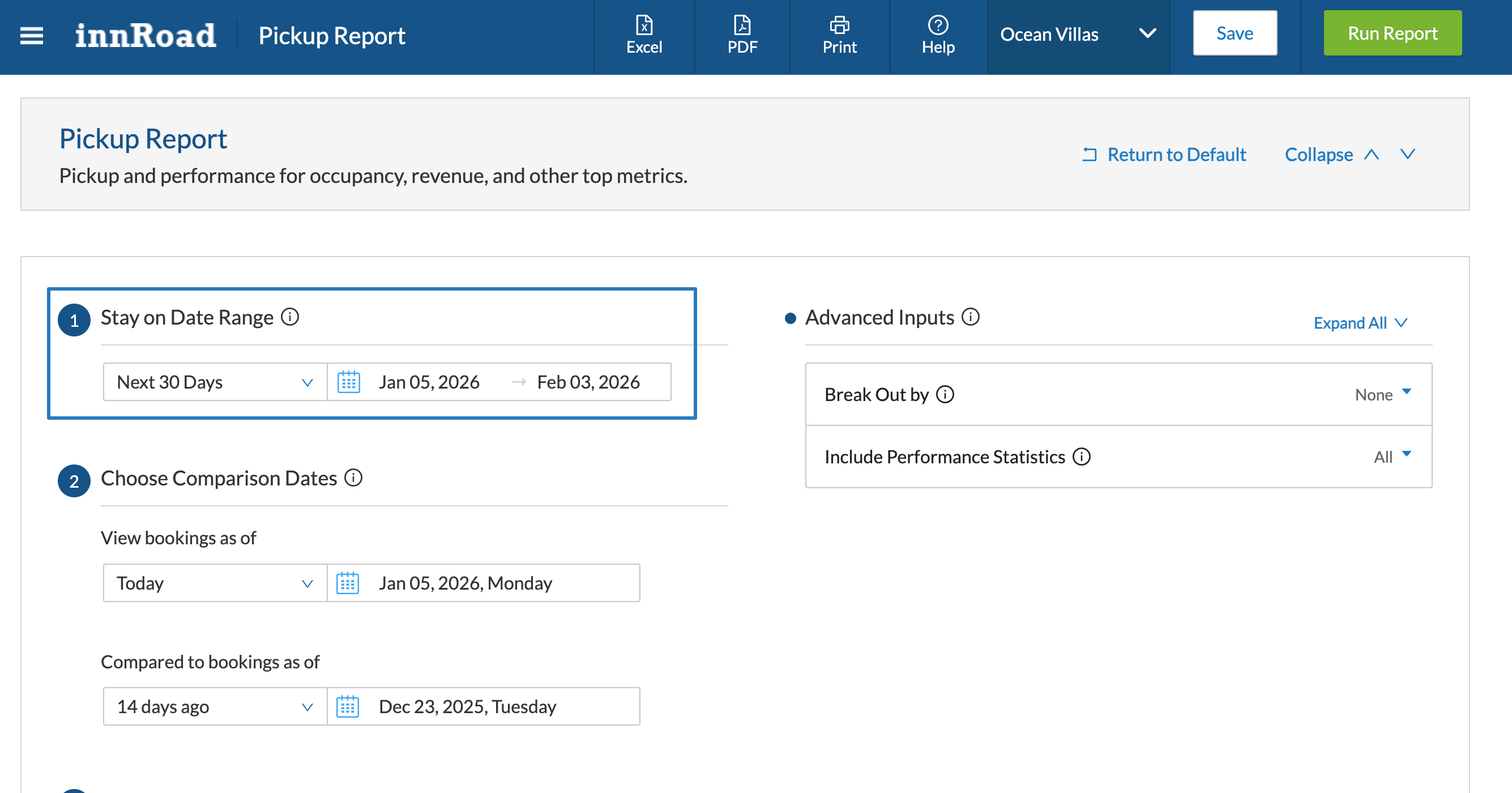 This defines the stay dates for the reservations included in the comparison.
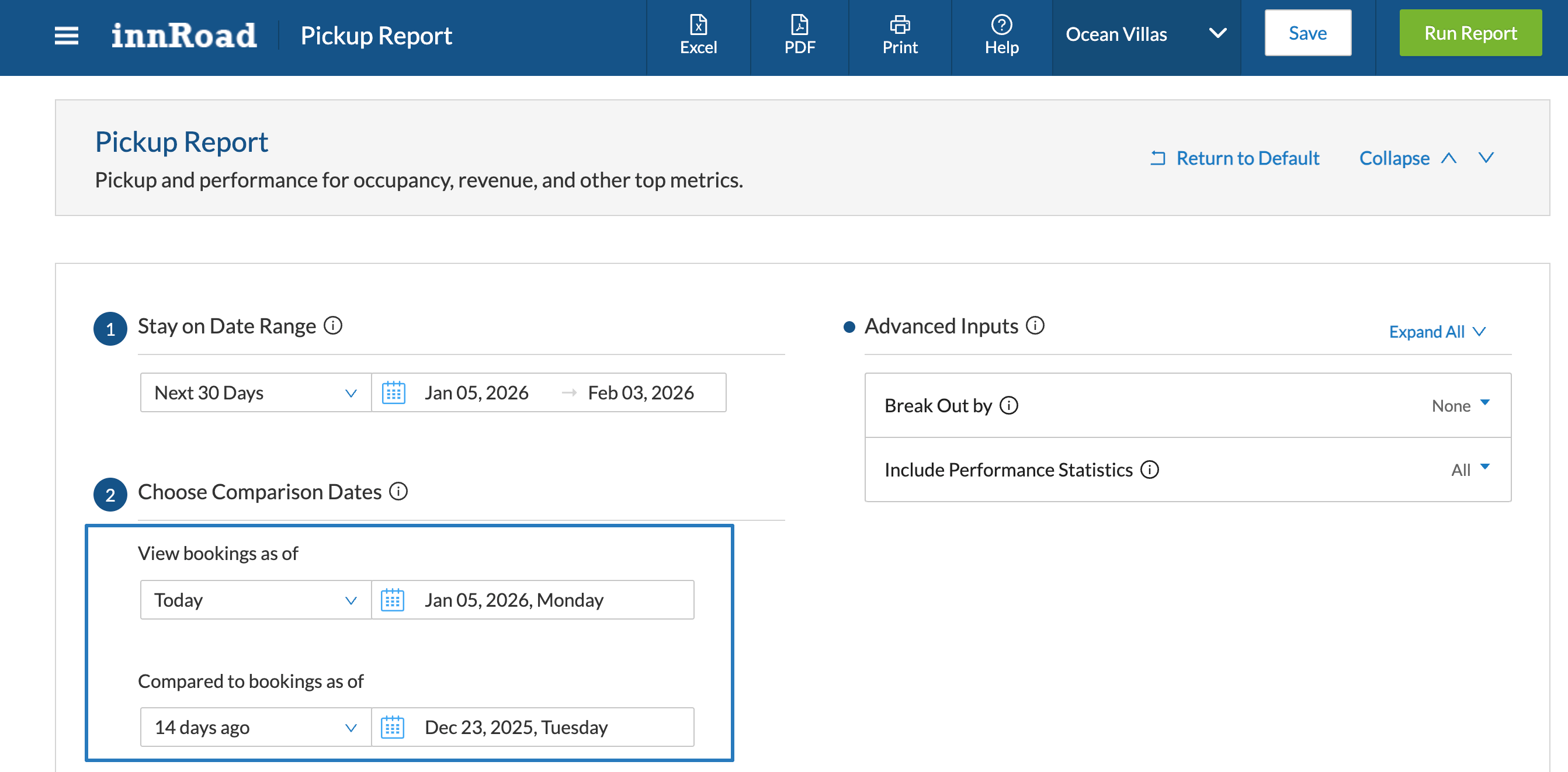
Step 2: Choose Comparison Dates
Select the two points in time to compare. This allows you to see the "pickup" or change between these two snapshots.
- View Bookings as of: This is typically set to "Today" to see your current status.
- Compared to Bookings as of: Select a past date (e.g., Yesterday, 7 days ago) to serve as your baseline.
Step 3. Customize Detailed View
You can customize how the data is grouped and broken down in the report output:
- Group Rows By: Choose to view data summarized by Day, Week, or Month.
- Break Out By: Use the Advanced Inputs to separate data by Room Class or Booking Channel.
- Include Performance Statistics: Toggle ADR and RevPAR to see revenue-based pickup metrics.
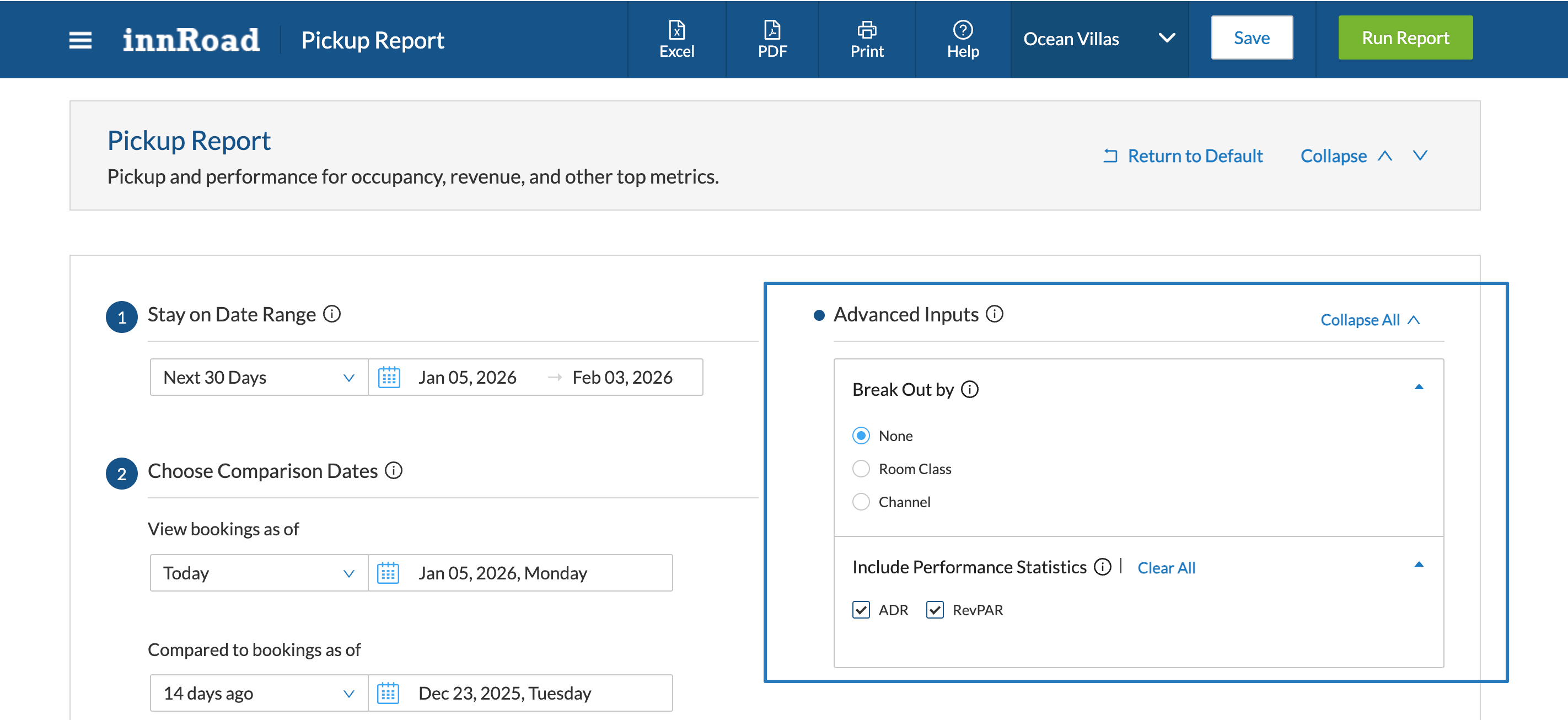
Optional. Advanced Inputs
You can customize The Pickup Report further in the Advanced Inputs section:
- Break out by:
- None: shows your property's total performance metrics
- Room Class: shows your performance metrics by Room Class
- Channel: displays performance metrics, grouped by booking channel (OTA vs Direct)
- Include Performance Statistics: show or hide performance-related columns
- ADR (Average Daily Rate)
- RevPAR (Revenue per Available Room)
Report Outputs
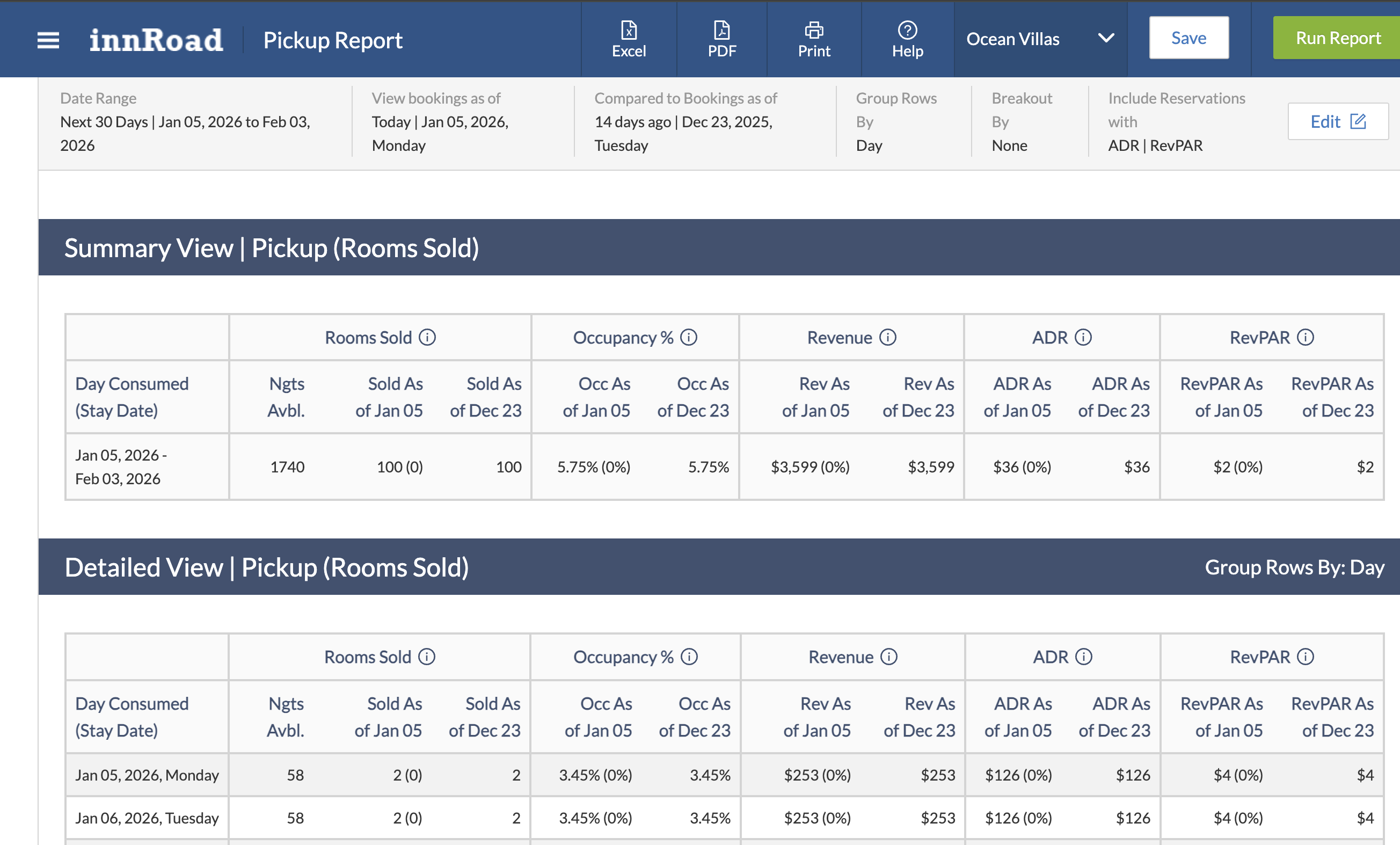
The report displays the differences between your two comparison dates across several key metrics:
- Summary View - Shows property-wide totals for Rooms Sold, Occupancy %, Revenue, ADR, and RevPAR.
- Detailed View - Breaks down these same metrics row-by-row based on your "Group Rows By" selection.
- Pickup Values: The numbers in parentheses, such as (+5) or ($250), represent the net change (pickup) between the two comparison dates.
Use Cases
Track Weekly Booking Pace
Goal: Determine how many new bookings were added in the last 7 days for the upcoming month.
Steps:
- Go to Reports > Pickup Report.
- In Stay on Date Range, select "Next 30 Days".
- In Choose Comparison Dates, set "View Bookings as of" to Today and "Compared to" to 7 days ago.
- Click Run Report.
Review the Sold As of [Today] column; the number in parentheses shows the net pickup for that week.
Analyze Revenue and ADR Growth
Goal: Review how recent high-demand bookings are affecting your Average Daily Rate (ADR).
Steps:
- Open the Pickup Report.
- Select your target stay dates (e.g., a specific festival or holiday week).
- In Advanced Inputs, ensure ADR is selected under Performance Statistics.
- Compare Today against Yesterday to see immediate rate changes.
- Click Run Report.
Review the ADR column to see if the rate is trending upward as you reach higher occupancy levels.
Monitor Channel-Specific Pickup
Goal: Identify which booking source (OTA or Direct) is responsible for the most recent activity.
Steps:
- Open the Pickup Report.
- In Advanced Inputs, set Break Out By to Channel.
- Set your comparison dates (e.g., Today vs. 14 days ago).
- Click Run Report.
The report will display a dedicated row for each channel, showing which one had the highest pickup volume.
Evaluate Room Class Demand
Goal: See which room types are selling fastest to adjust pricing or availability for specific classes.
Steps:
- Open the Pickup Report.
- In Advanced Inputs, set Break Out By to Room Class.
- Select the desired Stay on Date Range.
- Click Run Report.
Review the breakdown in the Detailed View to see which Room Classes are "picking up" the most reservations.
Once you've set up your comparison, click Run Report.
Was this article helpful?
That’s Great!
Thank you for your feedback
Sorry! We couldn't be helpful
Thank you for your feedback
Feedback sent
We appreciate your effort and will try to fix the article