The Check In workflow allows you to check an arriving guest into their assigned room and update the reservation to In-House. During check-in, you can assign or change the guest's room, process any payment or authorization required by the reservation's Check-In Policy, and generate a guest registration form.
Use this article to
- Find and check in an arriving reservation
- Assign or change the guest's room during check-in
- Understand Clean and Dirty room status during check-in
- Process a payment or authorization required by a Check-In Policy
- Override a Check-In Policy when permitted
- Generate a guest registration form
- Understand what innRoad updates and which automated actions may occur after check-in, including task generation and guest communications
Step 1: Find and Open the Reservation
Locate the arriving reservation from the Reservation Dashboard, Tape Chart, or another reservation view.
Open the reservation to view Reservation Details.
From Reservation Details, click Check In in the upper-right corner.

Note: The Check In option becomes available on the reservation's scheduled Check-In date. Reservations with a past Check-In date can also be checked in.
Step 2: Review the Room Assignment
The Check In screen displays the guest and stay information, including the room currently assigned to the reservation.
Review the reservation details and room assignment before completing the check-in. You can keep the existing room assignment or select a different available room within the reserved Room Class.
If the reservation does not have a room assigned, select a room before proceeding. When selecting a room, innRoad displays whether each available room is Clean or Dirty.
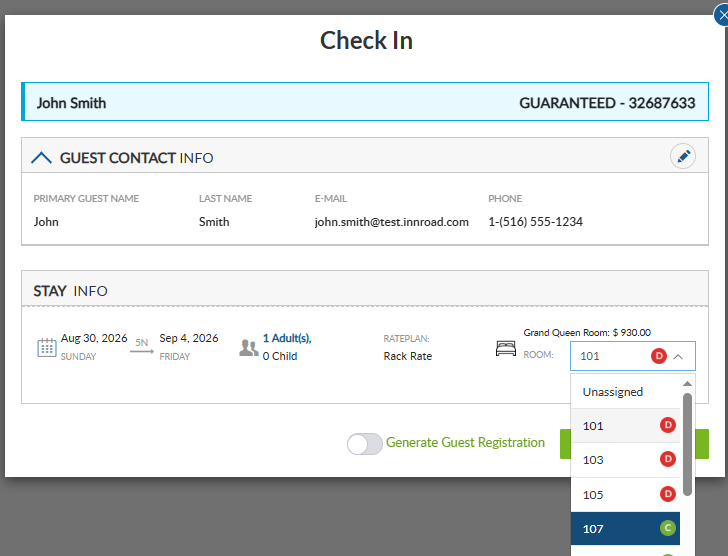
Note: A room must be assigned before the reservation can be checked in. You cannot complete check-in with Unassigned selected.
Generate a Guest Registration Form
To generate a registration form as part of the check-in process, turn on Generate Guest Registration before completing the check-in.
Learn More: Properties using Online Check-In can collect guest information and payment details before arrival. If the guest has not completed Online Check-In, you can also send a digital guest registration form for the guest to sign. See Guest Portal for more information.
Checking In to a Dirty Room
If you select a room with a Dirty housekeeping status, innRoad displays a warning when you attempt to complete the check-in.
- Click Cancel to return to the Check In screen and select a different room.
- Click Confirm to proceed with checking the guest into the Dirty room.
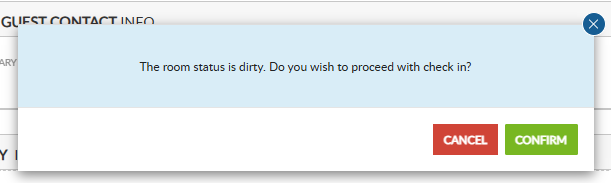
Checking the guest into the room does not automatically change its housekeeping status to Dirty.
Complete the Check-In
The action displayed at the bottom of the Check In screen depends on whether a payment or authorization is required:
- If no payment or authorization is required, click Confirm Check In to check in the guest.
- If a Check-In Policy requires a payment or authorization, click Proceed to Check In Payment to continue to the payment step.
If Payment or Authorization Is Required
If the reservation's Rate Plan has a Check-In Policy requiring a payment or authorization, the button at the bottom of the Check In screen displays Proceed to Check In Payment instead of Confirm Check In.
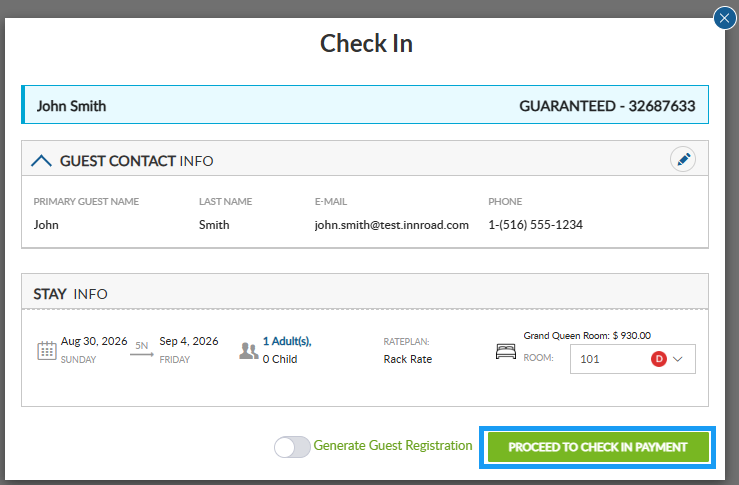
Click Proceed to Check In Payment to continue.
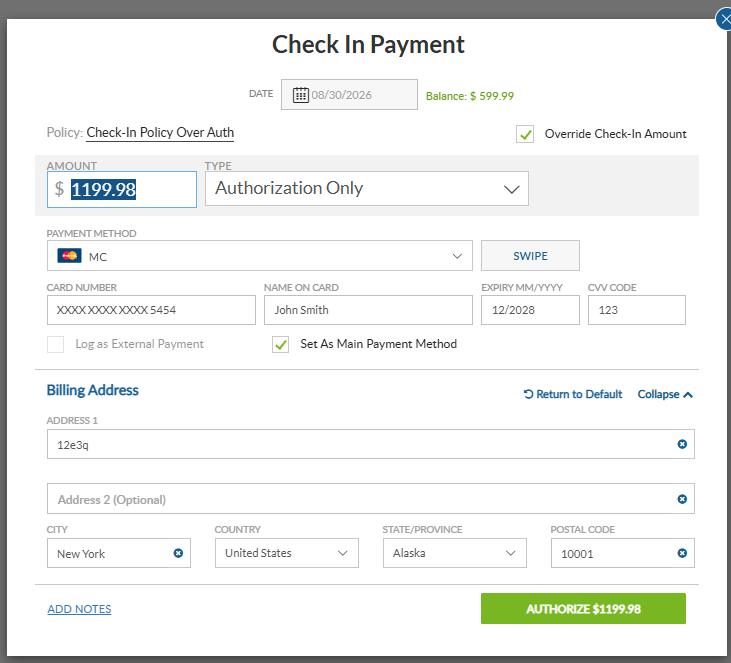
innRoad displays the amount and transaction type required by the Check-In Policy. Depending on the policy, you may be prompted to:
- Capture a specified percentage of the reservation balance as a payment.
- Authorize the guest's card for a specified percentage of the reservation balance.
On the Check-In Payment screen, you can use the payment method already associated with the reservation, select a different payment method, or add a payment method if one has not yet been entered.
When entering or selecting a payment method, select Set As Main Payment Method if you want that payment method to become the reservation's primary payment method.
Review the payment method, amount, and transaction type, then complete the required transaction to check in the guest.
Override the Check-In Amount
If you have the Override Policies permission, the Override Check-In Amount option is displayed on the Check-In Payment screen.
Select Override Check-In Amount to change the payment or authorization required by the Check-In Policy. You can:
- Change the amount, including setting it to $0.
- Change the transaction type between Capture and Authorization Only.
Note: If you do not have the Override Policies permission, Override Check-In Amount is not displayed. Policy Override access can be managed under Admin > Roles.
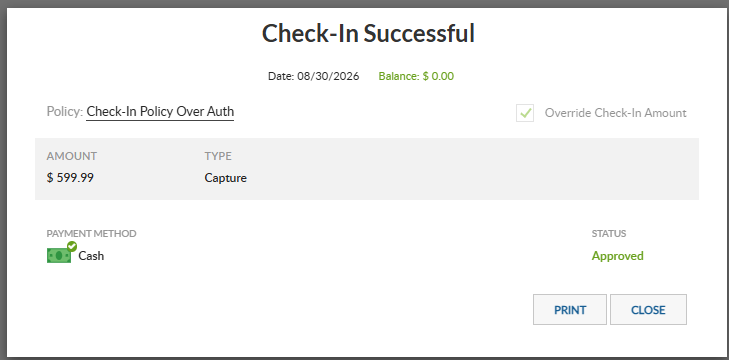
Check-In Successful
After the check-in is completed, innRoad displays the Check-In Successful screen confirming the transaction and check-in.
From this screen:
- Click Print to print or reprint the guest registration form.
- Click Close to close the Check-In Successful screen and return to the reservation.
After closing the confirmation, the reservation displays as In-House and the primary action changes to Check Out.
What Happens After Check-In?
Once check-in is completed, innRoad automatically:
- Changes the reservation status to In-House.
- Changes the room's occupancy status to Occupied.
- Creates applicable tasks configured to be generated at check-in.
- Sends applicable emails or text messages when the property has configured communications to be triggered at check-in.
Depending on the property's configuration, the room's housekeeping status may also automatically change to Dirty when the guest is checked in.
Note: Properties can configure whether rooms are automatically marked Dirty at check-in/check-out under Setup > Task Management using Set rooms to dirty on check-in/check-out
Note: For a Multi-Room Reservation, each room can be checked in separately using the same check-in process described in this article.
Learn More: See Multi-Room Reservations for more information about managing multi-room bookings.
Related Articles
- Multi-Room Reservations
- Collecting Payment and Payment Method Details Using Guest Portal
- Email Templates - Create or Modify
- Manage Guest Messaging - Complete Guide
Was this article helpful?
That’s Great!
Thank you for your feedback
Sorry! We couldn't be helpful
Thank you for your feedback
Feedback sent
We appreciate your effort and will try to fix the article