Tax Exempt and Long Stay Reservations - Complete Guide
Created by Shruti Srivasatava, Modified on Tue, Sep 1 at 2:58 PM by Shruti Srivasatava
innRoad allows you to apply tax exemptions to qualifying reservations. A reservation can be manually marked as Tax Exempt when a guest or organization qualifies for an exemption.
Properties can also configure Long Stay tax exemptions for guests staying for an extended period. When a reservation exceeds the property's configured Long Stay threshold, innRoad can apply tax exemption based on those settings.
Each tax can be configured individually to determine whether it should be removed when a reservation is Tax Exempt.
Use this article to
- Understand how tax exemptions work in innRoad
- Configure which taxes are excluded from Tax Exempt reservations
- Apply or remove Tax Exempt status on a reservation
- Enter a Tax Exempt ID
- Configure Long Stay tax exemption settings
- Understand when a reservation qualifies for Long Stay tax exemption
- Understand how changes to a reservation affect its tax exemption
How Tax Exemption Works
When configuring taxes in innRoad, your property determines which taxes should be excluded when a reservation is marked Tax Exempt.
This allows some taxes to be removed while others continue to apply.
For example:
Tax | Exclude when Tax Exempt | Tax Exempt Reservation |
|---|---|---|
| Occupancy Tax | Yes | Tax is excluded |
| Sales Tax | No | Tax continues to apply |
A reservation can become Tax Exempt in two ways:
| Method | How It Works |
|---|---|
| Manual Tax Exemption | A user marks the reservation as Tax Exempt and can enter a Tax Exempt ID. |
| Long Stay Tax Exemption | The reservation qualifies for tax exemption based on the property's configured Long Stay threshold. |
Once a reservation is Tax Exempt, innRoad excludes any taxes configured with Exclude when Tax Exempt.
If Tax Exempt status is added or removed, innRoad recalculates the reservation taxes accordingly.
When to Use Tax Exempt
A reservation can be manually marked Tax Exempt when a guest or organization qualifies for a tax exemption.
Common examples may include:
- Government or municipal stays
- Certain non-profit or tax-exempt organizations
- Guests who qualify for an exemption under applicable local or state requirements
- Other reservations where the property has determined that a tax exemption applies
Note: Tax exemption requirements vary by location. Configure your property's tax exemption and Long Stay settings based on the tax rules applicable to your property.
Configure Taxes for Tax Exemption
Each tax can be configured individually to determine whether it should be excluded when a reservation is Tax Exempt.
To configure a tax:
- Go to Setup > Taxes and Fees.
- Select the tax you want to configure.
- Select Exclude when Tax Exempt.
- Click Save.
- Repeat these steps for each tax that should be excluded from Tax Exempt reservations.
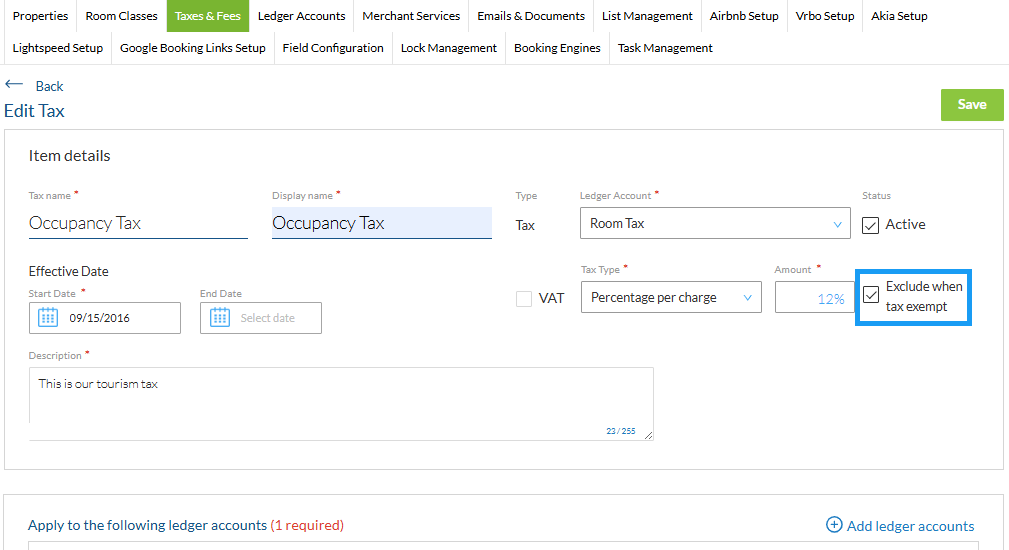
Only taxes with Exclude when Tax Exempt enabled are removed from a Tax Exempt reservation. Other taxes continue to apply normally.
Example: If Occupancy Tax has Exclude when Tax Exempt enabled but Sales Tax does not, marking a reservation Tax Exempt removes the Occupancy Tax while the Sales Tax continues to apply.
Tax Exempt vs. Long Stay
| Tax Exempt | Long Stay |
|---|---|
| Based on the guest's or organization's eligibility | Based primarily on the length of the stay |
| May require a Tax Exempt ID or supporting documentation | May be subject to specific local tax rules |
| Taxes configured as tax exempt can be excluded from the reservation | Taxes are exempted based on the property's Long Stay settings |
| Should be applied when the guest qualifies for an exemption | Automatically applies when the reservation meets the configured Long Stay criteria |
Apply Tax Exempt to a Reservation
Tax Exempt is managed from the Payment Method section of the reservation. If the reservation is not currently Tax Exempt, the Tax Exempt option is not displayed in view mode.
To apply Tax Exempt status:
- Open the reservation and go to the Details tab.
- Under Payment Method, click the Edit (pencil) icon.
- Select Tax Exempt.
- Enter the Tax Exempt ID, if applicable.
- Click Save.
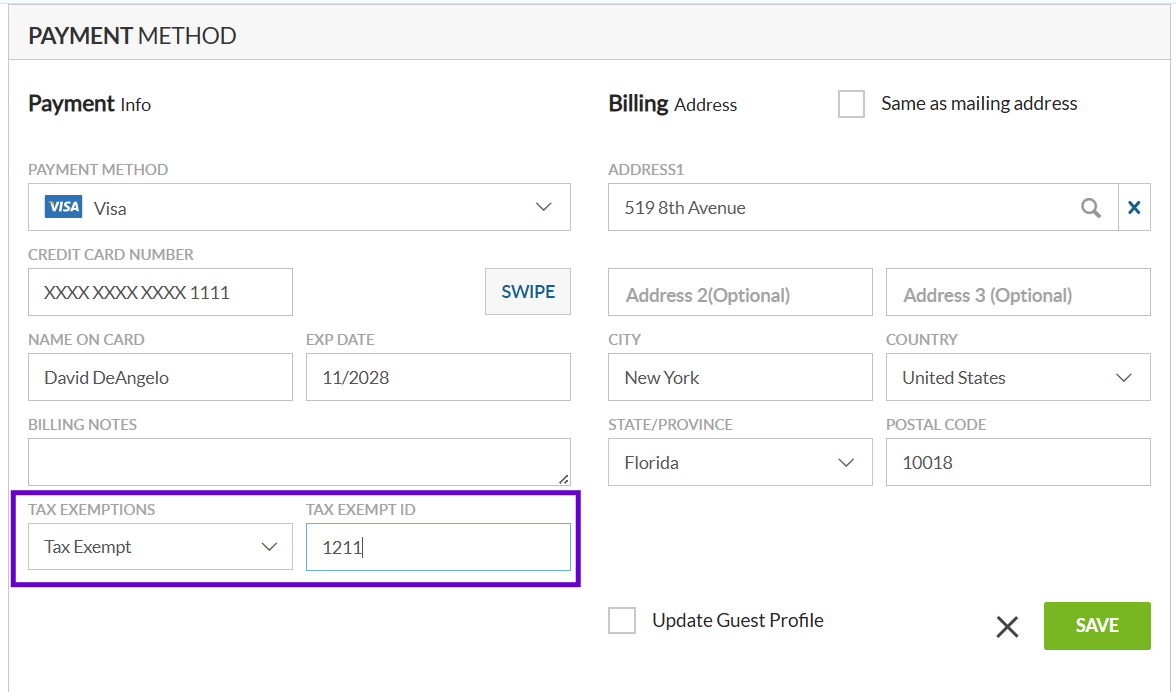
When the changes are saved, innRoad recalculates the reservation and removes any taxes configured with Exclude when Tax Exempt.
The Tax Exempt ID can be used to record an identifier associated with the exemption, such as a military or other qualifying identification number.
Remove Tax Exempt from a Reservation
To remove a manually applied tax exemption, edit the Payment Method, clear Tax Exempt, and click Save.
innRoad recalculates the reservation and adds back any applicable taxes that were previously excluded because the reservation was Tax Exempt.
Long Stay Tax Exemption
Properties can configure innRoad to apply tax exemption to reservations that exceed a specified length of stay.
When a reservation qualifies as a Long Stay, innRoad uses the same Tax Exempt configuration described above. Taxes with Exclude when Tax Exempt enabled are excluded, while other taxes continue to apply.
Configure Long Stay Settings
To configure Long Stay tax exemption:
- Go to Setup > Properties.
- Select the property you want to configure.
- Click Options.
- Under Operations, locate Tax Settings.
- In Reservations longer than, enter the number of nights a reservation must exceed to qualify as a Long Stay.
- Choose when the tax exemption should apply:
- All Nights – Excludes applicable taxes from all nights of a qualifying reservation.
- After Limit Is Met – Applies taxes through the configured number of nights and excludes applicable taxes beginning with the following night.
- Enter the Tax ID, if applicable.
- Click Save.
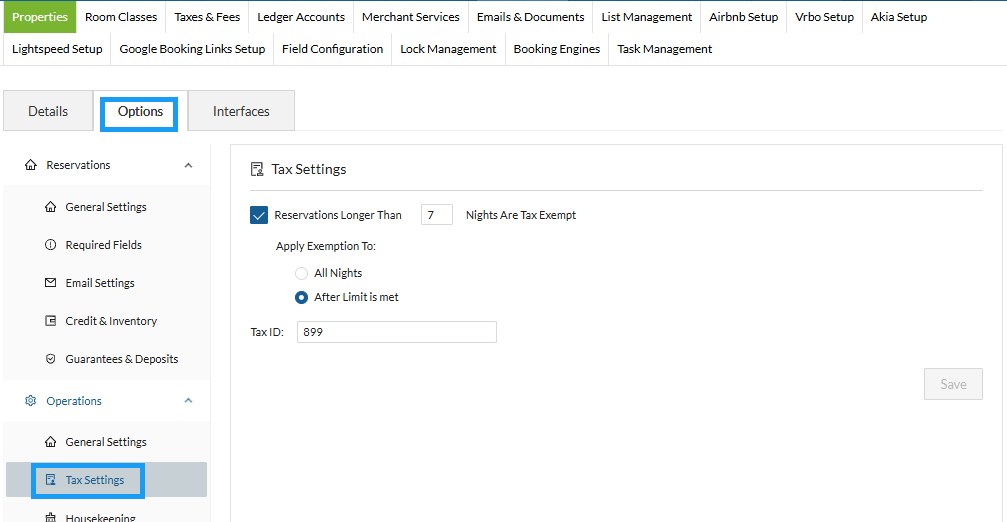
Example: If Reservations longer than is set to 7, a reservation of 8 or more nights qualifies as a Long Stay. If After Limit Is Met is selected, applicable taxes are charged for nights 1–7 and excluded beginning with night 8.
Note: Long Stay uses the Exclude when Tax Exempt setting configured for each tax. Taxes that are not configured to be excluded from Tax Exempt reservations continue to apply.
Long Stay Qualification and Reservation Changes
innRoad evaluates the reservation's length of stay against the property's configured Long Stay threshold.
When a reservation exceeds the configured threshold, it qualifies for Long Stay tax exemption. Applicable taxes are then excluded based on the property's Long Stay settings and each tax's Exclude when Tax Exempt configuration.
Changing the Stay Dates
If the Check-In or Check-Out date of an existing reservation is changed, innRoad reevaluates whether the reservation qualifies as a Long Stay.
If the new stay length meets the Long Stay requirements, innRoad displays a message allowing you to:
- Set Exempt – Apply Tax Exempt status based on the Long Stay settings.
- Proceed Without Tax Exempt – Continue without applying the Long Stay tax exemption.
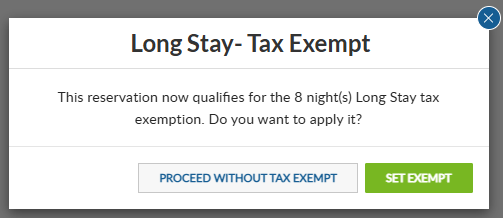
If the new stay length no longer meets the Long Stay requirements, innRoad displays a message allowing you to:
- Proceed Without Tax Exempt – Remove the Long Stay tax exemption.
- Set Exempt Anyway – Keep the reservation Tax Exempt even though it no longer meets the Long Stay threshold.
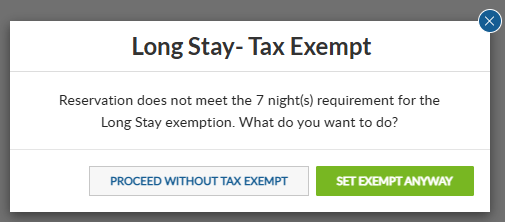
When the Tax Exempt status changes, innRoad recalculates the reservation and adds or removes applicable taxes accordingly.
Identifying Tax Exempt and Long Stay Reservations
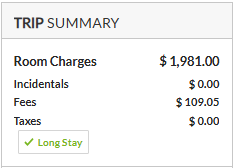
When a reservation is Tax Exempt or qualifies as a Long Stay, the applicable designation is displayed in:
- The Payment Method section of the reservation
- The Trip Summary
This allows you to quickly identify whether tax exemption is being applied to the reservation and whether it was applied as a Tax Exempt or Long Stay reservation.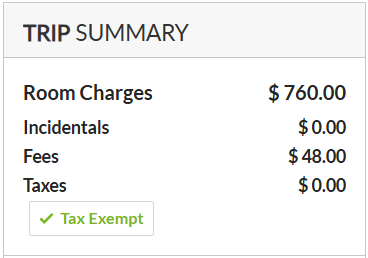
Related Articles
Was this article helpful?
That’s Great!
Thank you for your feedback
Sorry! We couldn't be helpful
Thank you for your feedback
Feedback sent
We appreciate your effort and will try to fix the article