Issuing a Refund for an ACH Payment
ACH payments can be refunded in full or partially. Before initiating a refund, review the key differences from card refunds below.
The most significant differences are timing and how the refund appears to the guest.
Key Differences from Card Refunds
- Refunds must be initiated within 180 days of the original payment date.
- A refund can only be processed after the payment has fully settled. To check whether a payment has settled, look for a status of Succeeded on the transaction — a Pending status means the payment hasn't cleared yet.
- Processing takes a minimum of 3 business days from the date the refund is initiated.
- ACH refunds are processed as a bank credit, not labelled as a "refund" on the guest's statement — they will see a credit referencing the original payment descriptor.
Let the guest know before or immediately after initiating the refund: the credit will take approximately 3 business days to appear in their account and may not be explicitly labelled as a refund on their bank statement.
Refund Timeline
| Timeline | Folio Status | Transaction status |
|---|---|---|
| Day 0: Refund initiated | Pending | Refund is submitted to the ACH network |
| Days 1–3: Processing | Pending | Credit moves through the ACH network |
| Day 3+: Complete | Succeeded | Funds credited to the guest's bank account |
The Day 0 clock starts only after the refund is initiated.
How to Initiate an ACH Refund
ACH refunds can only be issued against ACH transactions.

It is not possible to refund a card payment via the ACH network.
- Log in to innRoad and open the relevant reservation.
- Navigate to the refund screen using one of two options:
- Option A — Reservation Details page: click Refund directly from the reservation.
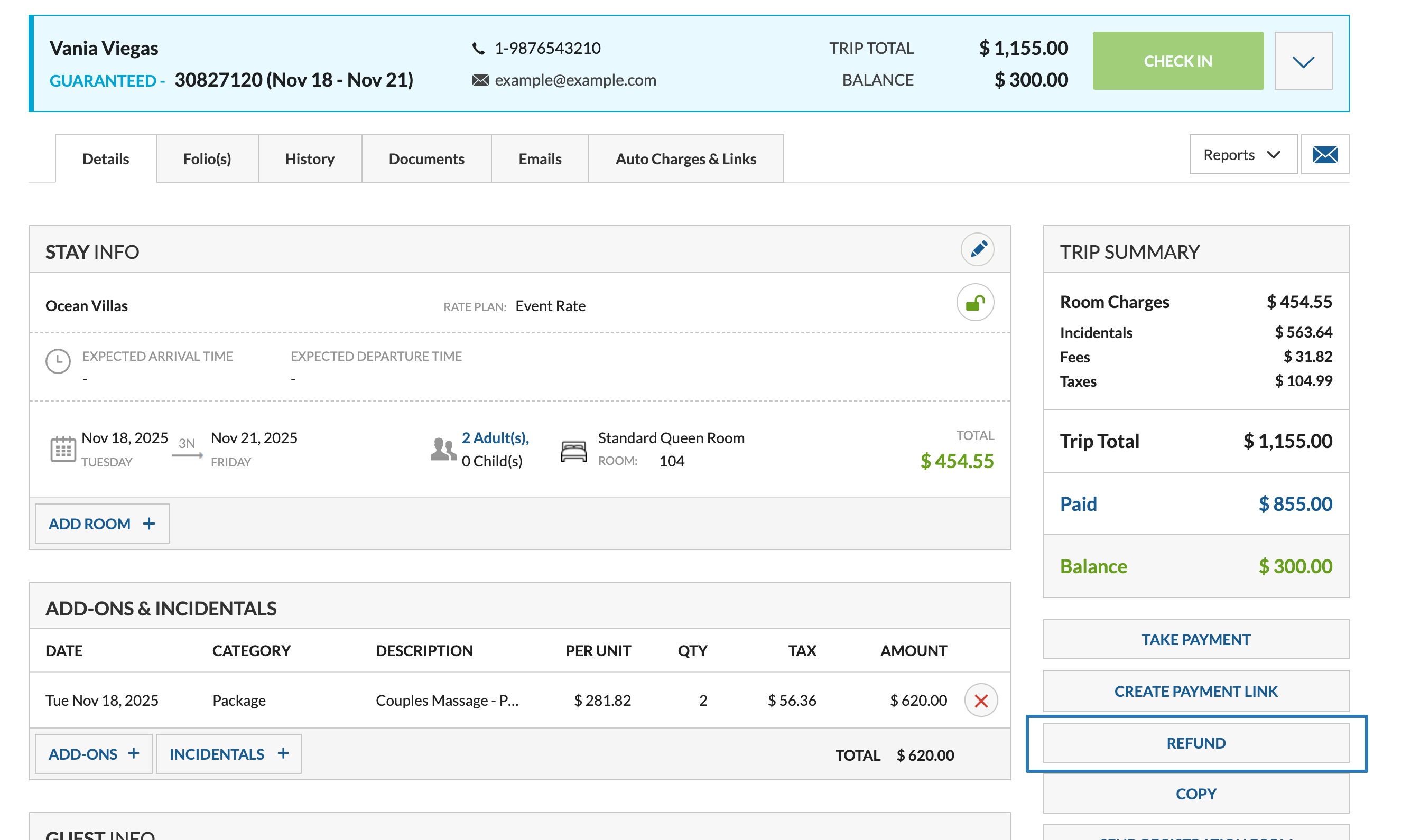
- Option B — Folio: click Folio:
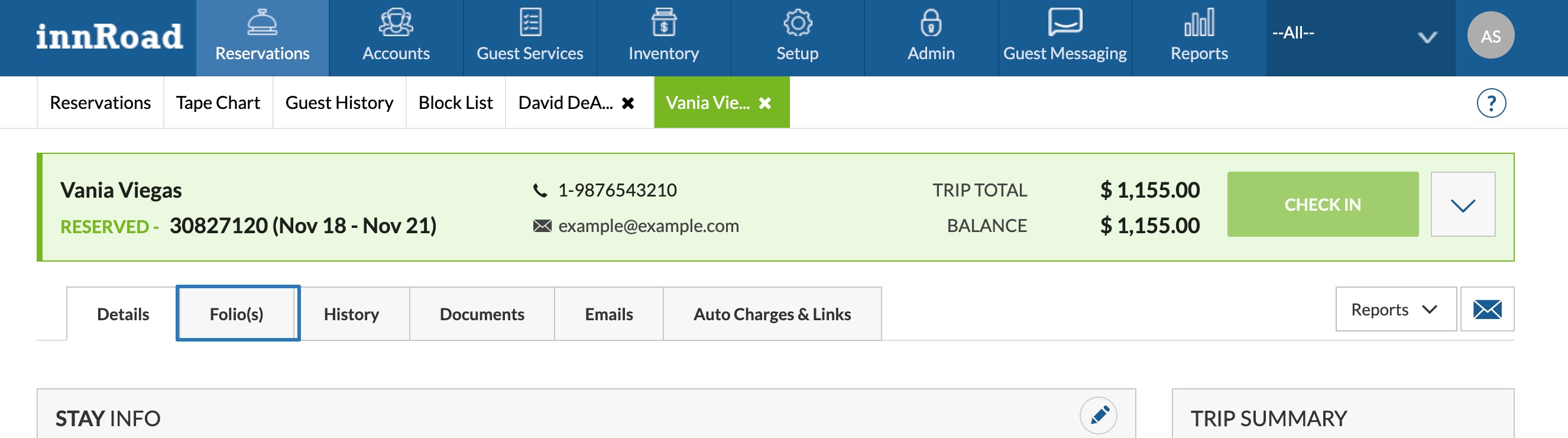
then click Refund: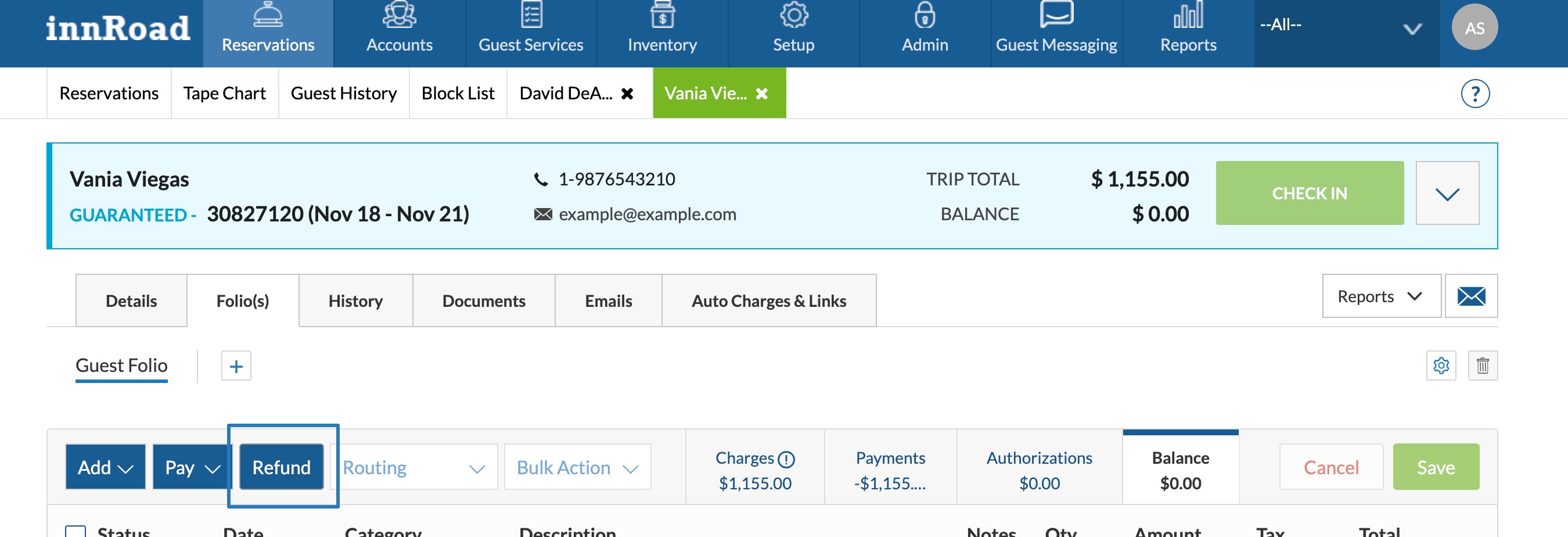
- Option A — Reservation Details page: click Refund directly from the reservation.
- Select the ACH transaction you want to refund from the list.
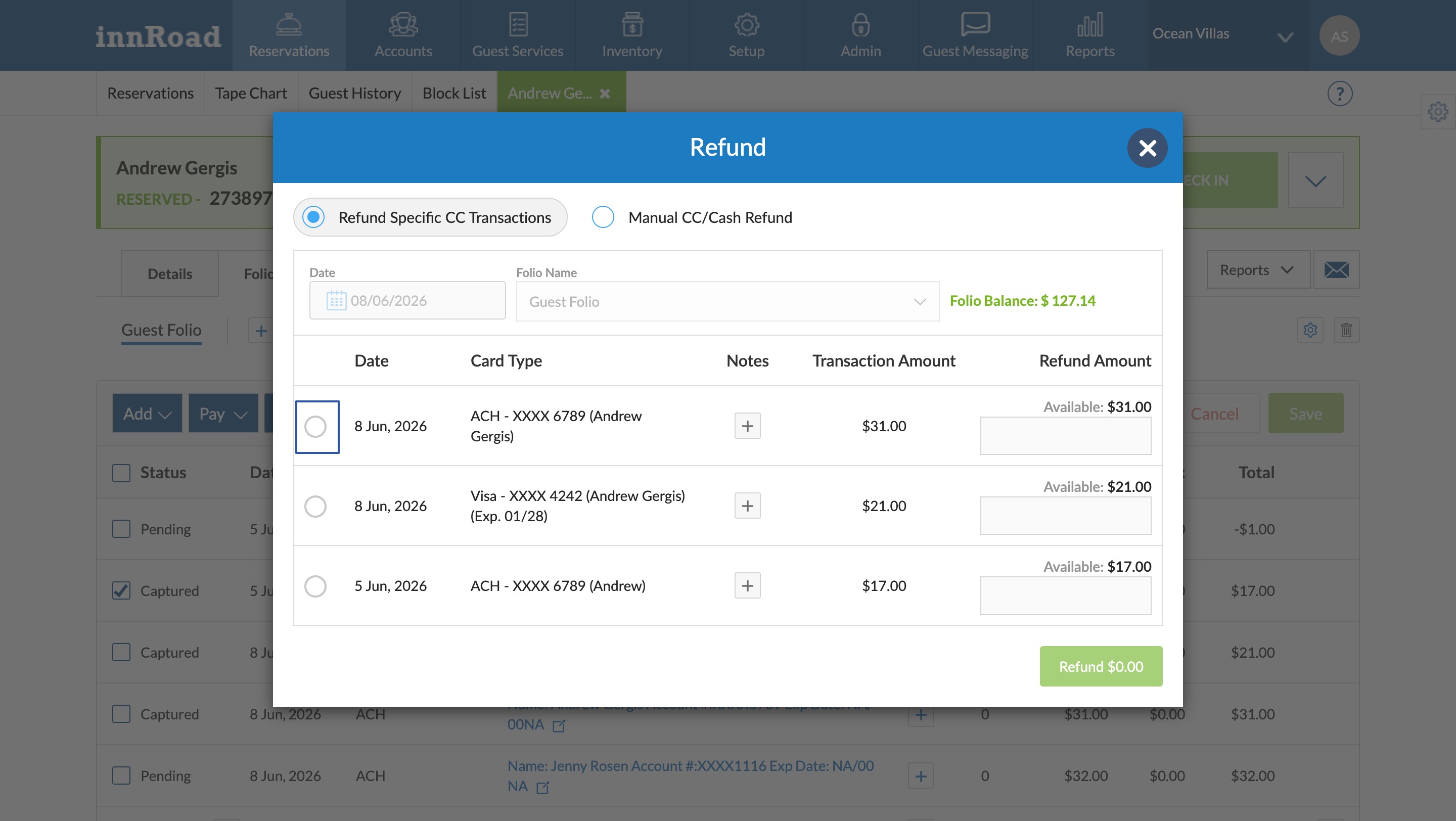
- Review the Amount field. Adjust it if you are processing a partial refund.
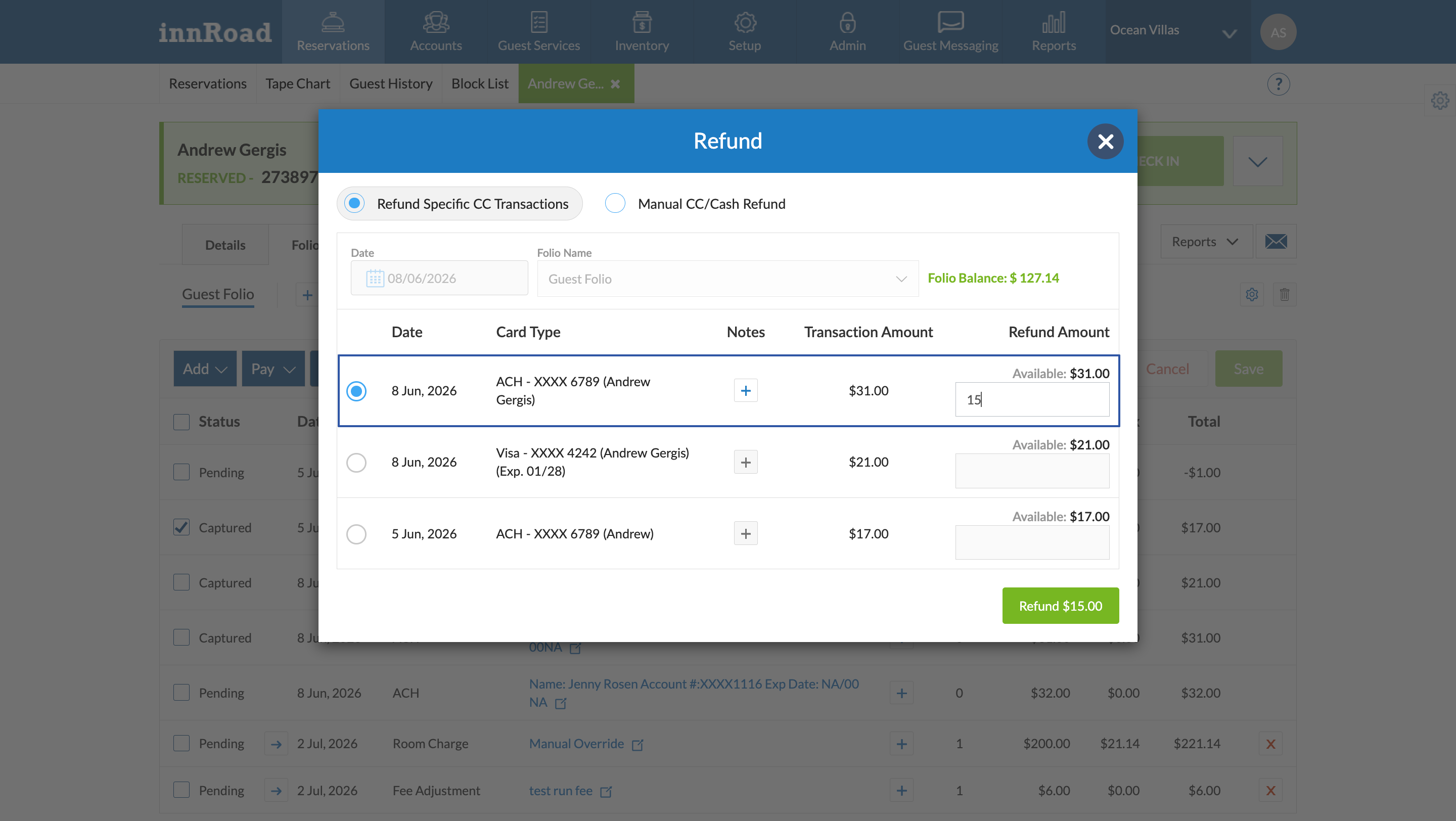
- Click Refund to proceed:
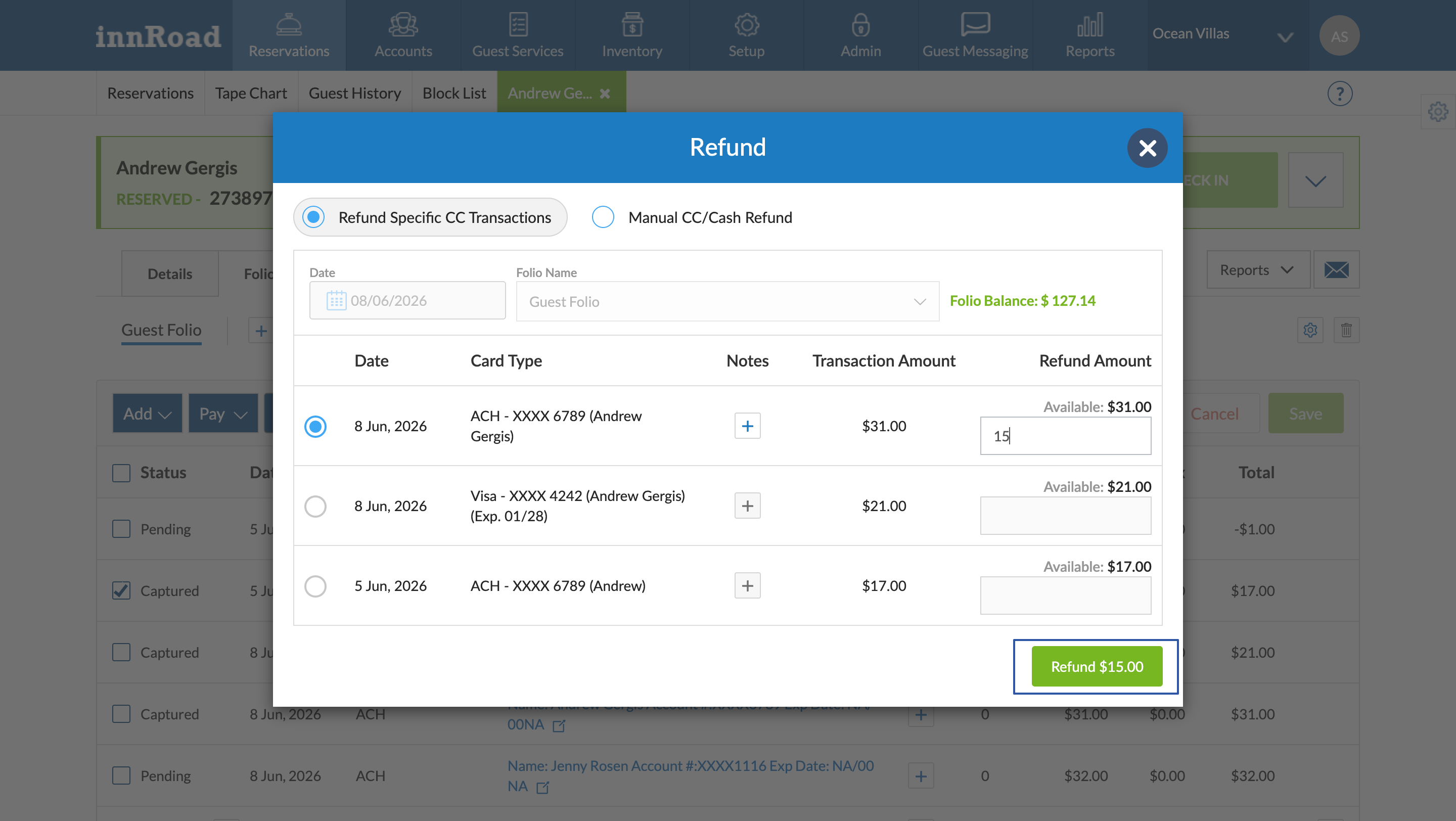
- Click Confirm Refund to finalize.
A confirmation will appear once the refund has been successfully submitted.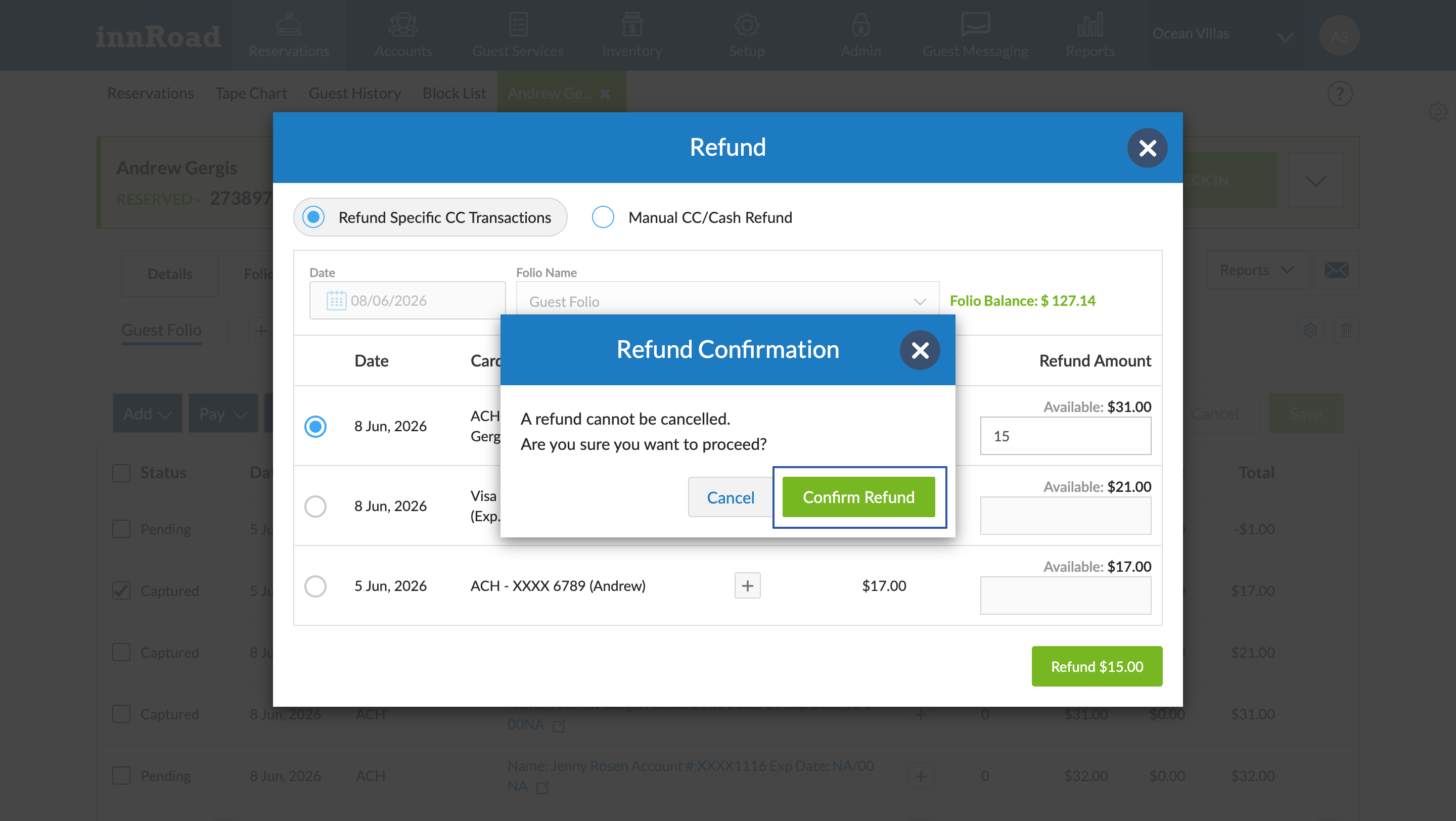
Was this article helpful?
That’s Great!
Thank you for your feedback
Sorry! We couldn't be helpful
Thank you for your feedback
Feedback sent
We appreciate your effort and will try to fix the article