The Transactions Report is an overview of all payment transactions for a selected date range and payment methods.
Running the Transactions Report can help you answer the following questions:
- What is the total amount of transactions processed in a selected period
- How many transactions were successful vs declined, failed, or canceled
- Which refunds, captures, and voids were processed
- What are the daily totals per payment method
- What payment methods contributed the most transaction volume
In other words, the Transactions Report is both a summary and a detailed breakdown of transaction data, organized by payment method, processing time, and transaction status.
The Transactions Report can run for a specific property or for all properties, if you're a multi-property client.
What can I use the Transactions report for
You can run the report to:
- View Transaction Totals By Day
- Analyze Refunds, Captures & Voids
- Filter Transactions by Status
- Break Out Daily Totals per Payment Method
- Sort by Time Processed
- Export Transaction Data to Excel, PDF, or Print
How to configure the Transactions report
There are 3 main steps to run the report:
- Choose a Transaction Date Range
- Select Payment Methods to include
- Customize the Detailed View
We’ll go over each of the steps in more detail below.
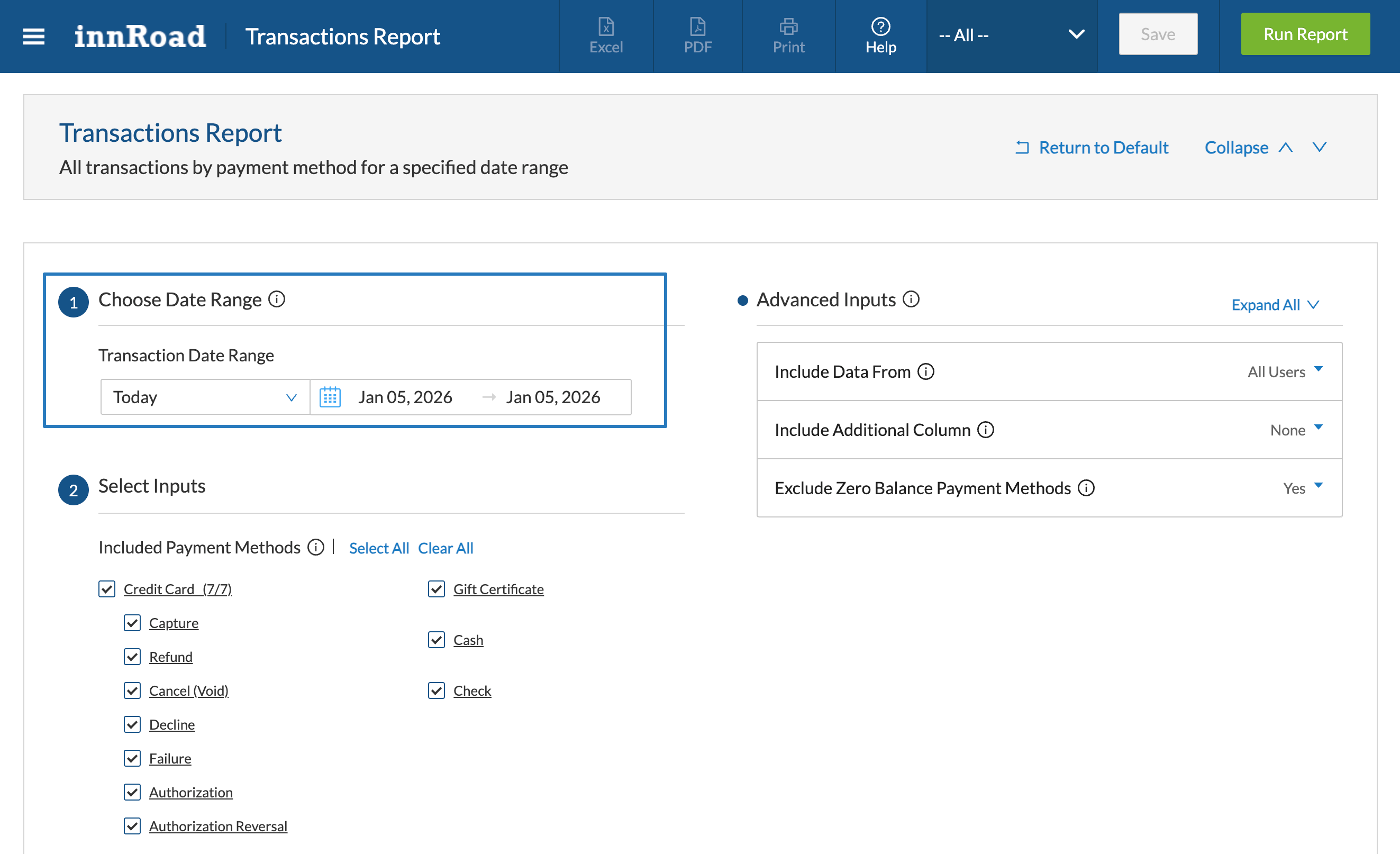
Step 1: Choose Transaction Date Range
Select a predefined date range (e.g., Today, This Month, Last Quarter) or enter a custom date range using the calendar input.
This filters the transactions included in the report based on date range.
Step 2: Select Payment Methods
Choose which payment methods and transaction types to include.
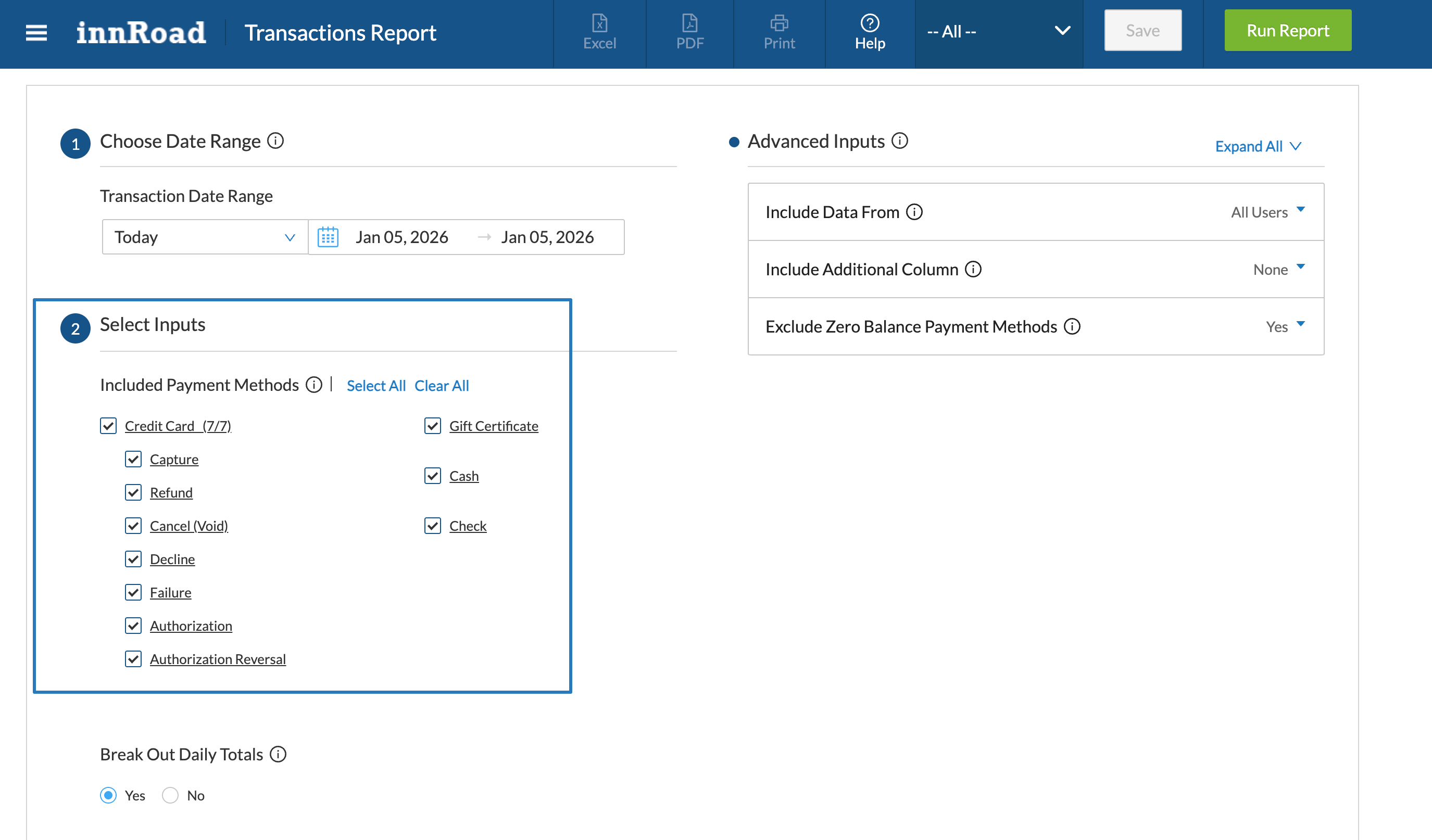
You can filter by:
- Credit Card transaction outcome:
- Capture
- Refund
- Cancel (Void)
- Decline
- Failure
- Authorization
- Authorization Reversal
- Gift Certificate
- Cash
- Check
You can also bulk select by using the following options:
- Select All – includes all listed payment methods
- Clear All – removes all selections to rebuild manually
If you want to understand the daily totals broken down by type, payment method, and card payment outcome, set Break Out Daily Totals to Yes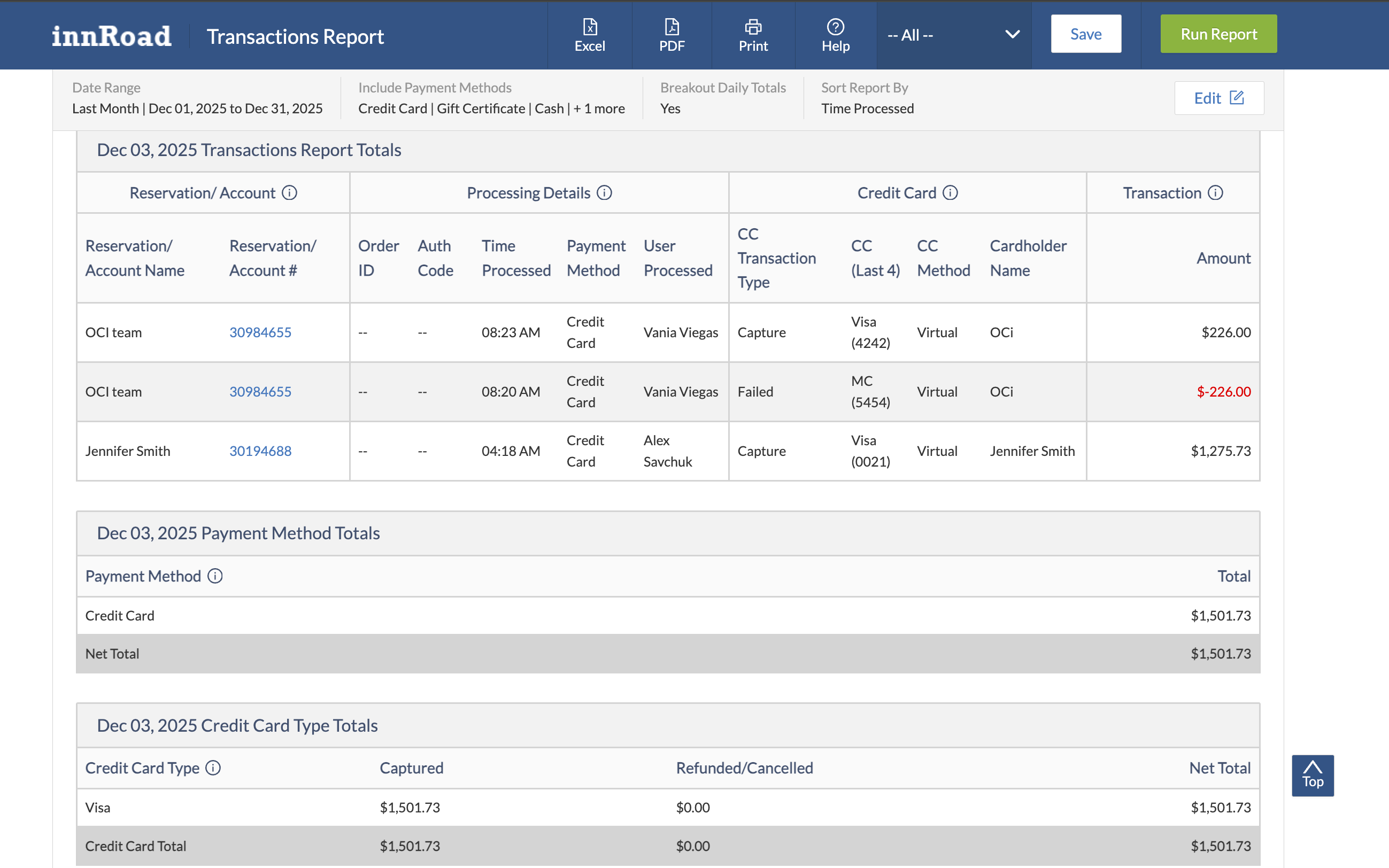
Step 3: Customize Detailed View
Customize how the report orders and organizes transaction data.
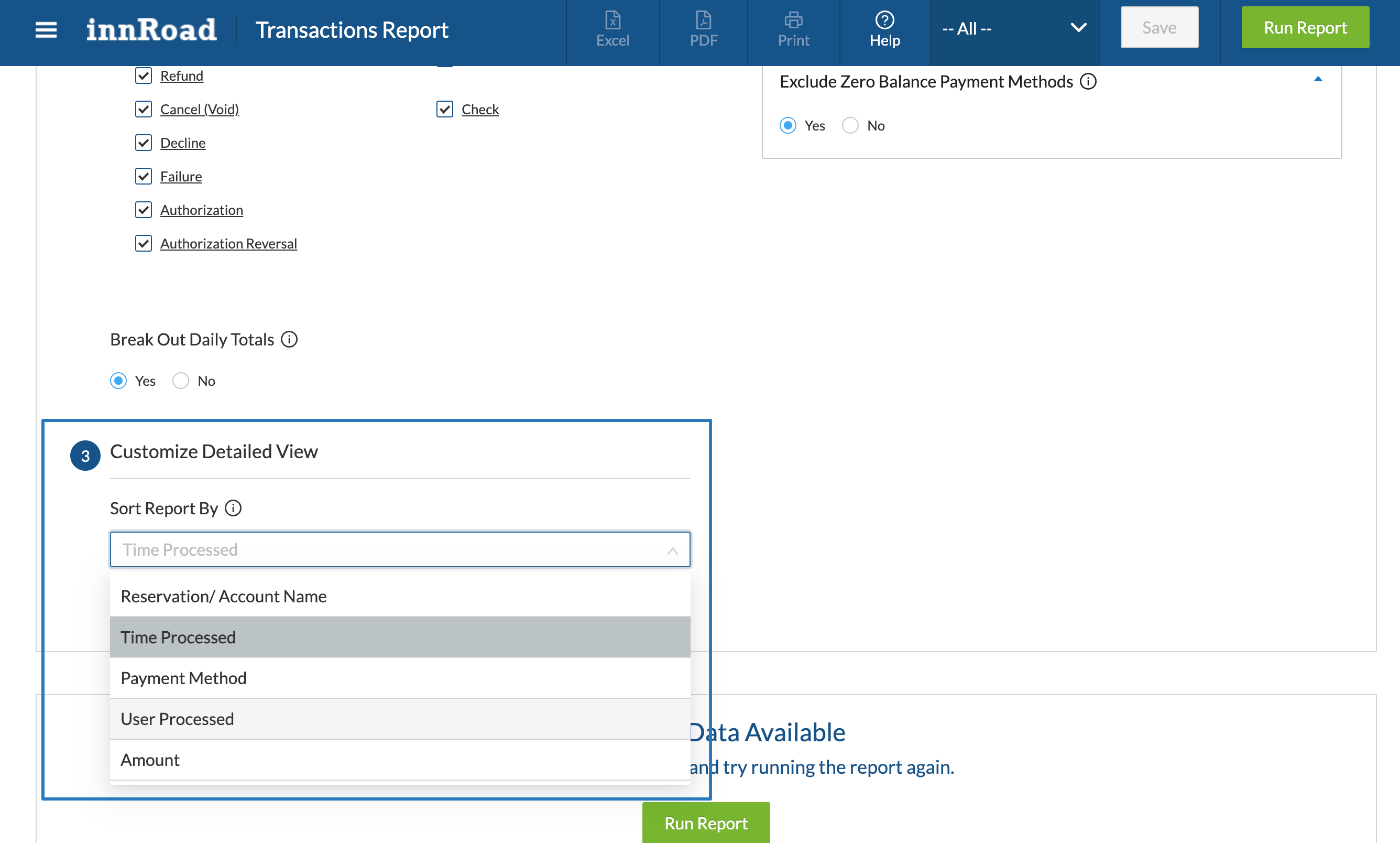
You can sort the report by the following columns, in descending order:
- Reservation/Account Name
- Time Processed
- Payment Method
- User Processed
- Amount
Advanced Inputs
You can also set additional filters by using Advanced Inputs:
- Include Data From: All Users or a Specific User
- Include Additional Columns can show additional info for Cardpayment methods.
- Order ID
- Authorization Code
- Exclude Zero Balance Payment Methods – when set to Yes, hides any methods without transactions in the selected period
Once configured, click Run Report to generate results.
Report Outputs
Report Outputs
Summary View
- Groups totals by day and payment method
- Includes transaction types like captures, refunds, voids, declines, failures, and authorizations
- Displays a grand total for the selected period
- Helps you quickly understand:
- How much money was processed
- Which payment methods were used most
- How many transactions were successful vs refunded, declined, or failed
Detailed View
- Lists every transaction individually
- Shows key details such as:
- Transaction type (capture, refund, void, decline, failure, authorization)
- Payment method or processor
- Transaction amount
- Related reservation or folio reference when available
- Best used for auditing, reconciliation, or investigating specific transactions
Export options include Excel, PDF, Print, or saving the report configuration for reuse.
Use Cases
View Transaction Totals By Day
Goal: See total transaction volume aggregated per day.
- In Step 1, select the date range
- In Step 2, choose payment methods
- Enable Break Out Daily Totals = Yes
- Click Run Report
- Review the Summary View or export to Excel for deeper analysis
Analyze Refunds, Captures & Voids
Goal: Audit refund activity, captured payments, and voided transactions.
- Use Clear All, then include only Capture, Refund, Cancel(Void)
- Sort by Time Processed or group by Transaction
- Click Run Report
- Export to Excel or PDF if needed
Filter Transactions by Status
Goal: View transactions by outcome (e.g., successful, failed, declined).
- In Step 2, include Decline or Failure only if investigating rejected transactions
- Group by Transaction to see line items individually
- Run report and review Detailed View
Break Out Daily Totals per Payment Method
Goal: See how each payment method contributed to daily totals.
- Keep all payment methods selected
- Set Break Out Daily Totals = Yes
- Run report and export to Excel
Export Transaction Data
Goal: Save report results for offline analysis or printing.
- Use Excel for full dataset review
- Use PDF for summary sharing
- Use Print for physical records
Triggering the report: The UI contains a main Run Report button in the top-right and a secondary Run Report button at the bottom of the page, both executing the same report generation action.
Summary: This report is useful for payment auditing, transaction tracking, refund monitoring, daily aggregation, and exporting structured financial transaction data for further analysis.
Was this article helpful?
That’s Great!
Thank you for your feedback
Sorry! We couldn't be helpful
Thank you for your feedback
Feedback sent
We appreciate your effort and will try to fix the article