The New Reservation workflow allows you to create reservations for new or returning guests, collect payment information, add products and services, and either create the reservation or save it as a quote.
Use this article to
- Create a reservation from the Reservation Dashboard
- Book a reservation for a new or returning guest
- Confirm the reservation or save it as a quote
This article covers creating a reservation from the Reservation Dashboard, which is the standard workflow for most reservations.
Other Reservation Workflows
Some reservation types follow specialized workflows and are covered in separate articles.
| Reservation Type | When to Use |
|---|---|
| Multi-Room Reservation | Book multiple rooms under a single confirmation number. |
| Group Block Reservation | Book rooms from an existing group block. |
| Account Reservation | Associate a reservation with a corporate or group account. |
| Tape Chart | Create a reservation directly from the Tape Chart while viewing room availability visually. |
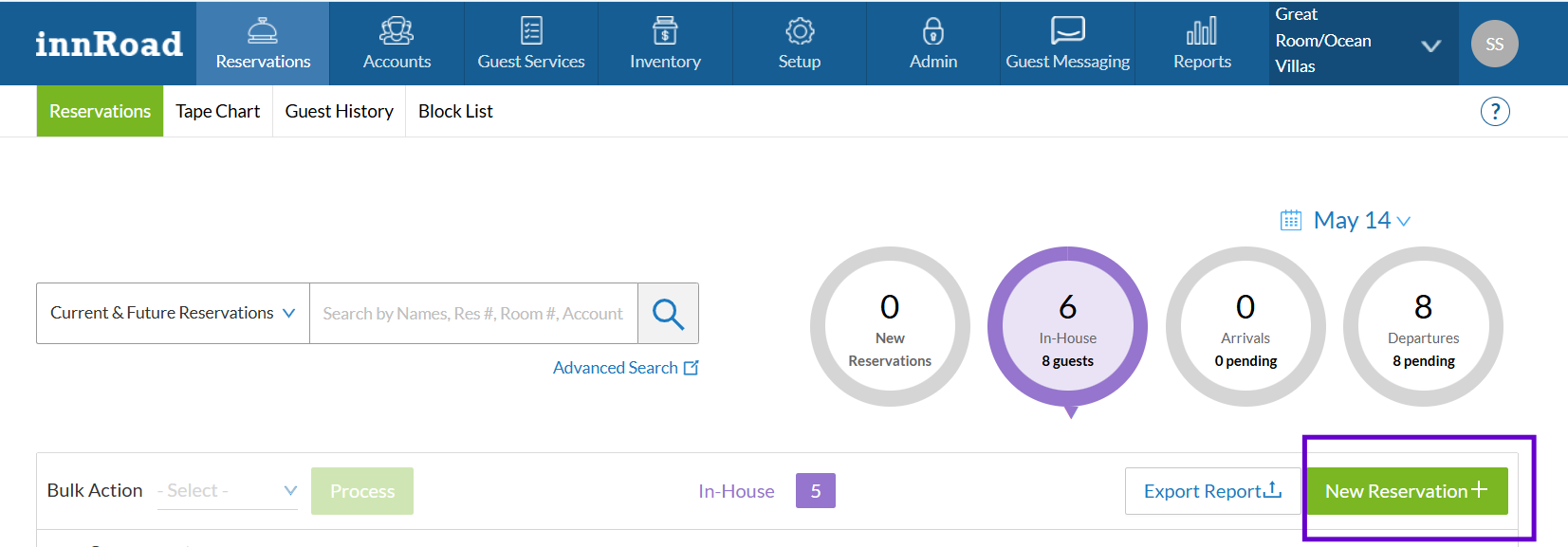
From the Reservation Dashboard, click New Reservation.
Step 1: Search for a Room
Search for available rooms for the guests desired stay dates.
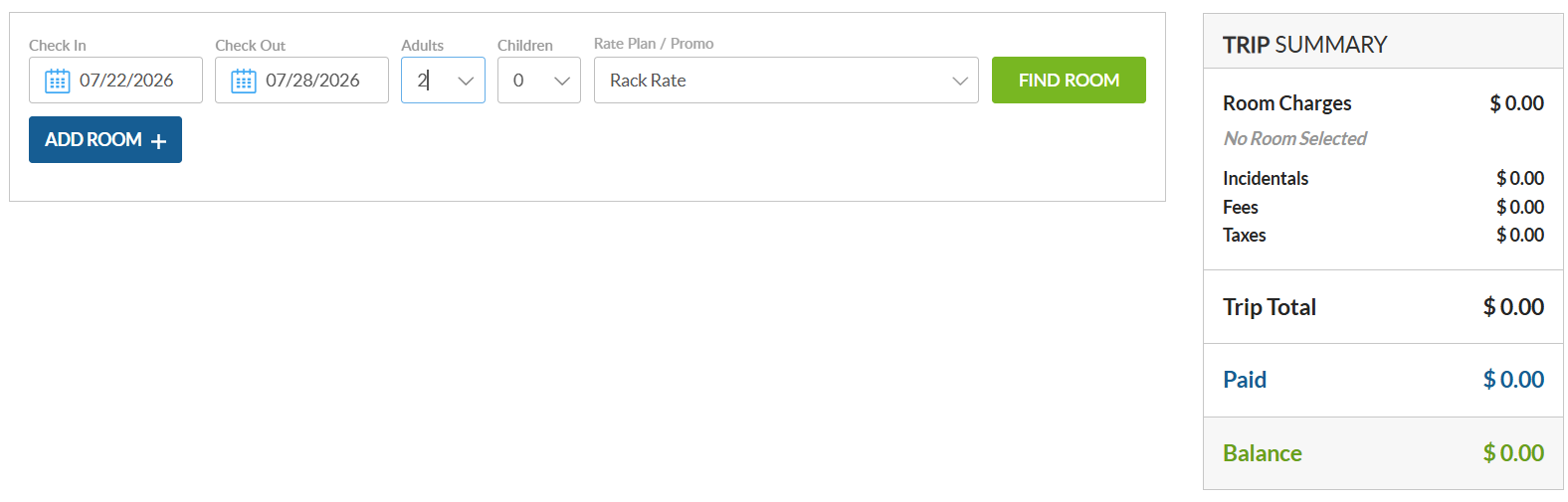
Enter the following information:
- Check-In Date
- Check-Out Date
- Number of Adults
- Number of Children
- Rate Plan
Click Find Room.
Choosing a Rate Plan
The default rate plan is configured in Inventory > Rates Grid. This is typically your property's standard Rack Rate or Nightly Rate.
If needed, select a different rate plan from the Rate Plan drop-down before searching for availability.
| Rate Plan Option | When to Use |
|---|---|
| Standard Rate Plan | Use one of your property's standard rate plans, such as Rack Rate or Nightly Rate. |
| Package Rate Plan | Includes one or more packages or bundled products with the reservation. |
| Discount Rate Plan | Applies a predefined discounted rate, such as AAA, Senior, or Corporate rates. |
| Promo Code Rate Plan | Applies promotional pricing when a valid promo code is entered. |
| Best Available Rate | Automatically selects the lowest available qualifying rate. |
| Manual Override | Enter a one-time custom room rate for this reservation. |
Promo Code Rate Plans
If your property uses promotional rate plans, select Promo Code and enter the applicable promo code before searching for available rooms. Promo Codes are commonly used for promotional offers, corporate discounts, seasonal campaigns, or marketing initiatives.

For information about creating and managing Promo Code rate plans, see Promo Codes.
Using Manual Override
Use Manual Override only when you need to offer a one-time custom rate. If the same pricing will be used repeatedly, consider creating a dedicated rate plan instead. Select Manual Override from the Rate Plan list, then enter the desired room rate in the Rate Amount field before clicking Find Room.

Booking Multiple Rooms
If the guest needs more than one room, select Add Room before searching.
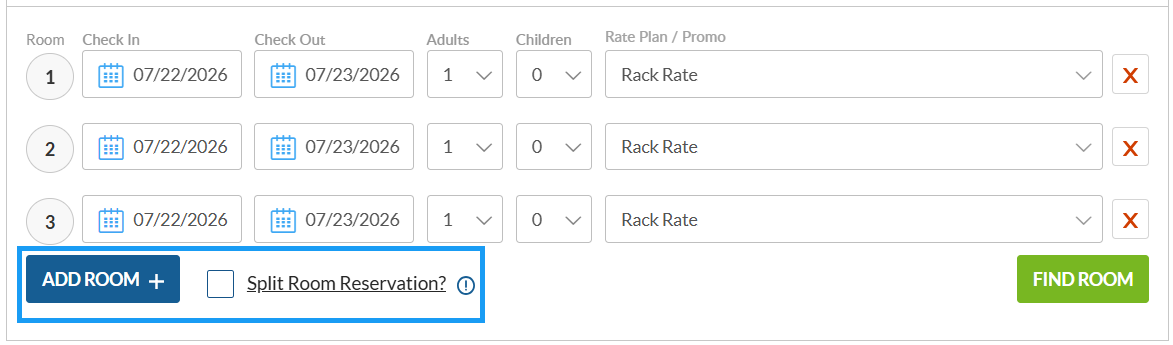
Each room can have:
- A different room type
- Different occupants
- Different stay details (where applicable)
All rooms remain linked under a single reservation and confirmation number.
If a guest is changing rooms during their stay, select Split Room Reservation. This creates a reservation where the guest occupies different rooms for different portions of the stay. innRoad automatically ensures the stay dates for each room are contiguous and do not overlap.
For complete instructions, see Creating a Multi-Room Reservation.
Click Find Room to display available rooms.
Step 2: Select a Room
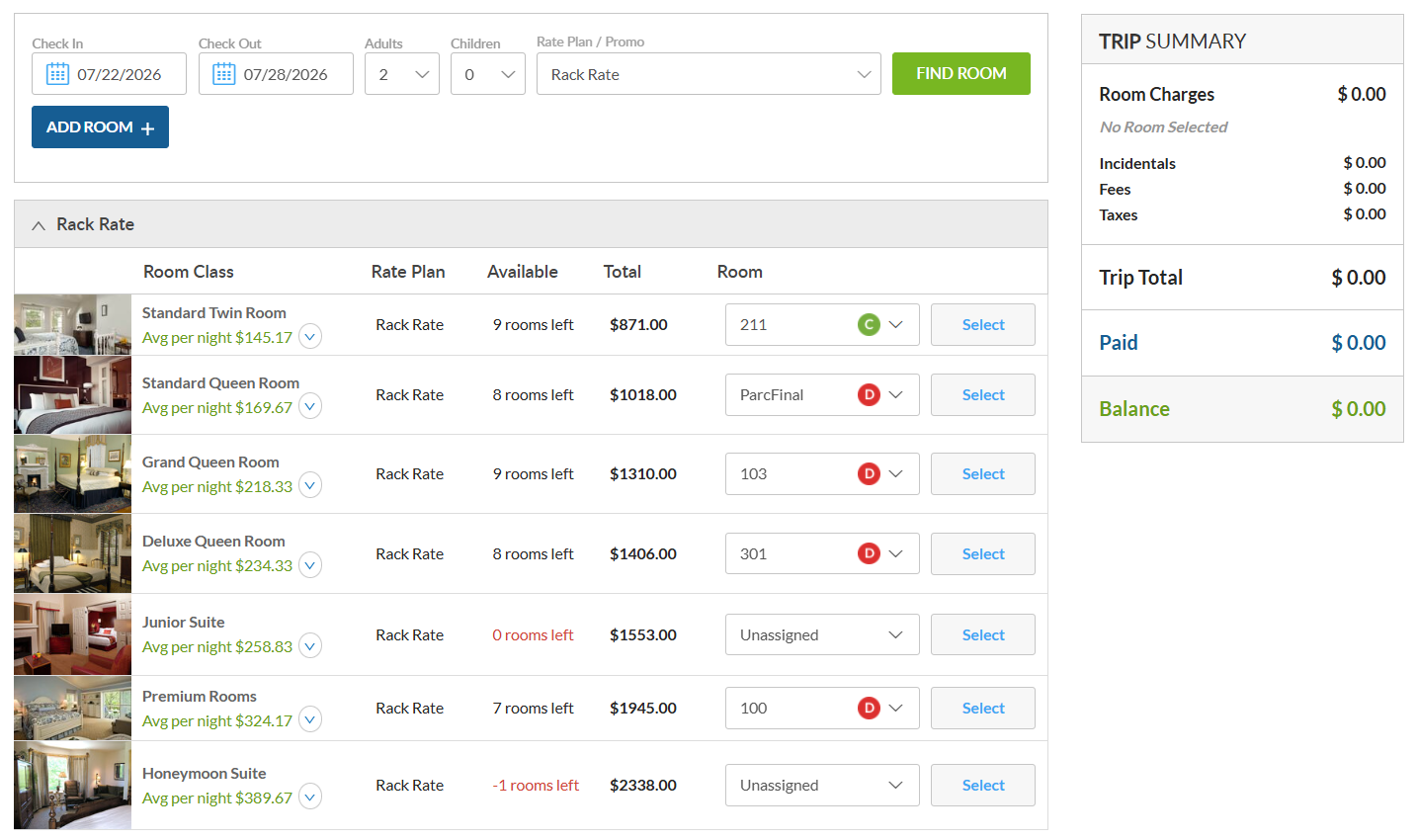
After clicking Find Room, innRoad displays all room classes that match your search criteria. innRoad returns only room classes that can accommodate the number of adults and children entered during the room search.
If no rooms are available on the specified dates, the room class is still displayed. Users with the appropriate permissions can create an overbooking when necessary.
Review the Available Rooms
Each available room displays information to help you choose the best option for your guest.
| Item | Description |
|---|---|
| Room Class | The room category being reserved. Expand the row to view the room class description. |
| Rate Plan | The rate plan that will be applied to the reservation. |
| Available | Displays the number of rooms available in the room class. A value of 0 means no rooms remain. A negative number indicates the room class is already overbooked by that number of rooms for the selected stay dates. |
| Total | Total room charges for the stay, including any packages included in the selected rate plan. Taxes and fees are calculated after a room is selected and are displayed in the Trip Summary. |
| Average Nightly Rate | Average nightly room rate. Expand the row to view nightly pricing. |
| Room Assignment | innRoad automatically selects the next available room. You can choose a different room number or select Unassigned Room to assign the room later. |
| Room Status | Indicates whether the room is Clean or Dirty, which is especially useful for same-day arrivals. |
Room Assignment Options
By default, innRoad selects an available room number for the reservation. If you don't want to assign a specific room yet, select Unassigned Room from the Room drop-down.
Tip: Using Unassigned Room allows you to decide on the room assignment later. Before the guest checks in, be sure to assign a room to avoid operational issues.
Overbooking
Room classes with no remaining availability are still displayed. This enables authorized users to accept reservations even when inventory has been fully allocated. You will receive a warning if you try and overbook a room class to confirm the action before you proceed.
Note: The ability to create an overbooked reservation is controlled by your user permissions.
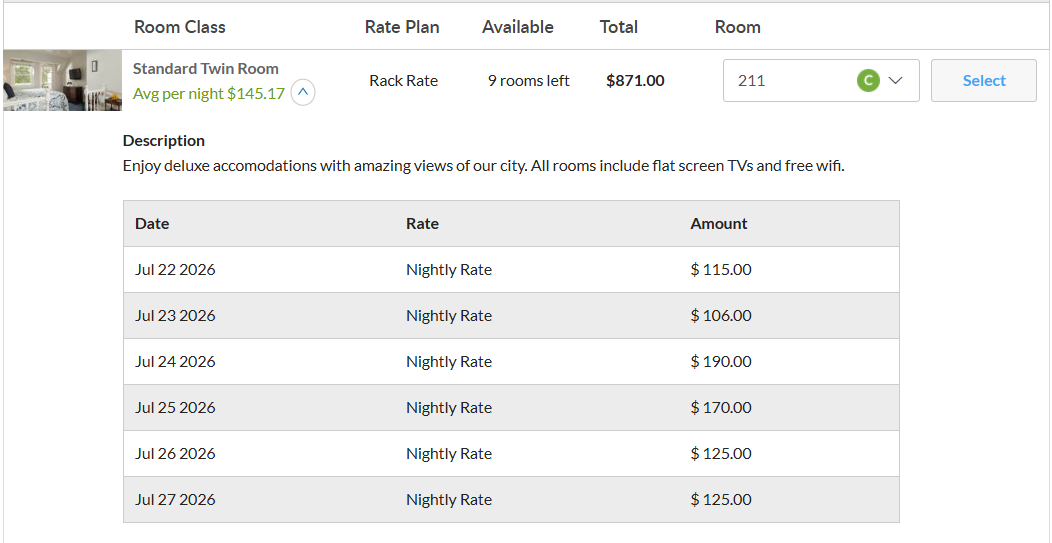
View Room Details
Click a room class to expand it and view:
- Room class description
- Nightly room rate for each stay date
Review the Trip Summary
Click Select to choose a room.
The reservation moves to the next stage and the Trip Summary is updated automatically.
innRoad calculates:
- Room charges
- Applicable taxes
- Fees
- Total stay cost
Review the Trip Summary to verify the reservation details before continuing.
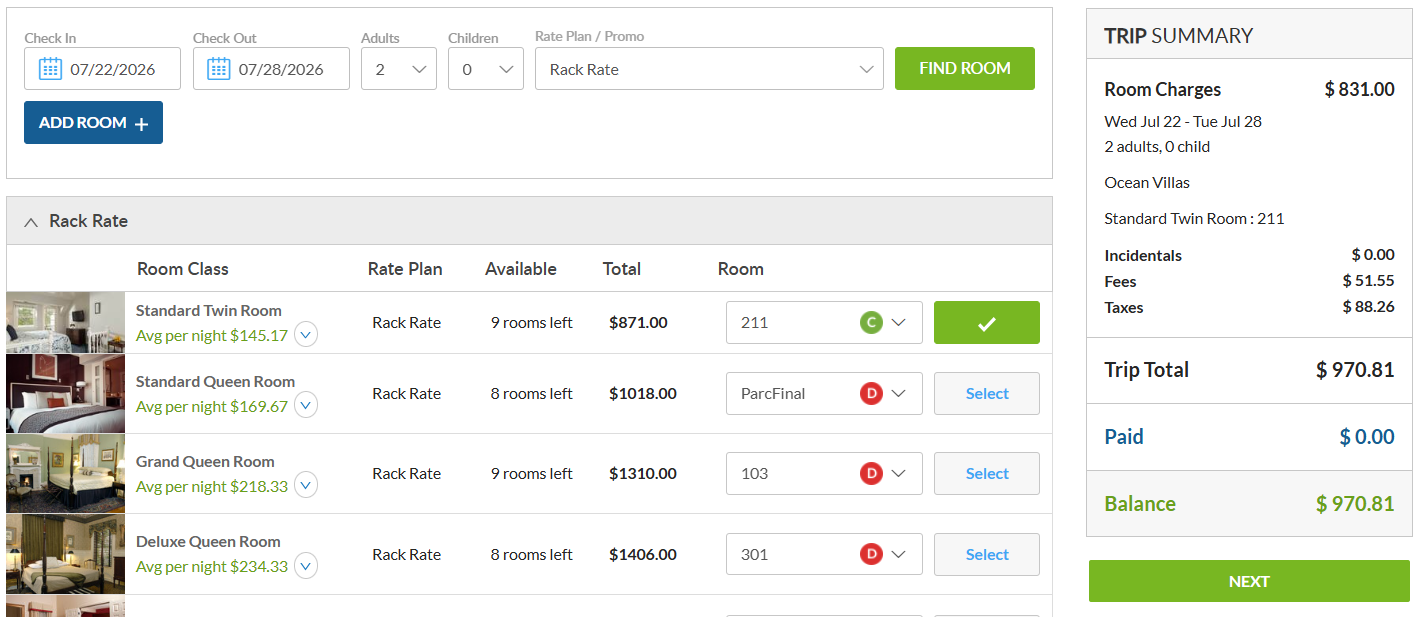
If everything looks correct, click Next to continue to Guest Details.
Step 3: Reservation Status and Guest Information
After selecting a room, select the desired reservation status and enter guest information
Reservation Status
Before entering the guest information, select the Reservation Status.
Available statuses can be defined by each property as they see fit. Here is a summary of how these statuses are often used.
| Status | Description |
|---|---|
| Reserved | A standard reservation. |
| Confirmed | Often used to indicate the guest has confirmed the reservation |
| Guaranteed | Indicates the reservation is guaranteed, typically by collecting a required deposit. If the Deposit is required to save Guaranteed reservation property setting is enabled, a payment method and deposit are required before this status can be selected. |
| On Hold | Indicates the reservation is temporarily being held without committing to a final booking decision. |
Note: Reservation statuses are commonly used differently by each property to support their own operational workflows. With the exception of Guaranteed, changing the status does not change reservation behavior.
Guest Information
You can either:
- Create a new guest profile.
- Select an existing guest profile.
- Add additional guests to the reservation.
- Associate the reservation with an existing account.
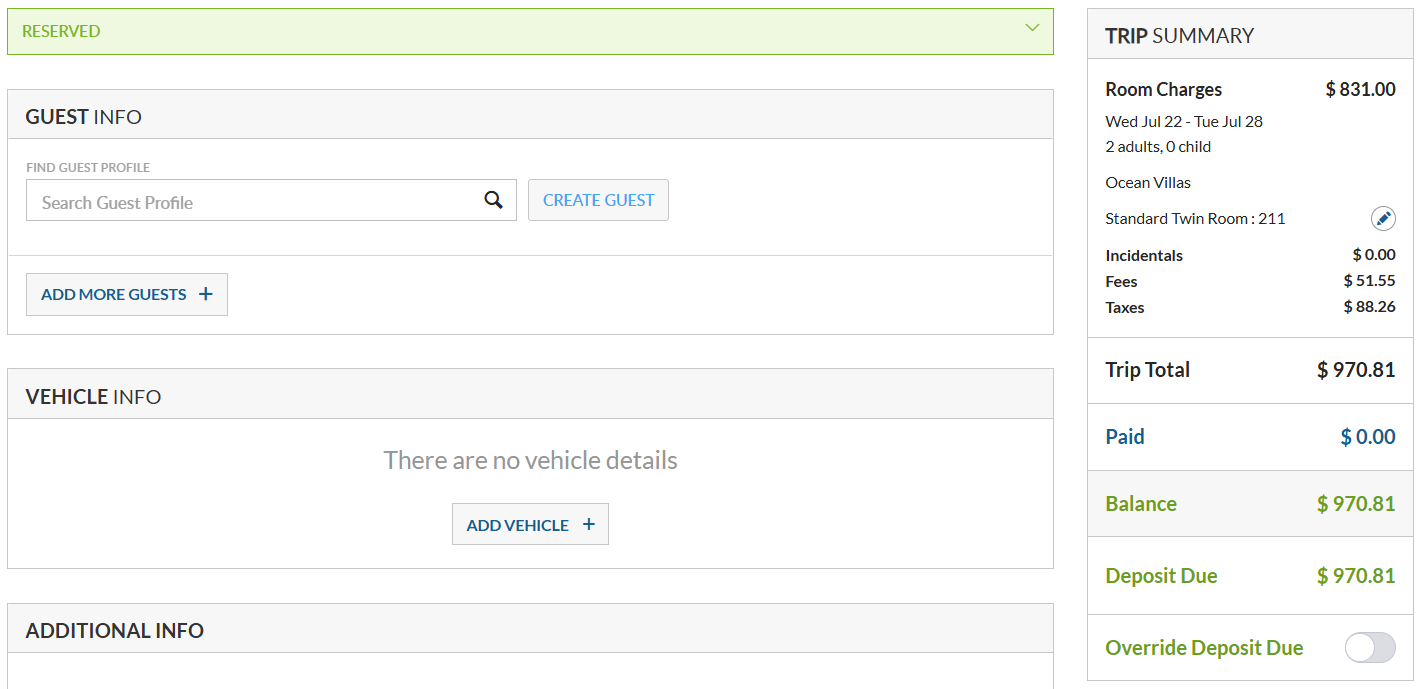
Create a New Guest Profile
If the guest has never stayed at your property before, create a new guest profile. Under Guest Profile, click Create Guest.
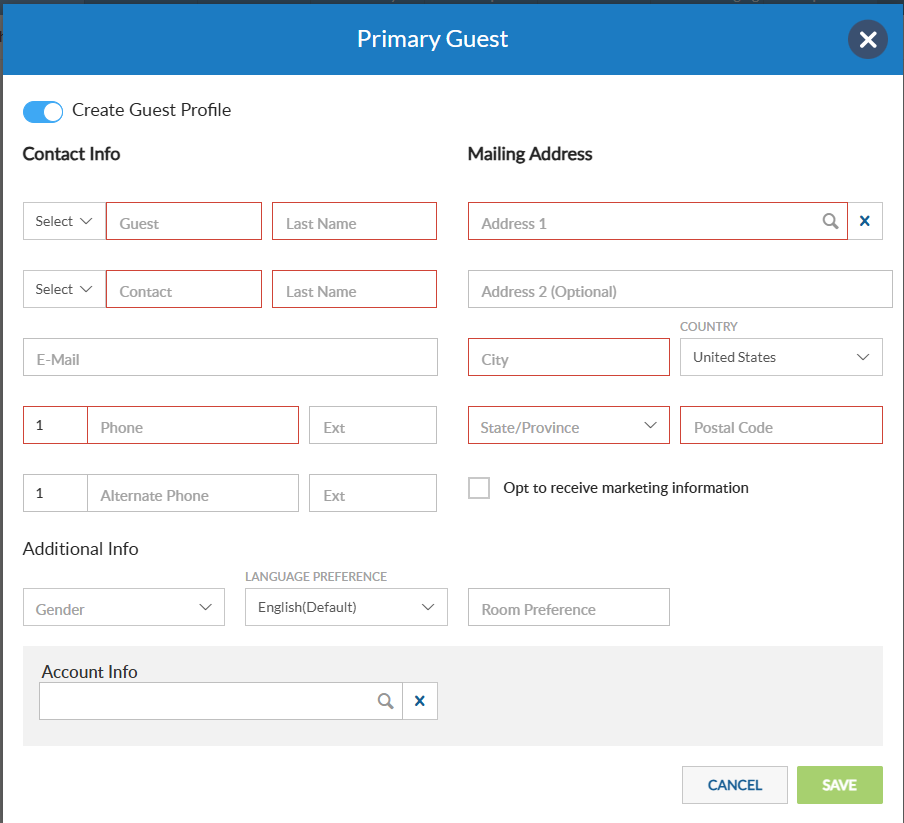
By default, innRoad creates a new Guest Profile when you save the reservation.
Clear Create Guest Profile if you want to save the guest's contact information with the reservation without creating a new Guest Profile.
Note: The fields displayed when creating or editing a Guest Profile depend on your property's configuration. Property administrators can use Setup > Field Configuration to enable or disable standard guest fields and create custom guest fields.
Contact Information
Enter the guest's contact information, including email address and phone number. This information is used for future reservations, guest communications, and reservation-related correspondence.
Note: Automated guest emails are sent only to the primary guest's email address.
Mailing Address
Enter the guest's mailing address.
You can either:
- Search for the address using the Address Lookup tool.
- Enter the address manually.
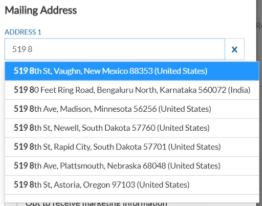
Note: Required and optional guest fields are configured in Setup > Field Configuration. Depending on your property's configuration, some fields shown in this article may not be required.
Select an Existing Guest
If the guest already has a Guest Profile:
- Begin typing the guest's name.
- Select the correct profile from the search results.
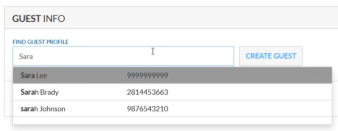
innRoad asks whether you'd like to copy the guest information stored in the guest profile into the reservation
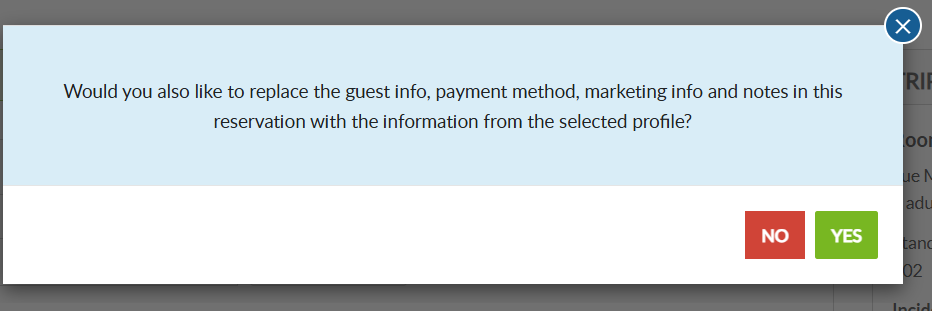
| Option | Result |
|---|---|
| Yes | Updates the reservation using the information stored in the Guest Profile. |
| No | Keeps the information already entered on the reservation. |
Tip: Selecting an existing Guest Profile helps prevent duplicate guest records and preserves the guest's stay history.
By default, changes made to the guest's contact information are also saved to the linked Guest Profile.
Clear Create Guest Profile if you want to keep the reservation linked to the existing Guest Profile without updating the profile. This allows you to use different contact information for a single reservation while preserving the guest's permanent profile.
Example: A returning guest wants reservation confirmations sent to a different email address for this stay. Clear Create Guest Profile to use the alternate email on the reservation without changing the email address stored in the Guest Profile.
Add Additional Guests
If more than one guest will be staying in the room, click Add More Guests to add additional occupants. Additional guests become part of the reservation and can be referenced throughout the guest's stay.
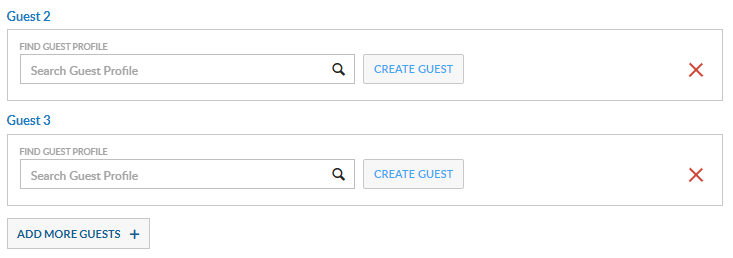
Note: Additional guests are associated with the reservation, while the primary guest remains the main contact for the booking.
Do Not Rent Warnings
If you select a Guest Profile that has been marked as Do Not Rent, innRoad displays a warning to alert staff that the guest has previously been identified as someone who should not be rented to.
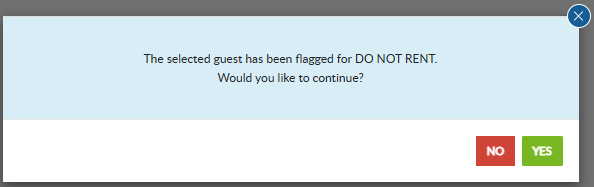
You can still proceed with creating the reservation.
When creating a new guest, innRoad also checks the email address and phone number entered. If either matches a Guest Profile marked as Do Not Rent, a warning is displayed beneath the matching field.
Associate an Account
If the reservation should be billed to or associated with an existing Corporate or Group Account, use the Account Info field to specify the desired account within the Guest Profile window.
This links the reservation to the appropriate account while retaining the individual guest information.

Learn More: Corporate and Group Accounts are covered in a separate article.
Step 4: Vehicle & Additional Information
After entering the guest information, you can optionally record vehicle details and any additional reservation information configured for your property.
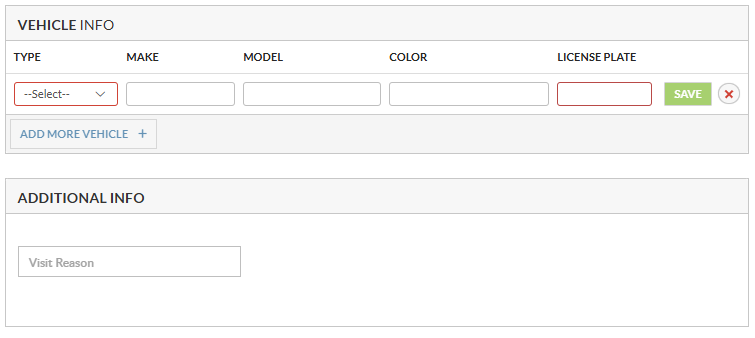
Vehicle Information
If enabled, use the Vehicle Information section to record details about the guest's vehicle, such as the make, model, color, license plate number, and issuing state or province.
Vehicle information is optional and is commonly used by properties that manage on-site parking or need to identify guest vehicles.
Additional Information
If your property has configured Custom Reservation Fields, an Additional Information section appears after the Vehicle Information section.
Use these fields to capture reservation-specific information unique to your property's operational needs.
These fields allow your property to collect reservation-specific information that is unique to your operation.
The fields displayed in this section vary by property. Property administrators can enable standard reservation fields, hide unused sections, and create custom guest and reservation fields in Setup > Field Configuration.
Then click Next to continue to Payment & Billing.
Step 5: Payment & Billing
Use the Payment & Billing step to specify how the reservation will be paid and, if required, collect a deposit.
Most reservations can be created without entering a payment method. However, if your property requires a deposit before a reservation can be guaranteed, a valid payment method must be entered and the required deposit collected.
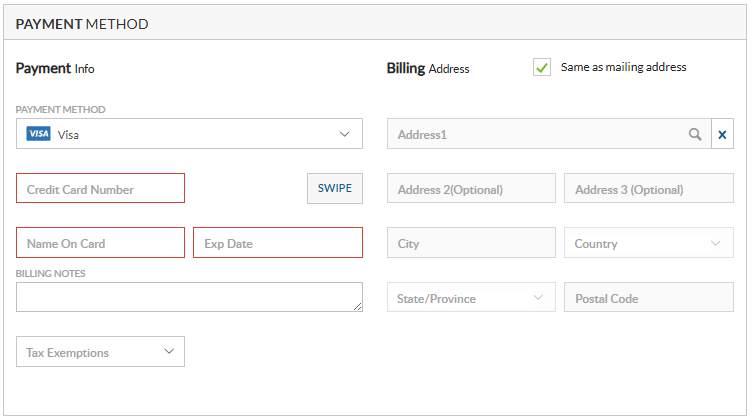
Select a Default Payment Method
Choose the payment method that will be used as the default payment method for the reservation.
Supported payment methods may include:
| Payment Method | When to Use | Additional Information |
|---|---|---|
| Credit Card | Guest pays by credit or debit card. | If electronic payment processing is enabled, innRoad securely processes card transactions. Otherwise, card information and transactions are recorded, but payments are not processed electronically. |
| Cash | Guest pays with cash. | No additional information required. |
| Check | Guest pays by check. | No additional information required. |
| House Account | Charge the reservation to a House Account. | Select the appropriate House Account. |
| Gift Certificate | Guest redeems a gift certificate. | Enter a valid Gift Certificate number. |
| Reservation | Another reservation will pay the charges. | Select the reservation that will be responsible for payment. |
| Corporate Account | Bill charges to a linked Corporate Account. | Available only when the reservation is associated with a Corporate Account. |
| Group Account | Bill charges to a linked Group Account. | Available only when the reservation is associated with a Group Account. |
Note: The payment methods available depend on your property's configuration and whether the reservation is linked to a Corporate or Group Account.
If your property has electronic payment processing enabled, innRoad securely processes credit card transactions. Otherwise, payment information is stored for recordkeeping, but credit cards are not charged automatically.
If electronic payment processing is not configured, card information and payment transactions are recorded in innRoad, but payments are not processed electronically.
Guest Profile Payment Methods
When a reservation is linked to an existing Guest Profile, innRoad asks whether you'd like to copy the Guest Profile information to the reservation.
| Scenario | Result |
|---|---|
| Existing Guest Profile copied | Default payment method is copied to the reservation. |
| New payment method + Create Guest Profile enabled | Payment method is saved to both the reservation and Guest Profile. |
| New payment method + Create Guest Profile disabled | Payment method is saved only with the reservation. |
Guaranteed Reservations & Deposits
If your property enables Deposit is required to save Guaranteed reservation, users must:
- Select a payment method.
- Collect the required deposit.
- Save the reservation with a Guaranteed status.
Otherwise, reservations can be created without a payment method and guaranteed later.
Default Payment Method
The payment method selected during reservation creation becomes the reservation's default payment method.
After the reservation is created, additional payment methods can be assigned to individual folios as needed.
Learn More: Managing multiple payment methods is covered in the Folio Overview article.
Tax Exemption
If the reservation qualifies for tax exemption, you can remove applicable taxes before creating the reservation.
To mark a reservation as tax exempt:
- Select Tax Exempt.
- Enter the Tax Exempt ID.
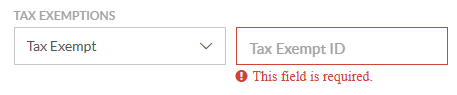
innRoad removes applicable taxes from the reservation based on your property's tax configuration.
Learn More: Tax Exemptions
Step 6: Marketing Details
Use the Marketing Details section to record how the guest found your property and any marketing information associated with the reservation.
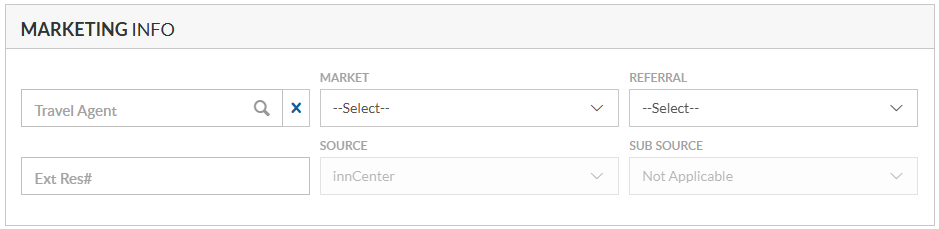
This information helps your property measure marketing performance and understand where reservations originate.
| Field | Description |
|---|---|
| Source | Identifies how the reservation was generated (for example, Website, Phone, Walk-In, OTA, or Referral). |
| Market Segment | Categorizes the guest for reporting purposes, such as Corporate, Leisure, or Group. |
| Referral | Records who referred the guest, if applicable. |
| Travel Agent | Associates the reservation with a travel agent. |
| IATA Number | Records the travel agent's IATA number when applicable. |
Step 7: Add-ons & Incidentals
Use this step to add products and services to the reservation before the guest arrives.
Examples include:
- Breakfast packages
- Parking
- Pet fees
- Resort fees (if configured as add-ons)
- Equipment rentals
- Other property-specific services
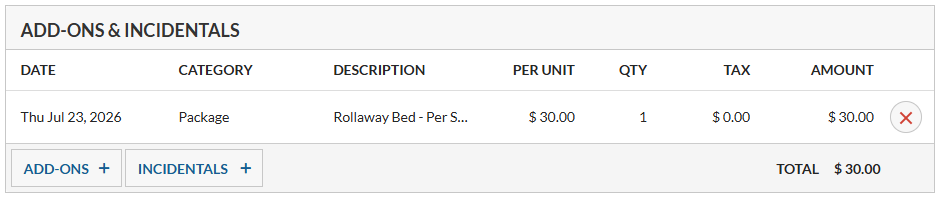
Click Add Add-on or Add Incidental, select the appropriate item, and specify the quantity when applicable.
Step 8: Tasks
Create tasks to remind staff of actions that should be completed before, during, or after the guest's stay.
Examples include:
- Arrange airport transportation.
- Prepare a crib or rollaway bed.
- Deliver welcome amenities.
- Contact the guest before arrival.
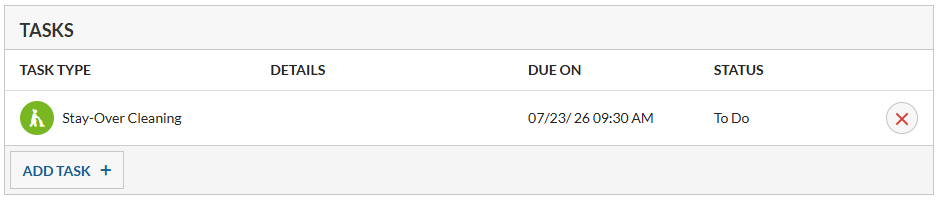
Tasks remain associated with the reservation until they are completed or removed
Step 9: Notes
Add notes to record important information about the reservation.
Examples include:
- Special requests
- Arrival instructions
- Accessibility requirements
- Internal staff communication
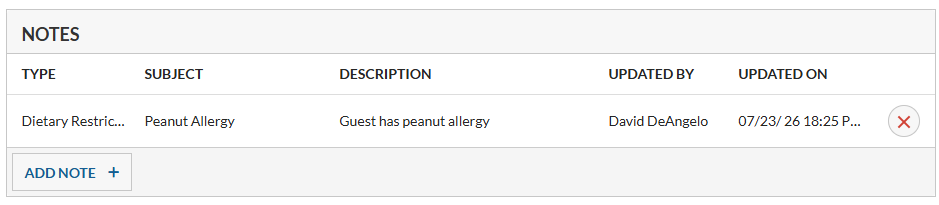
Reservation notes are available throughout the guest lifecycle and can also be viewed from the Notes Report.
Step 10: Review Trip Summary
Before creating the reservation, review the Trip Summary to verify all reservation details.
The Trip Summary displays:
- Room charges
- Package charges
- Taxes
- Fees
- Deposits
- Total reservation cost
Unlike the room search results, the Trip Summary includes the complete cost of the reservation, including applicable taxes and fees.
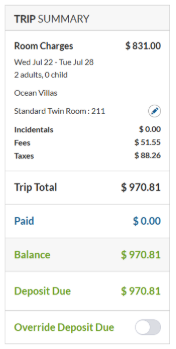
Review the reservation carefully before continuing.
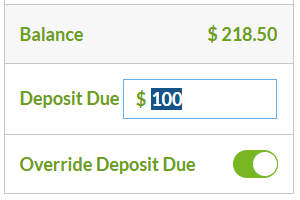
Deposit Override
If necessary, you can override the calculated deposit amount before saving the reservation.
Book the Reservation
After reviewing the reservation, choose one of the following options:
| Option | Description |
|---|---|
| Book Now | Creates the reservation immediately. |
| Save Quote | Saves the reservation as a quote that can be converted into a reservation later. |
Note: Quotes do not reserve inventory until they are converted into reservations.
Confirmation Emails
When a reservation is created, innRoad can automatically send a confirmation email to the guest.
Note: Confirmation emails are sent only if a confirmation email template is configured for the selected Reservation Status.
Related Articles
- Multi-Room Reservations
- Reservation Statuses
- Quotes
- Folio Overview
- Guest Profiles
- Group Reservations
- Corporate Accounts
- Reservation Dashboard
Was this article helpful?
That’s Great!
Thank you for your feedback
Sorry! We couldn't be helpful
Thank you for your feedback
Feedback sent
We appreciate your effort and will try to fix the article