The Night Audit's Folio table includes an Export button. This option lets you download a structured file of the transactions in your current view.
Use it to keep a record of transactions in a given state and period, so you can trace back any changes if something needs to be reviewed after the audit.
Export is available on both the Night Audit Folio step and the View Date screen. You can choose file format from CSV or Excel (.xlsx), and the export always reflects the tab and filters currently applied to the table.
Exporting folio transactions
Before exporting, use the tabs and column sort to narrow the table to what you want in the file. The export takes exactly what you see on screen.
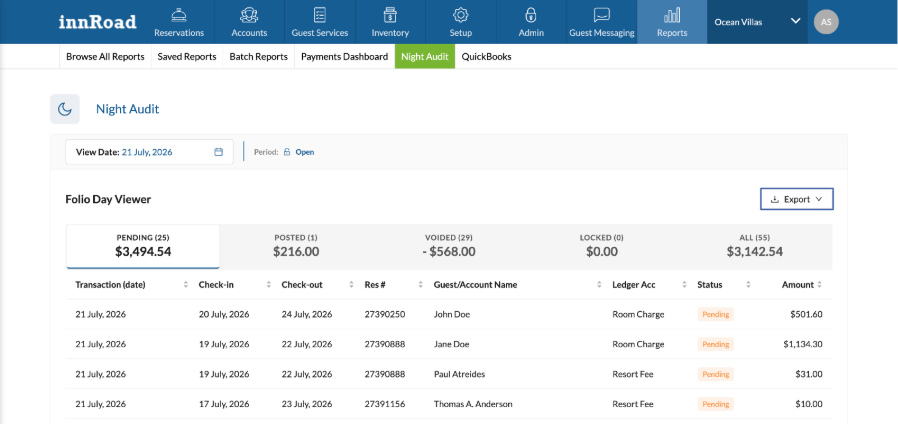
- Open the Folio Table from Reports > Night Audit or from the View Date screen.
- Select the tab you want to export: Pending, Posted, Voided, Locked, or All.
- Click Export above the table.
- Choose the file type from the dropdown:
- CSV: plain comma-separated values, best for importing into other systems.
- Excel (.xlsx): best for reviewing or annotating in Excel or Google Sheets.
The export contains the current view.

If you're on the Pending tab, only Pending items for the selected period are exported. To export everything for the period, switch to the All tab before clicking Export.
What's in the export
Each row in the file represents one folio transaction.
Columns are:
- Transaction Date
- Check-in Date
- Check-out Date
- Reservation Number
- Guest Name
- Ledger Account
- Status
- Amount (includes currency symbol)
File name
Exported files follow this pattern:
Folio_Export_{Status}_{DateRange}_{Timestamp}.csv or .xlsx
Status matches the tab you exported from, and DateRange matches the period shown on screen.
Date and currency format
Dates in the file follow the Date Format set for your property under Admin > Client Info > Settings:
- USA: MMM DD, YYYY (July 29, 2026)
- International: DD MMM, YYYY (26 July, 2026)
The Amount column includes the currency symbol configured for your property.
Large exports
If your current view has more than 500 rows, the file is generated in the background instead of downloading immediately.
When it's ready, you'll receive a link to download it, so you can keep working while the file is prepared.
When Export is unavailable
If there are no rows in the current view, the Export button is disabled. Hovering over it shows the tooltip:
“No folio items to export”.
Adjust the tab, date, or filters to bring rows into view, and the button becomes available again.
Was this article helpful?
That’s Great!
Thank you for your feedback
Sorry! We couldn't be helpful
Thank you for your feedback
Feedback sent
We appreciate your effort and will try to fix the article