Viewing a Date in Night Audit lets you view folio items for any past date in a read-only screen, separate from the Night Audit flow. No audit locks are affected and no items can be changed.
How to open the Viewer
- Click Reports, go to Night Audit.
- Find the Folio Day Viewer card.
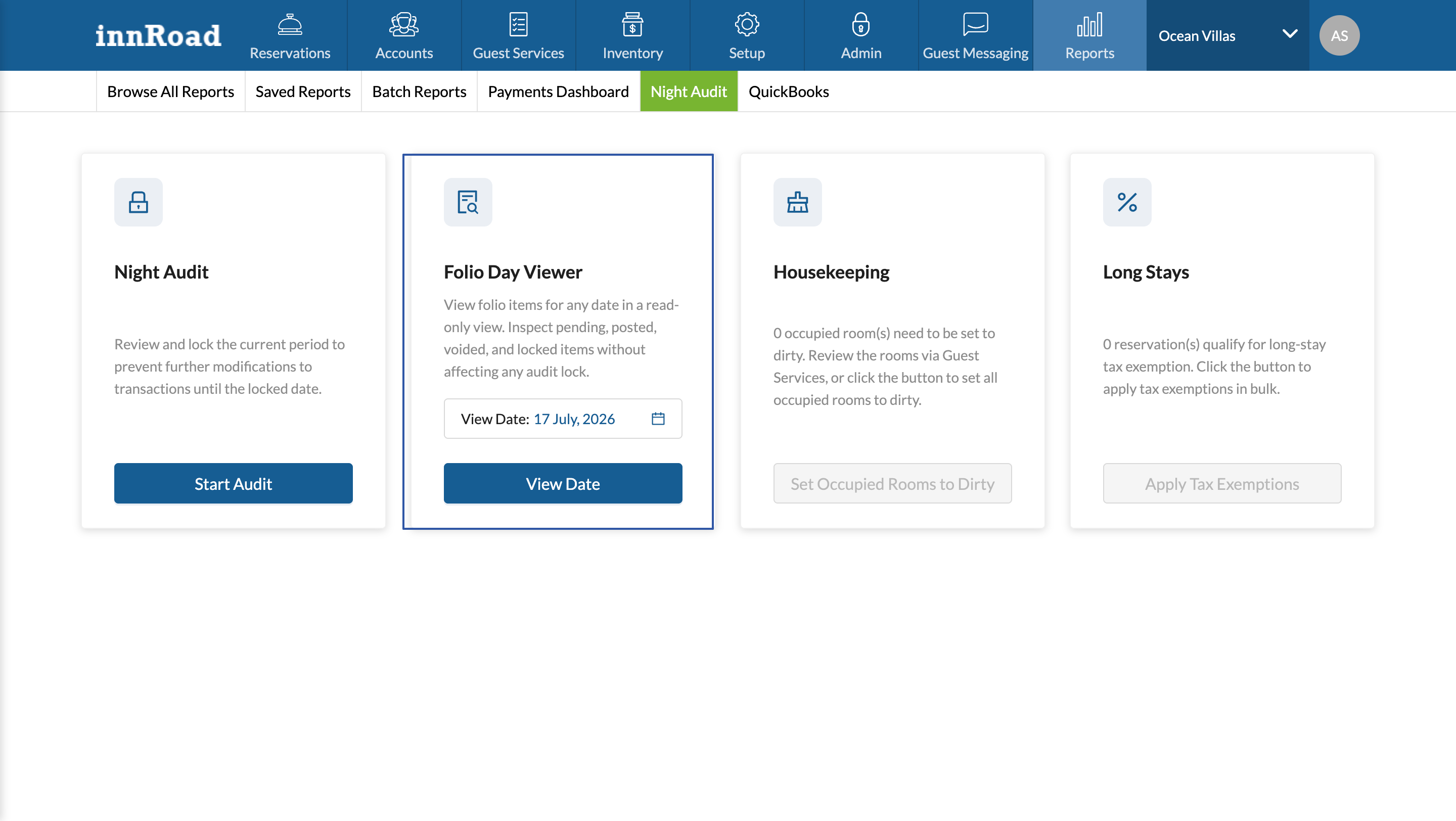
- Select a date and click View Date.
Date selection
- Any past date up to and including today can be selected.
- Future dates cannot be selected.
Tabs
| Tab | Items |
|---|---|
| Pending | Items in pending state for the selected date. |
| Posted | Items in posted state for the selected date. |
| Voided | Items in voided state for the selected date. |
| Locked | Items in a locked state for the selected date. |
| All | All items for the selected date (Pending, Posted, Voided, Locked). Modified items are not added, to avoid double-counting. |
Was this article helpful?
That’s Great!
Thank you for your feedback
Sorry! We couldn't be helpful
Thank you for your feedback
Feedback sent
We appreciate your effort and will try to fix the article